

From my experience with EaseUS Fixo, I found it excels at simplifying Windows system maintenance for users without technical expertise. The automated repair and cleanup features make it easy to improve PC stability and speed without manual troubleshooting. However, it’s important to note that while it handles common errors well, it may not resolve deeper system or hardware issues. Overall, if you need a straightforward tool to fix typical Windows errors and optimize your PC, EaseUS Fixo delivers practical and accessible results.
EaseUS Fixo Repair Tool for Windows System Errors and PC Optimization
EaseUS Fixo is a Windows system repair and optimization tool that automatically detects and fixes common system errors, cleans junk files, and manages startup programs to improve PC performance.
- Best for
- Fix Windows System Errors
- Key capability
- Automated System Error Repair
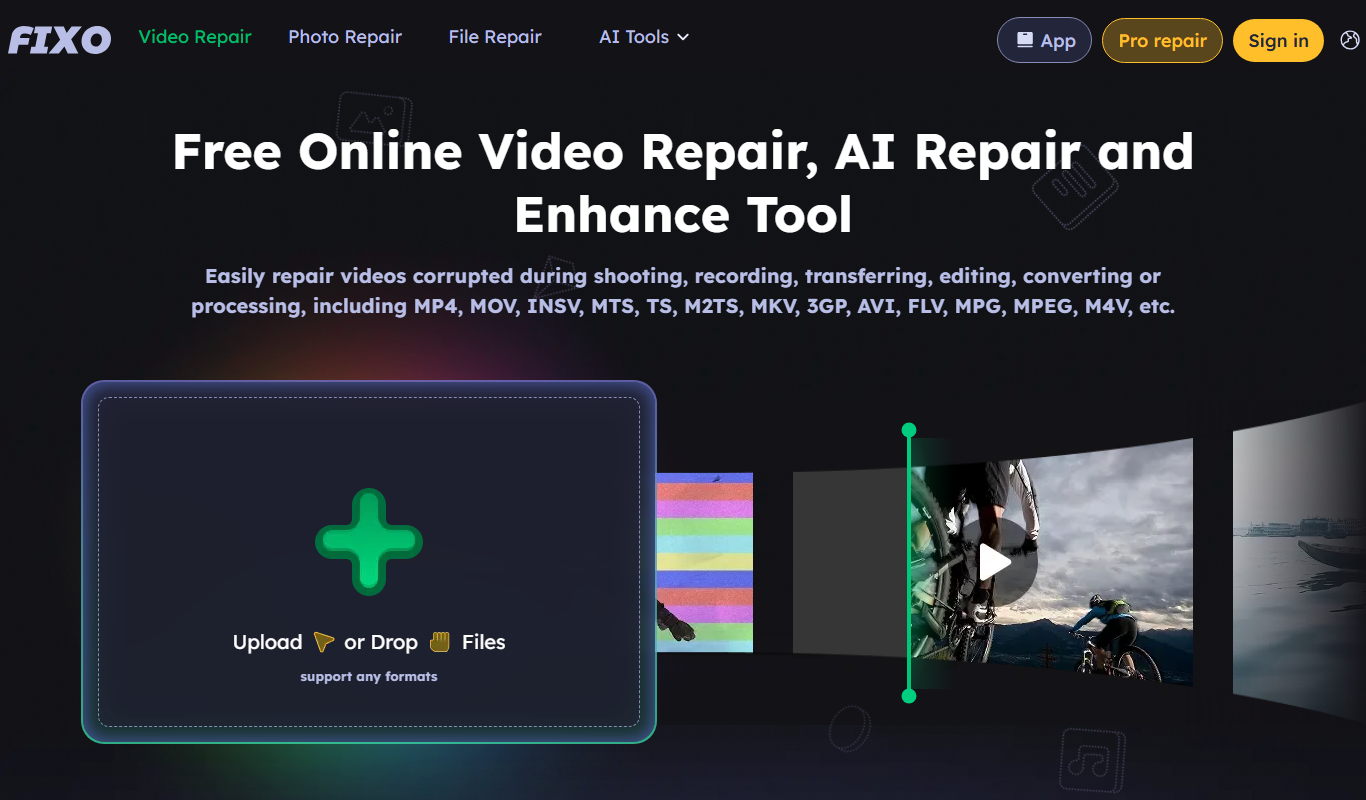
Do you recommend this tool?
What is EaseUS Fixo?
EaseUS Fixo is a Windows system repair and optimization tool designed to automatically detect and fix common system errors, clean junk files, and optimize PC performance. It targets issues such as registry errors, disk clutter, and startup inefficiencies to help maintain a stable and fast Windows environment.
Key features of EaseUS Fixo
The tool offers automated system error detection and repair, registry cleaning, disk cleanup, and startup program management, all aimed at improving Windows stability and speed with minimal user intervention.
Automated System Error Repair
Detects and fixes common Windows errors without requiring technical knowledge.
Registry Cleaner
Scans and repairs invalid or corrupted registry entries to enhance system stability.
Disk Cleanup
Removes junk files and temporary data to free up disk space.
Startup Program Manager
Allows users to disable or delay startup programs to speed up boot time.
User-Friendly Interface
Simple and intuitive UI designed for users of all technical levels.
Pros and cons of EaseUS Fixo
Pros
- Easy to use with automated repair functions
- Cleans registry and junk files effectively
- Improves PC startup speed
- Affordable pricing for full features
Cons
- Limited features in free version
- May not fix complex system issues
- Windows-only support
Key use cases for EaseUS Fixo
Fix Windows System Errors
Automatically detect and repair common Windows system errors to improve stability.
Optimize PC Performance
Clean junk files and optimize system settings to enhance overall PC speed.
Registry Cleaning
Scan and fix invalid or corrupted registry entries to prevent crashes and errors.
Disk Cleanup
Remove unnecessary files and free up disk space for better system performance.
Startup Management
Manage startup programs to reduce boot time and improve system responsiveness.
How EaseUS Fixo works
- 1
Download and Install
Download EaseUS Fixo from the official website and install it on your Windows PC.
- 2
Run a System Scan
Launch the tool and start a full system scan to detect errors and junk files.
- 3
Review Scan Results
Check the detected issues including system errors, registry problems, and junk files.
- 4
Repair and Optimize
Click the repair button to fix errors and clean up your system automatically.
- 5
Restart Your PC
Restart your computer to apply changes and enjoy improved system performance.
Who is using EaseUS Fixo
Home Windows users
Small business PC users
Non-technical users needing system maintenance
IT support professionals for quick fixes
EaseUS Fixo pricing
Free
$0
Basic system scan and limited repair features.
Pro
$29.95/year
Full access to all repair and optimization features with priority support.
Plans and prices are as published by the vendor and can change. Check the official site before you buy. Open the pricing page (opens in a new tab)
Frequently asked questions about EaseUS Fixo
Yes, EaseUS Fixo is safe and uses standard repair methods without risking your system files.
It can fix many common system errors but may not resolve hardware-related or severe OS corruption issues.
Yes, it supports Windows 7, 8, 10, and 11.
Yes, the free version allows scanning and limited repairs before upgrading.
It depends on your specific needs and how you plan to use the tool. The official website and documentation are the best sources for the latest details.
Some tools offer a free plan or trial with limited features. Availability can vary, so confirm on the official website.
Yes, it can help with that use case depending on how you configure it and what features are available. You’ll get the best results with clear inputs and a defined goal.
Yes, it can help with that use case depending on how you configure it and what features are available. You’ll get the best results with clear inputs and a defined goal.
Sign in to review this tool.
Sign In to ReviewNo reviews yet
Be the first to share how this tool worked for you.
Ask about pricing, limits, or how it compares — or answer someone else.
Sign In to AskNo questions yet
Have a question about using or paying for this tool? Be the first to ask.
Featured on TiorAI



Alternative Tools
Explore similar AI tools that might fit your needs
Free
CCleaner
CCleaner is a utility software that cleans junk files, manages startup programs, repairs registry errors, and protects user privacy to optimize Windows and Mac computers.
Free
Advanced SystemCare
Advanced SystemCare is a Windows-based PC optimization software by IObit that cleans junk files, optimizes system performance, protects privacy, and removes malware to keep your computer running smoothly.
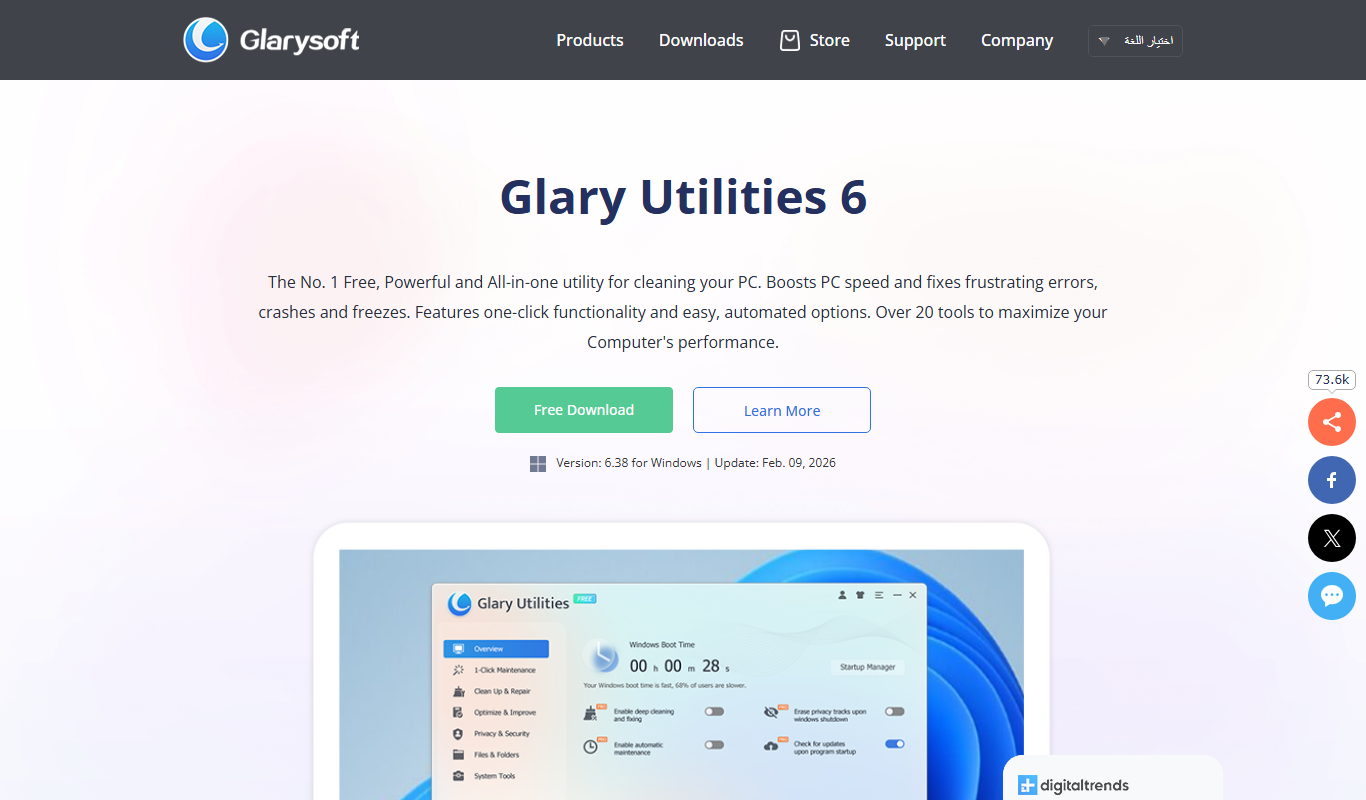
Free
Glary Utilities
Glary Utilities is a Windows-based PC optimization tool that cleans junk files, repairs registry errors, manages startup programs, and protects user privacy to improve system performance.
More AI Video Editor tools
Other tools in the same category, for when this one is not quite the fit.

Free Trial
Vidon.ai
Vidon.ai is an AI-driven video creation platform that automates scriptwriting, editing, and video production to help marketers and creators produce engaging videos efficiently.

Freemium
Neuralarts
Neuralarts is an AI art generation platform that creates images and videos from text prompts and style inputs using neural networks.
Free Trial
Video Studio AI
Video Studio AI is a web-based platform that uses artificial intelligence to automate video editing tasks, enabling users to create professional videos quickly without advanced skills.

Free
Expression Editor
Expression Editor is an online tool that allows users to build, edit, and evaluate mathematical and logical expressions in real time with syntax highlighting and error detection.

Free Trial
Wondershare Filmora ES
Wondershare Filmora ES is a Spanish-language video editing software designed for beginners and intermediate users, offering easy-to-use tools, effects, and export options for Windows and macOS.

Freemium
AskVideo.ai
AskVideo.ai is an AI-driven platform that enables users to ask questions within videos and receive instant, context-aware answers, enhancing engagement in learning and support scenarios.

Freemium
Vinteo AI
Vinteo AI is a web-based platform that uses artificial intelligence to help users create marketing, social media, and training videos quickly without requiring video editing skills.

Freemium
I Have a Dream
I Have a Dream AI is a web-based tool that uses artificial intelligence to generate personalized images representing your goals and dreams, helping you visualize and stay motivated.