

From my experience with CCleaner, I found it excels at simplifying PC maintenance for everyday users by automating junk file removal and privacy protection. The interface is straightforward, making it accessible even for those without technical expertise. It’s particularly well-suited for home users and small businesses looking to keep their Windows or Mac systems running smoothly without complex setups. However, some features like registry cleaning have limited impact, and the free version lacks automation, which might require manual intervention. Overall, if you want a reliable tool for basic system cleanup and privacy, CCleaner delivers solid, user-friendly results.
CCleaner PC Optimization and Privacy Software for Windows and Mac
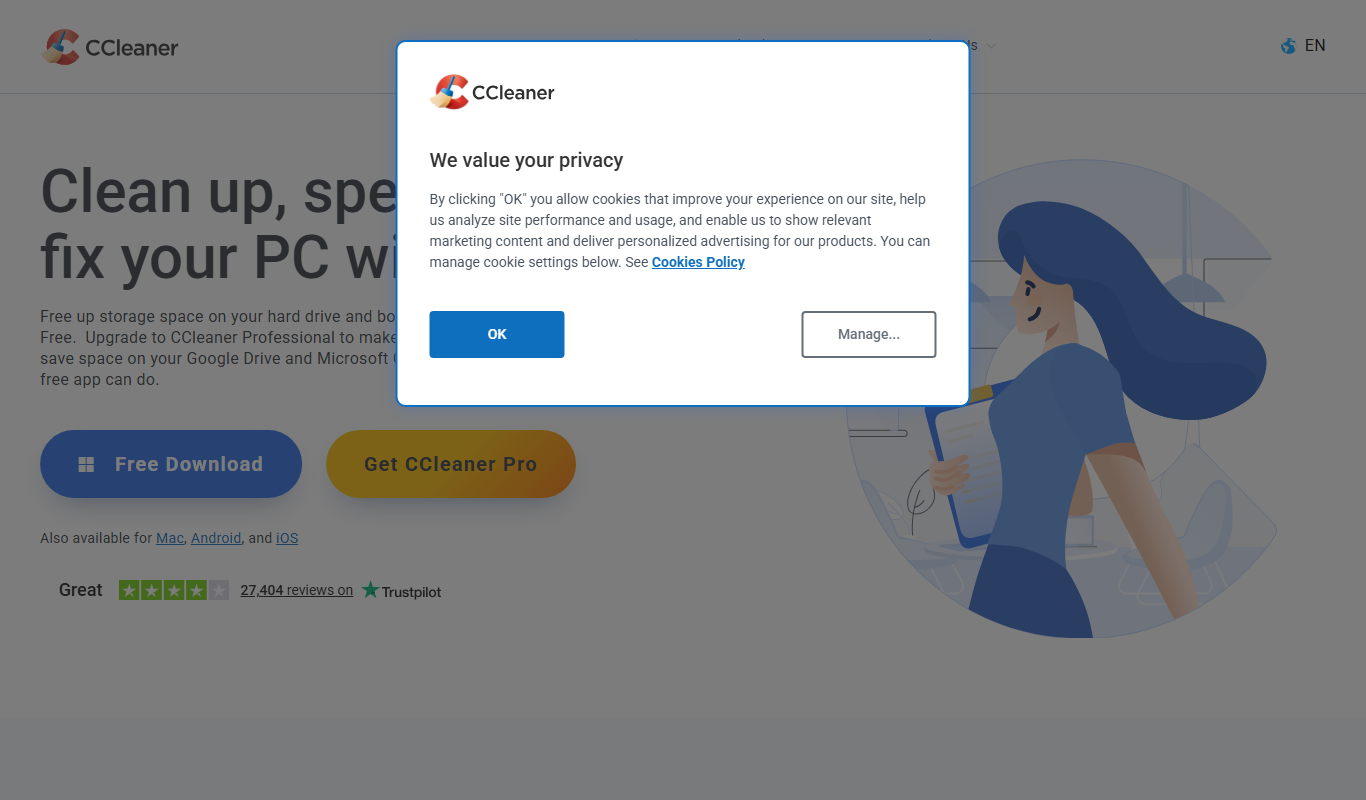
CCleaner is a utility software that cleans junk files, manages startup programs, repairs registry errors, and protects user privacy to optimize Windows and Mac computers.
- Best for
- System Cleanup
- Key capability
- Junk File Cleaner
Do you recommend this tool?
What is CCleaner?
CCleaner is a utility software designed to optimize computer performance by cleaning junk files, managing startup programs, and protecting user privacy. It supports Windows and Mac platforms and helps users maintain their systems by removing unnecessary data and fixing registry issues.
Key features of CCleaner
CCleaner offers comprehensive system cleaning, privacy protection, registry repair, startup program management, and software uninstallation features to keep computers running smoothly and securely.
Junk File Cleaner
Removes temporary files, cache, cookies, and other unnecessary data to free up disk space.
Privacy Cleaner
Erases browsing history and cookies to protect user privacy.
Registry Cleaner
Scans and fixes Windows registry errors to improve system stability.
Startup Manager
Enables users to disable or delay startup programs for faster boot times.
Software Uninstaller
Helps uninstall unwanted applications and remove leftover files.
Scheduled Cleaning
Allows users to schedule automatic cleaning tasks for regular maintenance.
Pros and cons of CCleaner
Pros
- Easy to use with a clean interface
- Effective junk file and privacy cleaning
- Supports both Windows and Mac
- Includes useful tools like startup manager and uninstaller
Cons
- Registry cleaning benefits are debated by experts
- Free version lacks automatic updates and real-time monitoring
- Some features require paid subscription
Key use cases for CCleaner
System Cleanup
Remove unnecessary files, temporary data, and browser caches to free up disk space and improve system speed.
Privacy Protection
Erase browsing history, cookies, and other traces to protect user privacy and prevent data tracking.
Registry Cleaning
Scan and fix Windows registry errors to enhance system stability and reduce crashes.
Startup Management
Manage and disable unnecessary startup programs to speed up boot times.
Software Uninstallation
Easily uninstall unwanted applications and remove leftover files.
How CCleaner works
- 1
Download and Install
Download CCleaner from the official website and install it on your Windows or Mac computer.
- 2
Run System Scan
Launch the application and perform a scan to detect junk files, privacy risks, and registry errors.
- 3
Review Scan Results
Review the detected issues and select which files or errors to clean or fix.
- 4
Clean and Optimize
Execute the cleaning process to remove unwanted files and repair registry problems.
- 5
Manage Startup and Software
Use built-in tools to disable startup programs and uninstall unnecessary software.
Who is using CCleaner
Home PC users
Small business owners
IT support professionals
Privacy-conscious users
Mac and Windows users seeking system optimization
CCleaner pricing
Free
$0
Basic cleaning and optimization features with manual operation.
Professional
$24.95/year
Includes real-time monitoring, automatic updates, and premium support.
Professional Plus
$39.95/year
Adds hardware monitoring and software updater features.
Plans and prices are as published by the vendor and can change. Check the official site before you buy. Open the pricing page (opens in a new tab)
Frequently asked questions about CCleaner
Yes, CCleaner is widely used and considered safe when downloaded from the official website.
By removing junk files and managing startup programs, CCleaner can help improve system performance.
Yes, CCleaner offers a version compatible with Mac computers.
The Professional version includes automatic updates, real-time monitoring, and premium support.
It depends on your specific needs and how you plan to use the tool. The official website and documentation are the best sources for the latest details.
It depends on your specific needs and how you plan to use the tool. The official website and documentation are the best sources for the latest details.
It depends on your specific needs and how you plan to use the tool. The official website and documentation are the best sources for the latest details.
Yes, it can help with that use case depending on how you configure it and what features are available. You’ll get the best results with clear inputs and a defined goal.
Sign in to review this tool.
Sign In to ReviewNo reviews yet
Be the first to share how this tool worked for you.
Ask about pricing, limits, or how it compares — or answer someone else.
Sign In to AskNo questions yet
Have a question about using or paying for this tool? Be the first to ask.
Featured on TiorAI



Alternative Tools
Explore similar AI tools that might fit your needs
Free
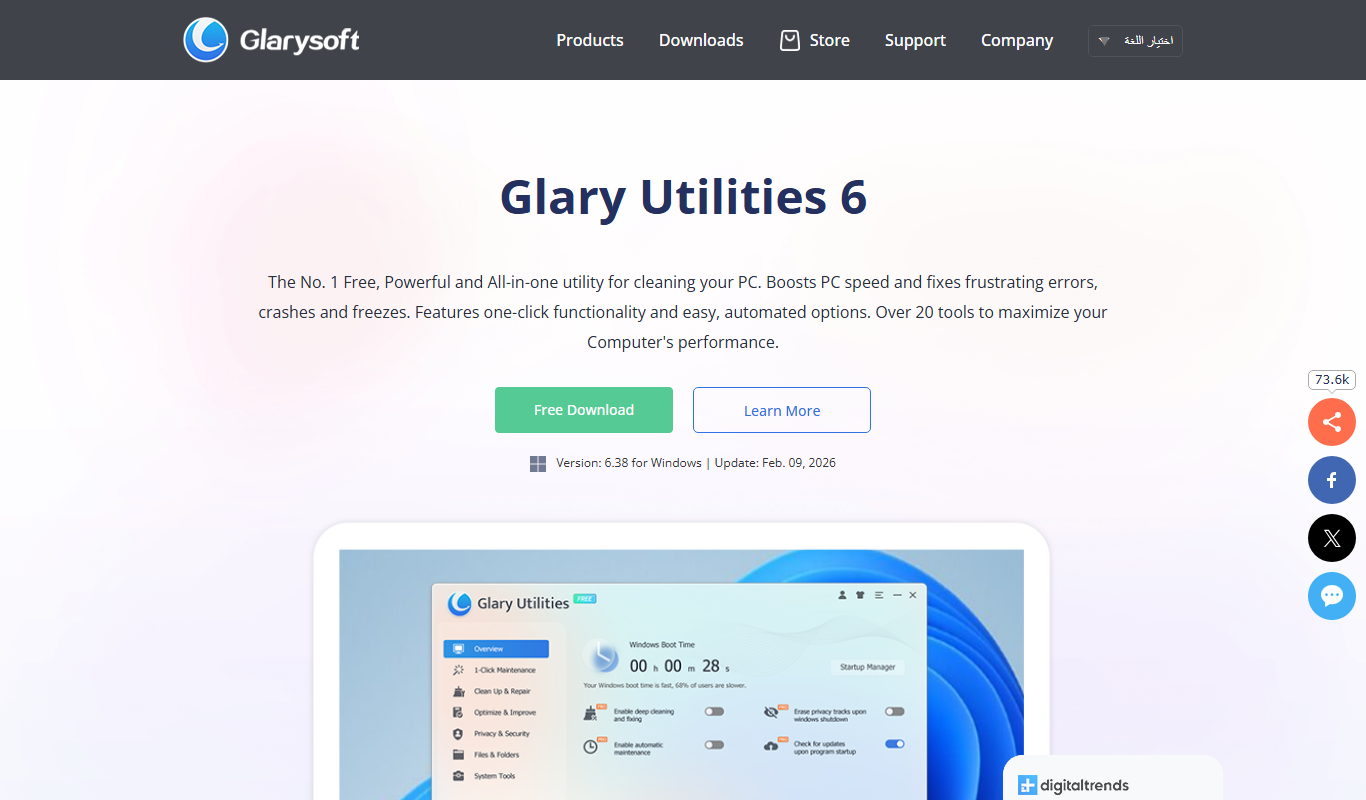
Glary Utilities
Glary Utilities is a Windows-based PC optimization tool that cleans junk files, repairs registry errors, manages startup programs, and protects user privacy to improve system performance.

Free
BleachBit
BleachBit is a free, open-source disk cleanup utility that securely deletes unnecessary files, protects privacy, and frees up disk space on Windows and Linux systems.
Free
Advanced SystemCare
Advanced SystemCare is a Windows-based PC optimization software by IObit that cleans junk files, optimizes system performance, protects privacy, and removes malware to keep your computer running smoothly.
More AI Privacy Tools tools
Other tools in the same category, for when this one is not quite the fit.

Free
Ghostery
Ghostery is a free privacy-focused browser and browser extension that blocks trackers and ads to protect user privacy and improve browsing speed.

Free
Firefox Focus
Firefox Focus is a free mobile browser by Mozilla that blocks ads and trackers automatically, providing private, fast browsing on iOS and Android devices.

Free
Keepsafe
Keepsafe is a privacy-focused app that securely stores and backs up your photos and videos using encryption and biometric authentication.