

AI Webcam Effects for Video Meetings with Real-Time Backgrounds
Webcam Effects is a Chrome extension that blurs, removes or replaces the webcam background, adjusts the layout and improves appearance in browser-based video calls.
- Best for
- Enhance Video Meetings
- Key capability
- Real-Time Background Replacement
Save AI Webcam Effects for Video Meetings, follow its updates and vote on it — everything stays in your account.
Sign in or create a free account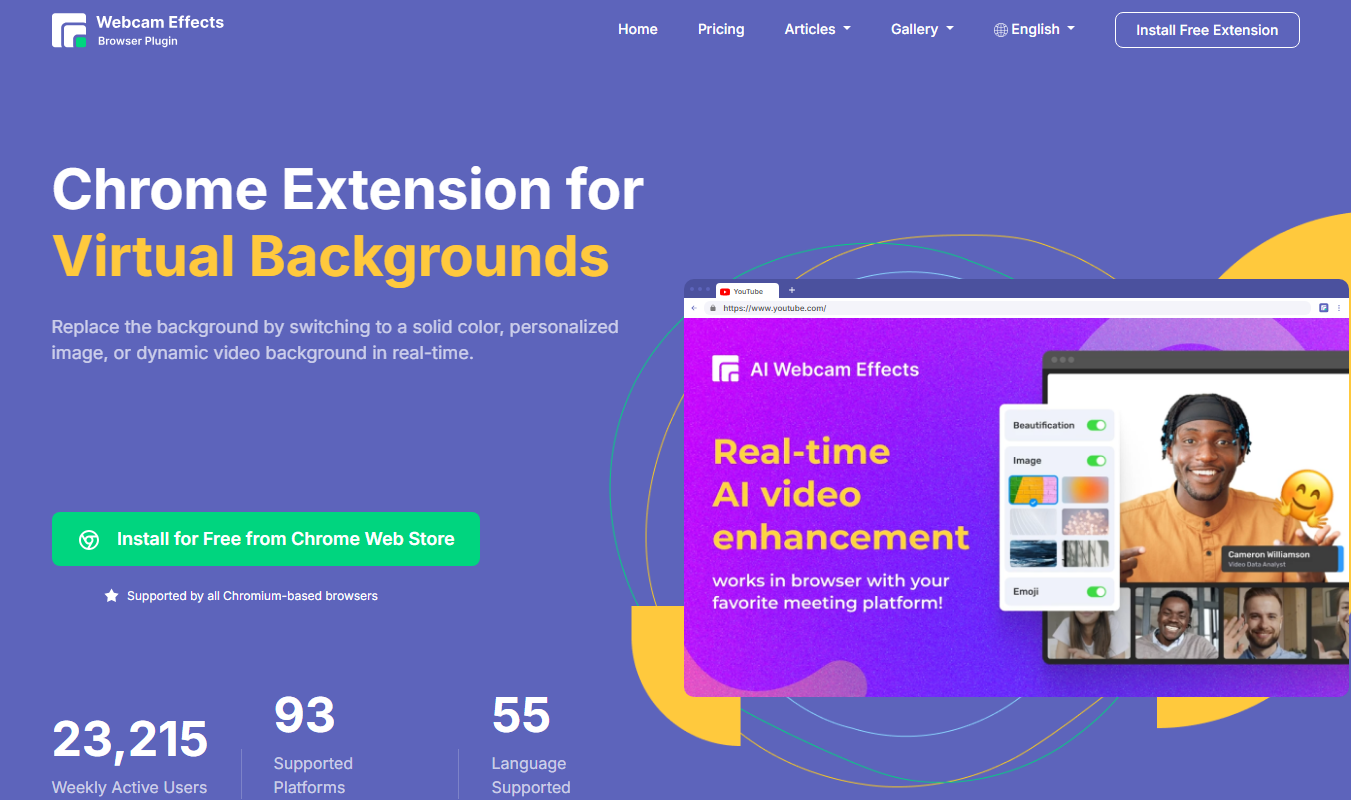
What is AI Webcam Effects for Video Meetings?
AI Webcam Effects (Webcam Effects) is a Chrome extension that blurs, removes or replaces the webcam background, adjusts the layout and improves appearance during browser-based video streaming and calls.
Key features of AI Webcam Effects for Video Meetings
The Chrome extension offers virtual backgrounds, background blur, smart zoom auto-framing, custom layouts, emoji and Giphy effects and face beautification, and it is supported by all Chromium-based browsers.
Real-Time Background Replacement
Replace your background instantly without a green screen using AI segmentation.
Background Blur
Blur your background to maintain privacy and reduce distractions.
Creative AI Filters
Apply artistic and fun filters to your webcam feed for engaging video calls.
Cross-Platform Support
Runs within the Chrome browser and works on Windows, Mac and Linux.
Easy Setup
Simple installation and configuration with intuitive user interface.
Pros and cons of AI Webcam Effects for Video Meetings
Pros
- Easy to use with quick setup
- No green screen required for background effects
- Supports multiple video conferencing platforms
- Affordable pricing with a free tier
Cons
- The free plan adds a Webcam Effects watermark.
- Requires decent CPU/GPU for smooth performance
Key use cases for AI Webcam Effects for Video Meetings
Enhance Video Meetings
Use AI-powered effects to improve the visual quality and professionalism of video calls.
Virtual Background Replacement
Replace or blur backgrounds in real-time without needing a green screen.
Content Creation
Add creative AI effects to webcam feeds for streaming or recording videos.
Privacy Protection
Obscure or change your background to protect privacy during online meetings.
How AI Webcam Effects for Video Meetings works
- 1
Install the extension
Install the free extension from the Chrome Web Store in any Chromium-based browser.
- 2
Select AI Effects
Choose from various AI-powered background effects and filters.
- 3
Use it in the browser
The effects work within the Chrome browser for browser-based video streaming and calls.
- 4
Start Video Meeting
Join your meeting with enhanced video effects applied in real-time.
Who is using AI Webcam Effects for Video Meetings
AI Webcam Effects for Video Meetings pricing
Free
$0
Virtual backgrounds, background blur, smart zoom (auto-framing), layouts, Giphy, emoji, color filters, color correction, low light correction, professional lower-thirds and recording, with a Webcam Effects watermark.
Popular
$3.25 per month, $38.95 billed annually
All features enabled; removes the Webcam Effects watermark; personal virtual backgrounds, custom watermark, custom overlay, screen video enhancer and 500Mb of cloud storage.
Standard
$4.95
All features enabled; removes the Webcam Effects watermark; personal virtual backgrounds, custom watermark, custom overlay, screen video enhancer and 500Mb of cloud storage.
Plans and prices are as published by the vendor and can change. Check the official site before you buy. Open the pricing page (opens in a new tab)
Frequently asked questions about AI Webcam Effects for Video Meetings
No, the tool uses AI to segment and replace backgrounds without any physical green screen.
It works with browser-based video platforms such as Microsoft Teams, YouTube, Google Meet and Skype.
Yes, it runs within the Chrome browser, with platform support for Windows, Mac and Linux.
Yes, a limited free trial is available to test premium features.
It depends on your specific needs and how you plan to use the tool. The official website and documentation are the best sources for the latest details.
Some tools offer a free plan or trial with limited features. Availability can vary, so confirm on the official website.
Yes, it can help with that use case depending on how you configure it and what features are available. You’ll get the best results with clear inputs and a defined goal.
Conclusion
Everything runs inside the browser: the Chrome extension works with browser-based video streaming and is supported by all Chromium-based browsers. The webcam background can be blurred with adjustable intensity or replaced in real time with a solid color, a personalized image or a dynamic video. Smart Zoom adds real-time auto-framing, and custom layouts position the face next to presentation content. A beautification option smooths skin and introduces gentle lighting. Supported sites shown on the home page include Microsoft Teams, Google Meet, YouTube and Skype.
The free plan covers virtual backgrounds, blur, smart zoom, layouts and recording but adds a Webcam Effects watermark. Paid plans remove that watermark and add personal virtual backgrounds, a custom overlay and 500Mb of cloud storage.
Sources
Sign in to review this tool.
Sign In to ReviewNo reviews yet
Be the first to share how this tool worked for you.
Ask about pricing, limits, or how it compares — or answer someone else.
Sign In to AskNo questions yet
Have a question about using or paying for this tool? Be the first to ask.
Featured on TiorAI



Alternative Tools
Explore similar AI tools that might fit your needs
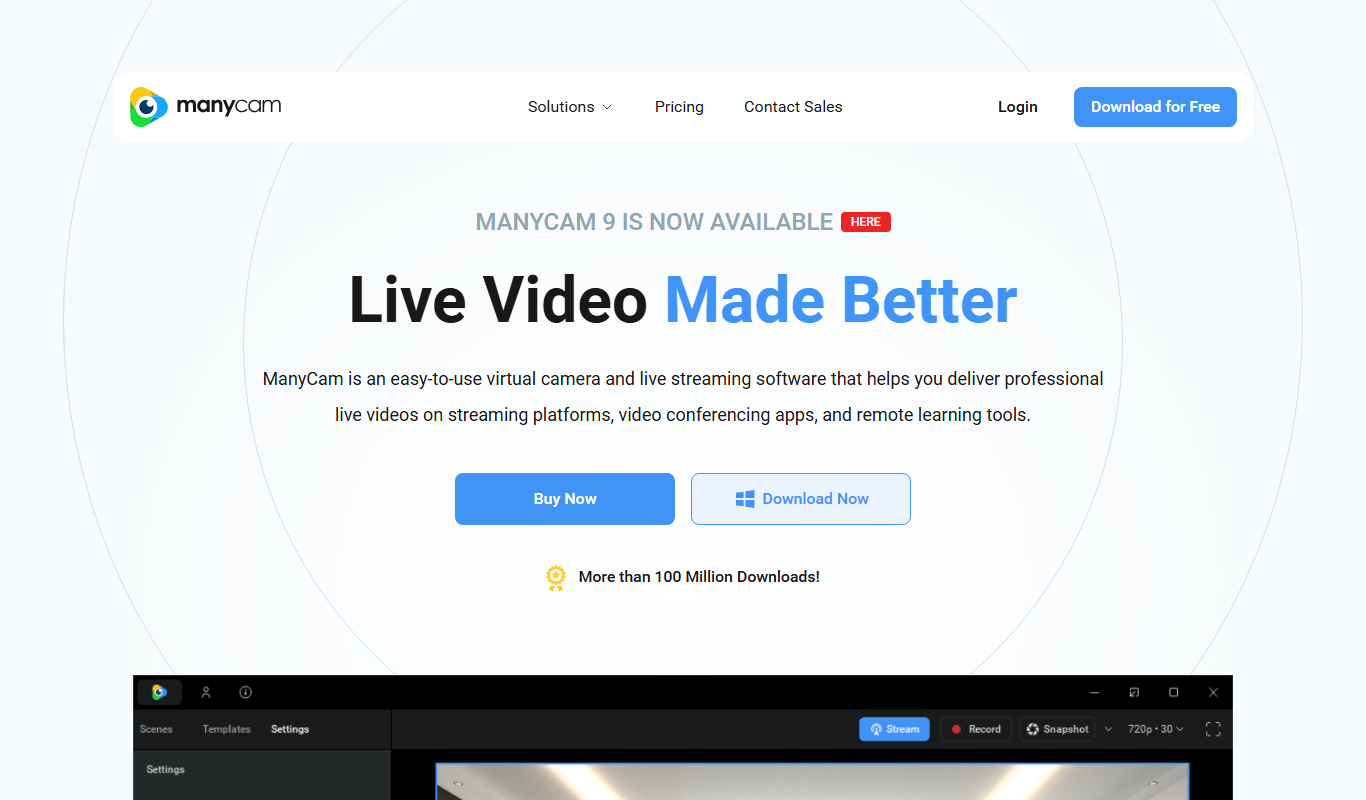
ManyCam
ManyCam is virtual webcam software that allows users to add live video effects, switch between multiple video sources, and use virtual backgrounds to enhance live streams and video calls on platforms like Zoom, YouTube, and Twitch.
More AI Productivity Tools tools
Other tools in the same category, for when this one is not quite the fit.

Quilter
Quilter uses physics-driven AI to automate PCB placement and routing, returning review-ready layout candidates in hours for designs from Altium, Cadence and Xpedition.
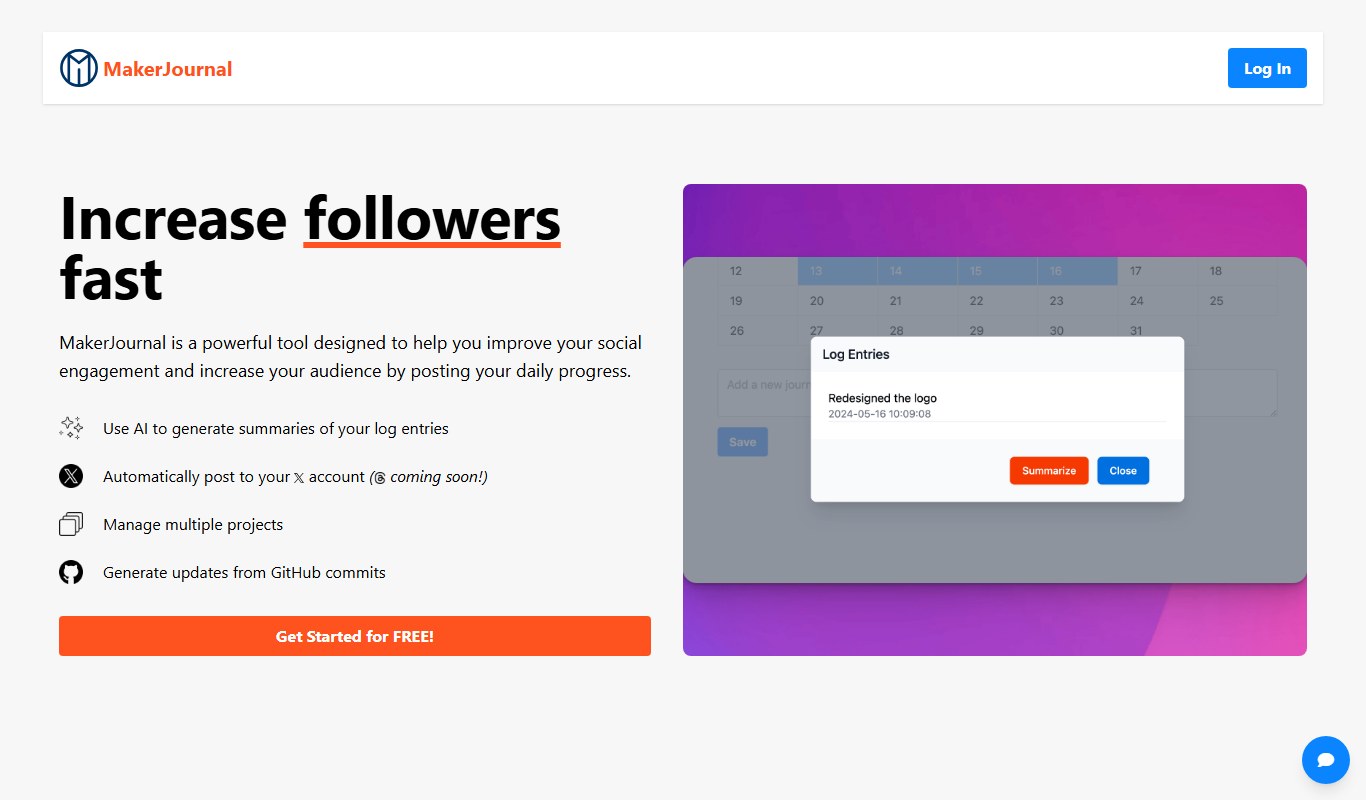
MakerJournal
MakerJournal uses AI to turn your progress logs and GitHub commits into summaries that indie makers and solo developers can post to their social accounts.
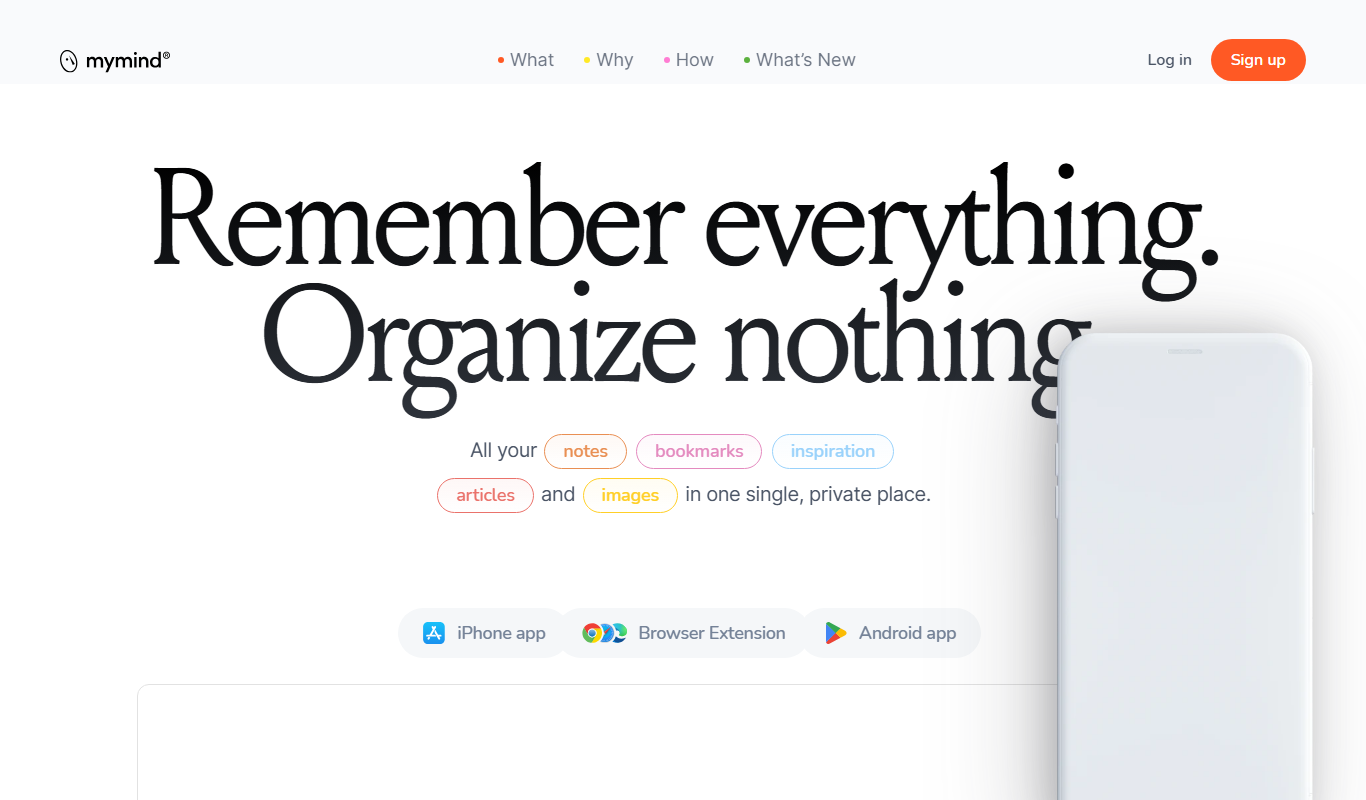
MyMind
MyMind is an AI-powered digital brain tool that helps users save, organize, and retrieve ideas, notes, and web content with automatic tagging and smart search.

Cleft Notes
Cleft is a voice-first note-taking app for iPhone, iPad and Mac: talk it out, and on-device transcription turns the recording into a structured note you can send to Notion, Apple Notes or Obsidian.

JotBot AI
JotBot AI is an AI writing assistant that writes in your personal style and helps you find and cite sources without leaving your document.

NoFOMO.AI
noFOMO OS is a free web calendar: add the venues you love and its scraper scans their websites every day, pulling every event into one calendar.

Sonnet
Sonnet AI is a meeting assistant and notetaker that records without bots, transcribes, writes custom notes, extracts action items and updates your CRM.
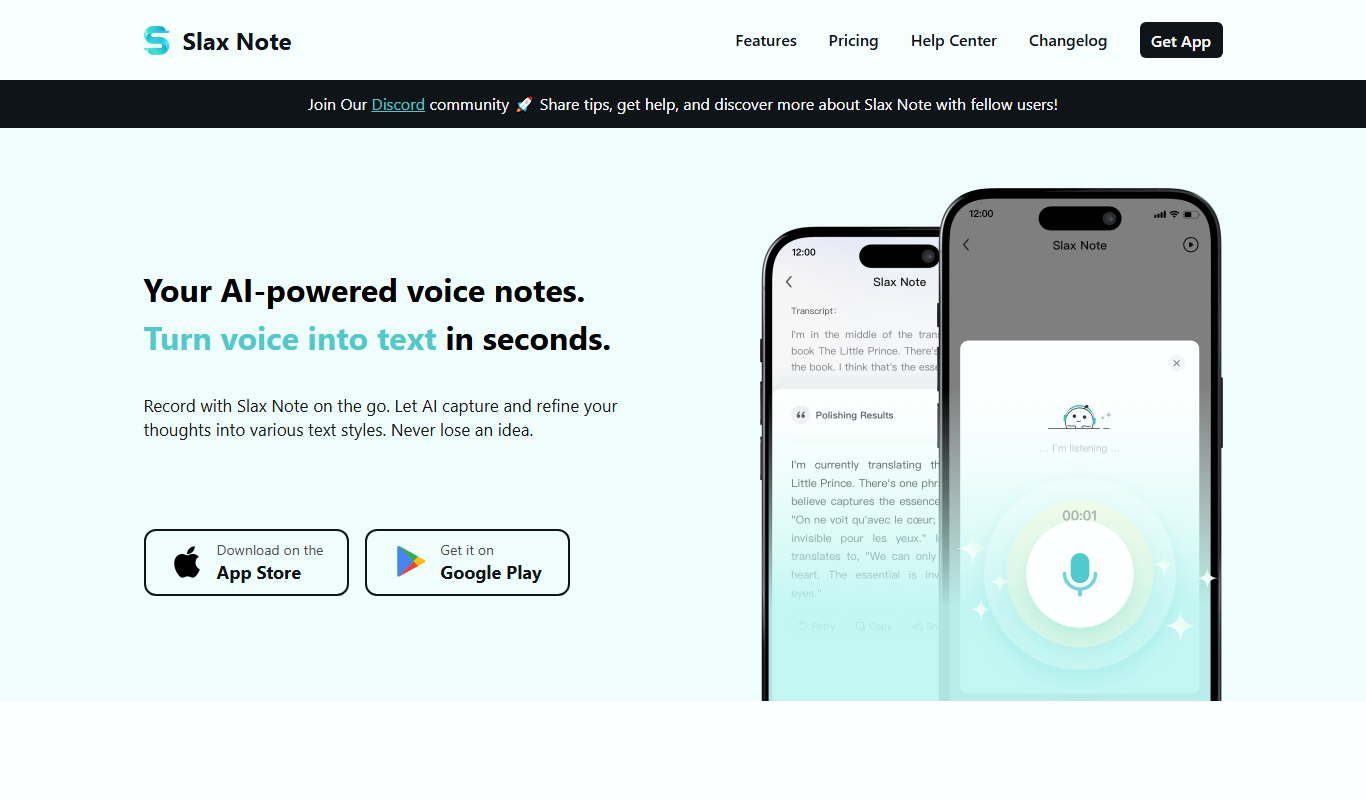
SlaxNote
Slax Note is an AI voice notes app: record once, and the prompts you pick turn the speech into a clean note, a tweet or a blog draft. Free to start.