

Figma Collaborative UI Design Tool for Web and Mobile Prototyping
Figma is a cloud-based design tool for creating user interfaces and prototypes collaboratively in real time, accessible via web and desktop apps.
- Best for
- User Interface Design
- Key capability
- Real-Time Collaboration
Save Figma, follow its updates and vote on it — everything stays in your account.
Sign in or create a free accountWhat is Figma?
Figma is a cloud-based design and prototyping tool that enables teams to create user interfaces collaboratively in real time. It combines vector graphics editing, prototyping, and design system management into a single platform accessible via web browsers and desktop apps.
Key features of Figma
Figma offers vector editing, interactive prototyping, real-time collaboration, version control, and developer handoff features. Its cloud infrastructure allows seamless teamwork without file syncing hassles.
Real-Time Collaboration
Multiple users can edit and comment on designs simultaneously with live cursors and chat.
Vector Networks
Flexible vector editing tools that allow complex shapes and paths beyond traditional pen tools.
Interactive Prototyping
Create clickable prototypes with transitions, overlays, and animations without coding.
Design Systems
Centralize components, styles, and assets to maintain consistency across projects and teams.
Version History
Track changes and revert to previous versions easily with automatic version control.
Developer Handoff
Generate specs, CSS code, and downloadable assets for developers directly from design files.
Pros and cons of Figma
Pros
- Seamless real-time collaboration without file conflicts
- Cross-platform accessibility via web and desktop apps
- Robust prototyping tools integrated with design
- Strong community and plugin ecosystem
- Easy developer handoff with specs and assets
Cons
- Limited offline capabilities
- Performance can lag with very large files
- Advanced features require paid subscription
Key use cases for Figma
User Interface Design
Create and iterate on UI designs for websites, mobile apps, and desktop applications using vector tools and components.
Prototyping and Interaction Design
Build interactive prototypes with transitions and animations to simulate user flows and test usability.
Collaborative Design and Feedback
Work in real-time with team members and stakeholders to co-design, comment, and resolve feedback directly within the platform.
Design System Management
Create and maintain reusable components, styles, and assets to ensure design consistency across projects.
Developer Handoff
Provide developers with access to design specs, assets, and code snippets to streamline the implementation process.
How Figma works
- 1
Create an Account
Sign up for a free Figma account via the website to start designing immediately.
- 2
Start a New Design File
Use the web or desktop app to create a new project and begin designing with vector tools and components.
- 3
Invite Collaborators
Share the design file link with team members to enable real-time collaboration and feedback.
- 4
Prototype Interactions
Add interactive elements and transitions to simulate user flows and test usability.
- 5
Share and Handoff
Publish prototypes for stakeholder review and provide developers with design specs and assets.
Who is using Figma
Figma pricing
Starter
$0/month
Free limited access to Figma products: unlimited drafts, UI kits and templates, 150 AI credits/day, up to 500 AI credits/mo.
Professional
Full seat $16 /mo, Dev seat $12 /mo, Collab seat $3 /mo
For professionals working solo or with others: unlimited files and projects, team-wide design libraries, advanced Dev Mode inspection and MCP Server.
Organization
Billed annually: Full seat $55 /mo, Dev seat $25 /mo, Collab seat $5 /mo
For businesses designing products across the organization: publish resources across teams, shared libraries and fonts, centralized admin tools.
Enterprise
Billed annually: Full seat $90 /mo, Dev seat $35 /mo, Collab seat $5 /mo
For businesses designing for multiple products or brands: custom team workspaces, design system theming and APIs, SCIM seat management.
Plans and prices are as published by the vendor and can change. Check the official site before you buy. Open the pricing page (opens in a new tab)
Compare similar tools
How Figma lines up against the tools people weigh it against.
 Framer AI
 vs Figma: Which AI Design Tool Wins in 2026?
 Canva
Canva vs Figma: Templates, AI Features & Pricing
Frequently asked questions about Figma
Figma primarily works online but offers limited offline functionality through its desktop app.
Yes, Figma supports a wide range of community-developed plugins to extend functionality.
Yes, Figma has an intuitive interface and extensive tutorials making it accessible for new users.
Figma automatically saves versions and allows users to view and restore previous versions.
This tool is designed to help users accomplish its core tasks more efficiently. It is typically used by individuals or teams looking to improve productivity and workflow.
Some tools offer a free plan or trial with limited features. Availability can vary, so confirm on the official website.
Yes, it can help with that use case depending on how you configure it and what features are available. You’ll get the best results with clear inputs and a defined goal.
It depends on your specific needs and how you plan to use the tool. The official website and documentation are the best sources for the latest details.
Conclusion
Multiplayer design files are the core idea: teammates edit the same canvas at once, leave comments and talk through cursor chat in one shared space. Work happens in the browser or in desktop apps for macOS and Windows, and mobile apps exist for iOS and Android. Clickable prototypes with transitions and overlays need no code, and Dev Mode translates designs into code for handoff.
UI/UX designers and product teams do most of the design work, with developers joining through that handoff. Other products sit next to the design editor: Figma Make turns a prompt into code, FigJam is a digital whiteboard to collaborate on and Figma Slides co-creates presentations. Access is sold by seat: a free Starter plan gives limited access, and paid plans offer Full, Dev and Collab seats with different product access and monthly AI credits. On any paid plan, others can view and comment on files without extra seats.
Sources
Sign in to review this tool.
Sign In to ReviewNo reviews yet
Be the first to share how this tool worked for you.
Ask about pricing, limits, or how it compares — or answer someone else.
Sign In to AskNo questions yet
Have a question about using or paying for this tool? Be the first to ask.
Featured on TiorAI



More Art & Creative Design tools
Other tools in the same category, for when this one is not quite the fit.

Pix Me!
Pix Me! is an AI-powered avatar maker that transforms your photos into Polaroid-style digital art in styles such as Pixel-Art, Cartoon, Chibi, Comics, Disney and Ghibli.

Deckster
Deckster transforms raw ideas, notes and files into a presentation foundation shaped for the audience, then turns it into polished, consistent slides.
Depix AI
Depix is the AI-native design platform for industrial designers and product teams: go from concept to photorealistic 3D render in minutes with AI agents, CMF Vision and Video Lab.
KickRender
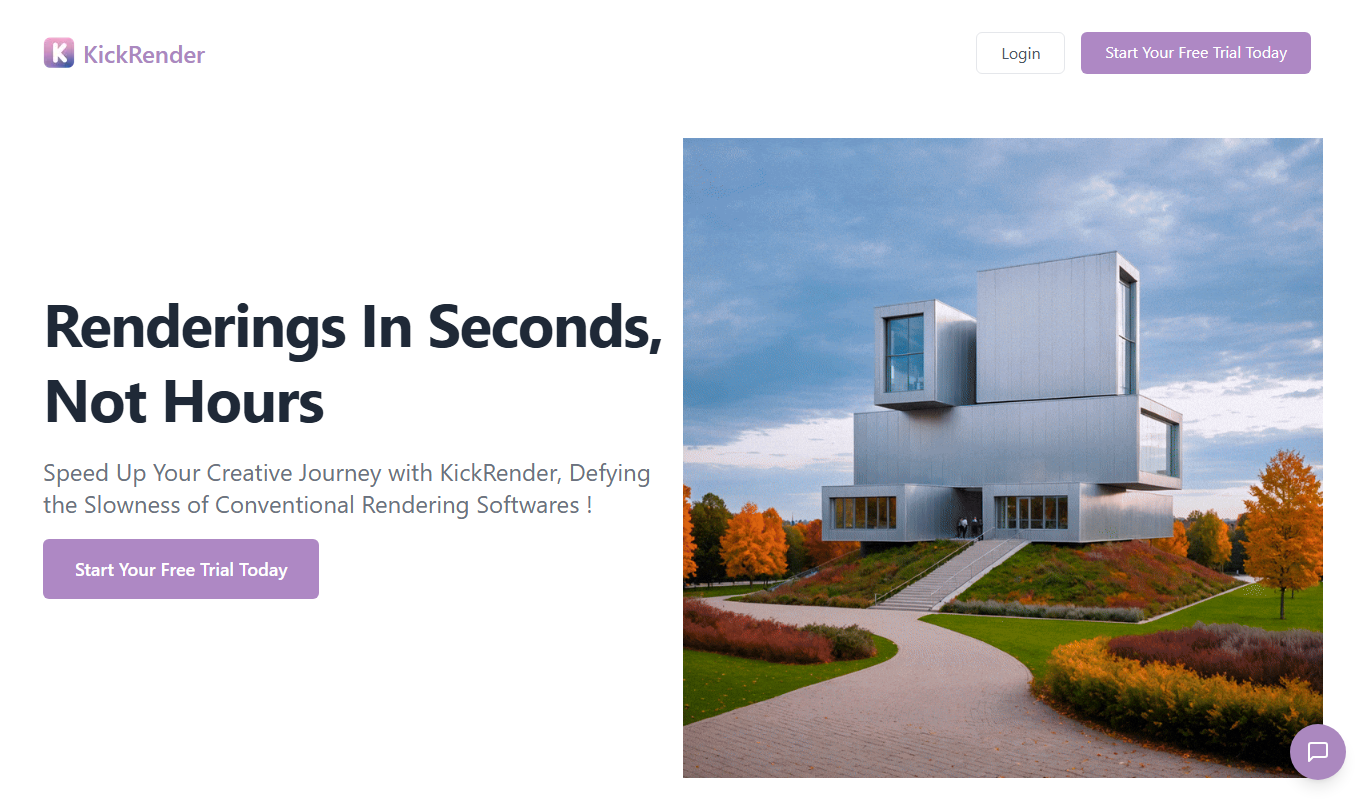
KickRender is an AI-powered rendering tool for architects: upload your 3D models, describe your vision and get photorealistic renders in minutes.

Kites.Dev
Kites.Dev creates AI products and builds custom smart assistants, bots and websites to help businesses grow and save time.
Narkis.ai
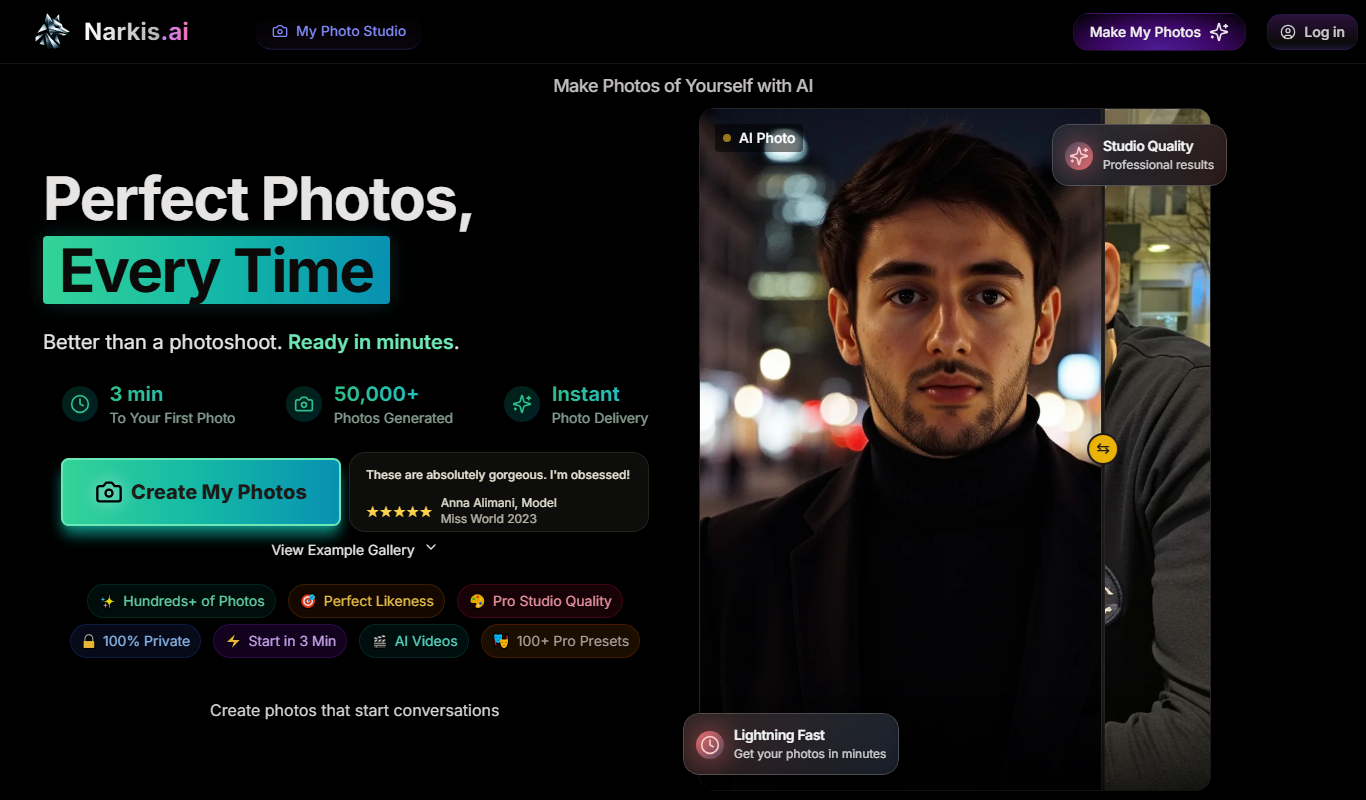
Narkis.ai trains a personal AI model on your photos and generates realistic headshots, dating photos and portraits of yourself in any style, no photoshoot needed.

MaternityPhotoshoot
MaternityPhotoshoot is an easy, affordable alternative to maternity photoshoots: upload 14 selfies and AI makes 500 maternity photos, delivered in 4 hours.

Microstockr
Microstockr is a desktop app for microstock photographers that tracks portfolio earnings, generates AI keywords for photos and uploads them to 20+ stock agencies from one place.