

Reincubate Camo - High-Quality Webcam App for Video Calls & Streaming
Reincubate Camo is a webcam app that lets you use your smartphone as a high-quality webcam for computers, enhancing video calls and streaming with HD video and manual controls.
- Best for
- Enhanced Video Conferencing
- Key capability
- High-Quality Video
Save Reincubate Camo, follow its updates and vote on it — everything stays in your account.
Sign in or create a free account
What is Reincubate Camo?
Reincubate Camo is a webcam application that allows users to transform their smartphones into high-quality webcams for computers. It supports Windows and macOS, enabling users to leverage their phone’s superior camera hardware for video calls, streaming, and content creation. Camo offers advanced controls for video quality, framing, and effects, making it a versatile tool for professionals and casual users alike.
Key features of Reincubate Camo
Camo provides HD video streaming from mobile devices to computers, with features like manual camera controls, portrait mode, background blur, and compatibility with popular video conferencing and streaming software. It supports both USB and wireless connections, ensuring flexibility and ease of use.
High-Quality Video
Stream HD video from your phone’s camera with up to 1080p resolution and 60fps support.
Manual Camera Controls
Adjust focus, exposure, white balance, zoom, and other camera settings manually for professional results.
Background Effects
Apply background blur and replacement effects to enhance video call privacy and aesthetics.
Cross-Platform Compatibility
Works seamlessly with Windows and macOS computers and supports iOS and Android devices.
USB and Wireless Connection
Connect your phone via USB for low latency or wirelessly for convenience.
Pros and cons of Reincubate Camo
Pros
- Significantly improves video quality using smartphone cameras
- Supports manual camera controls for professional customization
- Compatible with major video conferencing and streaming apps
- Flexible connection options: USB and wireless
- Easy to set up and use
Cons
- Free version includes watermark and limited resolution
- Requires installation on both phone and computer
- Some advanced features only available in Pro version
Key use cases for Reincubate Camo
Enhanced Video Conferencing
Use your smartphone as a high-quality webcam for clearer and sharper video calls on platforms like Zoom, Microsoft Teams, and Google Meet.
Live Streaming
Stream professional-grade video content using your phone’s camera on platforms such as Twitch, YouTube, and OBS Studio.
Remote Work and Online Teaching
Improve video quality for remote work meetings and online classes by replacing low-quality built-in webcams with your phone camera.
Content Creation
Create high-definition video content for social media, tutorials, and presentations using your smartphone as a webcam.
Mobile Camera Integration
Seamlessly connect your iPhone or Android device to your computer to use its camera as a USB webcam with minimal latency.
How Reincubate Camo works
- 1
Install the App
Download and install the Camo app on your smartphone and the companion software on your Windows or macOS computer.
- 2
Connect Your Phone
Connect your smartphone to your computer via USB or Wi-Fi to establish a video feed.
- 3
Select Camo as Webcam
In your video conferencing or streaming software, choose Camo as the video input source.
- 4
Adjust Settings
Use the Camo Studio app on your computer to adjust camera settings such as zoom, exposure, focus, and apply effects.
Who is using Reincubate Camo
Reincubate Camo pricing
Free
$0/month
High quality video with no watermark and no ads.
Pro
$39.99/year
Full HD video, no watermark, manual controls, and advanced features.
Plans and prices are as published by the vendor and can change. Check the official site before you buy. Open the pricing page (opens in a new tab)
Frequently asked questions about Reincubate Camo
Camo supports iOS devices running iOS 13 or later and Android devices running Android 8.0 or later.
Yes, Camo integrates with most popular video conferencing and streaming platforms by appearing as a webcam source.
No, you can connect via USB for the best performance or use Wi-Fi for wireless convenience.
No, the free plan gives high quality video with no watermark and no ads.
It depends on your specific needs and how you plan to use the tool. The official website and documentation are the best sources for the latest details.
Some tools offer a free plan or trial with limited features. Availability can vary, so confirm on the official website.
Yes, it can help with that use case depending on how you configure it and what features are available. You’ll get the best results with clear inputs and a defined goal.
Conclusion
The app turns a smartphone into a webcam for a Windows or macOS computer, so the phone camera handles video calls and streaming. Setup means installing the Camo app on the phone and companion software on the computer, then connecting over USB for low latency or wirelessly for convenience. In the video conferencing or streaming software, Camo is then chosen as the video input source. Video streams at up to 1080p resolution with 60fps support, while the Camo Studio app on the computer adjusts zoom, exposure and focus and applies effects.
Remote workers, online educators and streamers are the main audience, especially where a phone camera replaces a low-quality built-in webcam for meetings and online classes. Live streaming on Twitch, YouTube and OBS Studio is covered too. Both the phone and the computer need an installation before anything works. The Free plan gives high quality video with no watermark and no ads, and Pro and Enterprise plans sit above it.
Sources
Sign in to review this tool.
Sign In to ReviewNo reviews yet
Be the first to share how this tool worked for you.
Ask about pricing, limits, or how it compares — or answer someone else.
Sign In to AskNo questions yet
Have a question about using or paying for this tool? Be the first to ask.
Featured on TiorAI



Alternative Tools
Explore similar AI tools that might fit your needs
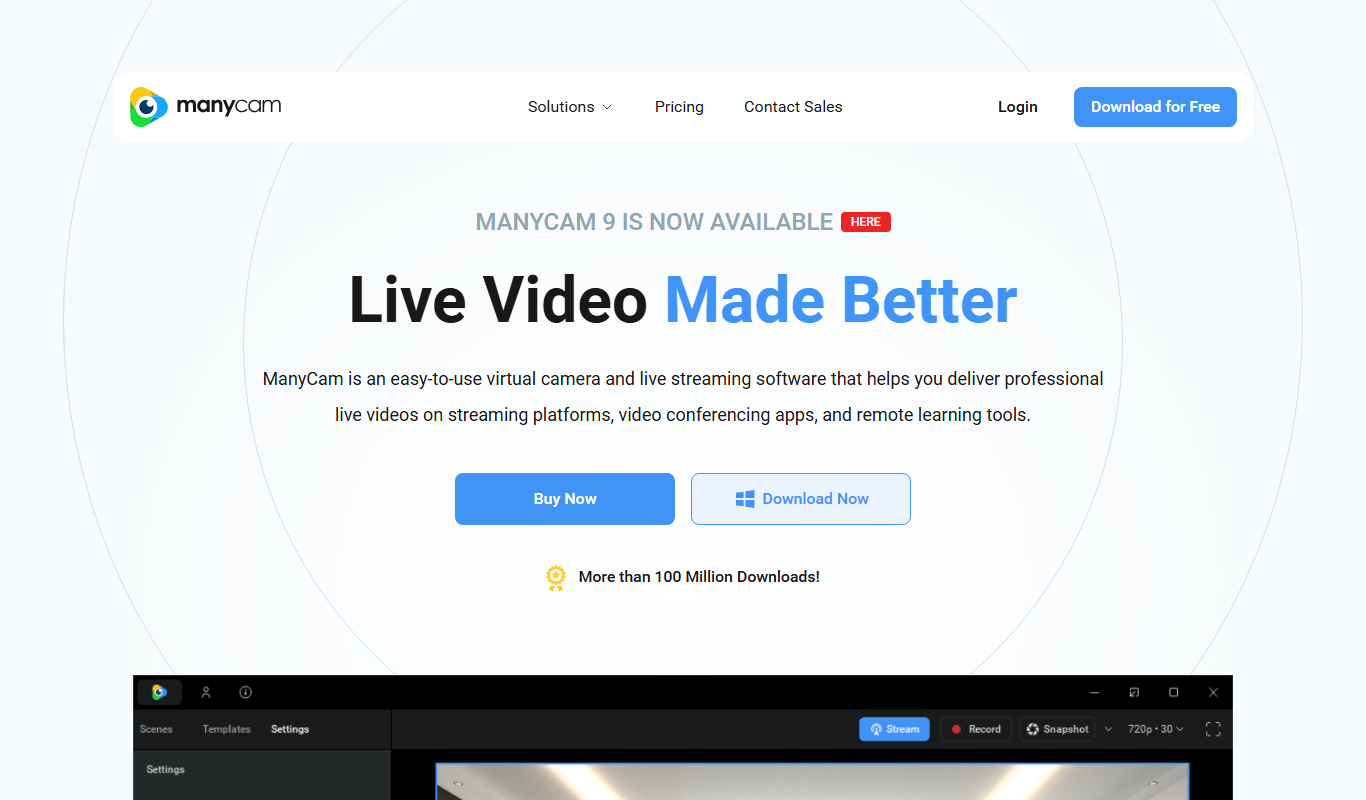
ManyCam
ManyCam is virtual webcam software that allows users to add live video effects, switch between multiple video sources, and use virtual backgrounds to enhance live streams and video calls on platforms like Zoom, YouTube, and Twitch.

OBS Studio
OBS Studio is a free and open-source software for live streaming and video recording that supports multiple platforms and customizable scenes.
More AI Photography tools
Other tools in the same category, for when this one is not quite the fit.

Fancinet
Fancinet by DeepVinci trains your personal Large-Visual-Model in simple steps, then generates AI human photos of you in any scenario you prompt.
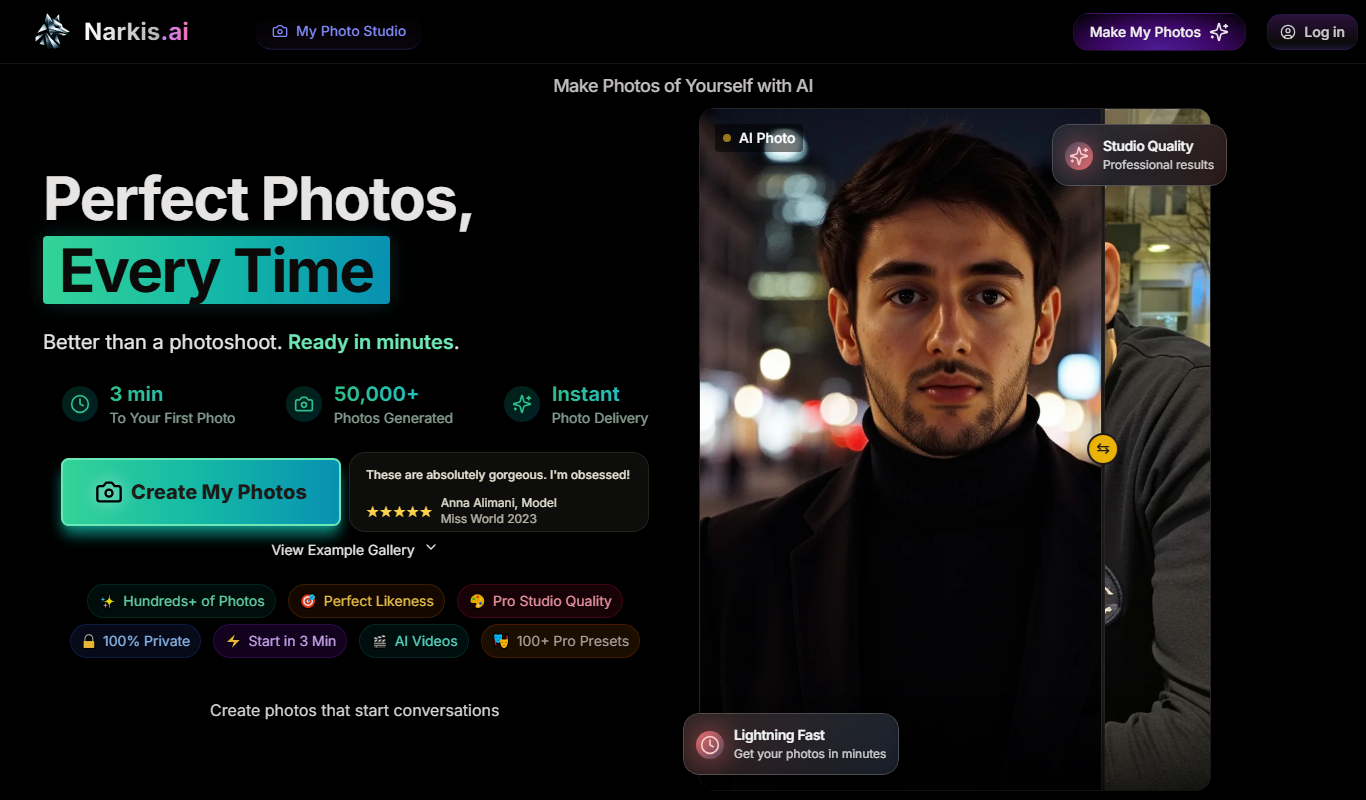
Narkis.ai
Narkis.ai trains a personal AI model on your photos and generates realistic headshots, dating photos and portraits of yourself in any style, no photoshoot needed.

MaternityPhotoshoot
MaternityPhotoshoot is an easy, affordable alternative to maternity photoshoots: upload 14 selfies and AI makes 500 maternity photos, delivered in 4 hours.

Microstockr
Microstockr is a desktop app for microstock photographers that tracks portfolio earnings, generates AI keywords for photos and uploads them to 20+ stock agencies from one place.
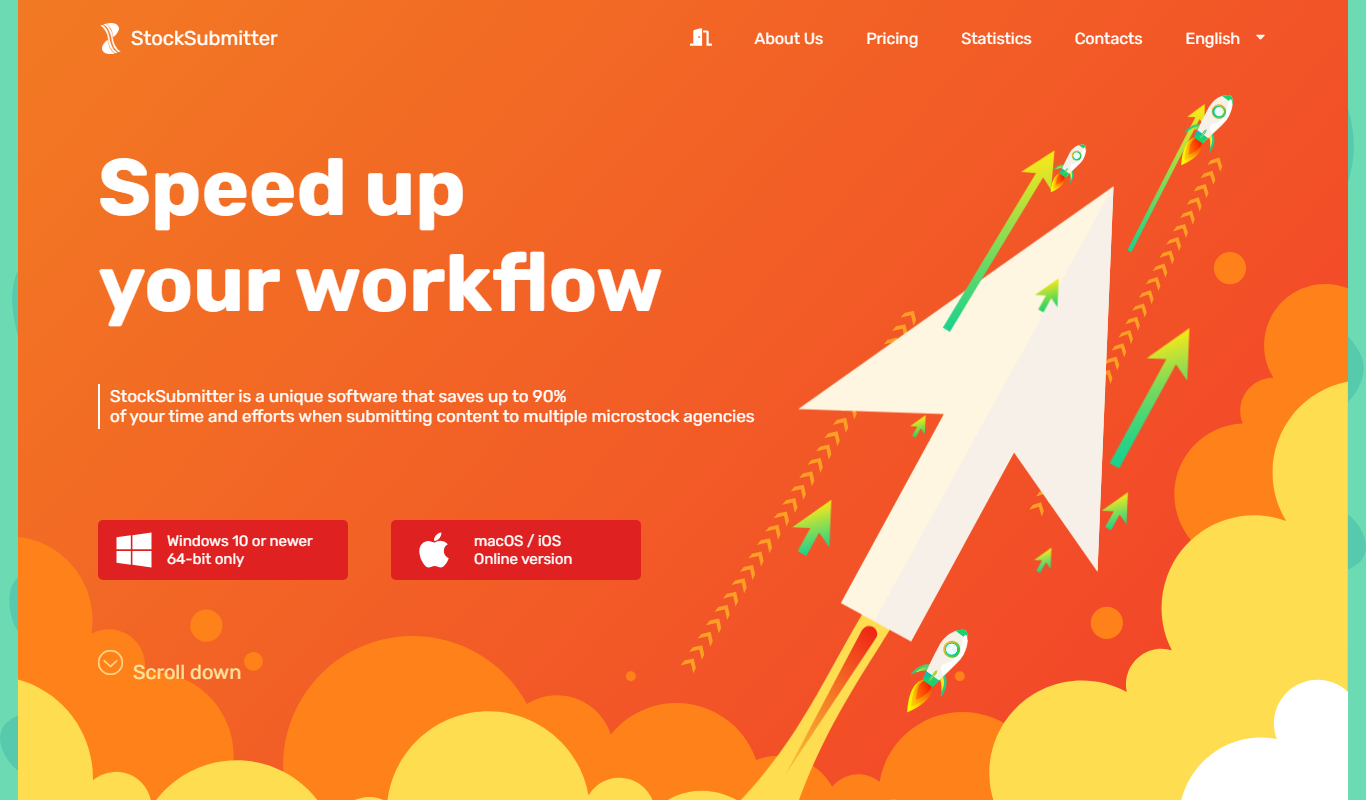
StockSubmitter
StockSubmitter is software for microstock contributors that fills, translates and stores metadata and uploads content to dozens of microstock agencies at once.
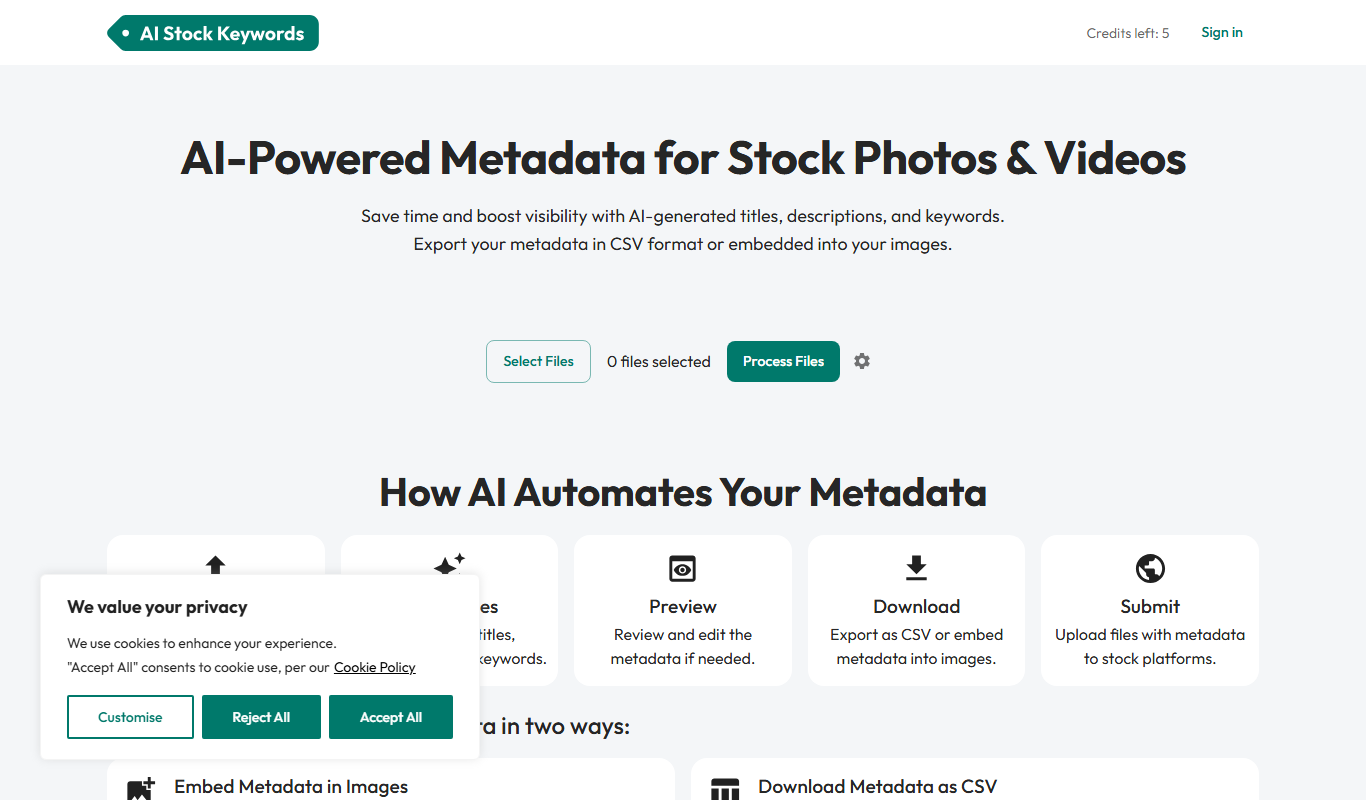
AI Stock Keywords
AI Stock Keywords generates stock-ready titles, descriptions and keywords for Adobe Stock, Shutterstock and other microstock uploads, exported as CSV or embedded in images.

Evoto AI
Evoto is an all-in-one AI photo editing workflow for professional photographers: culling, RAW editing, color grading and portrait retouching from first cull to final delivery.
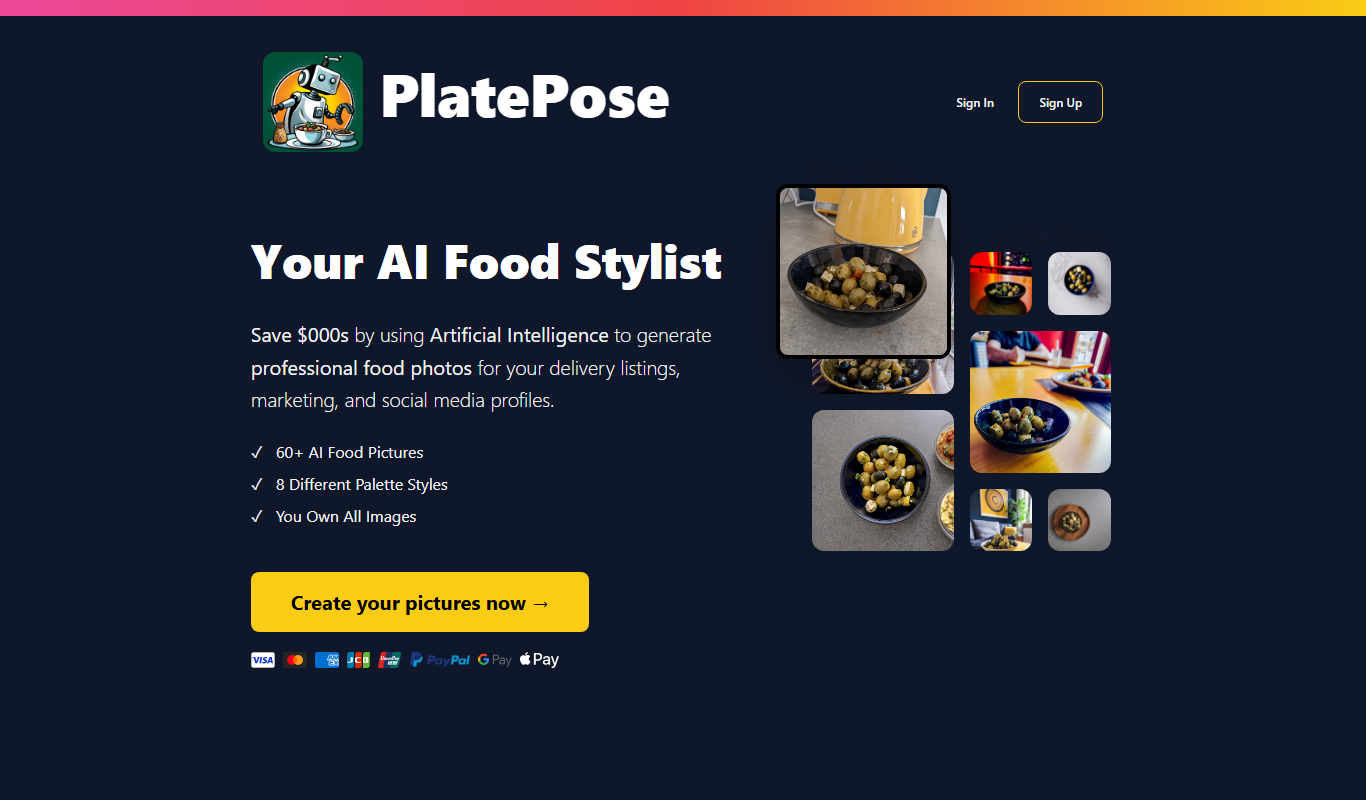
PlatePose
PlatePose trains an AI model on 10-20 photos of your dish and generates professional, stylised food photos for menus and social profiles, with full ownership of the images.