

From my experience with ScreenFlow, I found it excels at combining high-quality screen recording with an easy-to-use yet powerful video editor tailored for Mac users. After spending time with the platform, I can say it’s particularly well-suited for educators, content creators, and marketers who need to produce polished videos without a steep learning curve. However, there’s a trade-off: ScreenFlow is only available on macOS and lacks some advanced editing features found in specialized video editors. Overall, if you need a reliable all-in-one screen capture and editing tool on Mac, ScreenFlow delivers solid results.
ScreenFlow Video Editing and Screen Recording Software for Mac Users
ScreenFlow is a macOS software that combines screen recording and video editing, allowing users to capture their screen, webcam, and audio simultaneously and edit videos with professional tools.
- Best for
- Screen Recording
- Key capability
- High-Quality Screen Capture

Do you recommend this tool?
What is ScreenFlow?
ScreenFlow is a professional screen recording and video editing software designed exclusively for Mac users. It enables users to capture their computer screen, webcam, and audio simultaneously, then edit the recordings with a robust set of video editing tools. ScreenFlow is widely used for creating tutorials, marketing videos, software demos, and presentations.
Key features of ScreenFlow
ScreenFlow combines high-quality screen capture with a powerful video editor. Key features include multi-channel audio recording, video annotations, transitions, text overlays, video and audio filters, and easy export options. Its intuitive interface makes it accessible for beginners while offering advanced tools for professionals.
High-Quality Screen Capture
Record full screen or selected areas with retina display support and smooth frame rates.
Multi-Channel Audio Recording
Capture system audio, microphone, and multi-channel audio simultaneously for rich sound.
Powerful Video Editor
Edit videos with timeline-based controls, transitions, text overlays, and video filters.
Annotations and Callouts
Add highlights, arrows, text boxes, and other annotations to emphasize key points.
Easy Export Options
Export videos in multiple formats including MP4, MOV, and directly upload to YouTube or Vimeo.
Pros and cons of ScreenFlow
Pros
- Intuitive interface suitable for beginners and professionals
- High-quality screen and audio capture
- Robust built-in video editing tools
- Supports multi-channel audio and webcam recording
- One-time purchase with no subscription required
Cons
- Available only on macOS
- No cloud collaboration features
- Lacks some advanced effects found in dedicated video editors
Key use cases for ScreenFlow
Screen Recording
Capture high-quality video of your computer screen for tutorials, presentations, or demos.
Video Editing
Edit recorded videos or imported media with a powerful timeline editor, transitions, and effects.
Content Creation
Create professional videos for social media, marketing, training, and educational content.
Webinars and Presentations
Record and edit webinars or presentations with integrated audio and video editing tools.
Software Demos
Produce clear and engaging software demonstrations with annotations and callouts.
How ScreenFlow works
- 1
Launch and Configure Recording
Open ScreenFlow and set up your recording preferences including screen area, webcam, and audio sources.
- 2
Record Your Screen
Start recording your screen activity along with optional webcam and microphone input.
- 3
Edit Your Video
Use the built-in editor to trim clips, add annotations, transitions, text, and apply effects.
- 4
Export and Share
Export your finished video in various formats optimized for web, social media, or presentations.
Who is using ScreenFlow
Content creators
Educators and trainers
Marketing professionals
Software developers creating demos
Social media managers
ScreenFlow pricing
Standard License
$129.00 one-time
Full access to ScreenFlow with all features and free updates for one year.
Upgrade License
Varies
Discounted upgrade pricing for existing ScreenFlow users.
Plans and prices are as published by the vendor and can change. Check the official site before you buy. Open the pricing page (opens in a new tab)
Frequently asked questions about ScreenFlow
No, ScreenFlow is exclusively available for macOS.
Yes, ScreenFlow allows simultaneous recording of your screen, webcam, and audio.
Yes, ScreenFlow supports editing and exporting videos in 4K resolution.
Yes, Telestream offers a free trial version of ScreenFlow with limited features.
Yes, it can help with that use case depending on how you configure it and what features are available. You’ll get the best results with clear inputs and a defined goal.
Yes, it can help with that use case depending on how you configure it and what features are available. You’ll get the best results with clear inputs and a defined goal.
It depends on your specific needs and how you plan to use the tool. The official website and documentation are the best sources for the latest details.
Some tools offer a free plan or trial with limited features. Availability can vary, so confirm on the official website.
Sign in to review this tool.
Sign In to ReviewNo reviews yet
Be the first to share how this tool worked for you.
Ask about pricing, limits, or how it compares — or answer someone else.
Sign In to AskNo questions yet
Have a question about using or paying for this tool? Be the first to ask.
Featured on TiorAI



Alternative Tools
Explore similar AI tools that might fit your needs

Free
OBS Studio
OBS Studio is a free and open-source software for live streaming and video recording that supports multiple platforms and customizable scenes.
More AI Animation Generator tools
Other tools in the same category, for when this one is not quite the fit.
Free
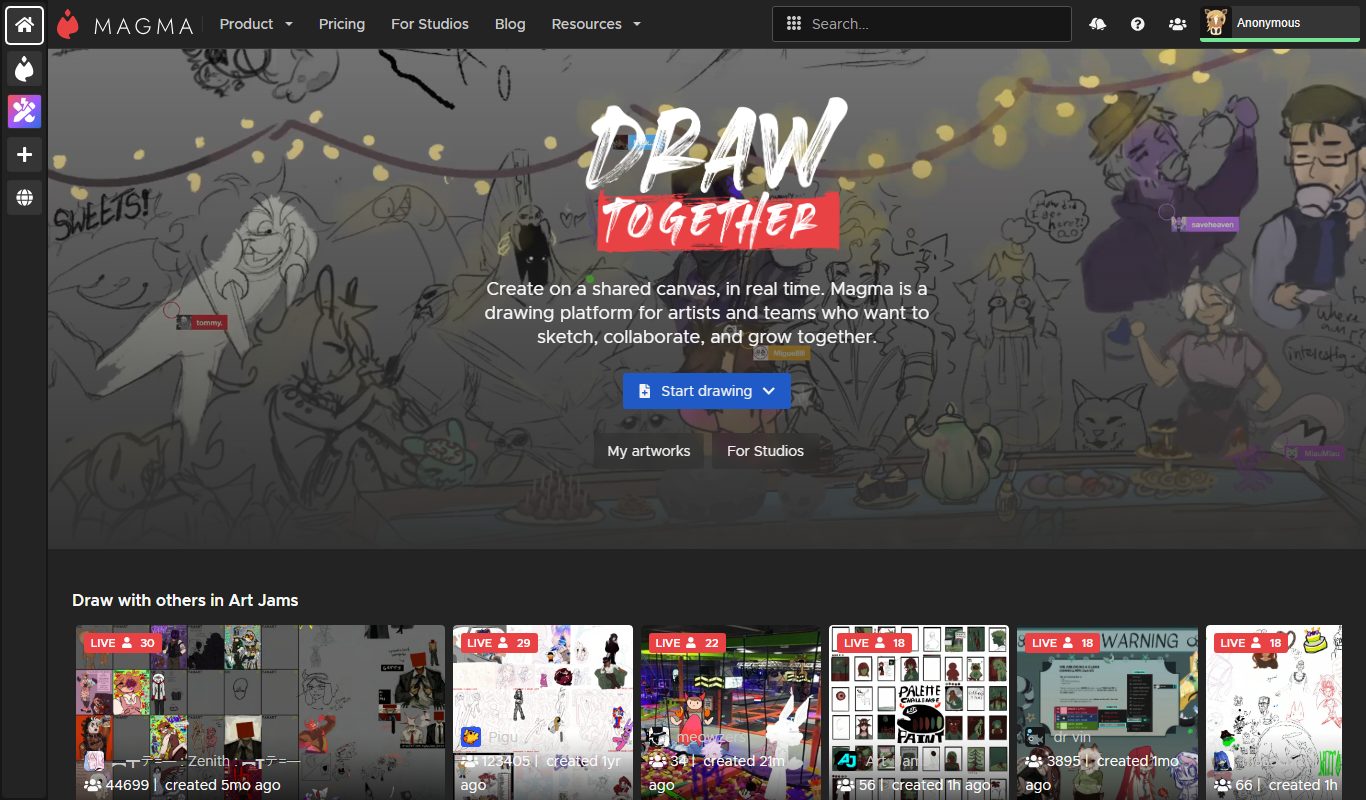
Aggie.io
Aggie.io is a free online collaborative drawing tool that allows multiple users to paint together in real time on a shared canvas without requiring installation or accounts.
Free Trial
PlantFactory
PlantFactory is a desktop 3D software tool that enables users to create, customize, and animate realistic plants using procedural modeling techniques, suitable for visual effects, games, and architectural projects.

Free
GIF Brewery
GIF Brewery is a Mac application that allows users to create, edit, and optimize animated GIFs from videos or screen recordings with advanced editing features and easy export options.

Freemium
DeepAR SDK
DeepAR SDK is a cross-platform augmented reality development kit that enables real-time face tracking, AI avatar creation, and 3D AR effects for mobile apps, games, and live streaming.
Custom Pricing
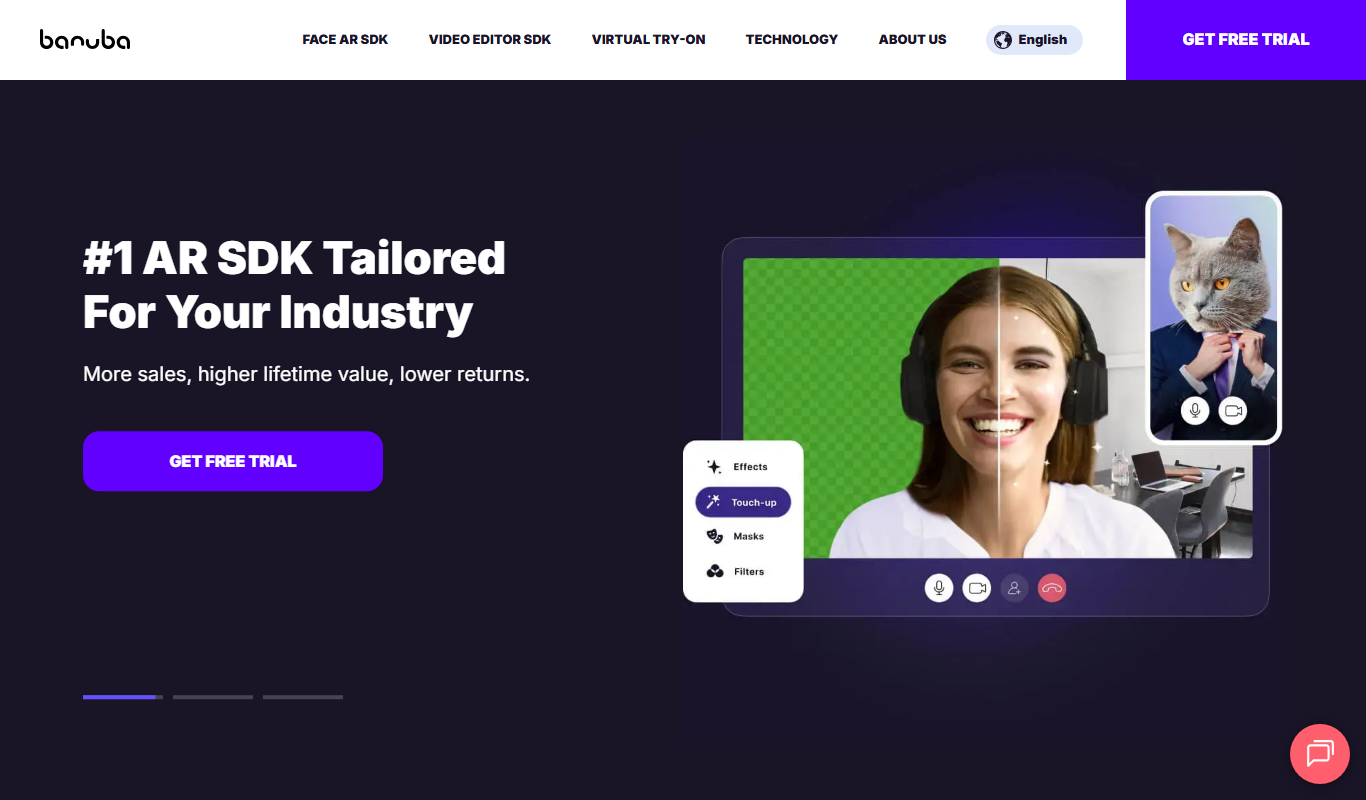
Banuba SDK
Banuba SDK is an AI-powered augmented reality software development kit that enables developers to integrate real-time face tracking, 3D masks, beauty filters, and avatar effects into mobile and desktop applications.

Contact for pricing
8i
8i is a platform that creates photorealistic 3D holograms and avatars using volumetric video technology for VR and AR experiences.

Freemium
Didimo
Didimo is an AI-powered platform that creates realistic 3D digital human avatars from a single photo, supporting gaming, VR, animation, and social media use cases.
Free
ImgPlay
ImgPlay is a mobile and web app that converts videos and photos into animated GIFs with editing tools like text, stickers, and filters for social media sharing.