

Autotracer Online Vectorizer Tool for Raster to Vector Image Conversion
Autotracer is a free web-based tool that automatically converts raster images into vector graphics in formats like SVG and EPS, enabling scalable and editable designs.
- Best for
- Graphic Design
- Key capability
- Multiple Output Formats
Save Autotracer, follow its updates and vote on it — everything stays in your account.
Sign in or create a free account
What is Autotracer?
Autotracer is a free online tool that converts raster images (such as PNG, JPG, BMP) into vector graphics (SVG, EPS, PDF, or DXF). It uses automatic tracing algorithms to detect shapes and lines in pixel-based images and recreate them as scalable vector paths. This process allows images to be resized without loss of quality, making them ideal for graphic design, printing, and digital media.
Key features of Autotracer
Autotracer offers a simple web interface for uploading images and selecting output vector formats. It supports multiple vector file types and provides options to customize tracing parameters like color count and smoothing. The tool requires no installation and works directly in the browser, making vectorization accessible to users without specialized software.
Multiple Output Formats
Supports SVG, EPS, PDF, and DXF vector file exports to suit different design and manufacturing needs.
Color and Detail Control
Allows users to specify the number of colors and smoothing levels to optimize vector quality.
No Installation Required
Fully web-based tool accessible from any modern browser without software downloads.
Free to Use
Offers vectorization services at no cost, making it accessible for hobbyists and professionals alike.
Pros and cons of Autotracer
Pros
- Completely free and no registration required
- Supports multiple vector output formats
- Simple and intuitive web interface
- Useful for various design and manufacturing workflows
Cons
- Limited customization options compared to professional vector software
- No batch processing or advanced editing features
- No mobile app or offline version available
Key use cases for Autotracer
Graphic Design
Convert raster images like PNG or JPG into scalable vector graphics for logos, icons, and illustrations.
Print Media Preparation
Create vector files suitable for high-resolution printing, ensuring sharpness and scalability.
Web and App Development
Generate SVG files for responsive and lightweight graphics in websites and mobile apps.
Digital Art Conversion
Transform hand-drawn or scanned artwork into editable vector formats for further digital editing.
Laser Cutting and CNC
Prepare vector paths from images for use in laser cutting, engraving, and CNC machining.
How Autotracer works
- 1
Upload Image
Select a raster image file from your device to upload to the Autotracer platform.
- 2
Configure Settings
Choose the desired output vector format and adjust tracing options such as color reduction or smoothing.
- 3
Start Vectorization
Initiate the tracing process; Autotracer analyzes the image and generates vector paths.
- 4
Download Vector File
Once processing is complete, download the resulting vector graphic for use in your projects.
Who is using Autotracer
Autotracer pricing
Free
$0
Unlimited access to vectorization features without any payment or subscription.
Plans and prices are as published by the vendor and can change. Check the official site before you buy. Open the pricing page (opens in a new tab)
Frequently asked questions about Autotracer
You can upload common raster formats such as PNG, JPG, BMP, and GIF.
Autotracer supports SVG, EPS, PDF, and DXF vector file formats.
There is no clearly stated limit, but very large images may take longer to process or may not upload successfully.
No, Autotracer is free and does not require user registration.
It depends on your specific needs and how you plan to use the tool. The official website and documentation are the best sources for the latest details.
Yes, it can help with that use case depending on how you configure it and what features are available. You’ll get the best results with clear inputs and a defined goal.
Some tools offer a free plan or trial with limited features. Availability can vary, so confirm on the official website.
Yes, it can help with that use case depending on how you configure it and what features are available. You’ll get the best results with clear inputs and a defined goal.
Conclusion
Autotracer works without user registration: an image is uploaded from the device, an output format and tracing options such as color reduction or smoothing are chosen, and the tool generates vector paths. Common raster formats such as PNG, JPG, BMP and GIF can be uploaded. Exports include SVG, EPS, PDF and DXF vector files to suit different design and manufacturing needs.
Typical uses run from logos, icons and print media preparation to laser cutting, engraving and CNC machining. It is designed for graphic designers needing quick vector conversions and for manufacturers using vector files for CNC or laser cutting. Vectorization is free with unlimited access, although customization options are limited compared to professional vector software.
Sources
Sign in to review this tool.
Sign In to ReviewNo reviews yet
Be the first to share how this tool worked for you.
Ask about pricing, limits, or how it compares — or answer someone else.
Sign In to AskNo questions yet
Have a question about using or paying for this tool? Be the first to ask.
Featured on TiorAI



Alternative Tools
Explore similar AI tools that might fit your needs

Vector Magic
Vector Magic is an AI-driven tool that converts bitmap images into editable vector graphics, supporting formats like SVG and EPS for design and print use.
More AI Design Generator tools
Other tools in the same category, for when this one is not quite the fit.

PTC Creo
PTC Creo is a professional 3D CAD software suite used for product design, engineering simulation, and manufacturing preparation, primarily on Windows platforms.
Siemens NX
Siemens NX is a comprehensive CAD/CAM/CAE software suite by Siemens Digital Industries Software that enables advanced product design, simulation, and manufacturing workflows.
Qlone
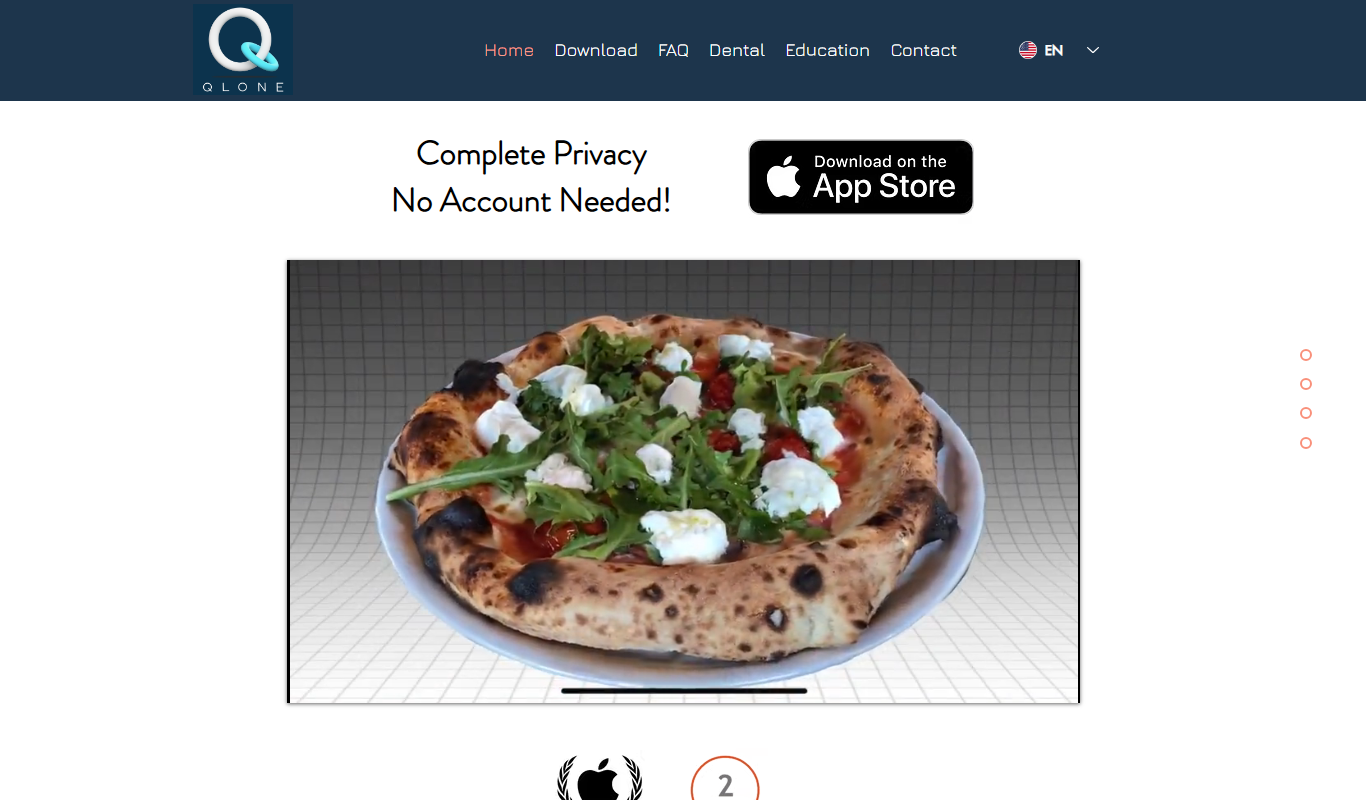
Qlone is a mobile app that uses your smartphone camera and a printed mat to scan physical objects and create detailed 3D models for use in AR, 3D printing, and design projects.

Method Draw
Method Draw is a free, open source online SVG editor that allows users to create and edit vector graphics directly in the browser without installation.

Morpholio Trace
Morpholio Trace is a digital sketching app for architects and designers that enables layered drawing, annotation, and precise markups on iPad devices, optimized for Apple Pencil.

Pix4D
Pix4D is a photogrammetry software that processes drone and camera images to create precise 2D maps and 3D models, widely used in surveying, agriculture, and construction.

RoOomy
RoOomy is a virtual staging platform that helps real estate professionals create photorealistic staged property images, with Matterport virtual staging as its 3D offering.

RelayThat
RelayThat is a web-based design automation tool that helps marketers create consistent branded graphics across multiple platforms by automating resizing and formatting.