

From my experience with Vance Video AI, I found it excels at delivering high-quality video upscaling and noise reduction through an intuitive web interface. The AI-powered enhancements noticeably improve video clarity and resolution without requiring manual editing skills, making it accessible for creators and marketers alike. However, the lack of dedicated desktop or mobile apps means users rely on stable internet connections and browser access, which can affect processing speed. Overall, if you need straightforward, effective AI video enhancement online, Vance Video AI offers a solid and affordable solution.
Vance Video AI - Advanced AI Video Enhancement and Upscaling Tool
Vance Video AI is an online platform that uses artificial intelligence to upscale and enhance video quality by removing noise, artifacts, and improving resolution up to 4K.
- Best for
- Video Quality Enhancement
- Key capability
- AI Video Upscaling
Your actions
Save Vance Video AI, follow its updates and vote on it — everything stays in your account.
Sign in or create a free account

What is Vance Video AI?
Vance Video AI is an online AI-powered video enhancement platform designed to upscale, denoise, and improve video quality automatically. It leverages advanced deep learning algorithms to increase video resolution, reduce noise, and restore details, making videos clearer and more professional without manual editing.
Key features of Vance Video AI
The tool offers AI video upscaling up to 4K, noise reduction, artifact removal, and color enhancement. It supports various video formats and provides a simple web interface for quick processing without requiring technical expertise.
AI Video Upscaling
Increase video resolution up to 4K using deep learning models that add realistic details.
Noise Reduction
Remove grain and noise from videos to produce cleaner and sharper visuals.
Artifact Removal
Eliminate compression artifacts and distortions common in low-quality videos.
Color Enhancement
Automatically adjust and improve color vibrancy and balance for better visual appeal.
Batch Processing
Process multiple videos simultaneously to save time for users with large workloads.
Pros and cons of Vance Video AI
Pros
- User-friendly web interface requiring no technical skills
- High-quality AI upscaling up to 4K resolution
- Supports batch processing for efficiency
- Affordable pricing tiers with flexible options
Cons
- No dedicated desktop or mobile applications
- Processing speed depends on internet connection and server load
- Limited language support beyond English and Chinese
Key use cases for Vance Video AI
Video Quality Enhancement
Improve the resolution and clarity of low-quality videos using AI-powered upscaling and noise reduction.
Video Restoration
Restore old or damaged videos by removing noise, artifacts, and enhancing details.
Content Creation
Enhance videos for social media, marketing, or professional presentations with improved visual quality.
Film and Media Production
Use AI tools to upscale footage for higher resolution outputs suitable for broadcasting or streaming.
How Vance Video AI works
- 1
Upload Video
Users upload their video files directly on the Vance Video AI web platform.
- 2
Select Enhancement Options
Choose desired AI enhancement features such as upscaling resolution and noise reduction.
- 3
Process Video
The AI algorithms analyze and enhance the video automatically in the cloud.
- 4
Download Enhanced Video
Once processing is complete, users download the improved video in higher quality.
Who is using Vance Video AI
Video content creators
Marketing professionals
Film editors and producers
Social media managers
Small businesses needing video enhancement
Vance Video AI pricing
Free
$0/month
Limited daily usage with watermark on output videos and lower priority processing.
Basic
$9.90/month
Higher daily limits, no watermark, and faster processing speeds.
Pro
$29.90/month
Unlimited usage, priority processing, and access to all advanced features.
Plans and prices are as published by the vendor and can change. Check the official site before you buy. Open the pricing page (opens in a new tab)
Frequently asked questions about Vance Video AI
It supports common formats including MP4, MOV, AVI, and more.
Currently, Vance Video AI is accessible via web browsers and does not have dedicated mobile apps.
Yes, limits depend on the subscription plan, with higher tiers allowing longer and larger videos.
Free plan videos include watermarks; paid plans remove watermarks.
It depends on your specific needs and how you plan to use the tool. The official website and documentation are the best sources for the latest details.
Pricing depends on the plan and included features. For the most accurate and up-to-date details, check the official pricing page.
Yes, it can help with that use case depending on how you configure it and what features are available. You’ll get the best results with clear inputs and a defined goal.
Sign in to review this tool.
Sign In to ReviewNo reviews yet
Be the first to share how this tool worked for you.
Ask about pricing, limits, or how it compares — or answer someone else.
Sign In to AskNo questions yet
Have a question about using or paying for this tool? Be the first to ask.
Featured on TiorAI



Alternative Tools
Explore similar AI tools that might fit your needs

Free Trial
HitPaw Video Enhancer
HitPaw Video Enhancer is a desktop software that uses AI to upscale videos to 4K, reduce noise, and sharpen details, making low-quality videos clearer and more professional.
More AI Video Creation Tools tools
Other tools in the same category, for when this one is not quite the fit.

Freemium
VideoGen – AI Video Generator
VideoGen is an AI video generator that transforms text scripts into fully automated videos with voiceovers and visuals, ideal for marketers and content creators.

Freemium
Customuse
Customuse turns one prompt into images, videos or production-ready 3D assets with the latest AI models, built for game studios.

Freemium
ByteCap
Bytecap is an AI video clipper that turns long videos into shorts: find highlights, add captions and B-roll, then publish to TikTok, Reels and YouTube Shorts.

Subscription
Eklipse.GG
Eklipse automatically clips your best gaming moments from Twitch, Kick and YouTube streams into AI-powered highlights, with no manual editing needed.

Credit-based
PDF To Brainrot
PDF To Brainrot converts any PDF into addictive TikTok-style videos to make studying fun and effective with engaging brainrot content.

Freemium
A.V. Mapping
A.V. Mapping is an AI platform that analyzes your video or photo, recommends licensed music and sound effects from musicians, and handles the music license in one place.
Free Trial
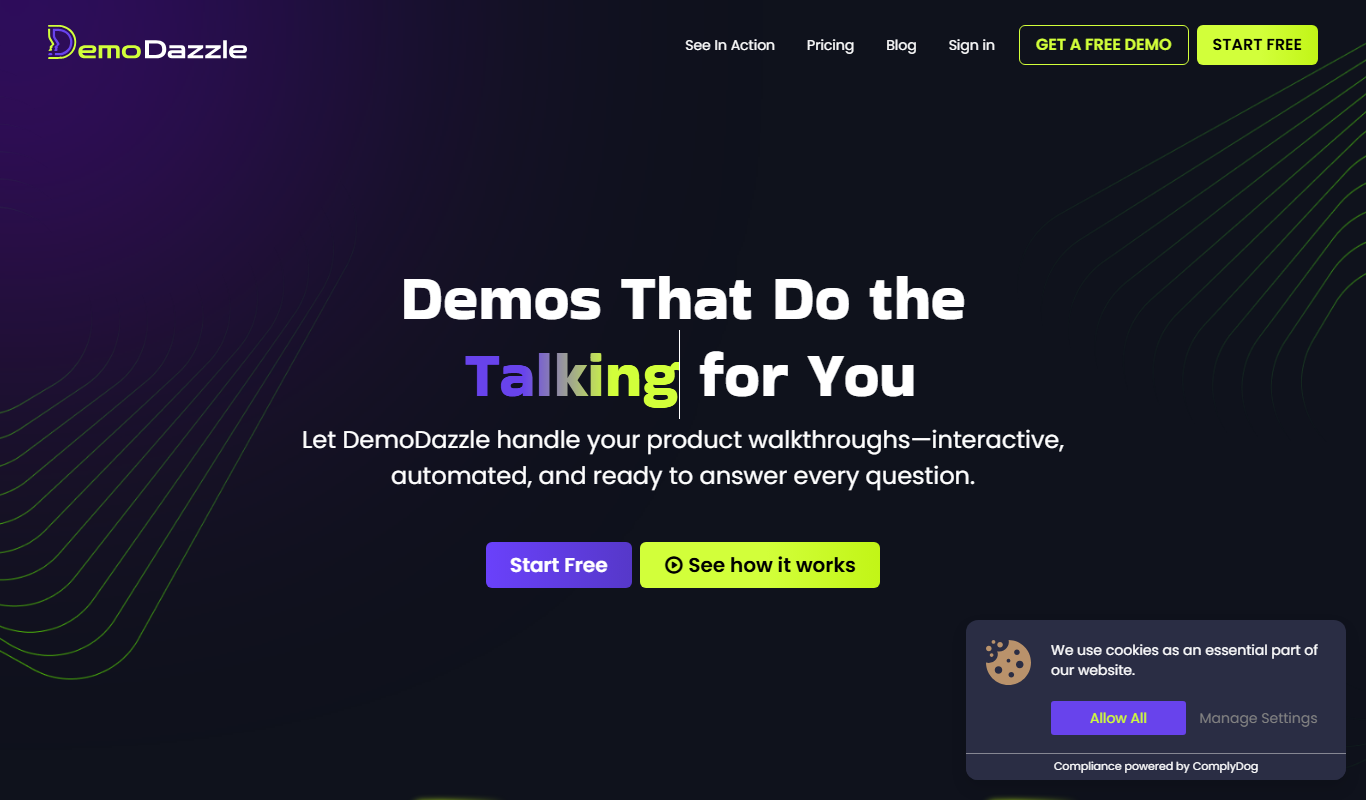
DemoDazzle
DemoDazzle is an AI-powered platform for interactive walkthroughs, featuring lifelike avatars and language models that guide users through product journeys.

Free Trial
Runecontent AI
RuneContent turns LinkedIn posts and articles into short educational videos for TikTok, YouTube Shorts and Instagram Reels, with no editing skills required.