

From my experience with HitPaw Video Enhancer, I found it excels at making low-quality videos look significantly clearer through AI upscaling and noise reduction. The software’s straightforward interface makes it accessible even for beginners, while batch processing saves time for professionals. However, the free trial limits functionality and adds watermarks, and processing speed depends heavily on your computer’s hardware. Overall, if you need to restore old videos or improve footage for social media or marketing, HitPaw Video Enhancer offers a practical and affordable solution.
HitPaw Video Enhancer Review - AI Video Upscaling and Quality Improvement
HitPaw Video Enhancer is a desktop software that uses AI to upscale videos to 4K, reduce noise, and sharpen details, making low-quality videos clearer and more professional.
- Best for
- Video Quality Improvement
- Key capability
- AI Upscaling to 4K


Do you recommend this tool?
What is HitPaw Video Enhancer?
HitPaw Video Enhancer is a desktop software tool that uses artificial intelligence to upscale and improve video quality. It helps users enhance blurry, low-resolution, or old videos by applying AI-driven noise reduction, sharpening, and resolution upscaling. The tool supports upscaling videos to 4K and is designed for both casual users and professionals who want to improve video clarity without complex editing skills.
Key features of HitPaw Video Enhancer
The main features of HitPaw Video Enhancer include AI-powered video upscaling to 4K, noise reduction, sharpening, and color enhancement. It supports batch processing and offers a simple user interface that allows users to enhance videos quickly and efficiently.
AI Upscaling to 4K
Uses advanced AI algorithms to upscale videos from lower resolutions to 4K with improved detail.
Noise Reduction
Removes grain and noise from videos to create a cleaner image.
Video Sharpening
Enhances edges and details to make videos appear clearer and more defined.
Batch Processing
Allows users to enhance multiple videos simultaneously to save time.
User-Friendly Interface
Simple drag-and-drop interface designed for users of all skill levels.
Pros and cons of HitPaw Video Enhancer
Pros
- Easy to use with intuitive interface
- Effective AI upscaling and noise reduction
- Supports batch processing
- Affordable pricing options including lifetime license
Cons
- Limited features in free trial version
- No mobile or web app versions available
- Processing can be slow on older hardware
Key use cases for HitPaw Video Enhancer
Video Quality Improvement
Enhance low-resolution or blurry videos to higher quality with AI-powered upscaling and noise reduction.
Old Video Restoration
Restore and improve old or damaged videos by removing noise, sharpening details, and enhancing clarity.
Content Creation
Improve video quality for social media, marketing, or personal projects to create more professional-looking content.
Upscaling to 4K
Convert HD or lower resolution videos to 4K resolution using AI algorithms for better viewing experience.
How HitPaw Video Enhancer works
- 1
Import Video
Upload the video file you want to enhance into the software.
- 2
Select Enhancement Mode
Choose the AI model or enhancement settings based on your video quality needs.
- 3
Preview and Adjust
Preview the enhanced video and adjust settings if necessary.
- 4
Export Enhanced Video
Save the enhanced video in your desired format and resolution.
Who is using HitPaw Video Enhancer
Video editors and content creators
Marketing professionals
Social media influencers
Individuals restoring old videos
Small businesses producing video content
HitPaw Video Enhancer pricing
Free Trial
$0
Limited features and watermark on output videos.
Monthly Subscription
$19.99/month
Full access to all features with no watermarks.
Lifetime License
$59.99 one-time
One-time payment for permanent access to the software.
Plans and prices are as published by the vendor and can change. Check the official site before you buy. Open the pricing page (opens in a new tab)
Frequently asked questions about HitPaw Video Enhancer
Yes, it uses AI technology to upscale videos to 4K resolution while improving clarity.
Yes, there is a free trial version with limited features and watermarked output.
It supports Windows and Mac operating systems.
Yes, the software supports batch processing for multiple videos.
It depends on your specific needs and how you plan to use the tool. The official website and documentation are the best sources for the latest details.
Some tools offer a free plan or trial with limited features. Availability can vary, so confirm on the official website.
Yes, it can help with that use case depending on how you configure it and what features are available. You’ll get the best results with clear inputs and a defined goal.
Sign in to review this tool.
Sign In to ReviewNo reviews yet
Be the first to share how this tool worked for you.
Ask about pricing, limits, or how it compares — or answer someone else.
Sign In to AskNo questions yet
Have a question about using or paying for this tool? Be the first to ask.
Featured on TiorAI



Alternative Tools
Explore similar AI tools that might fit your needs
Freemium
DVDFab Enlarger AI
DVDFab Enlarger AI is an AI-driven video upscaling software that enhances video resolution and quality by using deep learning to enlarge videos up to 4K, reduce noise, and improve details.
More AI Ai Tools tools
Other tools in the same category, for when this one is not quite the fit.

Free
Pogo Travel
Pogo Travel is an AI-driven platform that generates personalized travel itineraries based on your preferences, travel dates, and interests, offering collaborative planning and offline access.
Freemium
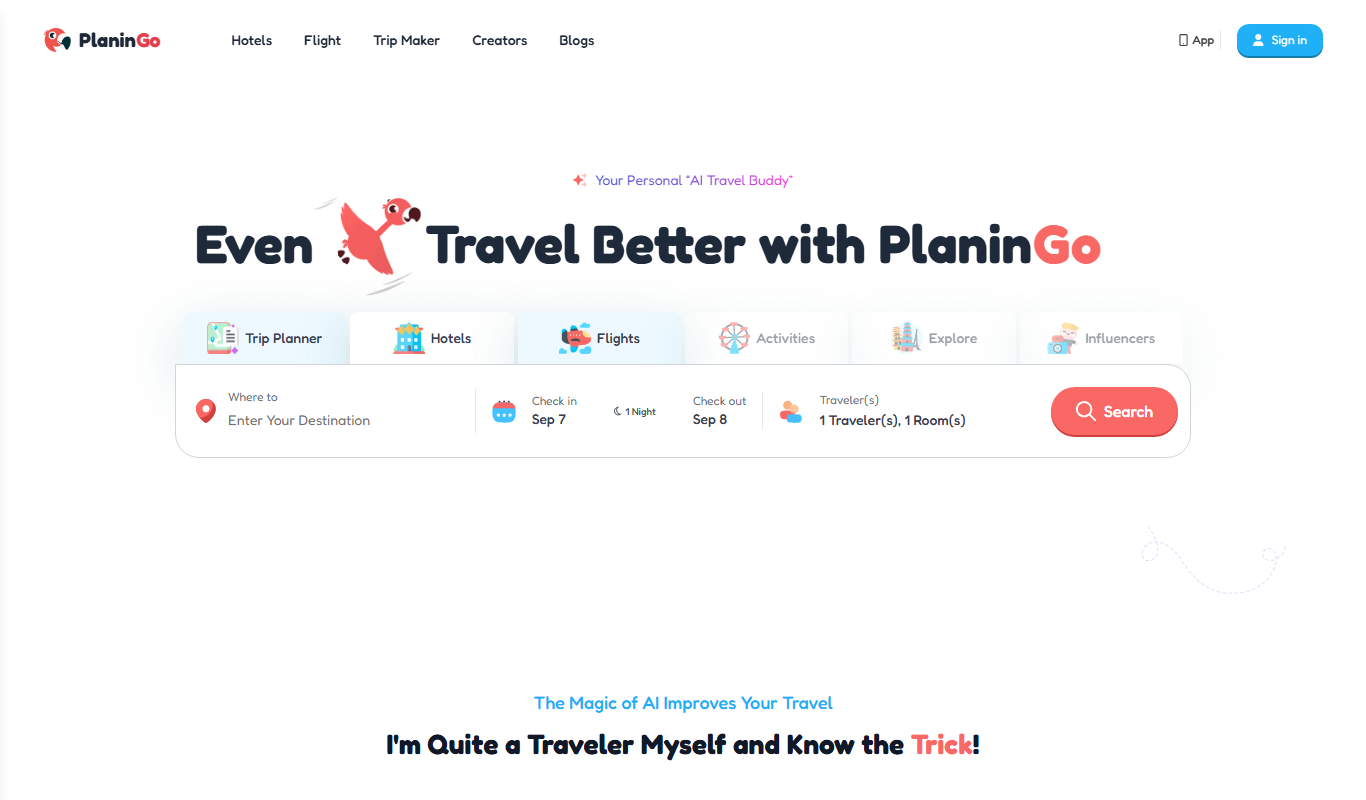
PlaninGo
PlaninGo is an AI travel planning tool that generates personalized trip itineraries and guides based on your preferences, helping you plan efficient and enjoyable trips.

Free
Travelwiz
Travelwiz is an AI-powered travel planning tool that creates personalized trip itineraries and offers tailored travel recommendations based on user preferences.

Free
Momo
Momo is an AI-powered assistant that automates workflows, manages tasks, and enhances team collaboration by integrating with popular productivity tools.

Free
Nextrip
Nextrip AI is an online travel planning tool that uses artificial intelligence to generate personalized trip itineraries based on your preferences, travel dates, and destinations.

Freemium
TravelBot AI Travel Assistant
TravelBot AI Travel Assistant is a web-based platform that uses artificial intelligence to help users create personalized travel itineraries, book flights and hotels, and receive tailored travel recommendations based on preferences and budget.
Freemium
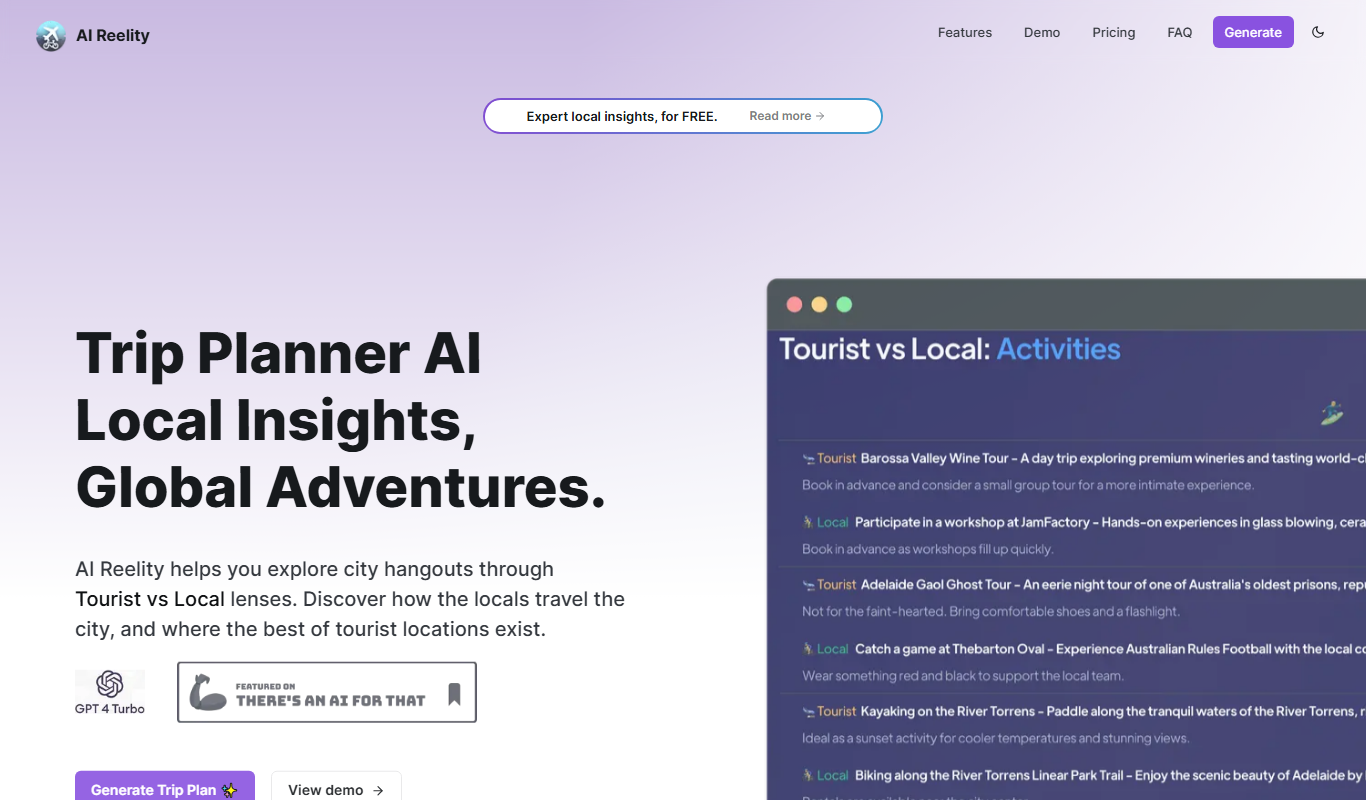
AIreelity
AIreelity is an AI-driven video creation platform that transforms text scripts into engaging marketing videos with customizable templates and AI voiceovers.

Free
AIJOURNEY
AIJOURNEY is an AI-driven career development tool that provides personalized career path recommendations, identifies skill gaps, and offers curated learning resources to help users advance professionally.