

Voicemaker AI Text to Speech Converter with Natural Voices Online
Voicemaker is an AI-powered text to speech platform that converts text into natural, customizable speech audio supporting multiple languages and voices.
- Best for
- Content Narration
- Key capability
- Wide Voice Selection
Save Voicemaker, follow its updates and vote on it — everything stays in your account.
Sign in or create a free account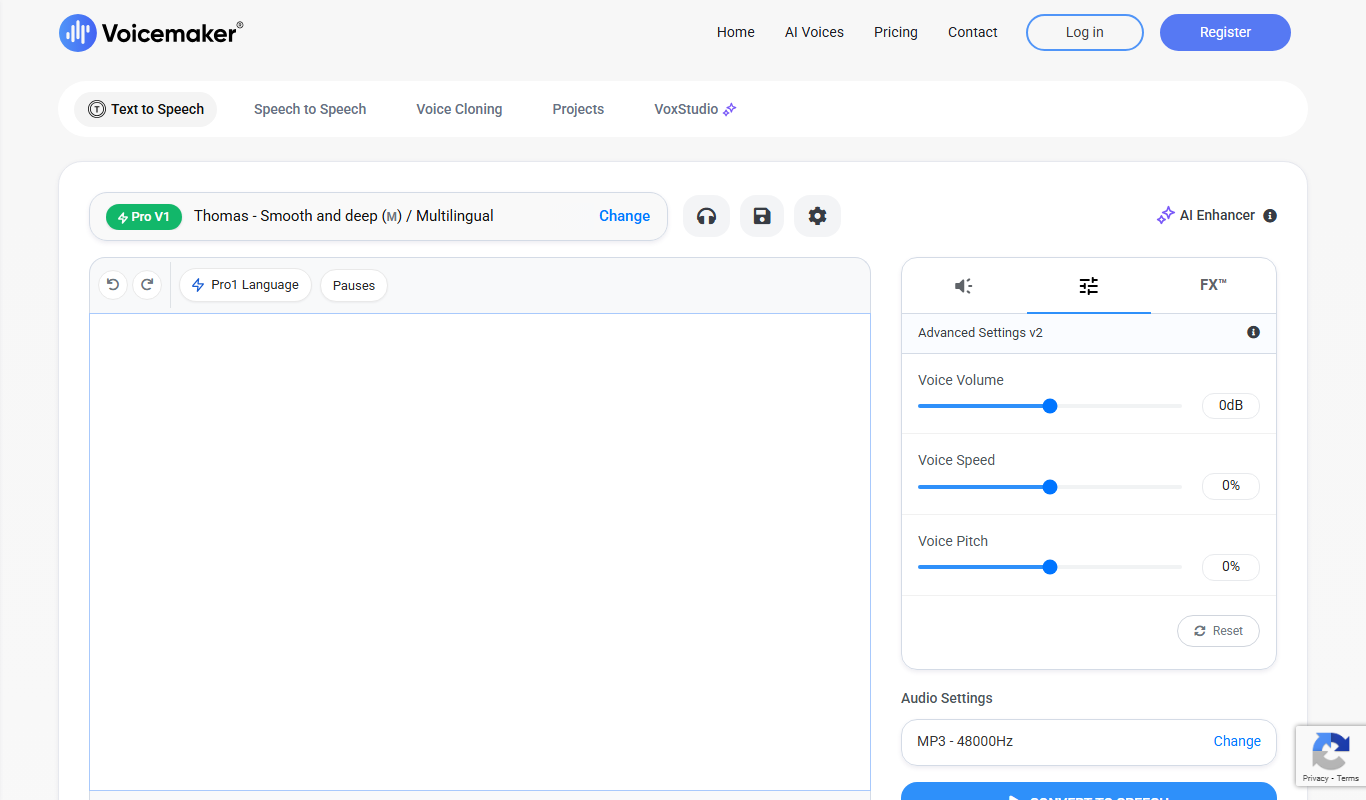
What is Voicemaker?
Voicemaker is an AI-powered text to speech (TTS) platform that converts written text into natural, human-like speech. It offers a wide range of voice options and supports multiple languages, enabling users to create high-quality audio content for various applications such as narration, voiceovers, and accessibility. The tool is web-based and designed to be user-friendly, catering to content creators, educators, marketers, and developers.
Key features of Voicemaker
Voicemaker provides advanced AI voices with customizable parameters like pitch, speed, and emphasis. It supports SSML tags for fine-tuned speech control, offers multiple language options, and allows users to download audio files in various formats. The platform includes a free tier with basic features and paid plans for higher usage and premium voices.
Wide Voice Selection
Access 2,000+ AI voices with different accents and styles.
Multilingual Support
Supports 130 languages, including English, Hindi, Spanish and more.
SSML Support
Use Speech Synthesis Markup Language to control pauses, emphasis, and pronunciation.
Customizable Speech Parameters
Adjust pitch, speed, and volume to tailor the voice output.
Audio Download Options
Download generated speech as MP3 or WAV files for offline use.
Pros and cons of Voicemaker
Pros
- Easy-to-use web interface with quick audio generation
- Supports a wide range of languages and voices
- SSML support for advanced speech customization
- Affordable pricing plans with scalable usage
Cons
- No dedicated desktop or mobile app, web-only platform
- Free plan has strict character limits
- Limited voice styles compared to some competitors
Key use cases for Voicemaker
Content Narration
Convert written content such as articles, blogs, and eBooks into natural-sounding audio narration.
Video Voiceovers
Generate voiceovers for videos, presentations, and advertisements with customizable voices.
E-learning and Training
Create engaging audio lessons and training materials with clear and expressive AI voices.
Accessibility
Provide audio versions of text content to improve accessibility for visually impaired users.
Multilingual Audio Content
Produce audio in multiple languages to reach a broader audience globally.
How Voicemaker works
- 1
Enter Text
Input or paste the text you want to convert into speech.
- 2
Select Voice and Language
Choose from a variety of AI voices and supported languages.
- 3
Customize Speech
Adjust pitch, speed, and apply SSML tags for natural intonation.
- 4
Generate Audio
Click the generate button to create the speech audio.
- 5
Download or Share
Listen to the audio and download it in your preferred format.
Who is using Voicemaker
Voicemaker pricing
Free
$0 forever
Limited generations with up to 250 characters per conversion, personal use only.
Starter
$5/month
200,000 credits per month (about 4 hours of audio), 3,000 characters per conversion, personal and commercial rights.
Creator
$10/month
500,000 credits per month (about 9 hours of audio), 5,000 characters per conversion, personal and commercial rights.
Pro
$20/month
1 million credits per month (about 18 hours of audio), 10,000 characters per conversion, personal and commercial rights.
Teams
$30/month
For small teams collaborating on AI audio projects, with team seats and team collaboration.
Business
$50/month
For growing teams scaling content production.
Enterprise
Custom
For organizations with advanced security and scale needs.
Plans and prices are as published by the vendor and can change. Check the official site before you buy. Open the pricing page (opens in a new tab)
Frequently asked questions about Voicemaker
Yes, paid plans include commercial usage rights. Always check the specific plan details.
Yes, Voicemaker supports 130+ languages, including English, Spanish, German, French, Hindi, Japanese, Arabic and Mandarin Chinese.
Yes, you can adjust pitch, speed, and use SSML tags for detailed control.
Yes, Voicemaker offers a free tier with limited usage and basic voices.
It depends on your specific needs and how you plan to use the tool. The official website and documentation are the best sources for the latest details.
Yes, it can help with that use case depending on how you configure it and what features are available. You’ll get the best results with clear inputs and a defined goal.
Some tools offer a free plan or trial with limited features. Availability can vary, so confirm on the official website.
Yes, it can help with that use case depending on how you configure it and what features are available. You’ll get the best results with clear inputs and a defined goal.
Conclusion
Uploading a pdf, text or doc file converts it automatically into text in the editor, or text can be entered directly. Each passage can then be shaped with SSML controls for pauses, emphasis, volume, speed and pitch, or with voice effects such as whispered or newscaster styles. Audio exports in formats including MP3, WAV and OGG, and a subtitle file can be generated along with it.
Its library holds 2,000+ AI voices in 130 languages, and newer prompt-driven models produce ads, stories and songs from a single prompt. For developers, REST APIs cover text to speech, speech to text and speech to speech on pay-as-you-go pricing.
Everything runs on credits, and the expressive ProPlus voices use more credits per character than the default voices. The free tier allows only short conversions for personal use, while Starter, Creator and Pro raise the monthly credits and add commercial rights, and Teams and Business add shared seats.
Sources
Sign in to review this tool.
Sign In to ReviewNo reviews yet
Be the first to share how this tool worked for you.
Ask about pricing, limits, or how it compares — or answer someone else.
Sign In to AskNo questions yet
Have a question about using or paying for this tool? Be the first to ask.
Featured on TiorAI



More AI Speech Synthesis Tools tools
Other tools in the same category, for when this one is not quite the fit.

vocalimage.app
Vocal Image is an AI speaking coach that gives instant feedback on recorded voice exercises and builds a daily training plan, on iOS, Android and the web.

Voxify
Voxify is an AI text to speech voice generator with 450+ voices in 140+ languages and controls for pitch, speed and emotion.

Dubformer
Dubformer is an AI dubbing studio with phrase-level control in 140+ languages.
AudiowaveAI
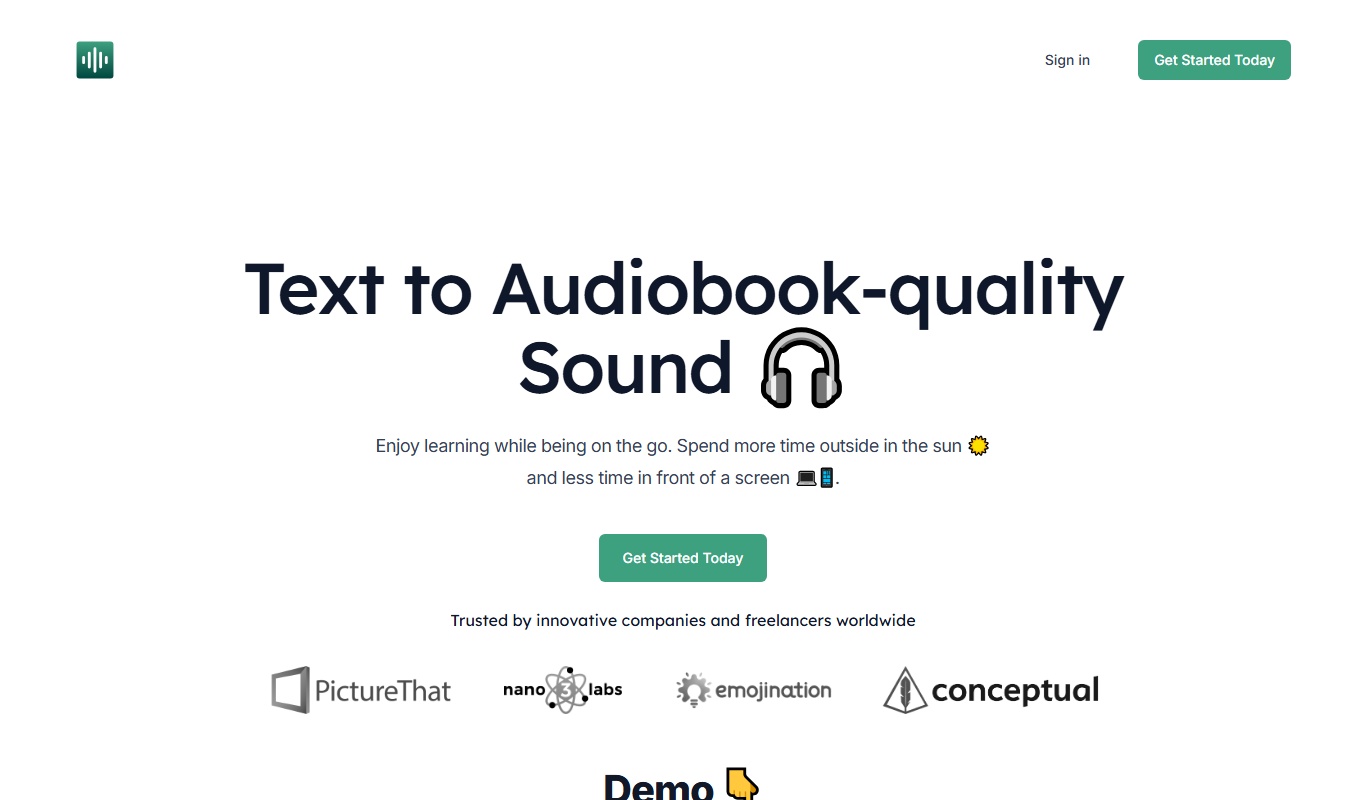
AudiowaveAI converts text such as articles, blog posts, EPUBs and PDFs into audiobook quality sound for listening on the go.

Voice Out
Voice Out is a text-to-speech extension for Chrome and Edge that reads aloud any Google Doc, PDF, webpage or book in 60+ languages and 100+ voices.

Beepbooply
Beepbooply converts text to speech with 900+ voices across 80+ languages and lets you download realistic audio with a click.

AiVOOV – Text to Speech Solution
AiVOOV is an AI-driven text to speech platform that converts written text into natural, human-like audio in multiple languages, suitable for voiceovers, audiobooks, and accessibility.

SteosVoice
SteosVoice is an AI-driven text-to-speech platform that converts text into natural, human-like speech with multi-language support and voice cloning capabilities.