

From my experience with TalkingAvatar, I found it excels at quickly producing realistic talking avatar videos without requiring any filming equipment or actors. The platform’s intuitive interface and customizable avatars make it accessible for marketers and educators who want engaging video content fast. However, the current limitation to primarily English language support and some restrictions on the free plan can be a drawback for users needing broader localization or longer videos. Overall, if you need to create professional-looking avatar videos efficiently, TalkingAvatar offers a solid and affordable solution.
TalkingAvatar AI: Create Realistic Talking Avatars for Videos and Presentations
TalkingAvatar is an AI platform that lets you create realistic talking avatar videos by converting text into speech and animating avatars, ideal for marketing and educational content.
- Best for
- Marketing Videos
- Key capability
- Realistic Avatar Animation


Do you recommend this tool?
What is TalkingAvatar?
TalkingAvatar is a web-based AI platform that enables users to create realistic talking avatars from text input. It combines advanced text-to-speech technology with animated 3D avatars to produce engaging video content without the need for cameras or actors. Users can customize avatars’ appearance and voice to suit various communication needs.
Key features of TalkingAvatar
TalkingAvatar offers customizable avatars, natural voice synthesis, multi-language support, and easy video export options. It simplifies video creation by automating lip-sync and facial expressions, making it accessible for marketers, educators, and businesses.
Realistic Avatar Animation
Advanced AI-driven lip-sync and facial expressions create natural avatar movements.
Customizable Avatars
Users can personalize avatars’ appearance to match branding or personal style.
Natural Text-to-Speech Voices
High-quality AI voices deliver clear and expressive speech in multiple accents.
Multi-language Support
Supports English and other languages for global content creation.
Easy Video Export
Download videos in common formats or share directly to platforms.
Pros and cons of TalkingAvatar
Pros
- User-friendly interface with quick video generation
- High-quality, realistic avatar animations
- Customizable avatars and voices
- Affordable pricing tiers
- No need for filming or actors
Cons
- Limited language options currently
- Free plan videos have watermarks and length limits
- Customization options could be deeper for advanced users
Key use cases for TalkingAvatar
Marketing Videos
Create engaging talking avatar videos to promote products or services on social media and websites.
Educational Content
Develop interactive lessons and tutorials using realistic avatars to enhance learner engagement.
Corporate Training
Produce professional training videos with avatars that can explain complex topics clearly.
Personalized Video Messages
Generate customized video messages with avatars for customer engagement or greetings.
Content Localization
Use avatars to deliver content in different languages or styles for diverse audiences.
How TalkingAvatar works
- 1
Select or Customize Avatar
Choose from a library of avatars or customize features like hair, skin tone, and clothing.
- 2
Input Text Script
Enter the text you want the avatar to speak.
- 3
Choose Voice and Language
Select a voice style and language for the avatar’s speech.
- 4
Generate Video
The platform synthesizes speech and animates the avatar to produce a talking video.
- 5
Download or Share
Export the video file or share it directly on social media or websites.
Who is using TalkingAvatar
Digital marketers
Educators and trainers
Small and medium businesses
Content creators
Customer engagement teams
TalkingAvatar pricing
Free
$0/month
Limited avatar options, watermark on videos, and capped video length.
Pro
$29/month
Access to full avatar library, no watermarks, longer videos, and priority support.
Business
Custom pricing
Advanced features, team collaboration, and dedicated account management.
Plans and prices are as published by the vendor and can change. Check the official site before you buy. Open the pricing page (opens in a new tab)
Frequently asked questions about TalkingAvatar
Yes, videos created with TalkingAvatar can be used commercially, especially with paid plans.
Free plan videos have length restrictions; paid plans allow longer videos.
Yes, you can select from multiple AI voices and adjust speech parameters.
Currently, English is the primary supported language, with plans to add more.
It depends on your specific needs and how you plan to use the tool. The official website and documentation are the best sources for the latest details.
Yes, it can help with that use case depending on how you configure it and what features are available. You’ll get the best results with clear inputs and a defined goal.
Yes, it can help with that use case depending on how you configure it and what features are available. You’ll get the best results with clear inputs and a defined goal.
Pricing depends on the plan and included features. For the most accurate and up-to-date details, check the official pricing page.
Sign in to review this tool.
Sign In to ReviewNo reviews yet
Be the first to share how this tool worked for you.
Ask about pricing, limits, or how it compares — or answer someone else.
Sign In to AskNo questions yet
Have a question about using or paying for this tool? Be the first to ask.
Featured on TiorAI



More AI Avatar Creation Tools tools
Other tools in the same category, for when this one is not quite the fit.

Free
Toyify Me
Toyify Me is a free web-based AI tool that converts your photos into colorful cartoon avatars quickly and easily.
Freemium
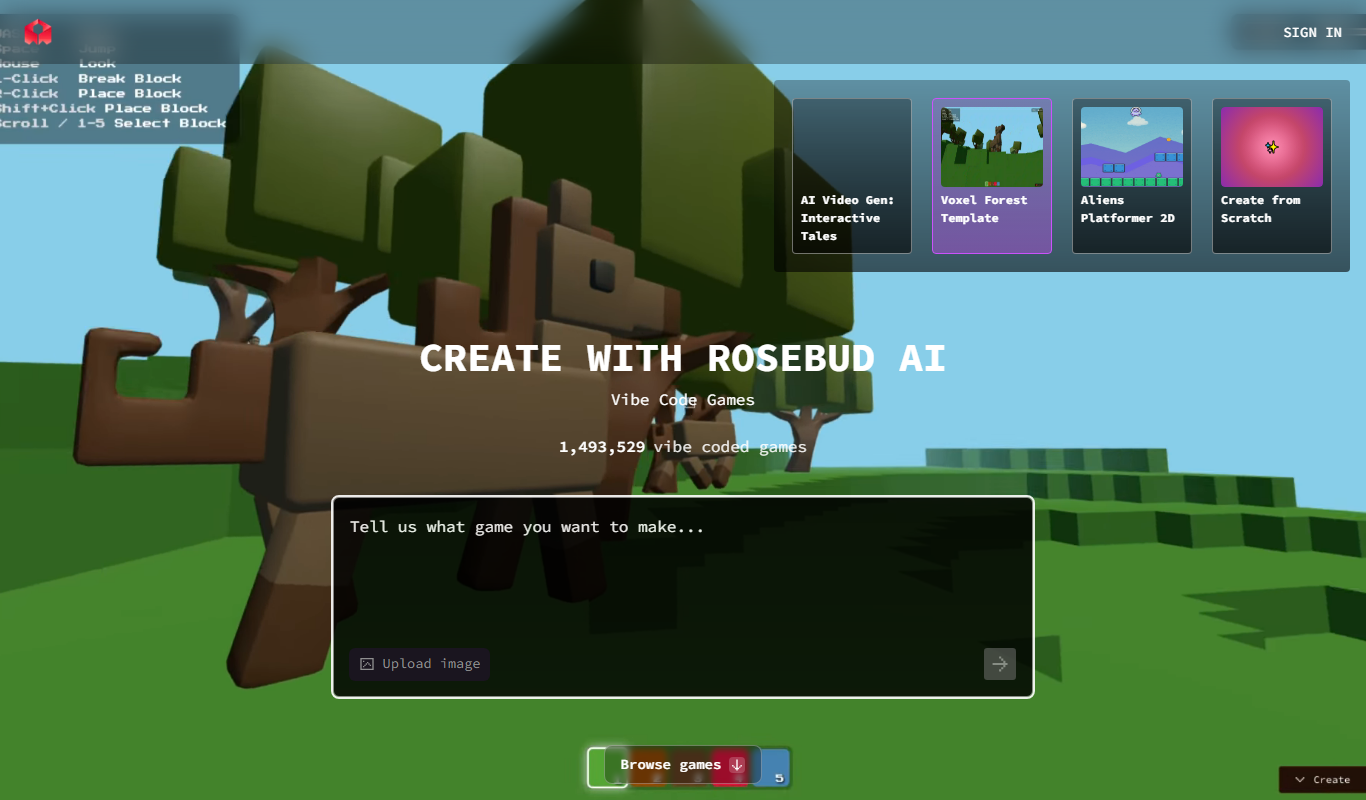
Rosebud
Rosebud AI is a platform that generates customizable, photorealistic synthetic human images and avatars using deep learning, suitable for marketing, gaming, and social media.

Free Trial
vverse.ai
vverse.ai is an AI platform that generates personalized avatar videos from text input, featuring natural speech and emotional expressions.
Paid
FamousFace
FamousFace is an AI-powered web tool that generates realistic celebrity-like faces for avatars and creative use, offering high-resolution images with commercial rights.
Freemium
AI Twin: Your Digital Self
AI Twin is a web platform that lets you create a personalized AI-powered digital avatar that mimics your personality and appearance for virtual interactions.

Free
In3D
In3D is a mobile app that creates realistic 3D avatars by scanning your body with a smartphone camera, enabling use in games, VR, and metaverse platforms.

Free
AI Avatar Generator
AI Avatar Generator is an online tool that uses artificial intelligence to create personalized digital avatars from photos or text prompts, offering multiple styles and high-resolution downloads.

Freemium
Talking Avatar
Talking Avatar AI is a web platform that creates realistic talking avatars by converting text into synchronized speech and facial animation, ideal for video content and presentations.