From my experience with Screencast-O-Matic, I found it excels at providing an intuitive and accessible screen recording solution that balances ease of use with useful editing features. After spending time with the platform, I can say it’s particularly well-suited for educators, small businesses, and content creators who need to produce tutorials or presentations without a steep learning curve. However, there’s a trade-off: the free version limits recording length and adds a watermark, which may require upgrading for professional use. Overall, if you need straightforward screen capture combined with basic editing and captioning, Screencast-O-Matic delivers solid results.
Screencast-O-Matic Screen Recording and Video Editing Software for Creators
Screencast-O-Matic is a screen recording and video editing software that enables users to capture their screen and webcam, edit videos with captions and overlays, and share content easily across platforms.
What is Screencast-O-Matic?
Screencast-O-Matic is a versatile screen recording and video editing software designed to help users capture their screen, webcam, or both simultaneously. It offers tools to create, edit, and share videos easily, making it popular among educators, businesses, and content creators. The platform supports video narration, annotations, captions, and simple editing features to enhance recorded content.
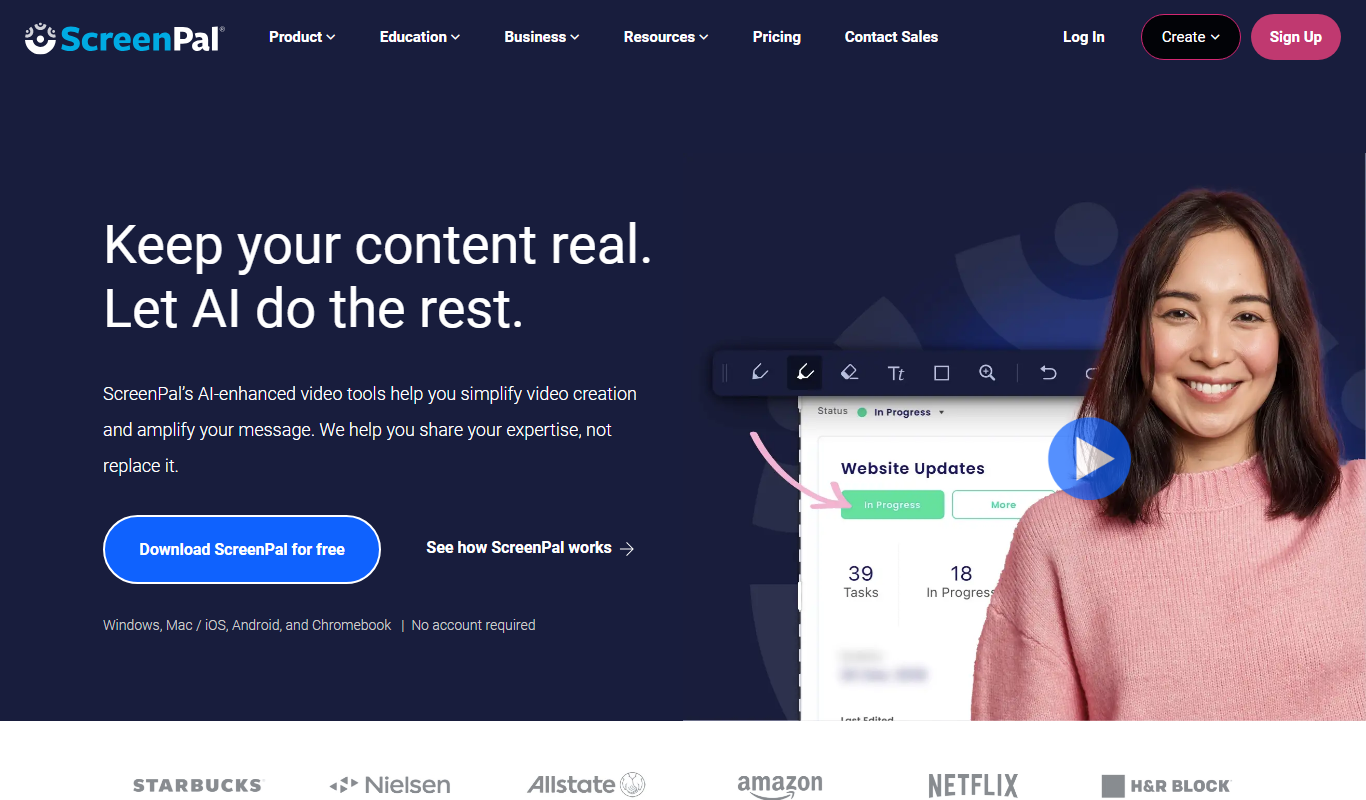
Key Features of Screencast-O-Matic
Screen and Webcam Recording
Capture your screen, webcam, or both simultaneously with customizable recording options.
Video Editing Tools
Trim clips, add text, captions, zoom effects, and overlays to enhance your videos.
Automated Transcription and Captions
Generate captions automatically to improve accessibility and viewer engagement.
Video Hosting and Sharing
Host videos on Screencast-O-Matic’s platform or export to popular services like YouTube.
Scripted Recording and Video Templates
Use scripts and templates to streamline video creation and maintain consistency.
Pros and Cons of Screencast-O-Matic
Pros
- User-friendly interface suitable for beginners
- Flexible recording options including webcam and screen
- Affordable pricing with a free tier
- Built-in video editing and captioning tools
- Cross-platform support including mobile apps
Cons
- Free version includes watermark and recording time limits
- Advanced editing features require higher-tier plans
- Limited integrations compared to some competitors
Key Use Cases for Screencast-O-Matic
Educational Tutorials
Create instructional videos and tutorials for online courses or classroom use.
Business Presentations
Record presentations, demos, and training videos for internal or external business communication.
Content Creation
Produce engaging video content for social media, YouTube, and marketing campaigns.
Software Demonstrations
Capture software walkthroughs and product demos with voice narration and annotations.
Remote Collaboration
Share recorded videos with teams for feedback, training, or project updates.
How Screencast-O-Matic Works
-
1
Download or Access Online
Install the desktop app or use the web-based recorder to start capturing your screen.
-
2
Record Your Screen and Webcam
Select the recording area, enable webcam if desired, and start recording your screen activity.
-
3
Edit Your Video
Use built-in editing tools to trim, add captions, zoom, and insert overlays or annotations.
-
4
Publish and Share
Save your video locally or upload it to Screencast-O-Matic’s hosting platform, YouTube, or other destinations.
Who's Using Screencast-O-Matic
Educators and trainers
Small business owners
Content creators and YouTubers
Corporate teams for training and presentations
Freelancers producing video tutorials
Screencast-O-Matic Pricing
Free
$0/month
Basic screen recording with watermark and 15-minute recording limit.
Deluxe
$1.65/month (billed annually)
Removes watermark, longer recordings, basic editing tools, and stock media access.
Premier
$4/month (billed annually)
Advanced editing, scripted recordings, captions, and video hosting with analytics.
Frequently Asked Questions About Screencast-O-Matic
Yes, Screencast-O-Matic allows simultaneous recording of your screen and webcam.
Yes, the free plan limits recordings to 15 minutes per video.
Yes, it includes basic to advanced editing tools depending on your subscription plan.
Yes, automated transcription and captioning are available in paid plans.
It depends on your specific needs and how you plan to use the tool. The official website and documentation are the best sources for the latest details.
It depends on your specific needs and how you plan to use the tool. The official website and documentation are the best sources for the latest details.
Some tools offer a free plan or trial with limited features. Availability can vary, so confirm on the official website.
Yes, it can help with that use case depending on how you configure it and what features are available. You’ll get the best results with clear inputs and a defined goal.
Share your review
Reviews are limited to one per logged-in user and are published after moderation.
You need an account to review this tool.
0.0
★
★
★
★
★
0 reviews
5 star
0
4 star
0
3 star
0
2 star
0
1 star
0
No reviews yet
Be the first to share how this tool worked for you.
Questions from the community
Read questions and answers about this tool, or ask your own.
No questions yet
Start the conversation by asking the first question about this tool.
Is this tool helpful?
Alternative Tools
Explore similar AI tools that might fit your needs

Free
Loom
Loom is a video messaging platform that enables users to quickly record and share screen and webcam videos for remote communication, collaboration, and tutorials.

Free
OBS Studio
OBS Studio is a free and open-source software for live streaming and video recording that supports multiple platforms and customizable scenes.

Free Trial
Sonix
Sonix is an AI transcription software that automatically converts audio and video files into accurate, editable text transcripts supporting multiple languages and offering features like speaker labeling and export options.
Freemium
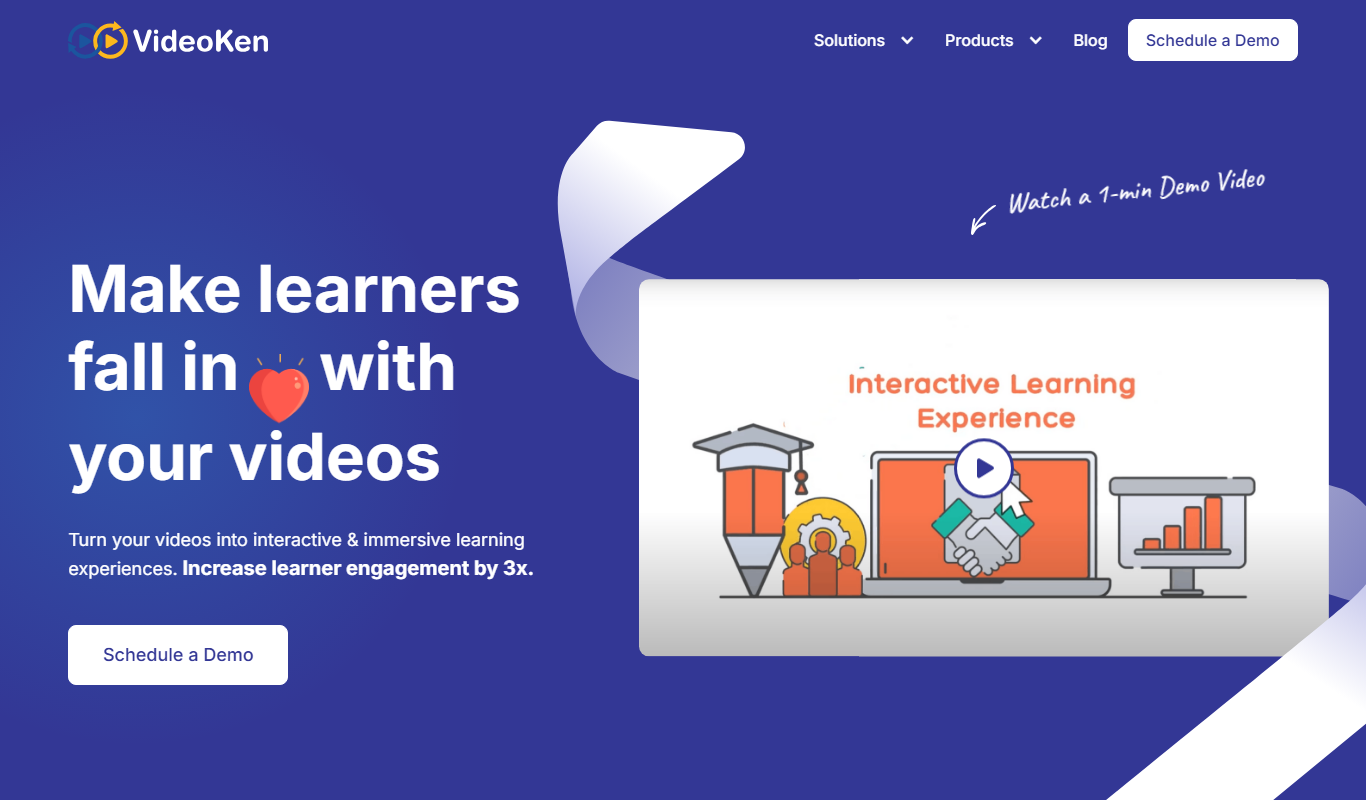
VideoKen
VideoKen is an AI-driven platform that indexes and segments long videos into chapters, provides automatic transcription, and enables interactive navigation to enhance video learning and content accessibility.
Free
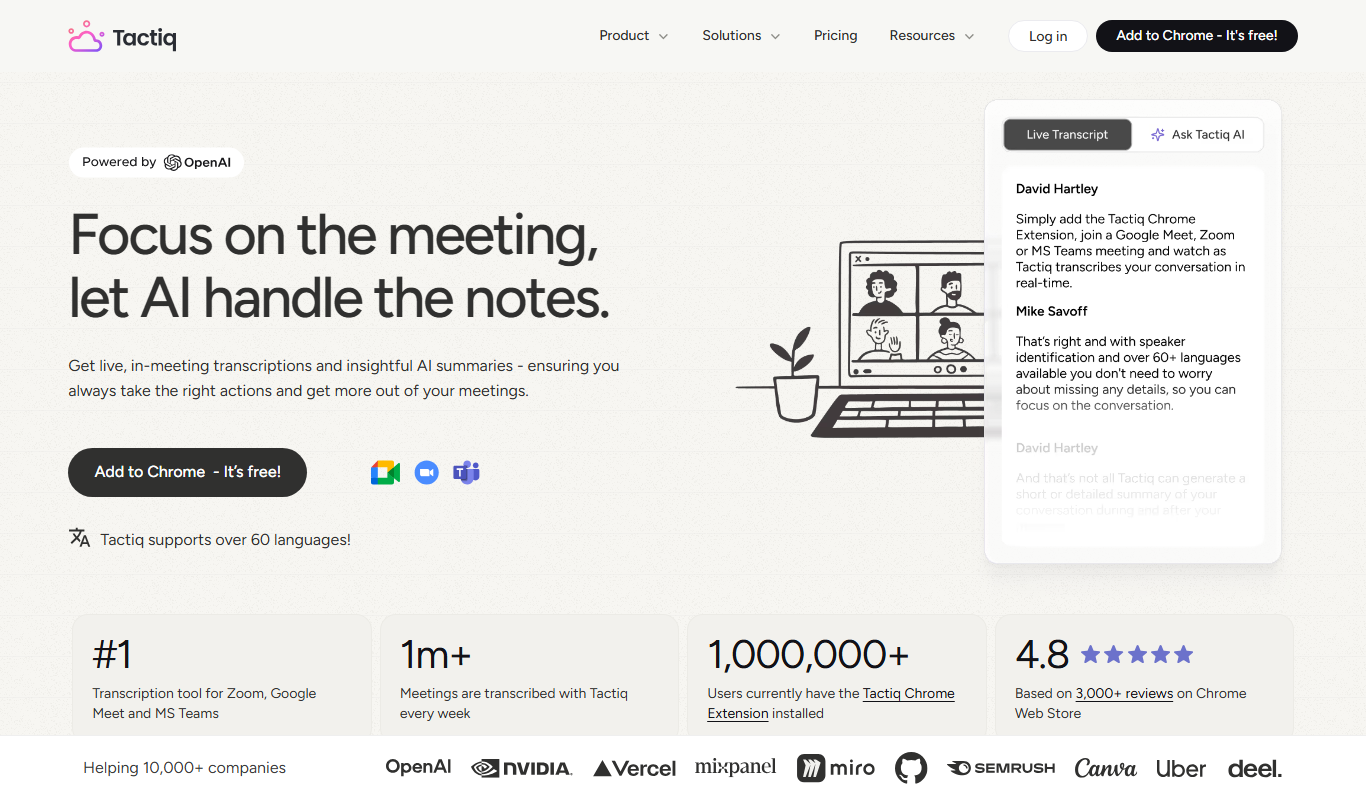
Tactiq Pins
Tactiq Pins is a Chrome extension that provides real-time transcription and highlight pinning for Google Meet calls, enabling users to capture and export meeting notes efficiently.
Custom Pricing
LyricFind
LyricFind is a licensed provider of song lyrics and music metadata, offering APIs for digital platforms to legally display lyrics and manage music rights.
Free
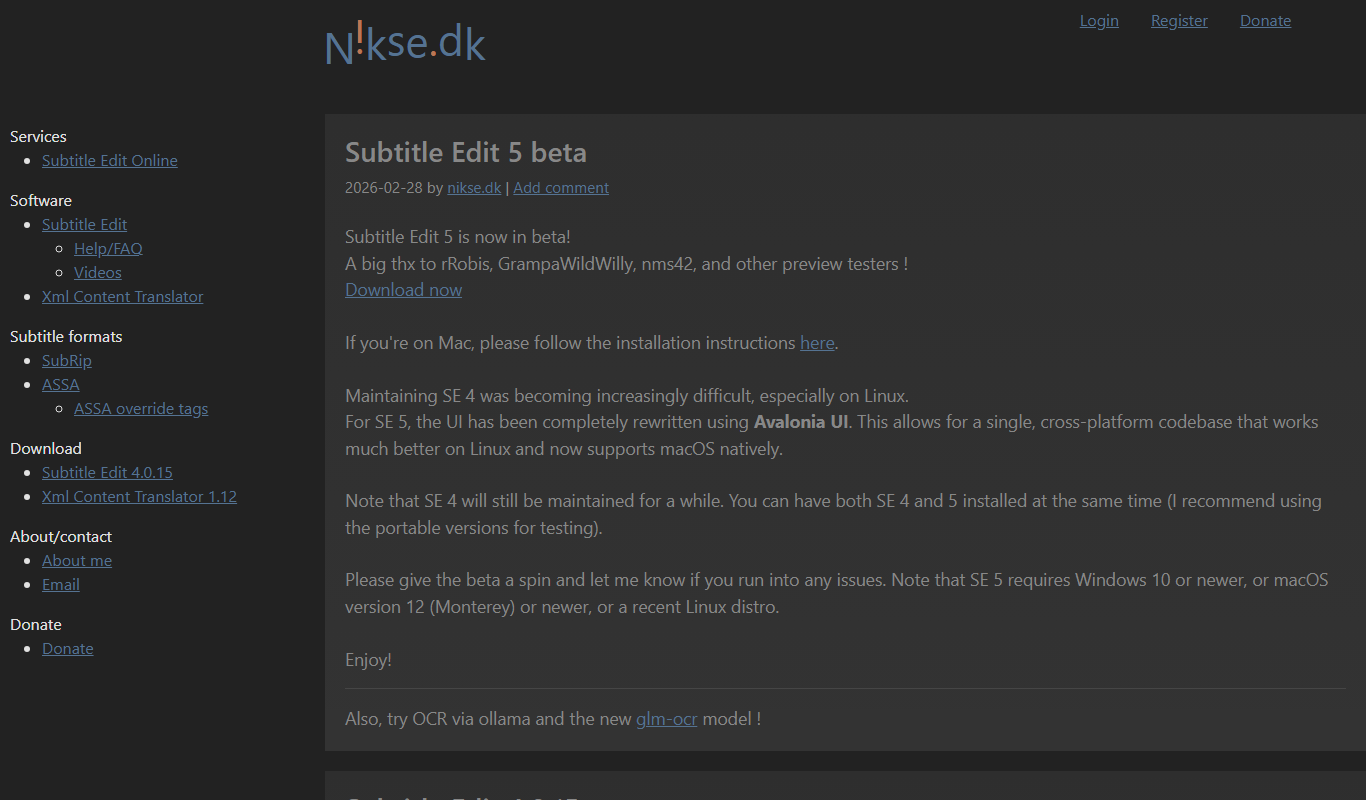
Subtitle Edit
Subtitle Edit is a free, open-source subtitle editor that allows users to create, edit, synchronize, and translate subtitles for video files with support for over 200 subtitle formats.
Pay As You Go
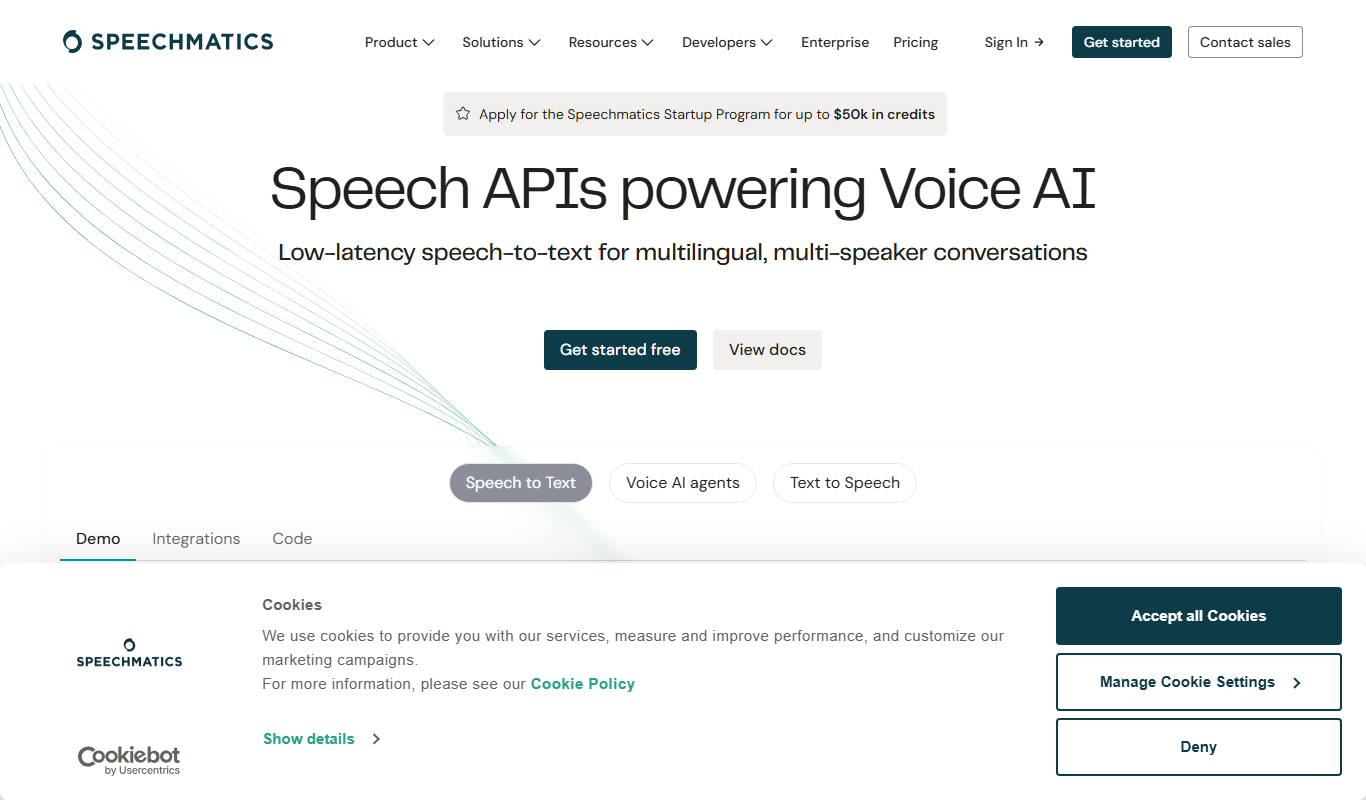
Speechmatics
Speechmatics is an AI-powered speech-to-text transcription software that converts audio and video into accurate text transcripts supporting multiple languages and real-time processing.

Free
Spext
Spext is an AI-powered platform that converts speech to editable text transcripts and allows users to edit audio by editing the transcript, simplifying audio editing workflows.
Free
Subly
Subly is an AI-driven web platform that automatically transcribes video audio into subtitles, allows editing and styling of captions, and supports multi-language translation to make videos accessible and shareable worldwide.