

Notion AI: AI-Powered Writing & Productivity Assistant for Teams
Notion AI is an AI-powered assistant embedded in the Notion workspace that helps users generate, edit, and summarize content to boost productivity and collaboration.
- Best for
- Content Creation
- Key capability
- AI Writing Assistant
Save Notion AI, follow its updates and vote on it — everything stays in your account.
Sign in or create a free account

What is Notion AI?
Notion AI is an integrated artificial intelligence assistant embedded within the Notion productivity platform. It enhances note-taking, writing, and collaboration by providing AI-driven content generation, editing suggestions, and summarization directly inside users’ workspaces. Designed to boost productivity for individuals and teams, Notion AI helps users create, organize, and manage content more efficiently.
Key features of Notion AI
Notion AI offers features such as AI writing assistance, content summarization, idea generation, grammar and style improvements, and task automation within a versatile workspace environment. It seamlessly integrates with Notion’s note-taking and project management tools to enhance productivity.
AI Writing Assistant
Generate, expand, or rewrite text to improve clarity, tone, and style.
Content Summarization
Automatically create concise summaries of long documents or notes.
Idea Generation
Brainstorm topics, outlines, or creative prompts to overcome writer’s block.
Grammar and Style Suggestions
Receive real-time corrections and enhancements for grammar, punctuation, and tone.
Seamless Integration
Works natively within Notion’s workspace without needing external tools.
Pros and cons of Notion AI
Pros
- Integrated directly within Notion workspace for seamless use
- Supports a wide range of writing and productivity tasks
- Collaborative features enhance team workflows
- User-friendly interface with minimal learning curve
- Regular updates and improvements from Notion Labs
Cons
- Limited language support beyond English
- Usage limits on AI features in free and lower-tier plans
- AI suggestions may require manual review for accuracy
Key use cases for Notion AI
Content Creation
Generate, edit, and brainstorm ideas for articles, blog posts, and reports using AI-powered writing tools.
Team Collaboration
Collaborate on documents and projects with real-time editing and AI suggestions to improve clarity and productivity.
Note-Taking and Organization
Use AI to summarize notes, create outlines, and organize information efficiently within a flexible workspace.
Task and Project Management
Manage tasks and workflows with integrated AI assistance to streamline project planning and execution.
Idea Brainstorming
Leverage AI to generate creative ideas, prompts, and content expansions for various writing and business needs.
How Notion AI works
- 1
Access Notion AI
Open your Notion workspace and activate the AI assistant within any page or document.
- 2
Input Your Request
Type prompts or select text to ask Notion AI for writing help, summaries, or ideas.
- 3
Receive AI Suggestions
Notion AI generates content, edits text, or provides summaries based on your input.
- 4
Review and Edit
Review the AI-generated content and make any necessary adjustments before finalizing.
Who is using Notion AI
Notion AI pricing
Free
$0/month
Basic Notion AI features with limited usage included in the free Notion plan.
Plus
$10/member/month, with AI included
Enhanced AI capabilities with higher usage limits for individual users.
Business
$20/member/month, with AI included
Collaborative AI features and advanced workspace management for teams.
Enterprise
Custom pricing
Tailored AI solutions with dedicated support and security for large organizations.
Plans and prices are as published by the vendor and can change. Check the official site before you buy. Open the pricing page (opens in a new tab)
Compare similar tools
How Notion AI lines up against the tools people weigh it against.
 Taskade AI Notion AI
Taskade AI vs Notion AI: Workflow Automation, Reporting & Cost
 Asana AI Notion AI
Asana AI vs Notion AI: Which Boosts Team Productivity More?
 Monday.com AI Notion AI
monday.com AI vs Notion AI: Task Management, Automations & Integrations
 ClickUp AI Notion AI
Clickup AI vs Notion AI: Task Management, Automations & Integrations
 Gamma App Notion AI
Gamma App vs Notion AI: Which AI Design Tool Wins in 2026?
Notion AINotion vs Confluence: Everything You Need to Know Before Choosing
Frequently asked questions about Notion AI
Notion AI assists with writing, editing, summarizing, and brainstorming content within the Notion workspace.
Yes, Notion AI features are accessible on iOS and Android apps.
Yes, Notion AI writes and translates in more than 10 languages.
Yes, basic Notion AI features are included in the free plan with usage limits.
It depends on your specific needs and how you plan to use the tool. The official website and documentation are the best sources for the latest details.
It depends on your specific needs and how you plan to use the tool. The official website and documentation are the best sources for the latest details.
Some tools offer a free plan or trial with limited features. Availability can vary, so confirm on the official website.
Yes, it can help with that use case depending on how you configure it and what features are available. You’ll get the best results with clear inputs and a defined goal.
Conclusion
Inside any Notion page or document, the assistant is activated with a prompt or selected text and generates content, edits text or provides summaries. Long documents or notes can be condensed into concise summaries, and brainstorming helps with topics, outlines or creative prompts. Notion AI writes and translates in more than 10 languages. It works natively within the workspace, next to note-taking and project management tools.
For individuals and teams alike, the fit ranges from content creators and writers to remote teams and project managers. Usage limits apply to AI features in free and lower-tier plans. AI is now included in the plans instead of a separate add-on, with Plus at $10 per member per month and Business at $20 per member per month.
Sources
Sign in to review this tool.
Sign In to ReviewNo reviews yet
Be the first to share how this tool worked for you.
Ask about pricing, limits, or how it compares — or answer someone else.
Sign In to AskNo questions yet
Have a question about using or paying for this tool? Be the first to ask.
Featured on TiorAI



Alternative Tools
Explore similar AI tools that might fit your needs

ChatGPT
ChatGPT is an AI chatbot by OpenAI powered by GPT-4o. It handles writing, coding, research, data analysis, and natural conversation. Free tier available, Plus at $20/month.

Jasper AI
Jasper AI is an AI-powered writing assistant that generates marketing copy, blog posts, and other content types using advanced natural language processing, supporting multiple languages and SEO optimization.
Obsidian
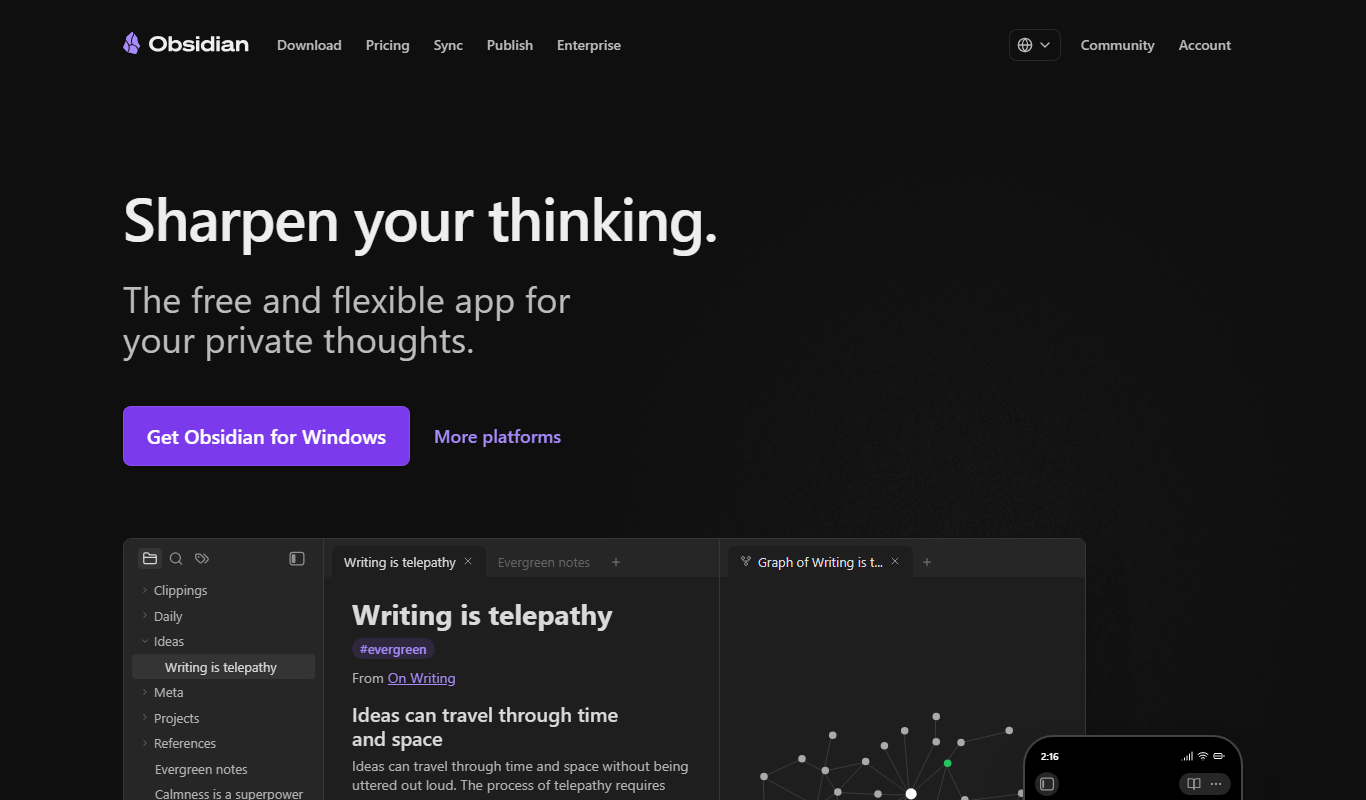
Obsidian is a markdown note-taking app that helps users build a personal knowledge base with linked notes, graph visualization, and extensive customization options.

ClickUp AI
ClickUp AI is an AI assistant integrated into the ClickUp platform that automates project management tasks, generates content, and optimizes workflows to enhance team productivity.

Confluence
Confluence is a team collaboration and knowledge management platform by Atlassian that enables creating, sharing, and organizing documentation with real-time editing and integration with tools like Jira.

Mem.ai
Mem is an AI note-taking workspace and agent that keeps notes, meetings and ideas organized and connected, and checks in when something needs attention.
Roam Research
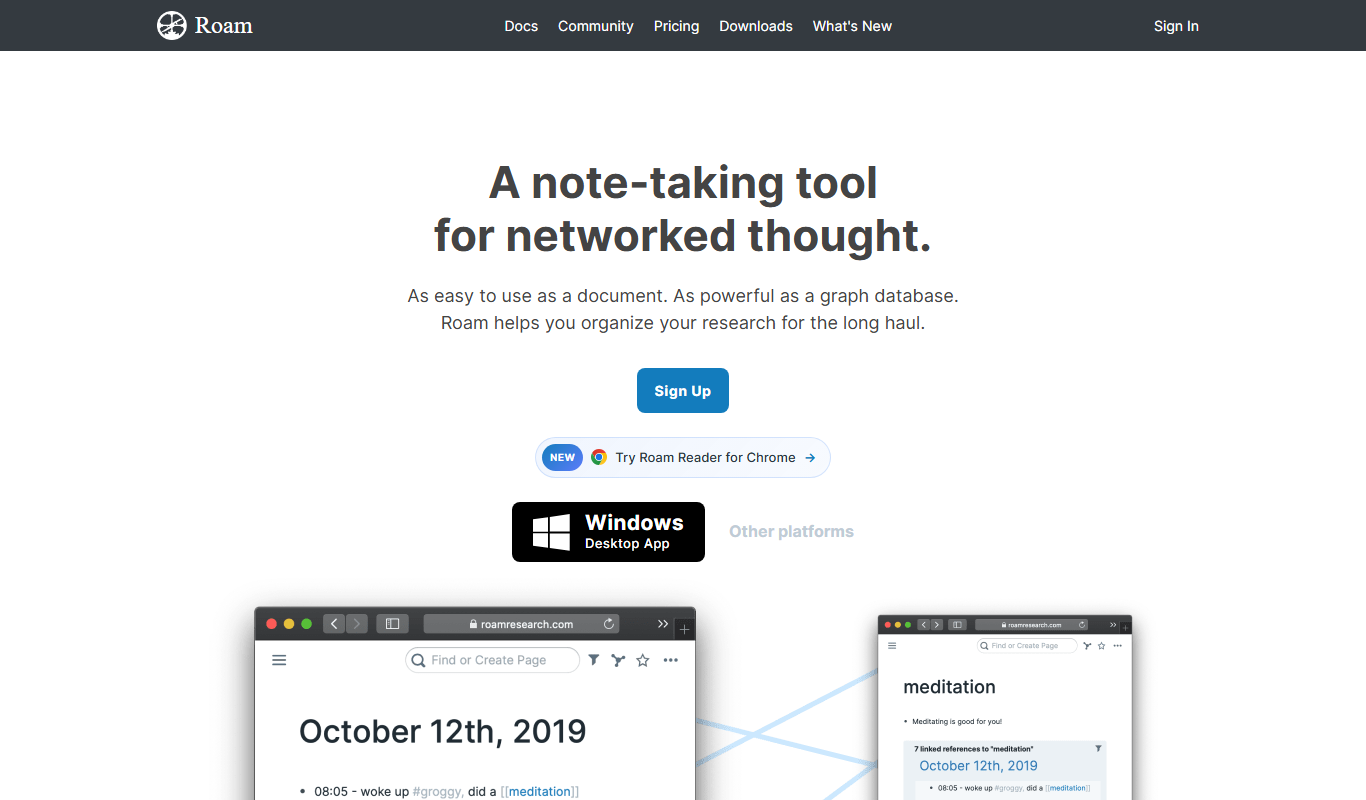
Roam Research is a note-taking and knowledge management tool that uses bidirectional linking and graph visualization to help users organize and connect ideas effectively.

Taskade AI
Taskade AI is a collaborative productivity platform that integrates task management, note-taking, and video chat with AI-powered automation to enhance team workflows and individual productivity.
More AI Productivity tools
Other tools in the same category, for when this one is not quite the fit.

Notedex
NoteDex is a cross-platform note taking system for creating and organizing index cards with text, handwriting and images, with a visual Canvas for ideas.
Forest
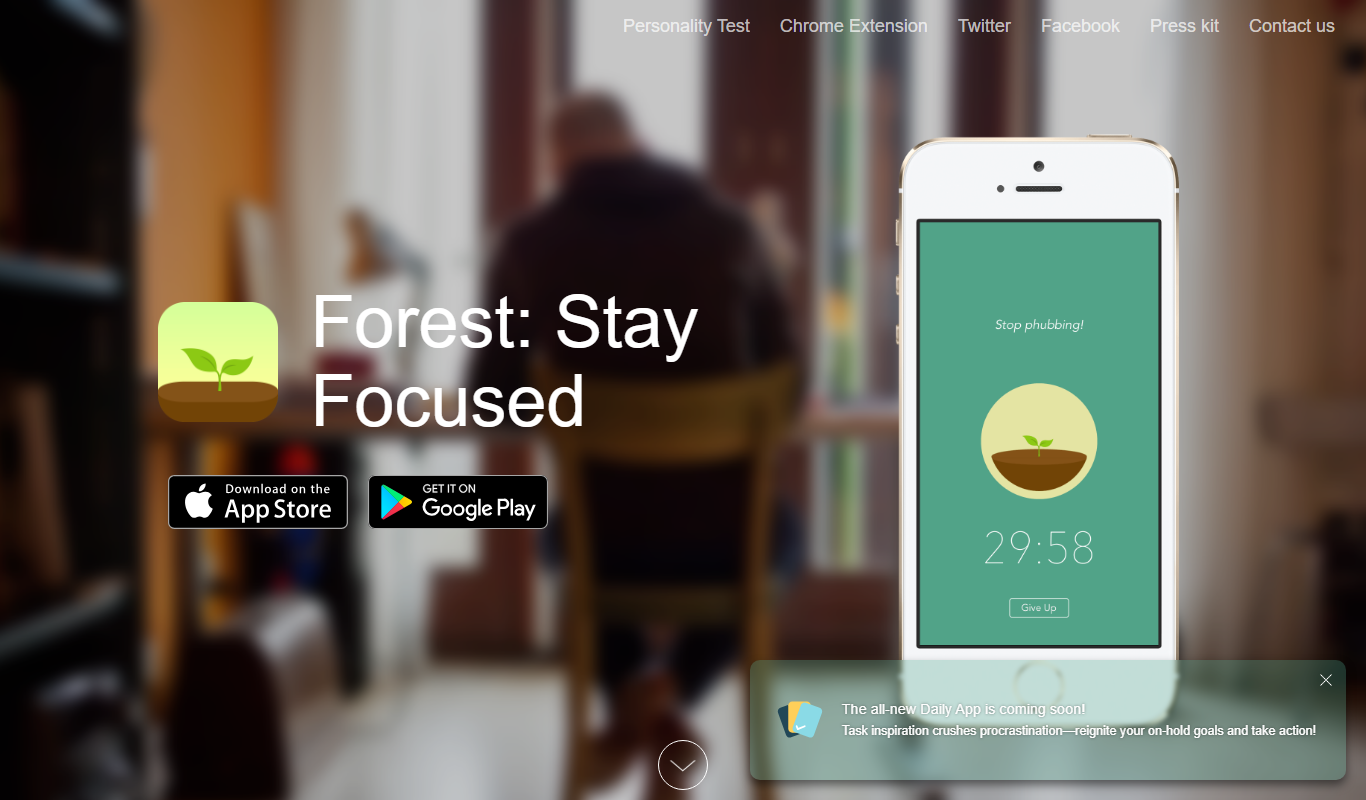
Forest is a productivity app that uses a gamified focus timer to help users stay concentrated by growing virtual trees during timed sessions, discouraging phone distractions.

Alarmy
Alarmy is a smart alarm clock app that wakes users by requiring them to complete tasks like solving puzzles or taking photos, making it effective for heavy sleepers.

Anki
Anki is an open-source spaced repetition flashcard program that helps users memorize information efficiently by scheduling reviews at optimal intervals to enhance long-term retention.
Reedy
Reedy is a speed reading tool that uses rapid serial visual presentation to help users read faster, available as an Android app and a Chrome extension.