

Excel Compare
Excel file comparison is the process of identifying differences between two spreadsheet files. This includes changes in data values, formulas, formatting, and sometimes metadata. It is a crucial step when managing multiple versions of reports, auditing data changes, or consolidating information from different sources. When…
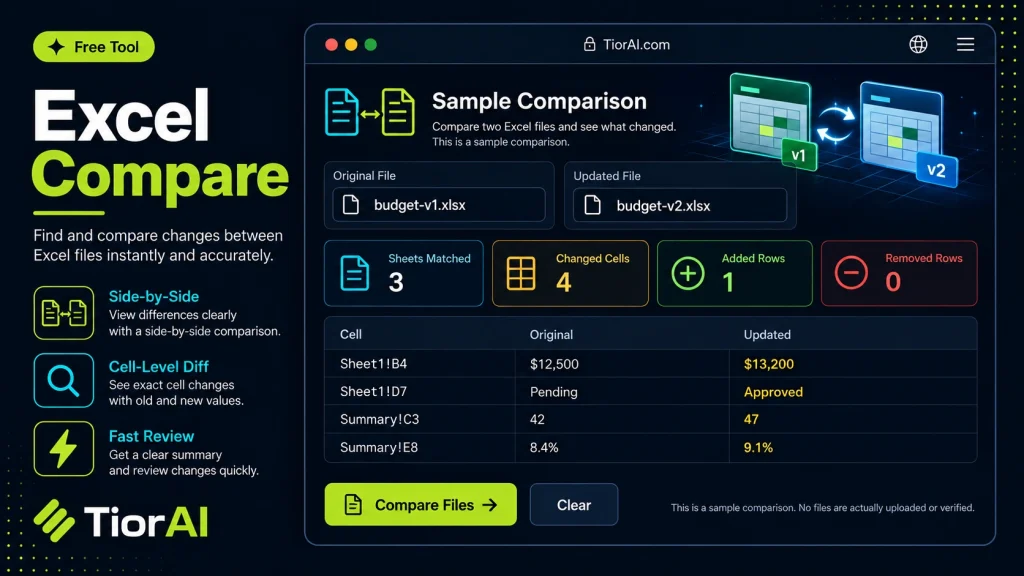
Compare two pasted spreadsheet exports and highlight rows found only in one side.
How to use it
- Paste or Enter Your Input Paste your code, text, or data into the input field. The tool supports large inputs without performance issues.
- Process and Analyze Click the action button or let the tool auto-process your input. Results appear in real time with highlighted details.
- Copy or Download the Output Review the results and copy the output to clipboard or download as a file for use in your project.
Tip This tool preserves your input formatting. Check format settings if the output differs from expected.
Understanding Excel File Comparison
Comparing Excel files involves analyzing two or more spreadsheets to identify differences in data, formulas, formatting, or structure. This process is essential when tracking changes, validating updates, or merging data from multiple sources. Excel comparison tools automate this task by highlighting discrepancies, saving time and reducing human error.
Why compare Excel files?
- To verify data consistency after updates or imports.
- To audit changes made by different collaborators.
- To merge or consolidate data from different versions.
Excel files can contain complex data sets, formulas, and formatting rules. Manual comparison is tedious and error-prone, especially with large files. Automated comparison tools parse the files, detect differences in cell values, formulas, and sometimes even comments or metadata. This helps users quickly pinpoint what changed and decide on further actions.
What is Excel File Comparison?
Excel file comparison is the process of identifying differences between two spreadsheet files. This includes changes in data values, formulas, formatting, and sometimes metadata. It is a crucial step when managing multiple versions of reports, auditing data changes, or consolidating information from different sources.
When to Use Excel Compare Tools
- Validating data integrity after importing or exporting Excel files.
- Auditing changes between versions of financial or project reports.
- Ensuring consistency before merging data from multiple contributors.
- Troubleshooting discrepancies in complex spreadsheets with formulas.
Common Mistakes to Avoid
- Assuming the tool only compares values and missing formula differences.
- Ignoring formatting changes that may impact data interpretation.
- Attempting to compare files with different structures without adjusting settings.
Excel comparison tools automate the detection of differences, saving time and reducing errors. They are especially useful when dealing with large or complex spreadsheets where manual comparison is impractical. Understanding the scope of comparison—values, formulas, formatting—helps users choose the right tool and interpret results accurately.
Frequently asked questions
Reviews and questions
Whether this tool gave people the answer they needed, and what they asked about it.
Sign in to review this tool.
Sign In to ReviewNo reviews yet
Be the first to say whether this tool gave you what you needed.
Ask how to read the result, or what the tool does with an edge case — or answer someone else.
Sign In to AskNo questions yet
Not sure how to read a result? Be the first to ask.
AI tools related to this topic
Tools from the TiorAI directory that work on the same kind of job.

ChatGPT
ChatGPT is an AI chatbot by OpenAI powered by GPT-4o. It handles writing, coding, research, data analysis, and natural conversation. Free tier available, Plus at $20/month.