
From my experience with VidCap, I found it excels at providing a straightforward and efficient screen recording solution that integrates webcam and audio capture seamlessly. After spending time with the platform, I can say it’s particularly well-suited for educators, marketers, and developers who need quick, polished videos without complex editing workflows. However, there’s a trade-off: the free version includes watermarks and lacks advanced editing features, which might limit professional use. Overall, if you need a simple yet capable tool for creating tutorials, demos, or bug reports, VidCap delivers solid results with minimal fuss.
VidCap Screen Recorder App for High-Quality Video Capture and Editing
VidCap is a screen recording tool that captures your desktop activity with options for webcam and audio recording, plus basic editing features.
Categories:
Video Editing
What is VidCap?
VidCap is a screen recording application designed to capture high-quality video of your desktop activities. It enables users to record their screen, webcam, and audio simultaneously, making it ideal for creating tutorials, demos, and presentations. The tool also includes basic editing features to trim and enhance recordings before sharing.
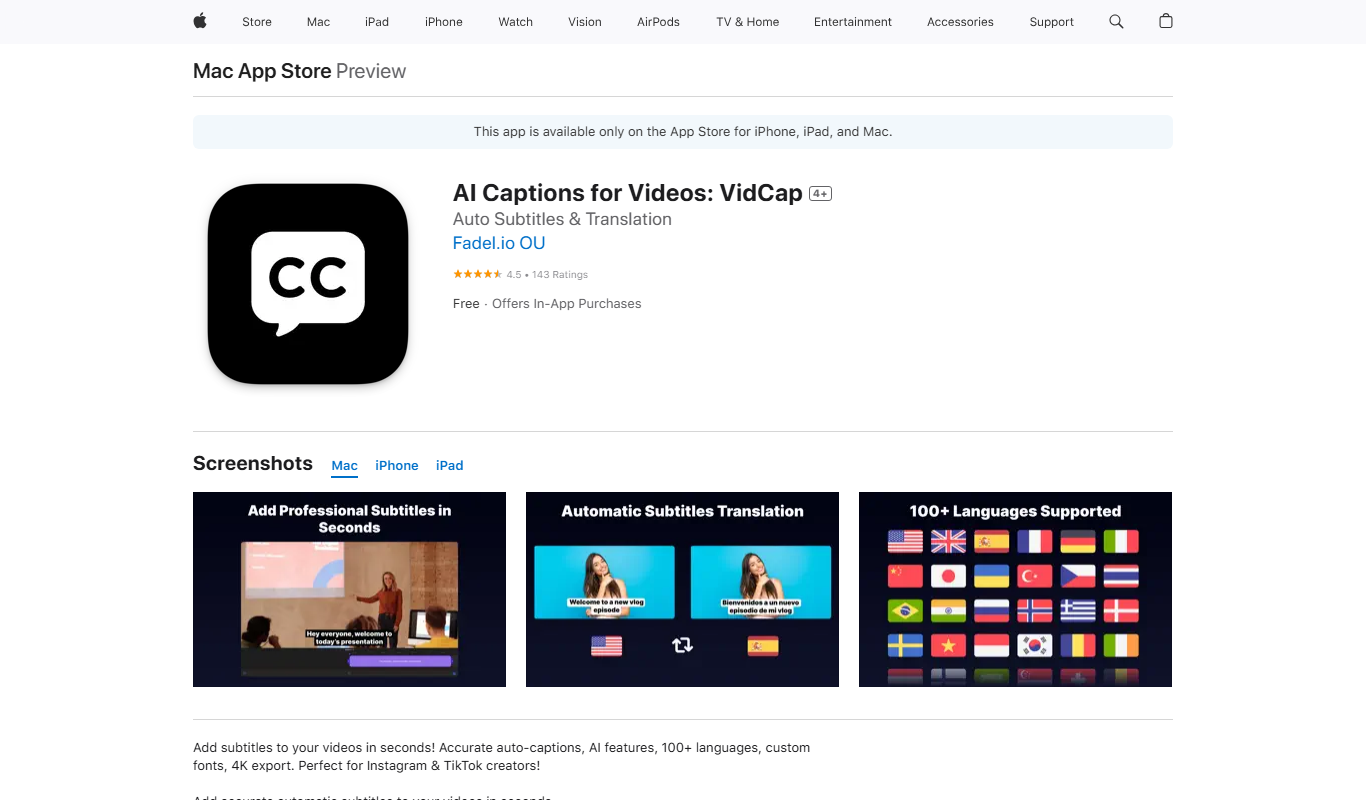
Key Features of VidCap
High-Quality Screen Capture
Record smooth and clear videos of your screen with customizable resolution settings.
Simultaneous Webcam and Audio Recording
Add personal touch by recording webcam footage and microphone audio alongside screen capture.
Basic Video Editing
Trim recordings and make simple edits without needing external software.
Multiple Export Formats
Save videos in popular formats like MP4, AVI, or MOV for easy sharing.
User-Friendly Interface
Intuitive design allows beginners to start recording quickly without a steep learning curve.
Pros and Cons of VidCap
Pros
- Easy to use with minimal setup
- Supports webcam and audio recording simultaneously
- Basic editing tools included
- Multiple export formats available
Cons
- Free version includes watermarks
- Limited advanced editing features compared to dedicated video editors
- No mobile app currently available
Key Use Cases for VidCap
Tutorial and Training Videos
Create clear and professional tutorials or training videos by capturing your screen and adding annotations.
Product Demos
Record product demonstrations to showcase features and functionality for marketing or customer support.
Bug Reporting
Capture screen activity to visually report bugs or issues to development teams.
Content Creation
Produce engaging video content for social media, blogs, or educational platforms.
How VidCap Works
-
1
Install and Launch
Download and install VidCap on your desktop, then open the application.
-
2
Select Recording Area
Choose to record the full screen, a specific window, or a custom region.
-
3
Configure Audio and Webcam
Enable microphone and webcam if you want to include voice narration and video overlay.
-
4
Start Recording
Click the record button to begin capturing your screen activity.
-
5
Edit and Export
Trim or adjust your recording using built-in editing tools, then export the video in your preferred format.
Who's Using VidCap
Educators creating tutorials
Marketing professionals producing demos
Software developers reporting bugs
Content creators and social media managers
VidCap Pricing
Free
$0/month
Basic screen recording features with limited recording time and watermark on videos.
Pro
$9.99/month
Unlimited recording time, no watermarks, access to advanced editing tools and priority support.
Frequently Asked Questions About VidCap
Yes, VidCap allows you to record your screen along with webcam footage and microphone audio at the same time.
VidCap includes basic editing features such as trimming and cutting to help you refine your videos before exporting.
Yes, VidCap offers a free plan with limited features and watermarked videos.
VidCap is available for desktop platforms and can be used via a web interface.
It depends on your specific needs and how you plan to use the tool. The official website and documentation are the best sources for the latest details.
It depends on your specific needs and how you plan to use the tool. The official website and documentation are the best sources for the latest details.
Some tools offer a free plan or trial with limited features. Availability can vary, so confirm on the official website.
Yes, it can help with that use case depending on how you configure it and what features are available. You’ll get the best results with clear inputs and a defined goal.
Share your review
Reviews are limited to one per logged-in user and are published after moderation.
You need an account to review this tool.
0.0
★
★
★
★
★
0 reviews
5 star
0
4 star
0
3 star
0
2 star
0
1 star
0
No reviews yet
Be the first to share how this tool worked for you.
Questions from the community
Read questions and answers about this tool, or ask your own.
No questions yet
Start the conversation by asking the first question about this tool.
Is this tool helpful?
Alternative Tools
Explore similar AI tools that might fit your needs

Free
Loom
Loom is a video messaging platform that enables users to quickly record and share screen and webcam videos for remote communication, collaboration, and tutorials.

Free
OBS Studio
OBS Studio is a free and open-source software for live streaming and video recording that supports multiple platforms and customizable scenes.
Free
Captions App
Captions App by Dubs.io is an AI-driven web tool that automatically generates and edits video captions to improve accessibility and viewer engagement.

Free
Descript
Descript is an AI-driven audio and video editing platform that allows users to edit media by editing transcripts, includes AI transcription, voice cloning with Overdub, and supports collaboration.
Freemium
Motionbear
Motionbear is an AI-driven video editing tool that automates video production by analyzing footage and applying editing templates to create social media-ready videos quickly.
Free Trial
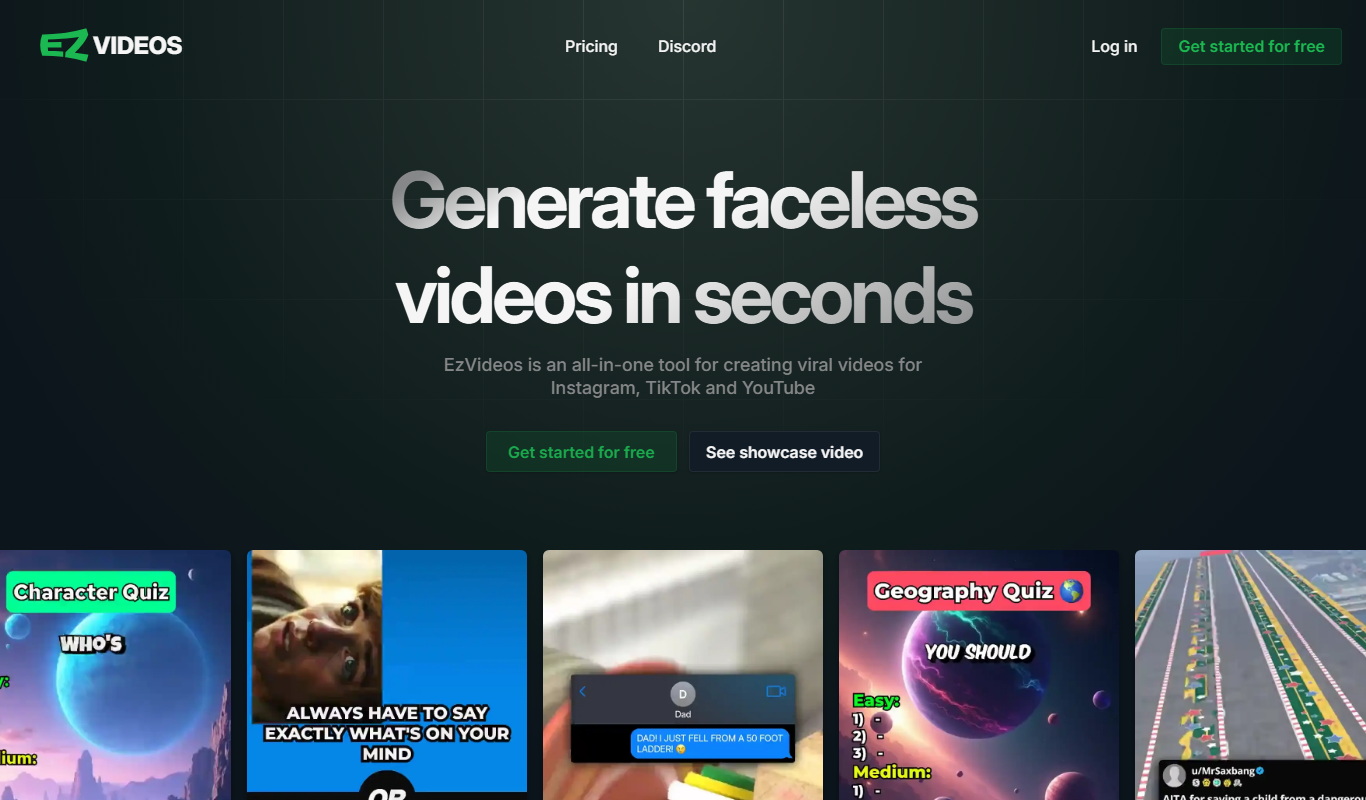
EzVideos
EzVideos is an online video editing platform that enables users to create professional videos easily using drag-and-drop tools, customizable templates, and audio features without software installation.

Freemium
framedrop.ai
Framedrop.ai is an AI-powered web tool that enhances video smoothness by interpolating missing frames and increasing frame rates, improving playback quality without software installation.
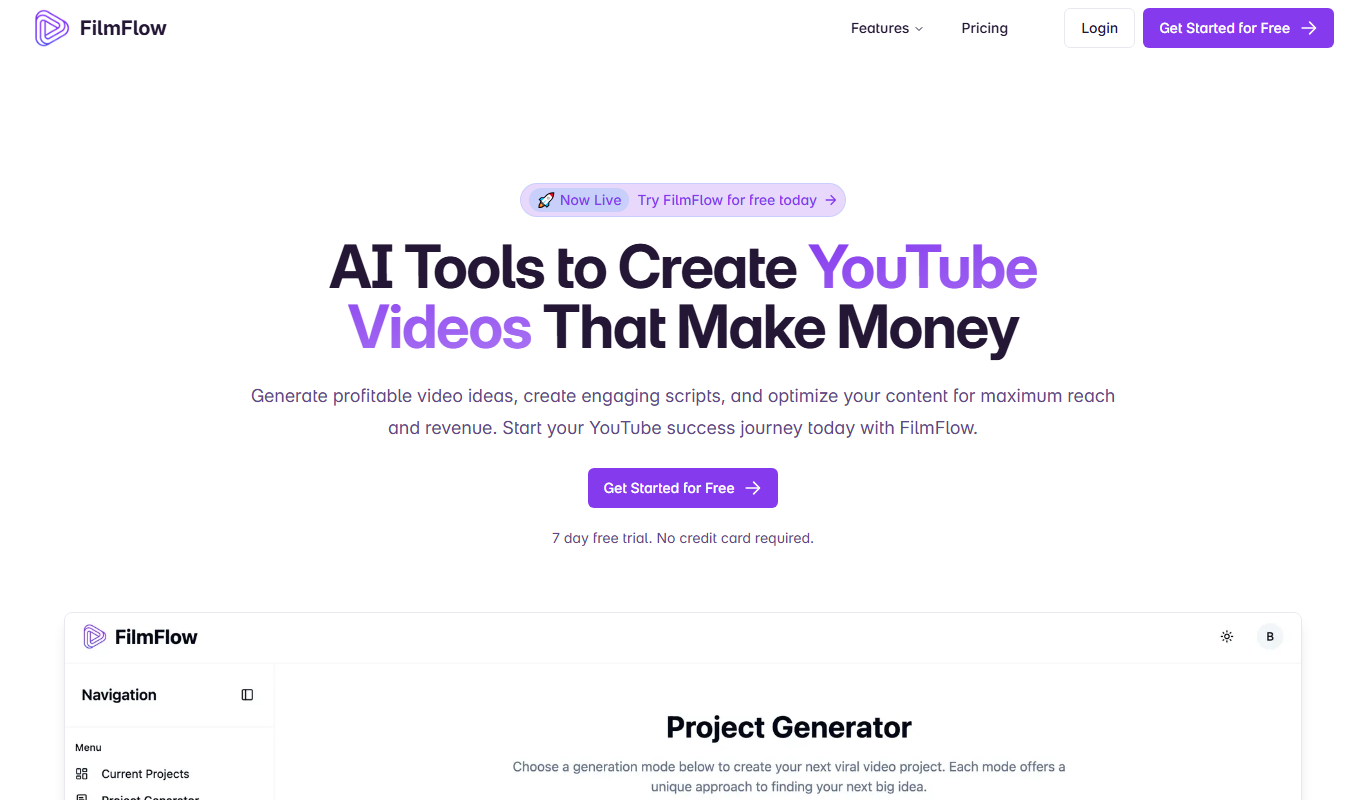
Freemium
FilmFlow
FilmFlow is an AI-driven video editing platform that automates post-production tasks such as cutting, sequencing, color grading, and audio syncing to streamline video editing workflows.
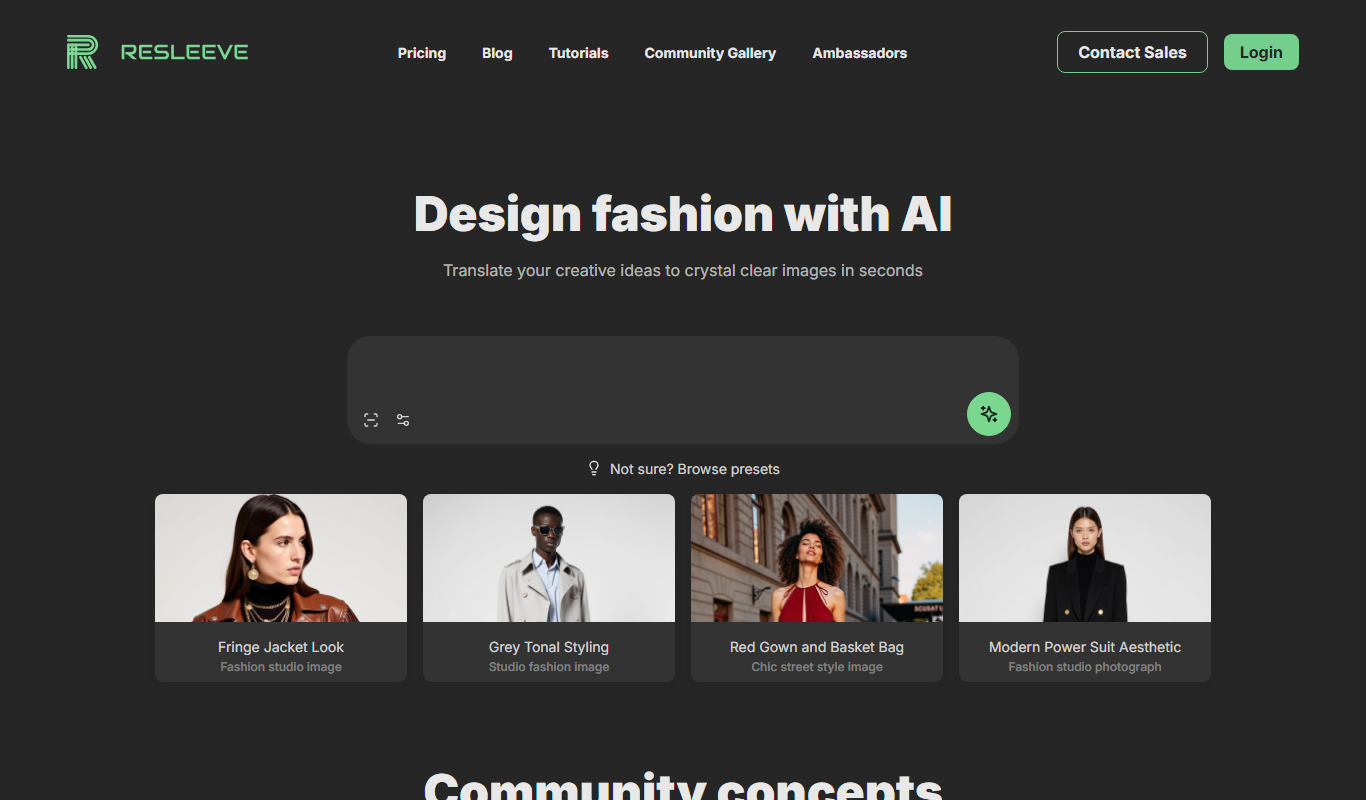
Freemium
Resleeve.AI
Resleeve.AI is a web-based AI tool that automatically removes and replaces video backgrounds without the need for green screens, enabling fast and easy video editing online.

Free
Double Subtitles
Double Subtitles is a tool that allows users to add two simultaneous subtitle tracks in different languages to videos, making content accessible and understandable to bilingual audiences.