

Speechnotes AI Speech-to-Text Tool for Accurate Voice Transcription
Speechnotes is an AI-powered speech-to-text application that converts spoken language into text in real time, supporting multiple languages and voice commands for punctuation.
- Best for
- Note Taking
- Key capability
- Real-Time Speech Recognition
Save Speechnotes, follow its updates and vote on it — everything stays in your account.
Sign in or create a free account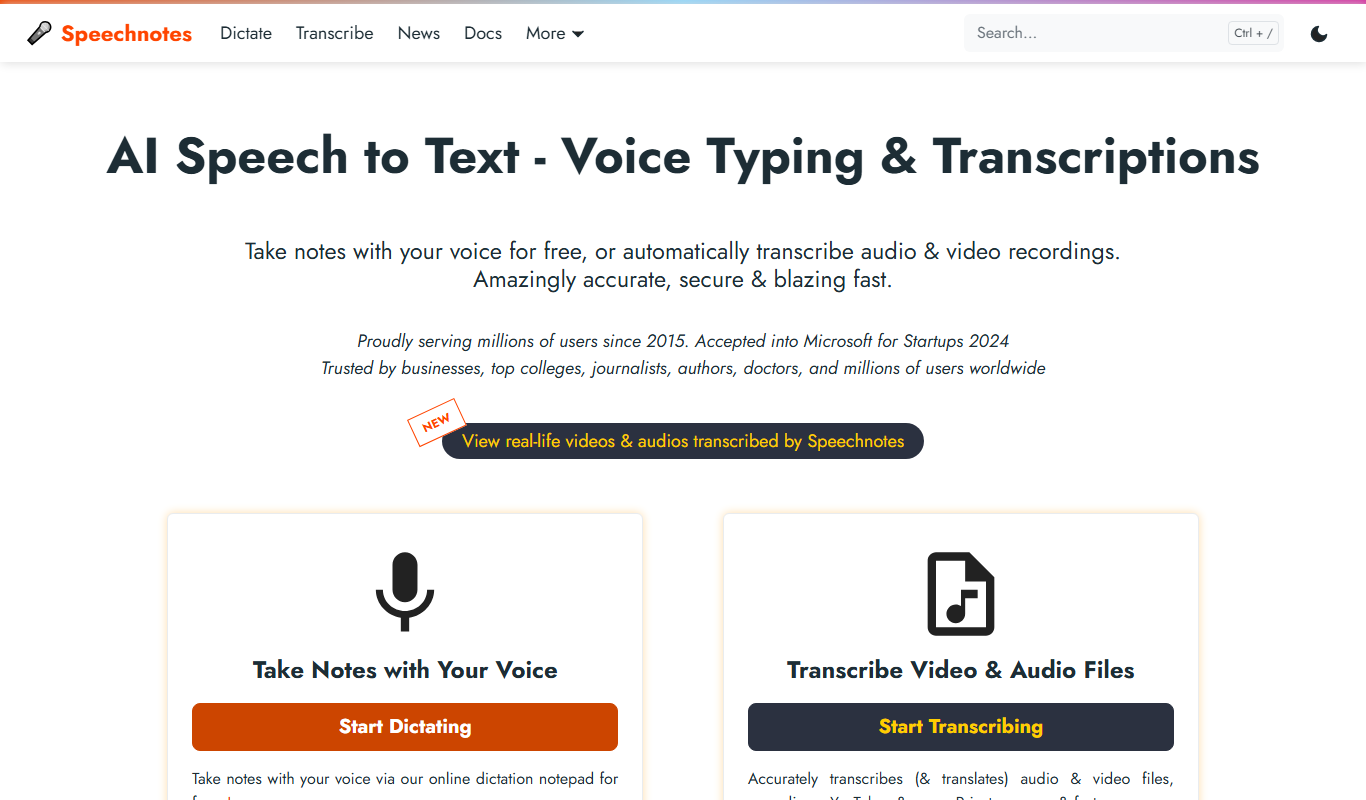
What is Speechnotes?
Speechnotes is a web-based and mobile speech-to-text application that uses advanced voice recognition technology to convert spoken language into written text in real time. Designed for ease of use, it supports continuous dictation with punctuation commands and offers a distraction-free interface for note-taking, transcription, and writing assistance. Speechnotes aims to improve productivity by enabling hands-free text input across multiple languages.
Key features of Speechnotes
Speechnotes features accurate speech recognition, punctuation voice commands, offline support on Android, export options to various formats, and integration with Google Drive. It supports multiple languages and dialects, offers a customizable interface, and includes a Chrome extension for quick access. The tool is optimized for both casual users and professionals needing reliable transcription and dictation services.
Real-Time Speech Recognition
Converts spoken words into text instantly with high accuracy.
Punctuation Voice Commands
Allows users to add punctuation marks and formatting through voice instructions.
Multi-Language Support
Supports dictation in multiple languages including English, Spanish, French, and more.
Offline Mode (Android)
Enables speech-to-text functionality without an internet connection on Android devices.
Export and Integration
Export notes to text files, Google Drive, or share via email and other apps.
Chrome Extension
Quick access to dictation directly from the browser for convenience.
Pros and cons of Speechnotes
Pros
- Easy to use with intuitive interface
- Supports multiple languages and dialects
- Offline functionality on Android
- Voice commands for punctuation
- Free version available
Cons
- Offline mode limited to Android app
- Web version requires internet connection
- Limited advanced editing features
Key use cases for Speechnotes
Note Taking
Convert spoken words into written notes quickly and accurately for meetings, lectures, or personal use.
Transcription
Transcribe interviews, podcasts, and voice memos into editable text for content creation or documentation.
Writing Assistance
Assist writers and content creators by dictating text hands-free to speed up the writing process.
Accessibility
Help users with disabilities or those who prefer voice input to interact with text-based applications.
Language Learning
Practice pronunciation and improve language skills by speaking and seeing real-time transcription.
How Speechnotes works
- 1
Access the Platform
Open Speechnotes on the web, Android app, or Chrome extension.
- 2
Start Dictating
Click the microphone button and begin speaking naturally; the tool transcribes your speech in real time.
- 3
Use Voice Commands
Insert punctuation or formatting by speaking commands like ‘comma’, ‘period’, or ‘new line’.
- 4
Edit and Export
Review the transcribed text, make manual edits if needed, and export or save your notes in preferred formats.
Who is using Speechnotes
Speechnotes pricing
Free
$0/month
Basic speech-to-text features with ads and limited export options.
Premium
$1.9/month
Premium online dictation notepad and voice typing Chrome extension with no ads and support from the development team.
Transcription
$0.1/minute
Pay-as-you-go transcription.
Plans and prices are as published by the vendor and can change. Check the official site before you buy. Open the pricing page (opens in a new tab)
Frequently asked questions about Speechnotes
Yes, Speechnotes offers a free version with basic features and ads.
It supports multiple languages including English, Spanish, French, German, Italian, and Portuguese.
Offline mode is available on the Android app but not on the web or Chrome extension.
Speechnotes uses Google’s speech recognition engine, providing high accuracy especially in quiet environments.
It depends on your specific needs and how you plan to use the tool. The official website and documentation are the best sources for the latest details.
Yes, it can help with that use case depending on how you configure it and what features are available. You’ll get the best results with clear inputs and a defined goal.
Yes, it can help with that use case depending on how you configure it and what features are available. You’ll get the best results with clear inputs and a defined goal.
Conclusion
Clicking the microphone button starts real-time transcription, and spoken commands such as ‘comma’, ‘period’ or ‘new line’ insert punctuation and formatting. It runs on the web, as an Android app with an offline mode, and as a Chrome extension. Notes can be exported to text files or Google Drive, or shared via email and other apps.
Typical uses include notes from meetings or lectures, transcripts of interviews and podcasts, and hands-free dictation for writers. Premium costs $1.9 per month, and transcription is sold pay-as-you-go at $0.1 per minute.
Sources
Sign in to review this tool.
Sign In to ReviewNo reviews yet
Be the first to share how this tool worked for you.
Ask about pricing, limits, or how it compares — or answer someone else.
Sign In to AskNo questions yet
Have a question about using or paying for this tool? Be the first to ask.
Featured on TiorAI



More AI Speech-to-Text tools
Other tools in the same category, for when this one is not quite the fit.
CogniAble
The CogniAble app is an end-to-end assistive platform for early detection and intervention of children with developmental disorders such as Autism Spectrum Disorder.

Pocketalk
Pocketalk is a portable translation device; the current S2 model supports 92+ languages and includes a 5-year eSIM.

The TWIML AI Podcast
The TWIML AI Podcast is a free podcast platform offering expert interviews and discussions on artificial intelligence and machine learning topics.

Veritone
Veritone is an AI-powered media intelligence platform that automates transcription, content analysis, and advertising verification for audio and video media.
Verbling
Verbling is an online platform that connects language learners with native-speaking tutors for live video lessons, offering personalized and flexible language education.

i2OCR
i2OCR is a free online OCR tool that extracts editable text from images and PDFs in over 100 languages without requiring registration or software installation.
PromptSmart
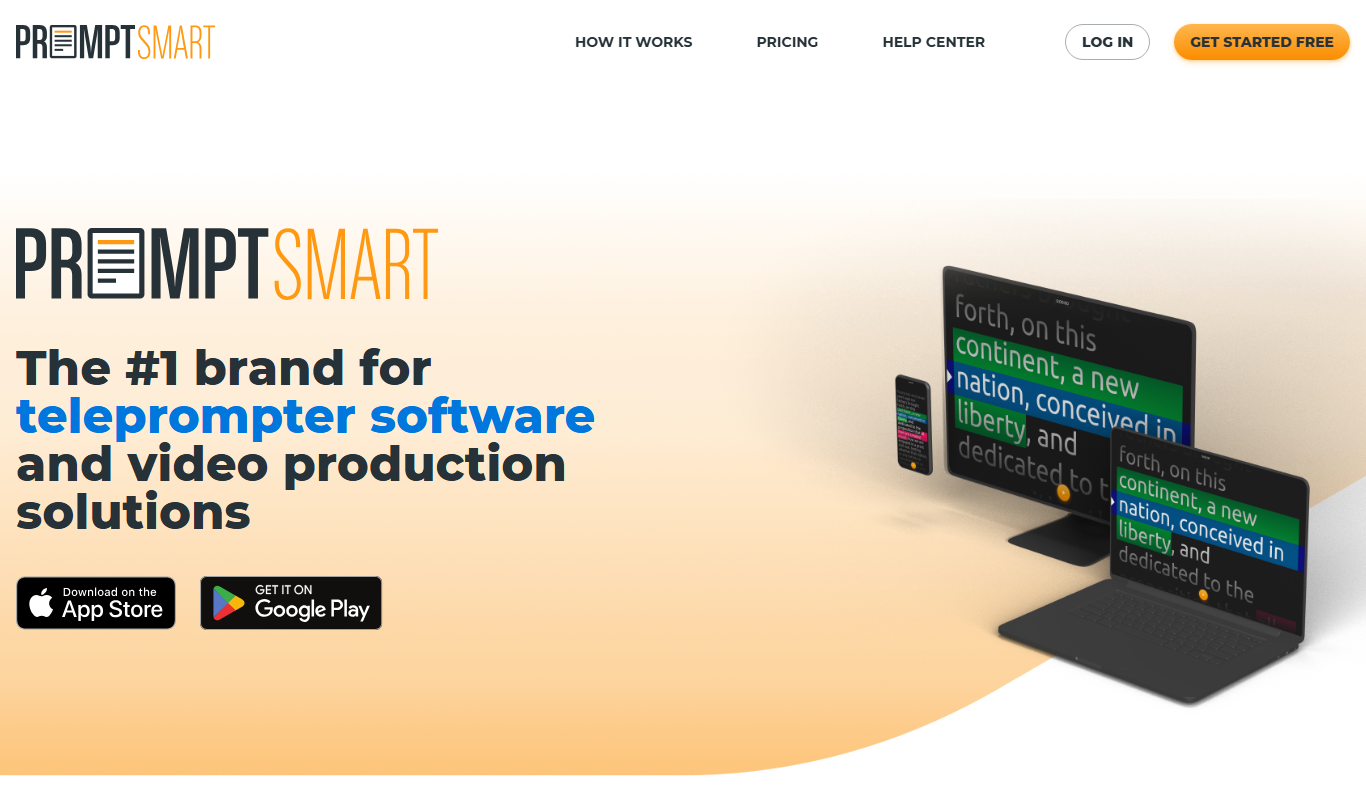
PromptSmart is a teleprompter app that uses voice recognition technology called VoiceTrack to scroll your script in real time as you speak, allowing for natural and flexible presentations.

E2Language
E2Language is an online platform offering comprehensive preparation courses for IELTS, PTE, and TOEFL exams, featuring AI-powered speaking practice and personalized writing correction.