

Movavi Video Editor Review – Easy Video Editing Software for Beginners
Movavi Video Editor is an easy-to-use video editing software designed for beginners and casual users, offering features like cutting, transitions, chroma key, and 4K video support on Windows and Mac platforms.
- Best for
- Basic Video Editing
- Key capability
- Revamped timeline
Save Movavi Video Editor, follow its updates and vote on it — everything stays in your account.
Sign in or create a free account
What is Movavi Video Editor?
Movavi Video Editor is video editing software for Windows and Mac. Users cut, crop and adjust colors and speed on a timeline, add filters, transitions, titles and overlays, and apply one-click AI tools such as auto subtitles, noise removal and silence removal. It also offers chroma key, slow motion and video stabilization.
Key features of Movavi Video Editor
Movavi Video Editor provides an intuitive timeline interface, a library of built-in effects and transitions, support for 4K video, screen recording capabilities, and easy export options. It balances simplicity with powerful features, making it suitable for hobbyists and small business content creators.
Revamped timeline
Easy drag-and-drop timeline for arranging clips and editing sequences.
Wide Format Support
Supports popular video, audio, and image formats including MP4, AVI, MOV, MP3, and more.
Built-in Effects and Transitions
Includes filters, transitions, titles, and stickers to enhance video creativity.
Chroma Key (Green Screen)
Allows background replacement for creative video compositions.
Screen Recording
Capture desktop activity, webcam, and audio for tutorials or gameplay videos.
4K Video Support
Edit and export videos in high-resolution 4K quality.
Pros and cons of Movavi Video Editor
Pros
- User-friendly interface suitable for beginners
- Supports a wide range of video formats including 4K
- Includes useful features like chroma key and screen recording
- Subscription options billed for 1 month or 1 year
- Regular updates and customer support
Cons
- Free trial exports videos with watermark
- Lacks advanced features found in professional editors
- No mobile app version available
Key use cases for Movavi Video Editor
Basic Video Editing
Cut, trim, and merge video clips easily for personal or professional projects.
Content Creation for Social Media
Create engaging videos with filters, transitions, and titles optimized for platforms like YouTube and Instagram.
Educational Video Production
Produce tutorial videos or presentations with voiceover and screen recording features.
Home Video Enhancement
Enhance family videos with effects, music, and color correction.
Marketing and Promotional Videos
Design short promotional clips with animated titles and overlays.
How Movavi Video Editor works
- 1
Install and Launch
Download and install Movavi Video Editor on your Windows or Mac computer, then open the application.
- 2
Import Media
Add your video clips, photos, and audio files to the media bin.
- 3
Edit Your Video
Drag media onto the timeline, cut and trim clips, add transitions, filters, titles, and adjust audio.
- 4
Enhance and Customize
Apply effects like chroma key, slow motion, or stabilization to improve your video.
- 5
Export and Share
Choose the desired output format and resolution, then export your finished video for sharing or uploading.
Who is using Movavi Video Editor
Movavi Video Editor pricing
Free version
$0
Free download that, depending on the build, may add a watermark on exported clips, apply a 60-second video or 1/2 audio length limit, and/or leave some advanced features unavailable when exporting videos.
One-time Purchase
Starting at $39.95
Full access to features with lifetime license for one device.
Video Editor 1-month subscription
$19.95 (incl. VAT)
No watermark, no cap on video or audio length, and free minor and major updates throughout the subscription period.
Plans and prices are as published by the vendor and can change. Check the official site before you buy. Open the pricing page (opens in a new tab)
Frequently asked questions about Movavi Video Editor
Yes, it is designed with an intuitive interface and simple tools ideal for users new to video editing.
Yes, Movavi Video Editor supports 4K video editing and export.
Yes, a free version can be downloaded. Depending on the build it may add a watermark on exported clips, apply a 60-second video or 1/2 audio length limit, or leave some advanced features unavailable when exporting videos.
It is available for Windows and Mac operating systems.
It depends on your specific needs and how you plan to use the tool. The official website and documentation are the best sources for the latest details.
Yes, it can help with that use case depending on how you configure it and what features are available. You’ll get the best results with clear inputs and a defined goal.
Some tools offer a free plan or trial with limited features. Availability can vary, so confirm on the official website.
Yes, it can help with that use case depending on how you configure it and what features are available. You’ll get the best results with clear inputs and a defined goal.
Conclusion
Editing happens in a desktop program for Windows and Mac, where clips are cut, cropped and adjusted for color and speed on a revamped timeline. One-click AI tools generate automatic subtitles, reduce noise and cut out unwanted pauses. Chroma key, motion tracking, stabilization and slow motion sit next to the filters, transitions and titles. Media file conversion and screen recording are part of the package as well.
The official site frames three uses: social videos, promo reels for a business, and family movies from birthdays or holidays. For editing on the go there is also a separate Movavi App.
The free download may, depending on the build, put a watermark on exported clips or cap video and audio length. Paid access is a subscription without watermark or length cap, backed by a 14-day money back guarantee.
Sources
Sign in to review this tool.
Sign In to ReviewNo reviews yet
Be the first to share how this tool worked for you.
Ask about pricing, limits, or how it compares — or answer someone else.
Sign In to AskNo questions yet
Have a question about using or paying for this tool? Be the first to ask.
Featured on TiorAI



More AI Avatar Video Generator tools
Other tools in the same category, for when this one is not quite the fit.

Studio Neiro AI
Studio Neiro AI turns text into videos presented by AI avatars, with natural AI voices, text to speech, script generation and automatic captions.
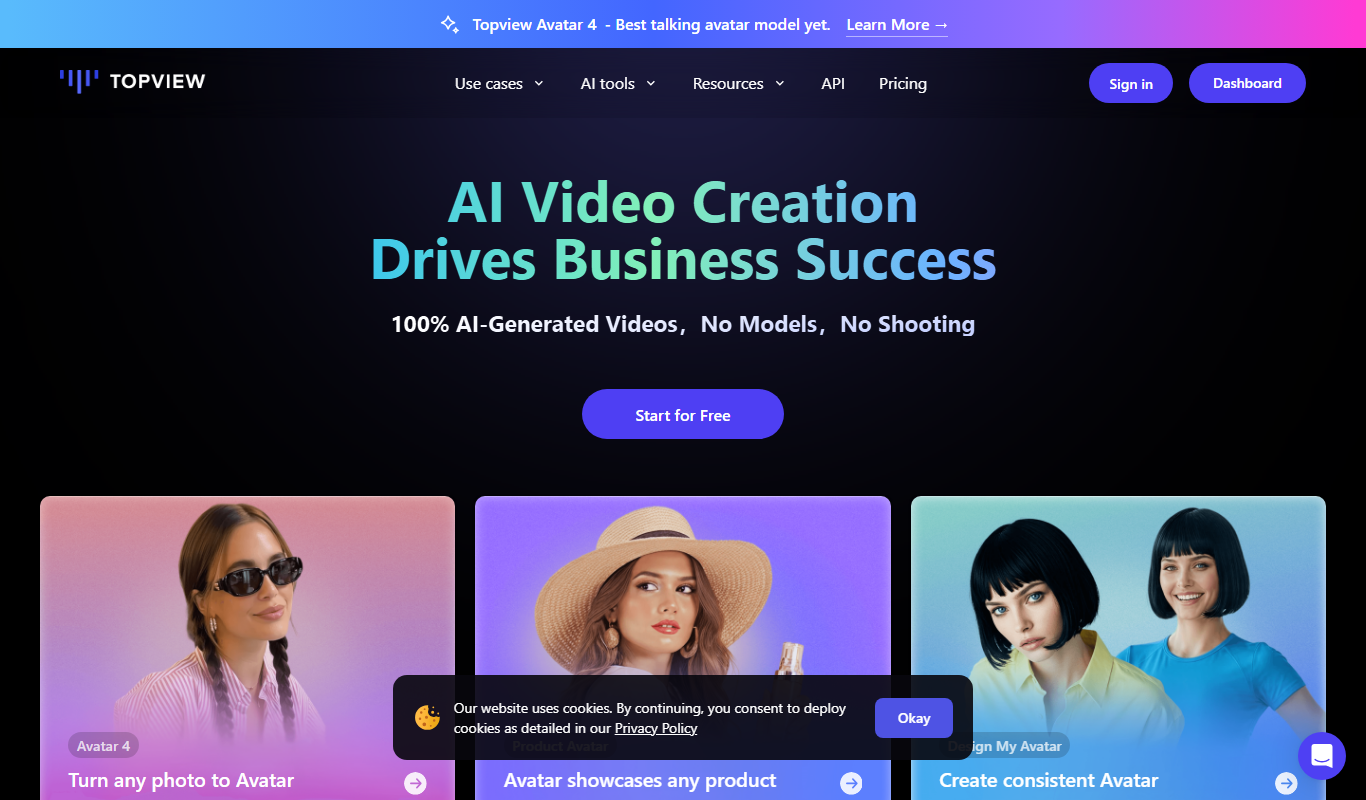
TopView.ai
TopView.ai is an AI video agent that creates short films, marketing videos and ads from scripts, references or product URLs, planning every scene on one canvas.
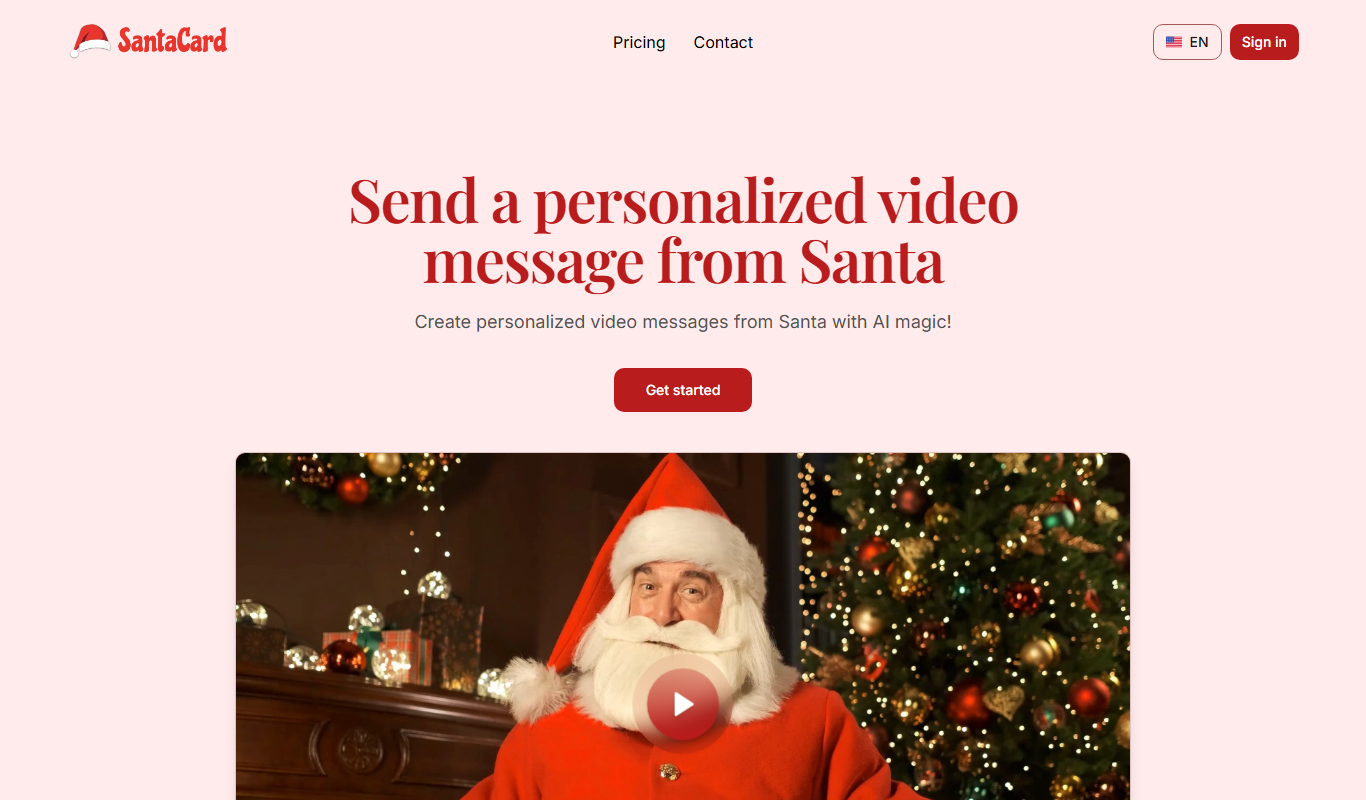
SantaCard
SantaCard creates personalized video messages from Santa with AI: type a message and get a realistic Santa video in 29 languages, sold per video.
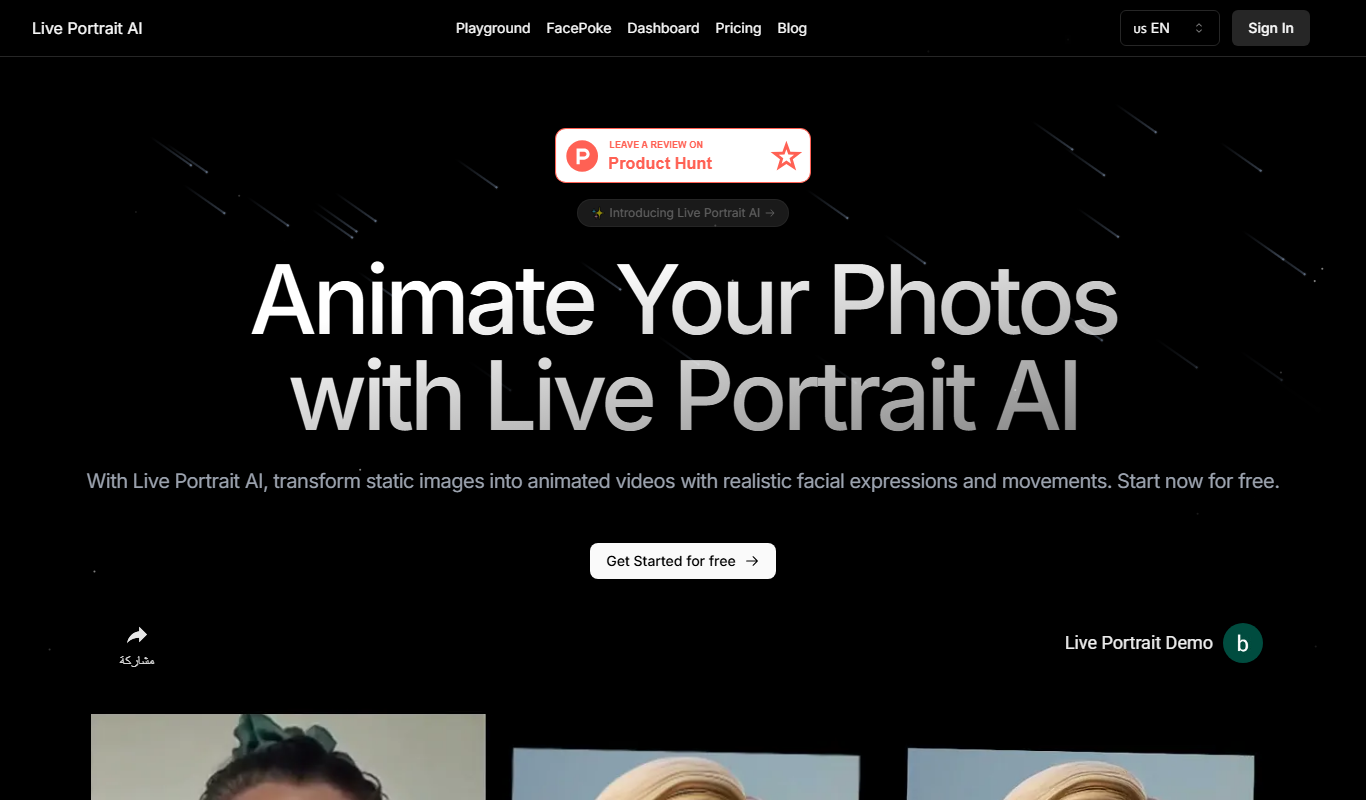
Live Portrait AI
Live Portrait AI animates still photos with the LivePortrait model, matching the head movement and facial expressions of a driving video.

KreadoAI – Free AI Video Generator
KreadoAI turns product inputs into ready-to-run video, image and copy ad creatives, with 1000+ AI avatars, 140+ languages and multi-platform export.

VidMax
VidMax is an AI UGC ad generator that turns templates into talking-avatar video ads ready for Meta and TikTok, built for DTC marketers.

Vizard
Vizard uses AI to turn long-form videos into short clips ready for TikTok, Instagram, YouTube Shorts and more.

Immersive Fox
Immersive Fox turns PDFs and documents into AI video courses with AI actors, adaptive learning and quizzes in 57+ languages.