

Walling AI - Visual Project Management and Idea Organization Tool
Walling AI is a visual project management and idea organization platform that uses AI to help users organize tasks, notes, and files on flexible boards, supporting collaboration across web and mobile devices.
- Best for
- Idea Organization
- Key capability
- Visual Boards
Save Walling AI, follow its updates and vote on it — everything stays in your account.
Sign in or create a free account
What is Walling AI?
Walling AI is a visual project management and idea organization tool designed to help individuals and teams capture, organize, and collaborate on ideas and projects. It uses a flexible board system where users can add ‘walls’ that contain cards representing notes, tasks, files, and links. The platform emphasizes visual clarity and ease of use, making complex projects easier to manage through intuitive drag-and-drop interfaces and AI-assisted organization features.
Key features of Walling AI
Walling AI offers visual boards for organizing ideas and projects, real-time collaboration tools, AI-powered suggestions for organizing content, task tracking, file attachments, and integrations with popular productivity apps. Its flexible structure supports both personal productivity and team workflows.
Visual Boards
Flexible boards that allow users to organize ideas and tasks visually with cards and walls.
AI-Powered Organization
AI helps suggest ways to group and prioritize cards for better project clarity.
Real-Time Collaboration
Multiple users can collaborate simultaneously with commenting and editing capabilities.
Task and File Management
Cards can include tasks with due dates and file attachments for comprehensive project tracking.
Cross-Platform Access
Available on web, desktop, and mobile platforms for seamless access anywhere.
Pros and cons of Walling AI
Pros
- Intuitive visual organization with drag-and-drop ease
- AI assistance helps optimize project structure
- Cross-platform availability ensures access anywhere
- Supports both personal and team workflows
- Flexible card types for notes, tasks, and files
Cons
- AI features may require learning curve to fully utilize
- Limited integrations compared to some competitors
- Free plan has restrictions on collaborators and walls
Key use cases for Walling AI
Idea Organization
Capture and visually organize ideas, notes, and inspirations in a flexible board format.
Project Management
Manage projects with visual boards that combine tasks, notes, and files for clear progress tracking.
Team Collaboration
Collaborate with team members by sharing boards, commenting, and assigning tasks in real time.
Content Planning
Plan and organize content workflows visually, integrating notes, links, and media assets.
Personal Productivity
Use Walling AI to organize personal tasks, goals, and ideas in a visually intuitive way.
How Walling AI works
- 1
Create a Wall
Start by creating a new wall, which acts as a visual board for your project or idea.
- 2
Add Cards
Add cards to your wall to represent notes, tasks, links, or files.
- 3
Organize Visually
Drag and drop cards to arrange them logically and group related items together.
- 4
Collaborate with Team
Invite team members to view, comment, and edit your walls in real time.
- 5
Leverage AI Assistance
Use AI features to get suggestions for organizing and prioritizing your content.
Who is using Walling AI
Walling AI pricing
Free
$0, free forever
For getting started and personal projects: 10 collections, 25 walls, 50 AI credits per month, 25 email forwards per month, 20 MB file uploads, 2 GB storage.
Basic
$8 per seat per month ($6.67 per seat per month billed annually)
For individuals who want more room: 100 collections, unlimited walls, 150 AI credits per month, 100 email forwards per month, 50 MB file uploads, 50 GB storage.
Plus
$20 per seat per month ($16.67 per seat per month billed annually)
For power users and collaborators: unlimited collections and walls, 400 AI credits per month, 500 email forwards per month, unlimited file uploads, 250 GB storage.
Plans and prices are as published by the vendor and can change. Check the official site before you buy. Open the pricing page (opens in a new tab)
Frequently asked questions about Walling AI
Yes, Walling AI supports real-time collaboration with commenting, sharing, and editing features.
Yes, Walling AI offers apps for iOS and Android, as well as a web version.
Walling AI supports integrations with popular apps to streamline workflows.
Yes, there is a free plan with basic features and limited usage.
This tool is designed to help users accomplish its core tasks more efficiently. It is typically used by individuals or teams looking to improve productivity and workflow.
Yes, it can help with that use case depending on how you configure it and what features are available. You’ll get the best results with clear inputs and a defined goal.
Yes, it can help with that use case depending on how you configure it and what features are available. You’ll get the best results with clear inputs and a defined goal.
Conclusion
Notes, tasks, links and files become bricks on a wall, and walls are grouped into collections. The same bricks can be viewed as a grid, a kanban board, a table or a list, and forwarded emails turn into bricks as well. Walling AI runs on monthly credits for chat, auto-organizing, summarizing and brainstorming. Others can be invited to think alongside the owner, and any wall can be published to the web.
Writers, founders, designers and teams are the people the relaunched site names. The old walling.app site is re-launching as walling.io and will sunset on October 31, 2026. A free plan covers personal projects, and paid plans are priced per seat with a 30-day free trial.
Sources
Sign in to review this tool.
Sign In to ReviewNo reviews yet
Be the first to share how this tool worked for you.
Ask about pricing, limits, or how it compares — or answer someone else.
Sign In to AskNo questions yet
Have a question about using or paying for this tool? Be the first to ask.
Featured on TiorAI



Alternative Tools
Explore similar AI tools that might fit your needs

Trello
Trello is a visual project management tool that helps teams organize tasks and workflows using boards, lists, and cards, with automation and integrations to enhance productivity.
More AI Collaboration & Team Tools tools
Other tools in the same category, for when this one is not quite the fit.

FikraHub
FikraHub is a cloud-based innovation management platform that enables organizations to crowdsource ideas, run innovation challenges, and collaborate effectively to foster innovation.

Alian hub – Project Management System
AlianHub is an open-source, self-hosted project management platform with boards, sprints, time tracking, chat and AI, free with unlimited users or hosted in the Cloud.

MeetingCulture.ai from Decisions
MeetingCulture.ai by Decisions is an AI-powered platform that enhances meeting productivity by providing analytics, automated summaries, decision tracking, and integrations with Microsoft Teams, Outlook, and Slack.

Miro
Miro is a cloud-based collaborative whiteboard platform that enables teams to brainstorm, plan, and collaborate visually in real time with an infinite canvas, templates, and integrations.

shufflrr.com
Shufflrr is a presentation management tool that centralizes PowerPoint slides, enabling teams to organize, collaborate, and deliver presentations efficiently with version control and analytics.

Swift Board
Swift Board is a free, anonymous whiteboard for sprint retrospectives and team brainstorming that needs no sign-up and adds an instant AI-generated summary.
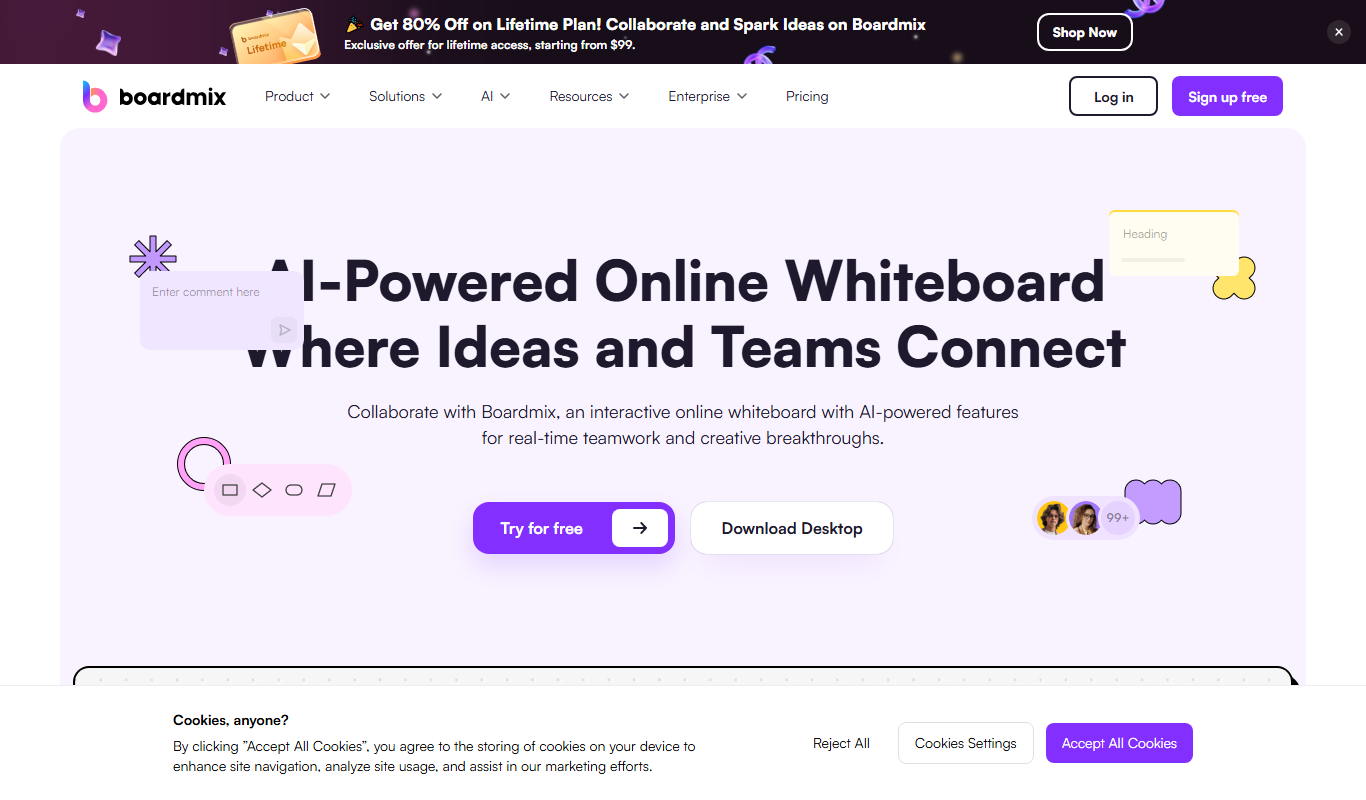
Boardmix online whiteboard
Boardmix is an online whiteboard tool designed for real-time team collaboration, brainstorming, and project planning accessible via web and mobile platforms.

Boords
Boords is an online storyboarding software that helps video and animation teams create, collaborate on, and export detailed storyboards to streamline pre-production workflows.