

From my experience with UniConverter AI, I found it excels at providing a comprehensive video conversion and editing solution that balances ease of use with powerful AI enhancements. The software’s ability to handle a wide range of formats and its batch processing capabilities make it efficient for both casual users and professionals. However, the free trial’s watermark limitation and the resource demands of AI features are factors to consider. Overall, if you need an all-in-one video tool with AI-powered quality improvements on Windows or Mac, UniConverter AI delivers reliable and user-friendly performance.
UniConverter AI Video Converter and Editing Software for Windows & Mac
UniConverter AI is a video conversion and editing software by Wondershare that supports over 1000 formats, includes AI-powered video enhancement, and offers DVD burning and compression features for Windows and Mac.
- Best for
- Video Format Conversion
- Key capability
- Support for 1000+ Formats
Your actions
Save UniConverter AI, follow its updates and vote on it — everything stays in your account.
Sign in or create a free account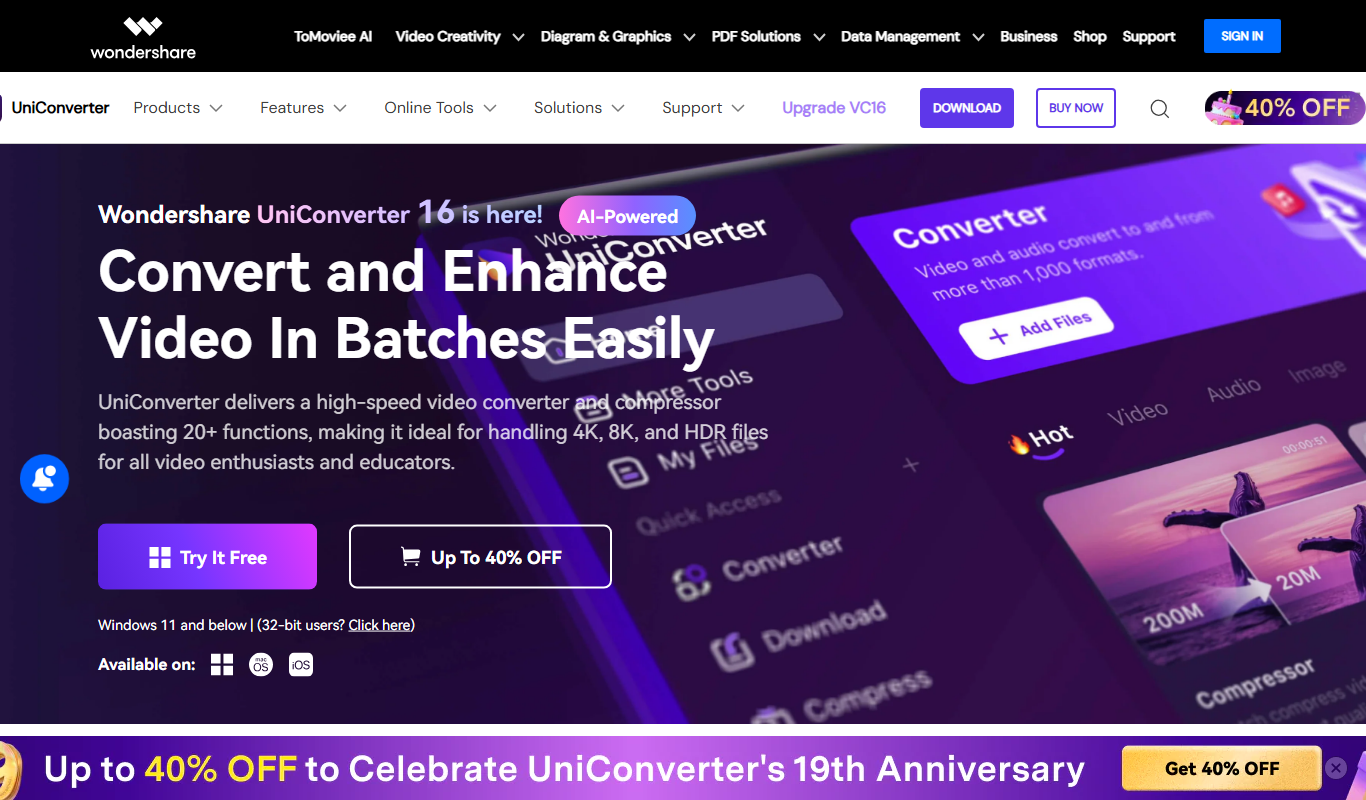
What is UniConverter AI?
UniConverter AI by Wondershare is a comprehensive video conversion and editing software designed for Windows and Mac users. It supports a wide range of video formats and integrates AI-powered features to enhance video quality and streamline media processing tasks. The tool combines video conversion, editing, compression, and DVD management in one user-friendly platform.
Key features of UniConverter AI
UniConverter AI offers fast and high-quality video conversion, intuitive editing tools, AI-based video enhancement, DVD burning and ripping capabilities, and efficient video compression. It supports batch processing and hardware acceleration for improved performance.
Support for 1000+ Formats
Convert videos to and from a vast array of formats ensuring compatibility with almost any device.
AI Video Enhancement
Automatically improve video quality, stabilize shaky clips, and upscale resolution using AI technology.
Batch Processing
Convert or edit multiple videos simultaneously to save time.
DVD Burning and Ripping
Create DVDs from videos or digitize DVD content for flexible playback.
Video Compression
Reduce file sizes while maintaining quality for easier sharing and storage.
Pros and cons of UniConverter AI
Pros
- Supports a wide range of video formats
- Includes AI-powered video enhancement tools
- User-friendly interface suitable for beginners
- Offers both subscription and lifetime license options
Cons
- Free trial adds watermark to output videos
- AI features may require higher system resources
- No mobile app version available
Key use cases for UniConverter AI
Video Format Conversion
Convert videos between over 1000 formats including MP4, MOV, AVI, MKV, and more to ensure compatibility across devices.
Video Editing
Trim, crop, merge, add subtitles, and apply effects to videos with an intuitive editing interface.
Video Compression
Reduce video file size without significant quality loss to save storage space or facilitate sharing.
DVD Burning and Ripping
Burn videos to DVD discs or rip DVDs to digital formats for backup or playback on other devices.
AI-Powered Enhancements
Utilize AI features to enhance video quality, stabilize shaky footage, and upscale resolution automatically.
How UniConverter AI works
- 1
Download and Install
Get UniConverter AI from the official Wondershare website and install it on your Windows or Mac computer.
- 2
Import Media Files
Add videos or DVDs you want to convert, edit, or compress by dragging files into the interface or using the import button.
- 3
Select Desired Output
Choose the output format, device preset, or editing options according to your needs.
- 4
Apply AI Enhancements (Optional)
Use AI features to improve video quality, stabilize footage, or upscale resolution automatically.
- 5
Start Conversion or Editing
Click the convert or export button to process your media files with fast hardware acceleration.
Who is using UniConverter AI
Video content creators
Marketing professionals
Educators and trainers
Small business owners
General consumers needing video conversion
UniConverter AI pricing
Free Trial
$0
Limited features and watermark on output videos.
Annual Subscription
$39.99/year
Full features with updates and support for one PC.
Lifetime License
$59.99 one-time
Permanent access to all features for one PC with lifetime updates.
Plans and prices are as published by the vendor and can change. Check the official site before you buy. Open the pricing page (opens in a new tab)
Frequently asked questions about UniConverter AI
Yes, UniConverter AI supports conversion and editing of 4K videos.
Yes, the software includes DVD burning and ripping features.
Yes, videos processed with the free trial version include a watermark.
It supports both Windows and Mac operating systems.
Yes, it can help with that use case depending on how you configure it and what features are available. You’ll get the best results with clear inputs and a defined goal.
Yes, it can help with that use case depending on how you configure it and what features are available. You’ll get the best results with clear inputs and a defined goal.
Some tools offer a free plan or trial with limited features. Availability can vary, so confirm on the official website.
It depends on your specific needs and how you plan to use the tool. The official website and documentation are the best sources for the latest details.
Sign in to review this tool.
Sign In to ReviewNo reviews yet
Be the first to share how this tool worked for you.
Ask about pricing, limits, or how it compares — or answer someone else.
Sign In to AskNo questions yet
Have a question about using or paying for this tool? Be the first to ask.
Featured on TiorAI



Alternative Tools
Explore similar AI tools that might fit your needs

Free
HandBrake
HandBrake is a free, open-source video transcoder that converts and compresses videos into modern formats with customizable encoding options.

Free
Any Video Converter
Any Video Converter is a multimedia software that converts video files between numerous formats, downloads online videos, and offers basic editing and DVD burning features.
More AI Ugc Video Generator tools
Other tools in the same category, for when this one is not quite the fit.

Freemium
yuzzit.video
Yuzzit.video is a platform for video cutting and editing, live video and subtitles.
Free
Unicode to Krutidev
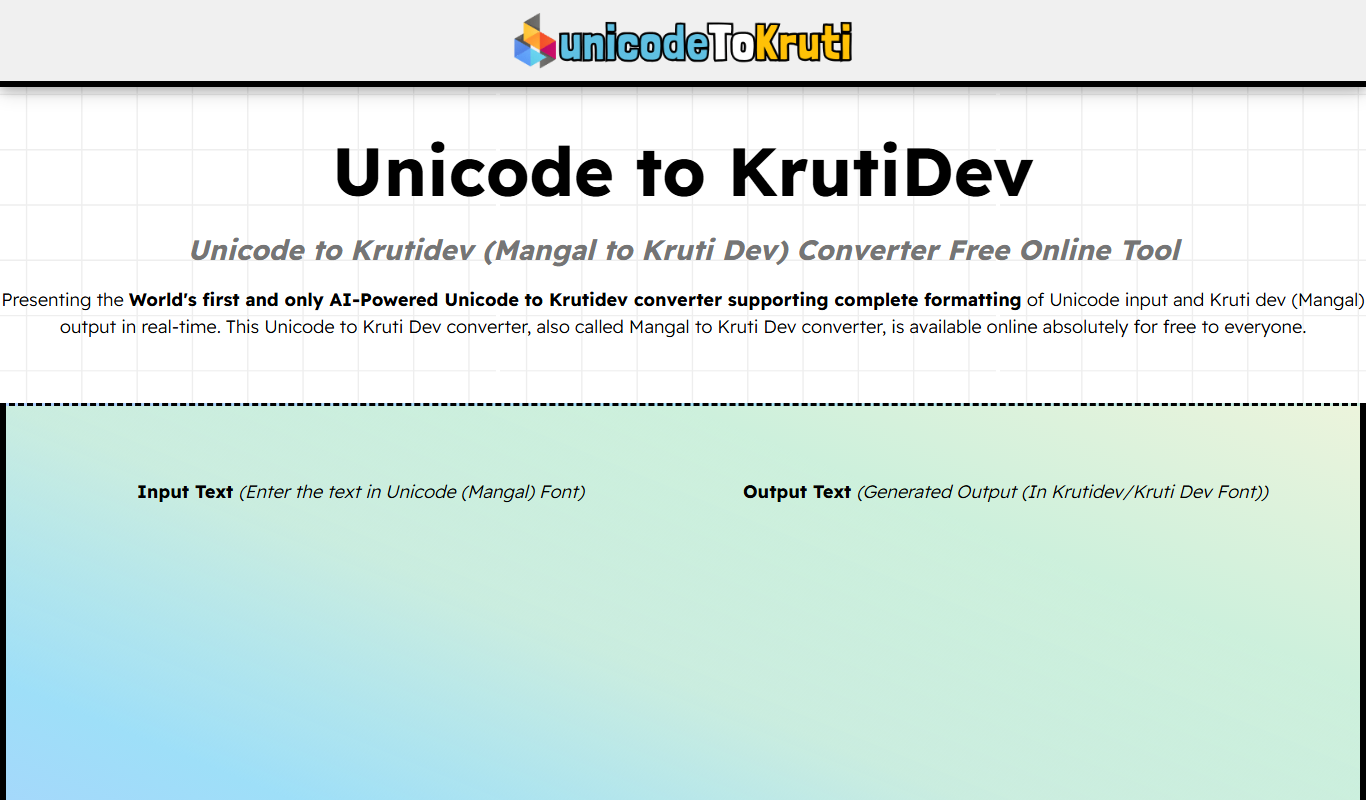
Unicode to Krutidev is a free online tool that converts Hindi text from Unicode encoding into the Krutidev font format, commonly used in legacy Hindi typing and government documents.

Free
aivideogenerator.me
aivideogenerator.me is a third-party website that presents itself as a Luma AI Video Generator powered by Dream Machine; it is not the official Luma Labs site.

Freemium
Clip Studio AI
Clip Studio AI is an AI art generation tool by CELSYS that helps artists create digital illustrations and concept art using text prompts and style customization.

Free
OgtAI
OgtAI is an AI writing assistant that generates SEO-optimized content for blogs, marketing, and copywriting tasks, helping users create quality content faster.

Freemium
Deep Live Cam
Deep Live Cam is a web-based AI tool that animates faces in real-time video streams using deep learning, ideal for live streaming and virtual avatars.

Free
reap (beta)
Reap Video beta is an AI-driven web tool that automatically summarizes long videos by extracting key highlights, enabling faster content consumption and easy sharing.

Free Trial
Potion
Potion is a no-code AI-powered platform that enables marketers and sales teams to create personalized videos at scale without technical skills, integrating with CRM tools to automate video personalization and distribution.