

HandBrake Video Converter and Encoder for High-Quality Media Compression
HandBrake is a free, open-source video transcoder that converts and compresses videos into modern formats with customizable encoding options.
- Best for
- Video Conversion
- Key capability
- Wide Format Support
Save HandBrake, follow its updates and vote on it — everything stays in your account.
Sign in or create a free account
What is HandBrake?
HandBrake is a free, open-source video transcoder that allows users to convert video files from nearly any format into modern, widely supported codecs. It is widely used for compressing videos, ripping DVDs, and preparing media for playback on various devices. HandBrake offers a user-friendly interface with advanced options for customizing video encoding settings.
Key features of HandBrake
HandBrake provides powerful video conversion and compression capabilities, including support for multiple input formats, customizable encoding presets, batch processing, and advanced filters. It supports popular codecs like H.264, H.265, and VP9, enabling efficient media transcoding for diverse use cases.
Wide Format Support
Supports input from most common video files and DVDs, outputting to MP4 and MKV containers.
Customizable Encoding
Adjust bitrate, framerate, resolution, audio tracks, subtitles, and filters for precise control.
Batch Conversion
Queue multiple videos for sequential processing with saved presets.
Open Source and Free
Completely free to use with an active community contributing to continuous improvements.
Cross-Platform Compatibility
Available on Windows, macOS, and Linux operating systems.
Pros and cons of HandBrake
Pros
- Completely free and open source
- Supports a wide range of video formats
- Highly customizable encoding options
- Cross-platform availability
- Active user community and regular updates
Cons
- No built-in support for decrypting copy-protected DVDs
- User interface can be complex for beginners
- Lacks native mobile app versions
Key use cases for HandBrake
Video Conversion
Convert videos from nearly any format to modern, widely supported codecs for playback on various devices.
Media Compression
Reduce video file sizes while maintaining quality for easier storage and sharing.
DVD Ripping
Rip DVDs to digital files for backup or playback without the physical disc.
Batch Processing
Automate conversion of multiple videos with customizable presets and queue management.
Video Encoding Customization
Fine-tune encoding parameters such as bitrate, resolution, framerate, and filters for tailored output.
How HandBrake works
- 1
Download and Install
Get the latest version of HandBrake from the official website and install it on your computer.
- 2
Load Source Video
Open HandBrake and select the video file or DVD you want to convert.
- 3
Choose Output Settings
Select the desired output format, codec, resolution, and other encoding options.
- 4
Start Encoding
Click the Start button to begin the conversion process. Monitor progress in the queue.
- 5
Access Converted Video
Once encoding is complete, find your converted video in the specified output folder.
Who is using HandBrake
HandBrake pricing
Free
$0
Full access to all features without any cost or subscription.
Plans and prices are as published by the vendor and can change. Check the official site before you buy. Open the pricing page (opens in a new tab)
Frequently asked questions about HandBrake
Yes, HandBrake is completely free and open-source software.
HandBrake can rip DVDs without copy protection. For encrypted DVDs, additional software may be required.
HandBrake supports most common video formats as input and outputs primarily MP4 and MKV containers.
Yes, you can queue multiple videos for batch processing using presets.
It depends on your specific needs and how you plan to use the tool. The official website and documentation are the best sources for the latest details.
Yes, it can help with that use case depending on how you configure it and what features are available. You’ll get the best results with clear inputs and a defined goal.
Some tools offer a free plan or trial with limited features. Availability can vary, so confirm on the official website.
Yes, it can help with that use case depending on how you configure it and what features are available. You’ll get the best results with clear inputs and a defined goal.
Conclusion
Installed on Windows, macOS or Linux, HandBrake takes common video files and DVDs as input and outputs to MP4 and MKV containers. Supported codecs include H.264, H.265 and VP9. Before encoding, users select the output format, codec and resolution. Additional settings cover bitrate, framerate, audio tracks, subtitles and filters. Saved presets and a queue let multiple videos be processed in sequence.
Typical jobs include reducing file sizes for storage and sharing, converting videos for playback on various devices and ripping DVDs to digital files for backup. It is used by video editors and content creators, home users converting personal media and educators preparing video materials. The software is completely free and open source, with an active user community and regular updates.
Sources
Sign in to review this tool.
Sign In to ReviewNo reviews yet
Be the first to share how this tool worked for you.
Ask about pricing, limits, or how it compares — or answer someone else.
Sign In to AskNo questions yet
Have a question about using or paying for this tool? Be the first to ask.
Featured on TiorAI



Alternative Tools
Explore similar AI tools that might fit your needs

Any Video Converter
Any Video Converter is a multimedia software that converts video files between numerous formats, downloads online videos, and offers basic editing and DVD burning features.
More AI Video Editing tools
Other tools in the same category, for when this one is not quite the fit.

CapCut AI
CapCut AI is an AI-enhanced video editing application by Bytedance that simplifies video creation with automated editing, background removal, and text-to-video features across multiple platforms.
Clipchamp
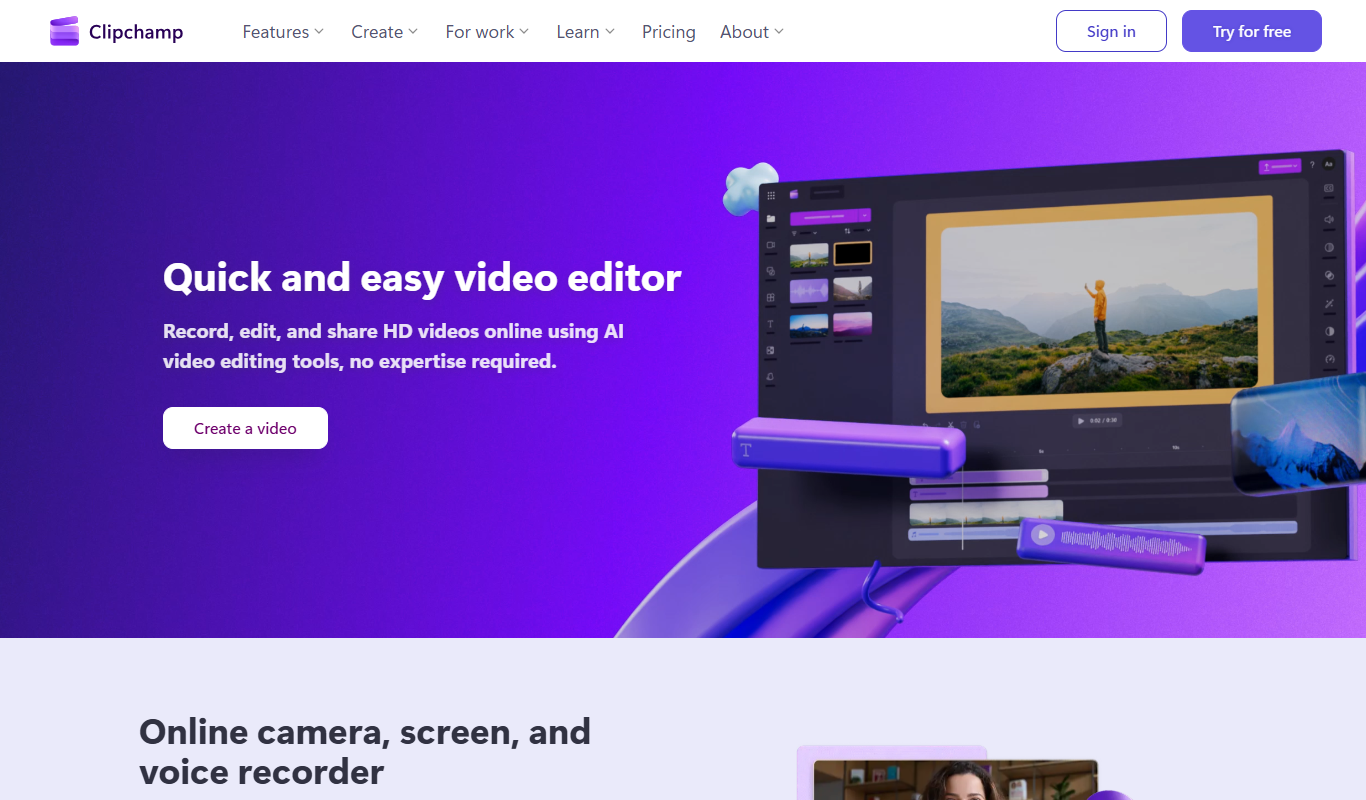
Clipchamp is an online video editing platform by Microsoft that enables users to create and edit videos using templates, stock media, and AI-powered tools directly in their browser.

Veed.io
Veed.io is a web-based video editing platform that uses AI to generate automatic subtitles and captions, enabling easy video editing and collaboration without software installation.