

From my experience with SlidesToVideos.com, I found it excels at simplifying the process of turning PowerPoint presentations into shareable videos without needing advanced video editing skills. The platform’s intuitive interface and support for audio integration make it particularly well-suited for educators and marketers who want to repurpose slide content quickly. However, it has some limitations with complex animations and lacks mobile or desktop apps, which might be a drawback for users needing more flexibility. Overall, if you want a straightforward way to convert slides into videos for training or marketing, this tool delivers solid, efficient results.
Convert PowerPoint Slides to Videos Easily with SlidesToVideos.com
SlidesToVideos.com is an online tool that converts PowerPoint presentations into videos, allowing users to add audio and customize slide timing for engaging video content.
- Best for
- Create Video Presentations
- Key capability
- PowerPoint to Video Conversion
Your actions
Save SlidesToVideos.com, follow its updates and vote on it — everything stays in your account.
Sign in or create a free account

What is SlidesToVideos.com?
SlidesToVideos.com is an online platform that converts PowerPoint presentations into video files. It allows users to upload their slide decks and transform them into videos with customizable settings, making it easier to share presentations as engaging video content across various platforms.
Key features of SlidesToVideos.com
The tool offers slide-to-video conversion with options for timing control, background music, voiceover integration, and output format selection. It supports batch processing and provides an intuitive web interface for quick video creation without requiring video editing skills.
PowerPoint to Video Conversion
Seamlessly convert slide decks into video format without losing slide animations or transitions.
Customizable Slide Timing
Adjust how long each slide appears in the video to control pacing.
Background Music and Voiceover Support
Add audio tracks or narrations to enhance video presentations.
Multiple Output Formats
Export videos in popular formats compatible with various devices and platforms.
Batch Processing
Convert multiple presentations to videos in one session to save time.
Pros and cons of SlidesToVideos.com
Pros
- Simple and user-friendly web interface
- Supports audio integration for richer videos
- Batch processing saves time for multiple presentations
- No software installation required
Cons
- Limited customization for advanced video editing
- No desktop or mobile app versions available
- Some complex slide animations may not convert perfectly
Key use cases for SlidesToVideos.com
Create Video Presentations
Transform PowerPoint slides into engaging videos for webinars, online courses, or marketing.
Content Repurposing
Convert existing slide decks into video format to reach audiences on video platforms.
Training and Tutorials
Produce instructional videos from slides to enhance e-learning and employee training.
Social Media Marketing
Generate video content from presentations optimized for social media sharing.
How SlidesToVideos.com works
- 1
Upload Slides
Users upload their PowerPoint (.ppt or .pptx) files to the platform.
- 2
Customize Video Settings
Set slide duration, add background music or voiceover, and choose video resolution.
- 3
Convert to Video
The platform processes the slides and generates a video file.
- 4
Download and Share
Users download the video and share it on desired platforms or use it for presentations.
Who is using SlidesToVideos.com
Educators and trainers
Marketing professionals
Content creators
Corporate communicators
Small business owners
SlidesToVideos.com pricing
Free Trial
$0
Limited access to convert a few slides with watermark.
Monthly Subscription
$19.99/month
Unlimited conversions, no watermark, and access to all features.
Annual Subscription
$199.99/year
Discounted yearly plan with full feature access and priority support.
Plans and prices are as published by the vendor and can change. Check the official site before you buy. Open the pricing page (opens in a new tab)
Frequently asked questions about SlidesToVideos.com
SlidesToVideos.com supports PowerPoint files in .ppt and .pptx formats.
Yes, you can upload voiceover audio files to synchronize with your slides.
There is no strict limit, but very large presentations may take longer to process.
Basic animations and transitions are preserved, but complex effects may not fully transfer.
It depends on your specific needs and how you plan to use the tool. The official website and documentation are the best sources for the latest details.
Yes, it can help with that use case depending on how you configure it and what features are available. You’ll get the best results with clear inputs and a defined goal.
Yes, it can help with that use case depending on how you configure it and what features are available. You’ll get the best results with clear inputs and a defined goal.
Sign in to review this tool.
Sign In to ReviewNo reviews yet
Be the first to share how this tool worked for you.
Ask about pricing, limits, or how it compares — or answer someone else.
Sign In to AskNo questions yet
Have a question about using or paying for this tool? Be the first to ask.
Featured on TiorAI



More AI Presentation Tools tools
Other tools in the same category, for when this one is not quite the fit.
Free
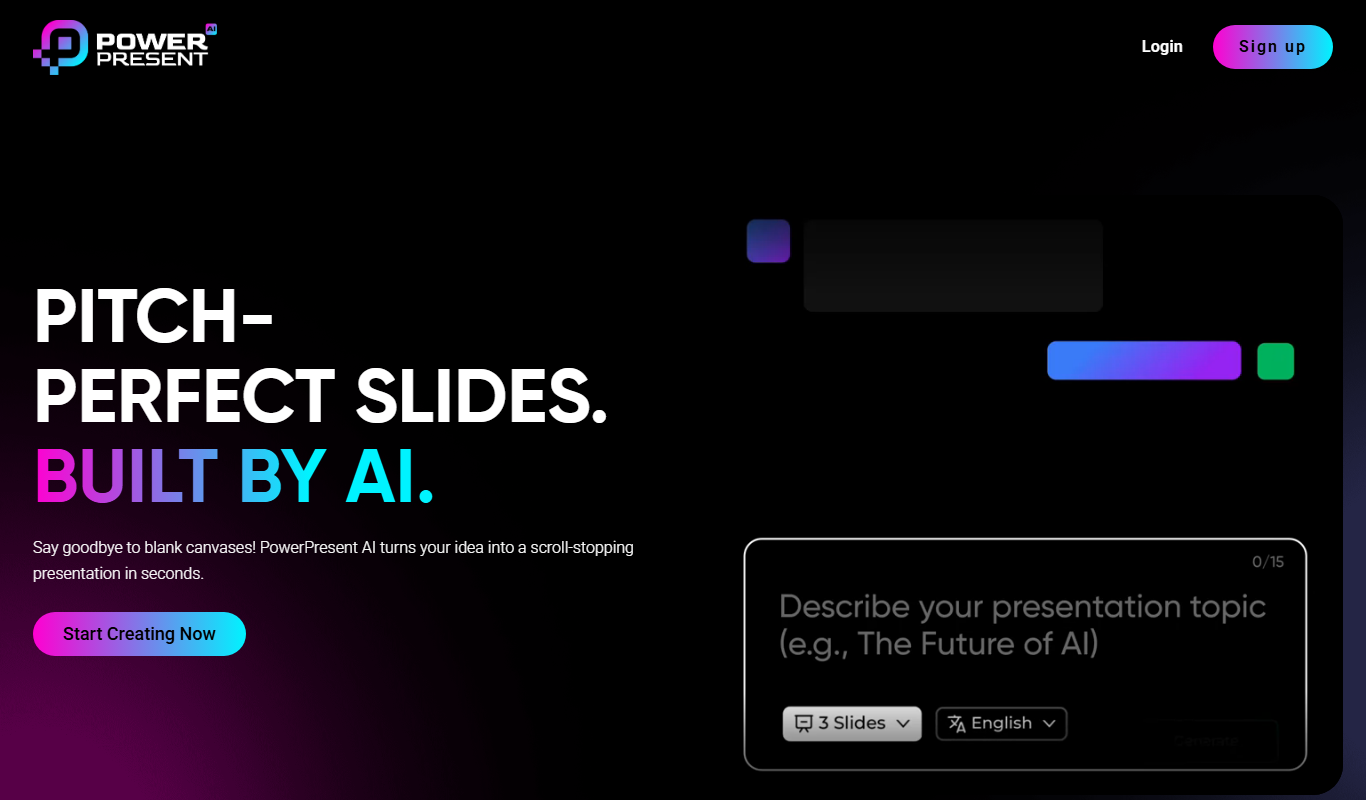
Powerpresent AI
Powerpresent AI is a web-based tool that uses artificial intelligence to automatically generate professional presentation slides from user input, offering customizable templates and easy editing.
Freemium
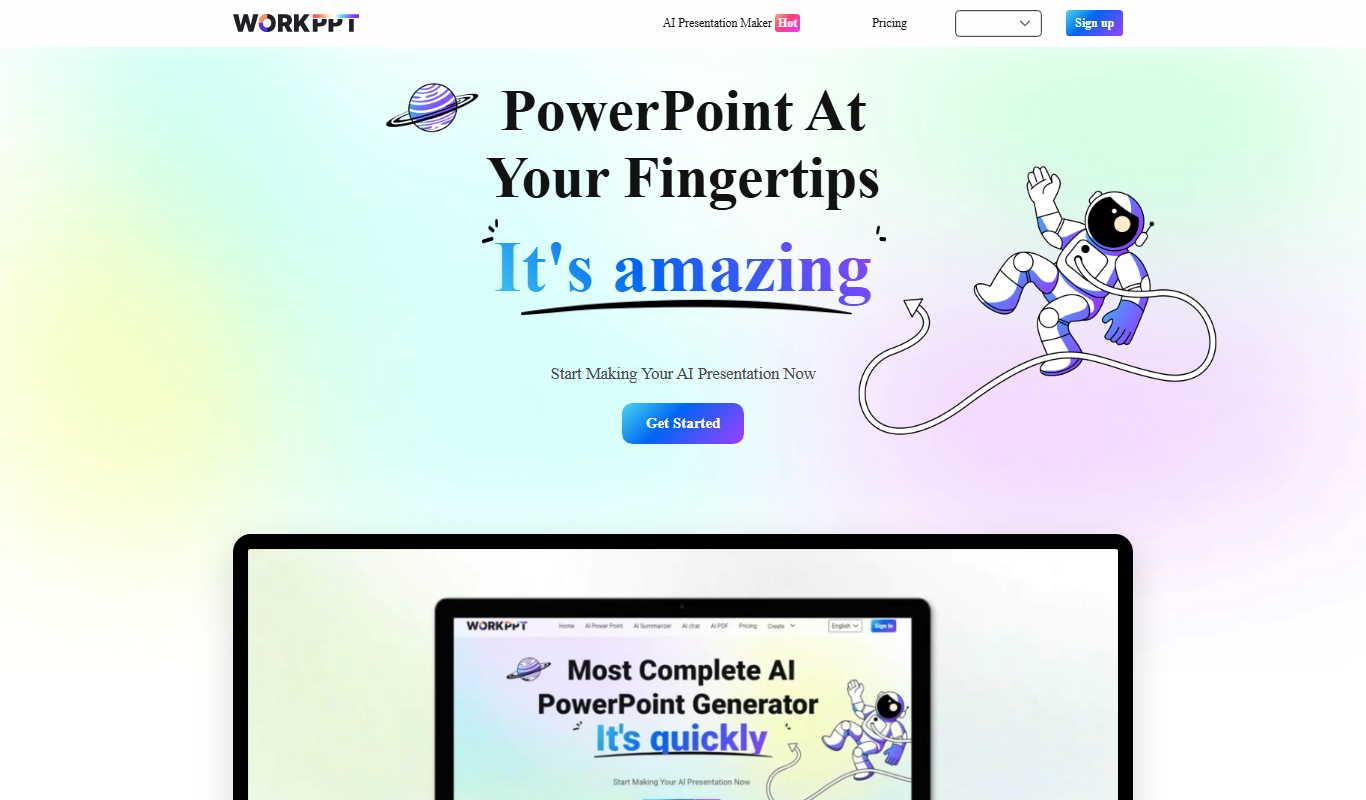
WorkPPT
WorkPPT is a web-based presentation tool by SoftTooler that uses AI to help users create and customize professional slides quickly, supporting collaboration and export in PPTX and PDF formats.

Freemium
Pi by DeepVinci
Pi by DeepVinci is an AI presentation tool that creates slides from a sentence, an uploaded document or a connected knowledge base.
Free
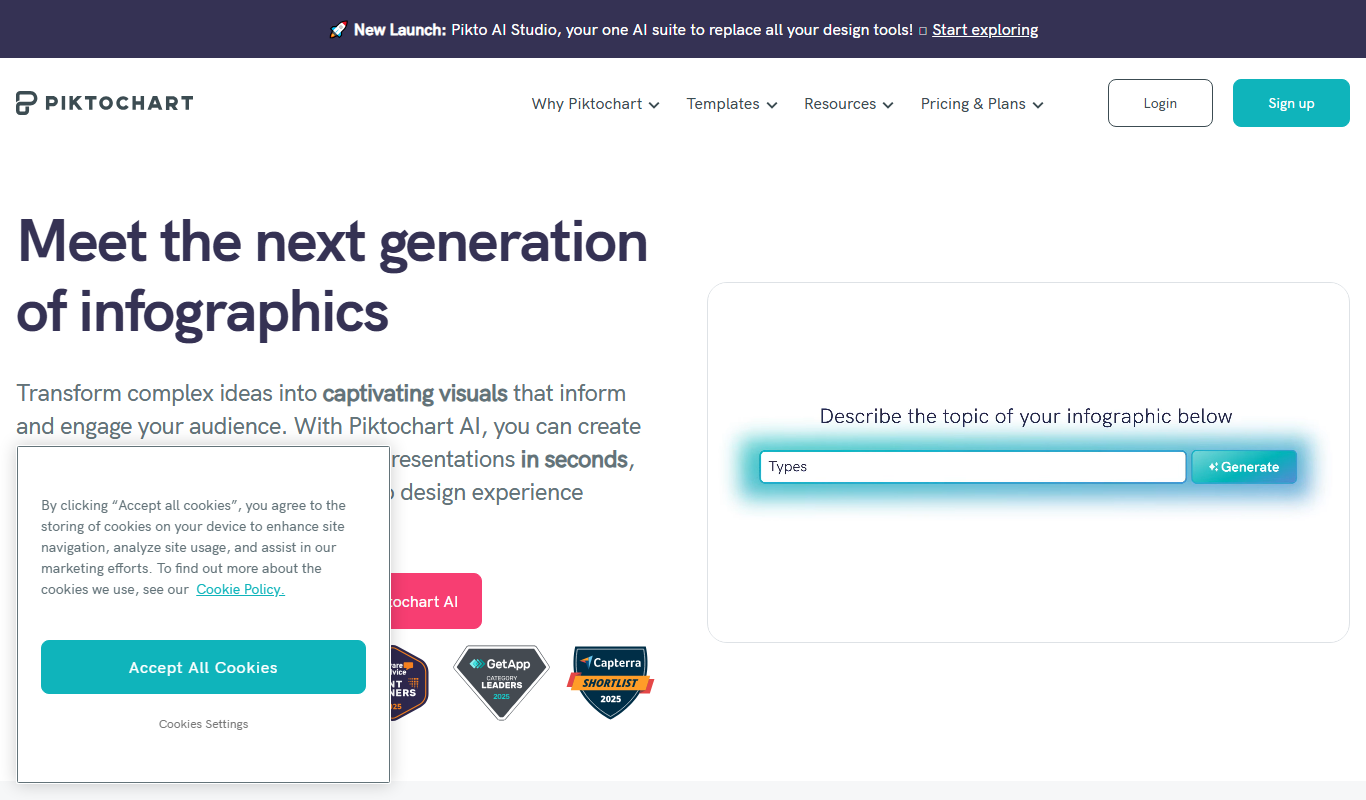
Piktochart
Piktochart is a web-based tool that helps users create infographics, presentations, and reports using customizable templates and an easy drag-and-drop editor.

Freemium
AI Slide Studio
AI Slide Studio is a web-based tool that uses artificial intelligence to automatically generate and design presentation slides from text input, helping users create professional slide decks quickly and easily.

Free
AutoPPT
AutoPPT is an AI-powered tool that automates the creation of professional presentations by generating slides from text inputs, allowing users to customize and export decks quickly.

Free
Pitch
Pitch is a collaborative presentation software that enables teams to create, edit, and share presentations in real-time with integrated design tools and version control.

Free
AiPPT
AiPPT is an AI-driven web tool that helps users create professional presentations quickly by generating slide content and designs automatically.