

From my experience with Goover AI, I found it excels at delivering accurate real-time meeting transcriptions combined with concise AI-generated summaries. The Chrome extension integration makes it easy to use alongside popular web conferencing tools without disrupting workflows. It’s particularly well-suited for remote teams and professionals who want to reduce manual note-taking and improve meeting follow-up. However, its limitation to English and reliance on Chrome may restrict some users. Overall, if you need a streamlined way to capture and summarize meetings, Goover offers a practical and efficient solution.
Goover AI Meeting Assistant for Transcriptions and Summaries
Goover AI is a Chrome extension-based meeting assistant that provides real-time transcription and AI-generated summaries to improve meeting productivity.
- Best for
- Meeting Transcription
- Key capability
- Real-Time Transcription
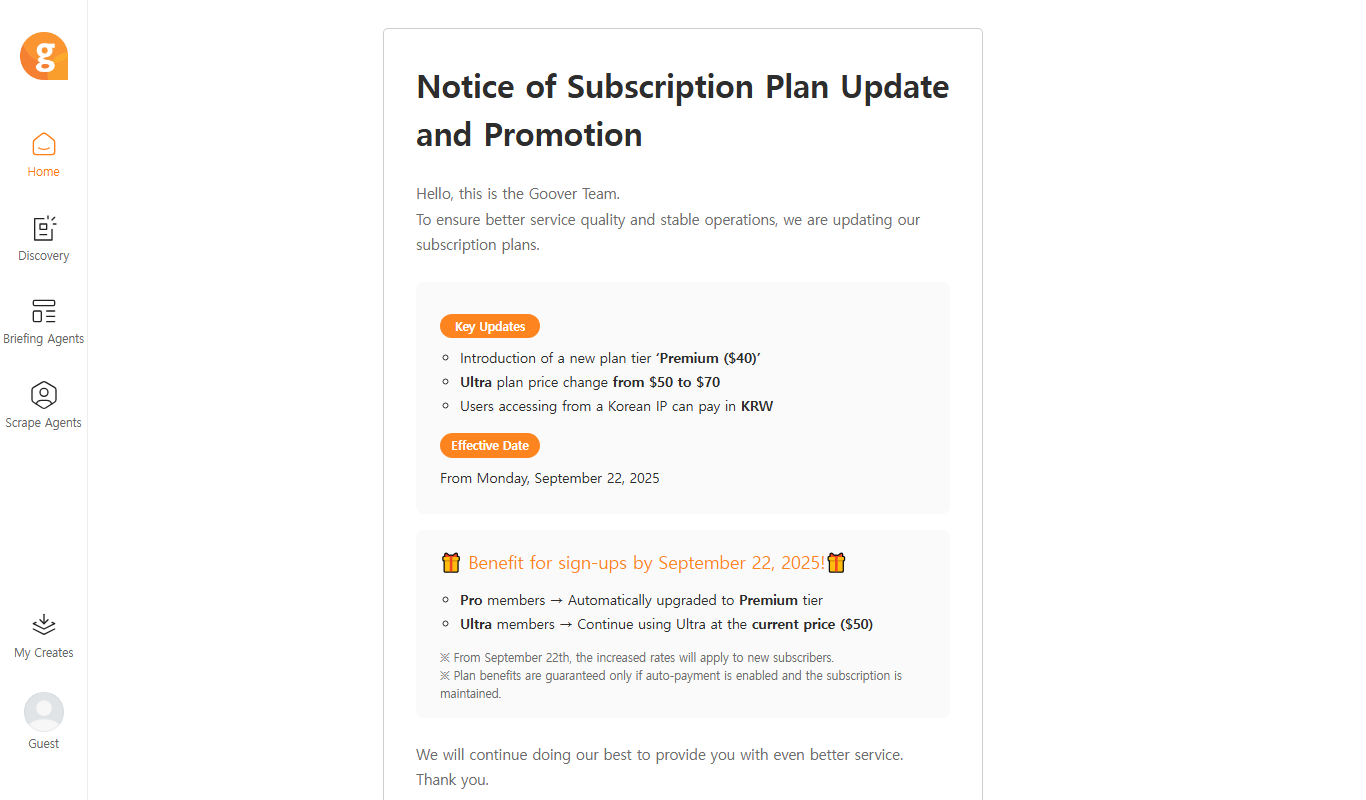
Do you recommend this tool?
What is Goover?
Goover AI is an AI-powered meeting assistant designed to transcribe and summarize meetings automatically. It helps teams capture conversations accurately and generate actionable summaries, improving productivity and collaboration.
Key features of Goover
Goover offers real-time transcription, AI-generated meeting summaries, easy sharing options, and integration via a Chrome extension to streamline meeting workflows.
Real-Time Transcription
Captures spoken words during meetings instantly with minimal delay.
AI-Powered Summaries
Creates concise summaries that extract important information and decisions.
Chrome Extension Integration
Seamlessly integrates with browsers to work alongside popular video conferencing tools.
Easy Sharing
Allows quick distribution of transcripts and summaries to team members.
Pros and cons of Goover
Pros
- Accurate real-time transcription
- Convenient Chrome extension integration
- Automatic meeting summaries save time
Cons
- Limited to English language support
- Requires Chrome browser for full functionality
Key use cases for Goover
Meeting Transcription
Automatically transcribe meetings in real-time to capture all spoken content accurately.
Meeting Summaries
Generate concise summaries of meetings to quickly review key points and decisions.
Collaboration Enhancement
Share transcripts and summaries with team members to improve communication and follow-ups.
Note Taking Automation
Reduce manual note-taking efforts by automating the capture of meeting details.
How Goover works
- 1
Install Chrome Extension
Add the Goover AI extension to your Chrome browser to enable meeting transcription.
- 2
Join or Start a Meeting
Use supported video conferencing platforms and activate Goover to capture audio.
- 3
Automatic Transcription
Goover transcribes the meeting audio in real-time with high accuracy.
- 4
Receive Summaries
After the meeting, get AI-generated summaries highlighting key points and action items.
- 5
Share and Collaborate
Distribute transcripts and summaries with your team for better follow-up and record keeping.
Who is using Goover
Remote teams
Project managers
Sales professionals
Customer support teams
Content creators
Goover pricing
Free
$0/month
Basic transcription and summary features with usage limits.
Pro
$15/month
Extended transcription minutes, advanced summary options, and priority support.
Plans and prices are as published by the vendor and can change. Check the official site before you buy. Open the pricing page (opens in a new tab)
Frequently asked questions about Goover
Goover works primarily via its Chrome extension and supports most web-based video conferencing platforms.
Goover uses advanced AI models to provide high accuracy, though background noise and accents may affect results.
Yes, Goover allows easy sharing of transcripts and summaries through links or downloads.
It depends on your specific needs and how you plan to use the tool. The official website and documentation are the best sources for the latest details.
Yes, it can help with that use case depending on how you configure it and what features are available. You’ll get the best results with clear inputs and a defined goal.
Sign in to review this tool.
Sign In to ReviewNo reviews yet
Be the first to share how this tool worked for you.
Ask about pricing, limits, or how it compares — or answer someone else.
Sign In to AskNo questions yet
Have a question about using or paying for this tool? Be the first to ask.
Featured on TiorAI



More AI Assistant tools
Other tools in the same category, for when this one is not quite the fit.

Free Trial
PagerGPT
PagerGPT is an AI assistant that integrates with PagerDuty to automate incident triage, provide contextual summaries, and assist engineers in resolving incidents faster.

Freemium
Phew AI Tab
Phew AI Tab is a Chrome browser extension that integrates AI-powered research, note-taking, and summarization tools directly into your browsing experience to enhance productivity and streamline information management.

Freemium
Owl at Work – AI Companion for Businesses
Owl at Work is an AI-powered business companion that automates workflows, manages tasks, and improves team collaboration through intelligent automation and integrations.

Freemium
Vivas.AI
Vivas.AI is an AI meeting assistant that transcribes meetings in real time, extracts action items, and generates summaries to improve team productivity.
Free
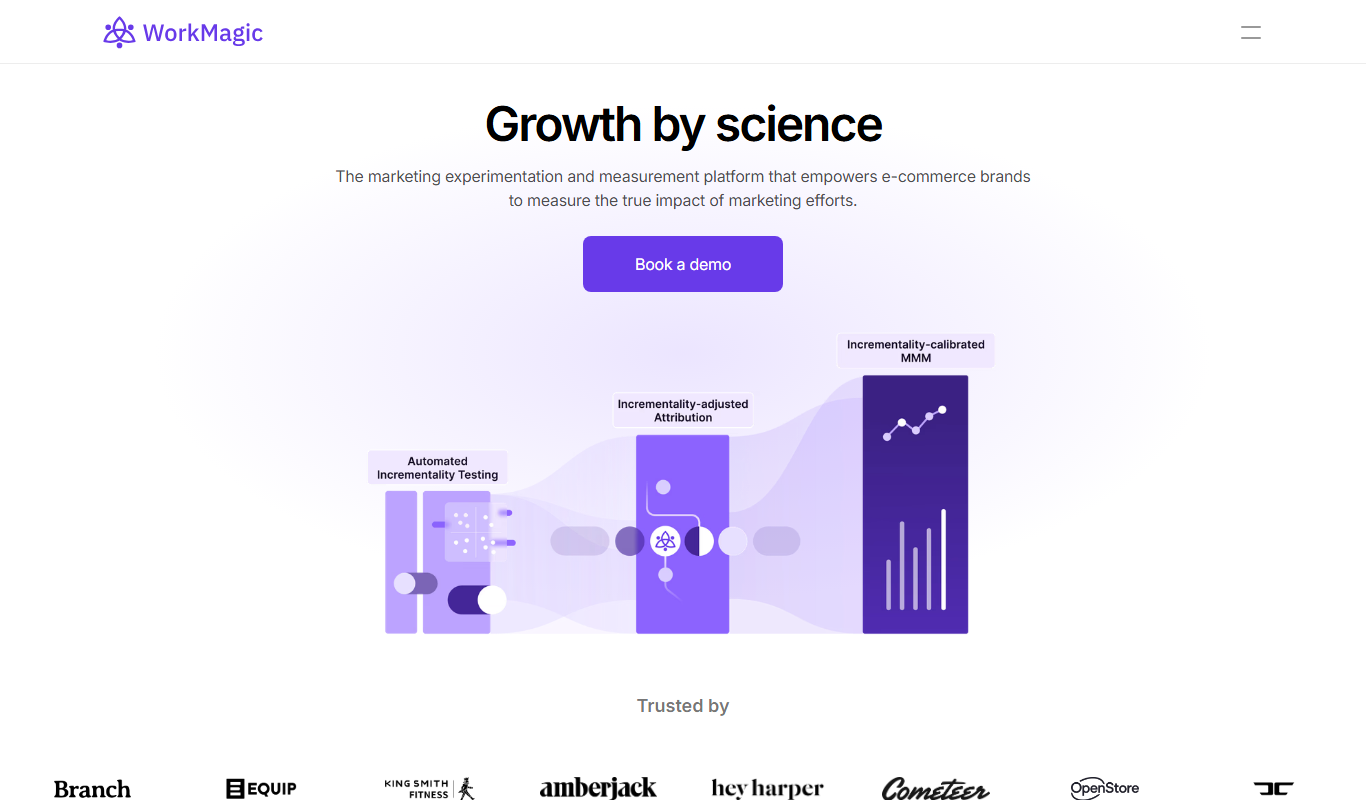
WorkMagic
WorkMagic is an AI-powered productivity assistant that automates tasks, manages workflows, and supports team collaboration through a web platform.

Free
Blue Bot
Blue Bot is a free web-based AI chatbot designed for fun and casual conversations, offering instant chat without registration.

Free Trial
Voxpad
Voxpad is an AI voice assistant that transcribes meetings in real-time and generates summaries to improve productivity and collaboration.

Free Trial
HubbleIQ
HubbleIQ is an AI meeting assistant that automates transcription, action item detection, and meeting summaries to enhance team collaboration.