

From my experience with Getimg.ai, I found it excels at providing versatile AI-powered image generation combined with editing and upscaling capabilities all in one platform. The availability of multiple AI models allows for creative flexibility, which is particularly useful for designers and marketers who need quick, unique visuals. The API access is a strong plus for developers integrating image generation into their workflows. However, the platform currently supports only English and lacks a dedicated mobile app, which might limit accessibility for some users. Overall, if you require an all-in-one AI image generation and editing tool with flexible pricing, Getimg.ai delivers solid results.
Getimg.ai AI Image Generator for Creative Visual Content and Design
Getimg.ai is an AI image generation platform that creates and edits images from text prompts and existing images, offering multiple AI models, editing tools, upscaling, and API integration.
- Best for
- Creative Visual Content
- Key capability
- Text-to-Image Generation
Your actions
Save Getimg.ai, follow its updates and vote on it — everything stays in your account.
Sign in or create a free account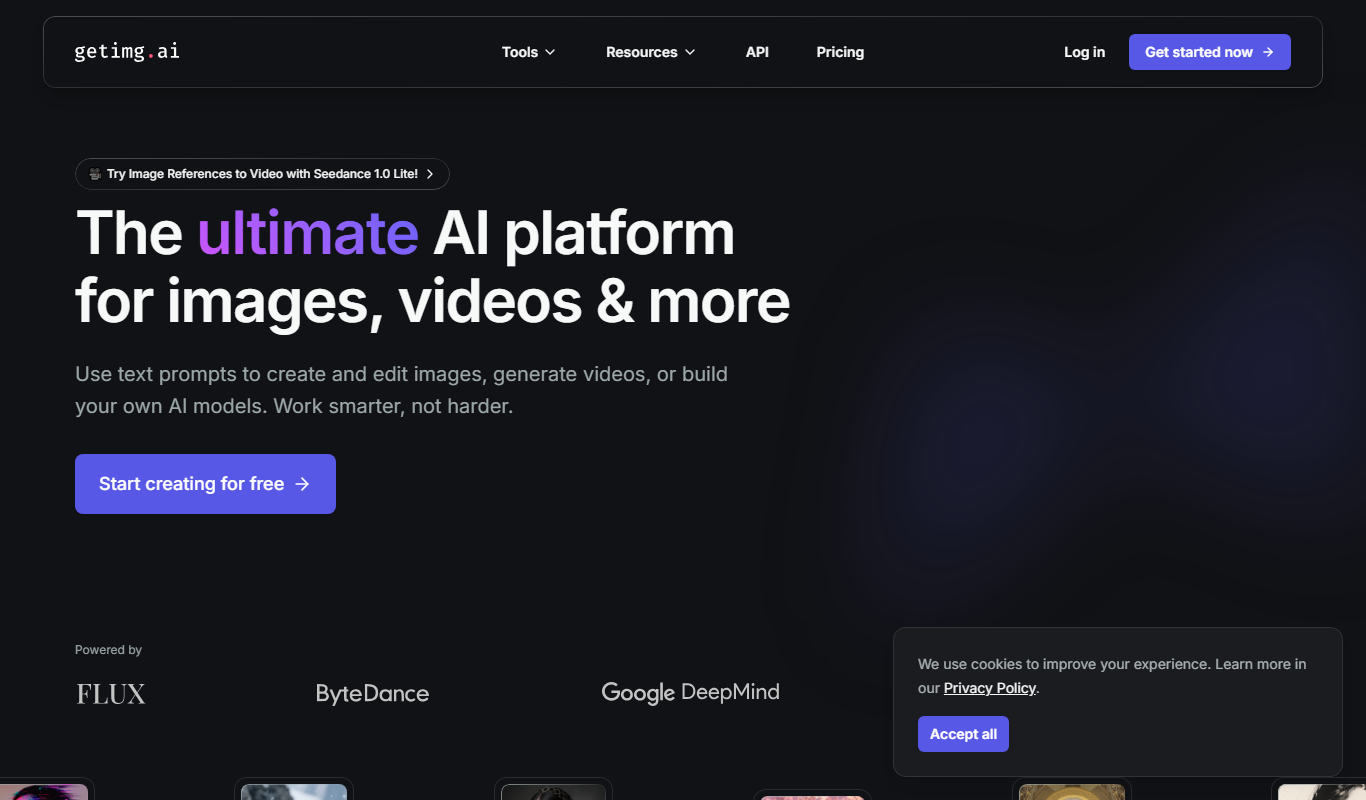

What is Getimg.ai?
Getimg.ai is an AI-powered image generation platform that enables users to create, edit, and upscale images using advanced text-to-image and image editing models. It leverages artificial intelligence to produce high-quality visuals from simple text prompts or by enhancing existing images, making it a versatile tool for designers, marketers, and content creators.
Key features of Getimg.ai
Getimg.ai offers a range of features including text-to-image generation, image editing, upscaling, and an API for integration. It supports multiple AI models to generate diverse styles and outputs, providing users with creative flexibility and automation capabilities.
Text-to-Image Generation
Create unique images from descriptive text prompts using multiple AI models.
Image Editing Tools
Modify and enhance images with AI-powered editing features.
Image Upscaling
Increase image resolution and quality without losing detail.
API Access
Integrate Getimg.ai’s image generation capabilities into your own software or workflows.
Multiple AI Models
Choose from various AI engines to generate different artistic styles and outputs.
Pros and cons of Getimg.ai
Pros
- Supports multiple AI models for diverse image styles
- Includes image editing and upscaling features
- Offers API for easy integration
- Flexible pricing with free and paid options
Cons
- Limited language support (English only)
- No dedicated mobile app available
- Country of origin not clearly specified
Key use cases for Getimg.ai
Creative Visual Content
Generate unique images for marketing, social media, and advertising campaigns quickly.
Graphic Design Assistance
Support designers by creating concept art, backgrounds, and visual assets with AI.
Content Enhancement
Improve blog posts, websites, and presentations with custom AI-generated images.
Rapid Prototyping
Create visual prototypes and mockups for projects without needing manual illustration.
Image Editing and Upscaling
Edit existing images and upscale them using AI-powered tools for better quality.
How Getimg.ai works
- 1
Create an Account
Sign up on the Getimg.ai website to access the platform and its features.
- 2
Choose a Model and Input
Select the AI model and enter a text prompt or upload an image to start generating.
- 3
Generate or Edit Images
Use the platform to create new images from text or edit and upscale existing images.
- 4
Download or Integrate
Download your images or use the API to integrate image generation into your applications.
Who is using Getimg.ai
Graphic designers
Content creators
Marketing professionals
Developers needing image generation API
Small businesses seeking visual content
Getimg.ai pricing
Free
$0/month
Limited credits for image generation and basic access to features.
Subscription
From $9/month
Monthly plans offering more credits, faster processing, and priority support.
Pay-as-you-go
Variable pricing
Flexible credit purchase for occasional users without subscription commitment.
Plans and prices are as published by the vendor and can change. Check the official site before you buy. Open the pricing page (opens in a new tab)
Frequently asked questions about Getimg.ai
Getimg.ai can generate a wide range of images including art, illustrations, concept designs, and photorealistic visuals based on text prompts.
Yes, Getimg.ai offers an API that allows developers to integrate image generation and editing features into their own applications.
Yes, the platform provides AI-powered image editing and upscaling tools to enhance or modify your images.
Getimg.ai offers a free tier with limited credits, subscription plans for regular users, and pay-as-you-go options for flexible usage.
It depends on your specific needs and how you plan to use the tool. The official website and documentation are the best sources for the latest details.
Yes, it can help with that use case depending on how you configure it and what features are available. You’ll get the best results with clear inputs and a defined goal.
Yes, it can help with that use case depending on how you configure it and what features are available. You’ll get the best results with clear inputs and a defined goal.
Some tools offer a free plan or trial with limited features. Availability can vary, so confirm on the official website.
Sign in to review this tool.
Sign In to ReviewNo reviews yet
Be the first to share how this tool worked for you.
Ask about pricing, limits, or how it compares — or answer someone else.
Sign In to AskNo questions yet
Have a question about using or paying for this tool? Be the first to ask.
Featured on TiorAI



More AI Design & Creative Tools tools
Other tools in the same category, for when this one is not quite the fit.
Free
FreePlanTour
FreePlanTour is a free, browser-based floor plan design tool that allows users to create and save detailed home and office layouts without any software installation.

Freemium
Morphlin
Morphlin is an AI-powered art generation tool that enables users to create unique digital images through image morphing and style transfer techniques on a user-friendly web platform.

Freemium
Sloyd
Sloyd is a web-based AI-assisted 3D modeling tool designed to help game developers and designers quickly create customizable low-poly 3D assets with ease.

Free Trial
Tattoo Canvas
Tattoo Canvas is a web-based digital tattoo design software that provides tattoo artists with vector-based tools, customizable brushes, and stencil creation features to create and present professional tattoo artwork.

Free
Tattoo Cook
Tattoo Cook is a web-based AI tool that generates custom tattoo designs from user text prompts, helping users create unique ink ideas quickly and easily.

Freemium
MolyPix.AI
MolyPix.AI is a web-based AI tool that generates images from text prompts, offering style customization and high-resolution downloads for creative projects.

Free
Pikzels
Pikzels is an AI-powered image generation tool that transforms text prompts into unique digital artworks, ideal for content creators and marketers seeking custom visuals.

Freemium
Pikzels AI
Pikzels AI is a web platform that uses artificial intelligence to generate images from user text prompts, enabling easy creation of unique visuals for various creative uses.