

Screen Resolution Checker
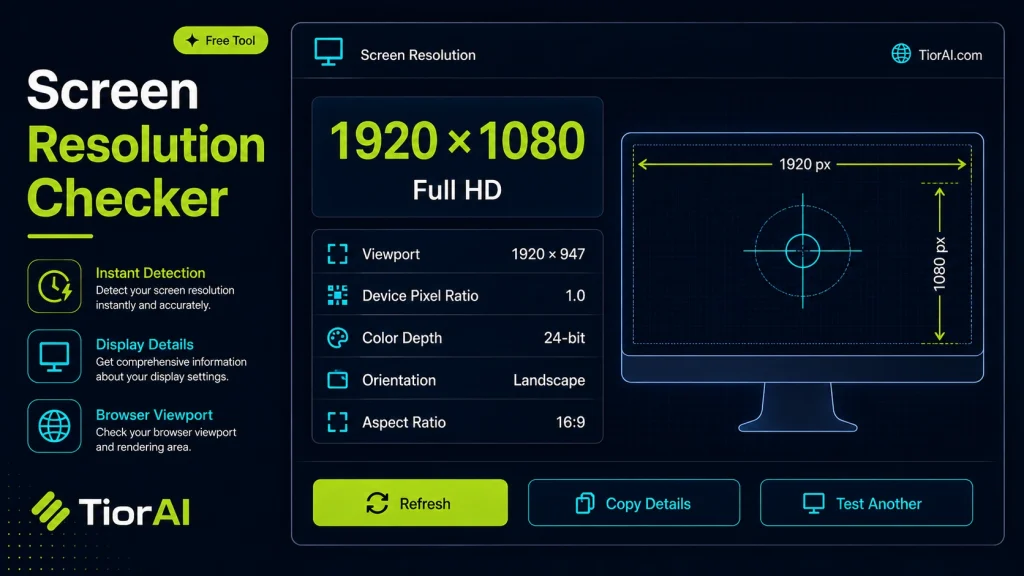
Screen resolution defines the number of pixels displayed horizontally and vertically on your device's screen. It directly impacts how sharp and detailed images and text appear. For example, a resolution of 1920×1080 means there are 1920 pixels across and 1080 pixels down. When to Use…
How to use it
- Paste or Enter Your Input Paste your code, text, or data into the input field. The tool supports large inputs without performance issues.
- Process and Analyze Click the action button or let the tool auto-process your input. Results appear in real time with highlighted details.
- Copy or Download the Output Review the results and copy the output to clipboard or download as a file for use in your project.
Tip Keyboard shortcut: Ctrl+V to paste input, then Ctrl+C to copy output - saves time in repetitive workflows.
Understanding Screen Resolution
Screen resolution refers to the number of pixels displayed on a screen horizontally and vertically, typically expressed as width × height (e.g., 1920×1080). It determines the clarity and detail of images and text on your display. Higher resolutions mean more pixels, which generally results in sharper images.
Screen resolution is a fundamental aspect of digital displays, affecting everything from web design to gaming and video playback. Knowing your screen resolution helps ensure that content is displayed correctly and optimally on your device.
Why is it important?
- Web developers use screen resolution to create responsive designs that adapt to different devices.
- Graphic designers need to match resolution settings to ensure their work appears as intended.
- Gamers and video editors adjust resolution for performance and visual quality balance.
Common scenarios where screen resolution matters:
- When setting up a new monitor or display device.
- Adjusting display settings for better readability or workspace.
- Testing how websites or applications render on various screen sizes.
What is Screen Resolution?
Screen resolution defines the number of pixels displayed horizontally and vertically on your device’s screen. It directly impacts how sharp and detailed images and text appear. For example, a resolution of 1920×1080 means there are 1920 pixels across and 1080 pixels down.
When to Use a Screen Resolution Checker
Using a screen resolution checker is helpful in several situations:
- Ensuring your display is set to its native resolution for the best visual quality.
- Verifying resolution settings before designing or testing websites and applications.
- Troubleshooting display problems like blurry or stretched images.
- Comparing different monitors or devices when making purchasing decisions.
- Confirming resolution after connecting to external displays or projectors.
Common Mistakes to Avoid
- Mixing up screen resolution with physical screen size, which can lead to misunderstandings about display quality.
- Assuming screen resolution is fixed and not realizing it can be adjusted in your system settings.
- Overlooking the aspect ratio, which can cause images to appear distorted if the resolution does not match the screen’s native ratio.
Understanding your screen resolution and how it relates to your device helps you optimize your viewing experience and troubleshoot display issues effectively.
Frequently asked questions
Reviews and questions
Whether this tool gave people the answer they needed, and what they asked about it.
Sign in to review this tool.
Sign In to ReviewNo reviews yet
Be the first to say whether this tool gave you what you needed.
Ask how to read the result, or what the tool does with an edge case — or answer someone else.
Sign In to AskNo questions yet
Not sure how to read a result? Be the first to ask.
AI tools related to this topic
Tools from the TiorAI directory that work on the same kind of job.

ChatGPT
ChatGPT is an AI chatbot by OpenAI powered by GPT-4o. It handles writing, coding, research, data analysis, and natural conversation. Free tier available, Plus at $20/month.