

How to use it
- Upload Your Image Upload or drag and drop your image into the Image to Grayscale. Supports PNG, JPG, WebP, and other common formats.
- Process the Image Configure your desired settings and click process. The tool applies changes to your image in seconds.
- Download the Result Preview the processed image and download it in your preferred format, ready for use.
Tip The Image to Grayscale preserves image quality while optimizing — your photos stay sharp even after processing.
What is Grayscale Image Conversion?
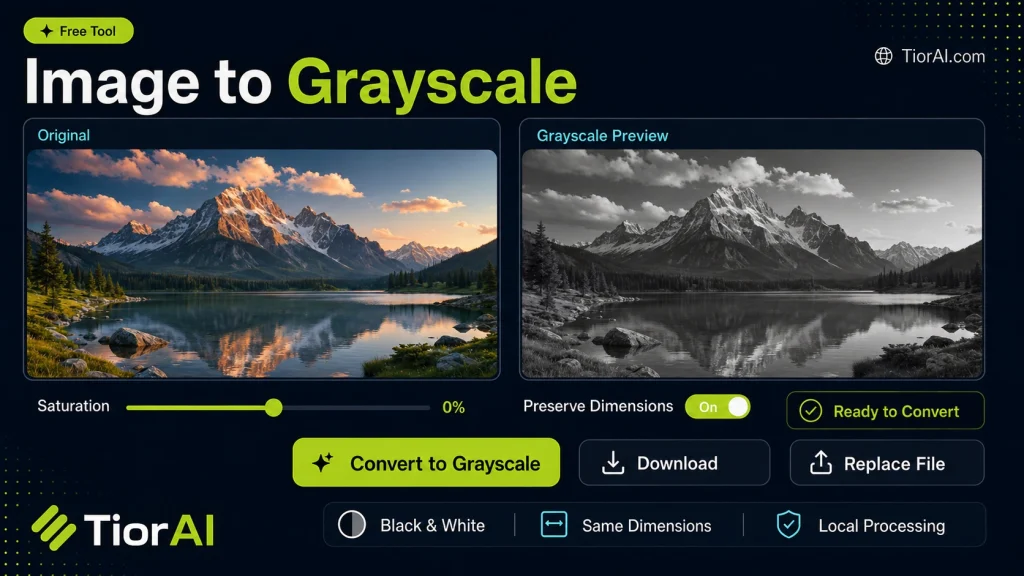
Grayscale conversion transforms a color image into shades of gray, removing all color information while preserving luminance. This process reduces each pixel to a single intensity value, typically ranging from black (0) to white (255) in 8-bit images. Unlike simple desaturation, true grayscale conversion accounts for human perception by weighting color channels differently to reflect brightness accurately.
Why convert images to grayscale? Grayscale images are useful in various fields such as photography, printing, and computer vision. They simplify image analysis by reducing complexity, improve contrast in certain contexts, and reduce file size. For example, artists use grayscale to focus on composition and lighting without color distractions, while machine learning models often process grayscale images to reduce computational load.
Common situations for grayscale conversion include:
- Preparing images for black-and-white printing
- Creating artistic or vintage effects
- Enhancing image processing tasks like edge detection or pattern recognition
- Reducing file size for faster web loading
Understanding Grayscale Image Conversion
Grayscale conversion is the process of transforming a color image into shades of gray by removing all color information. This technique reduces each pixel to a single brightness value, which simplifies the image while preserving essential details like light and shadow. Unlike merely desaturating an image, true grayscale conversion accounts for human visual perception by weighting red, green, and blue channels differently to reflect how bright each color appears to the eye.
When to Use Grayscale Conversion
- Preparing images for black-and-white printing or publications where color is unnecessary.
- Creating artistic effects that emphasize texture, contrast, and composition without color distractions.
- Optimizing images for machine learning or computer vision tasks that require single-channel input.
- Reducing file size for faster web loading by eliminating color data.
Common Mistakes to Avoid
- Confusing grayscale conversion with simple desaturation, which may not produce accurate luminance representation.
- Uploading unsupported image formats that the tool cannot process correctly.
- Expecting color information to be retained after conversion, which is impossible in true grayscale images.
Understanding these aspects helps you use grayscale conversion effectively, whether for artistic, technical, or practical purposes.
Frequently asked questions
Reviews and questions
Whether this tool gave people the answer they needed, and what they asked about it.
Sign in to review this tool.
Sign In to ReviewNo reviews yet
Be the first to say whether this tool gave you what you needed.
Ask how to read the result, or what the tool does with an edge case — or answer someone else.
Sign In to AskNo questions yet
Not sure how to read a result? Be the first to ask.
AI tools related to this topic
Tools from the TiorAI directory that work on the same kind of job.

Any Video Converter
Any Video Converter is a multimedia software that converts video files between numerous formats, downloads online videos, and offers basic editing and DVD burning features.

Bank Statement Converter
Bank Statement Converter is an online tool that converts PDF bank statements into Excel and CSV formats, enabling easy data extraction and financial management.

Code Language Converter
Code Language Converter is a free web-based tool that translates code snippets between multiple programming languages, helping developers convert syntax quickly and learn language differences.

Conversion Blitz
Conversion Blitz is a web-based landing page builder that helps marketers create optimized pages with drag-and-drop tools and A/B testing to increase conversions.