

ExpoReader YouTube video to blog post converter
ExpoReader is an AE Studio tool that converts YouTube videos into clear, concise blog posts you can read instead of watch.
- Best for
- Reading instead of watching
- Key capability
- Video to blog post
Save ExpoReader, follow its updates and vote on it — everything stays in your account.
Sign in or create a free account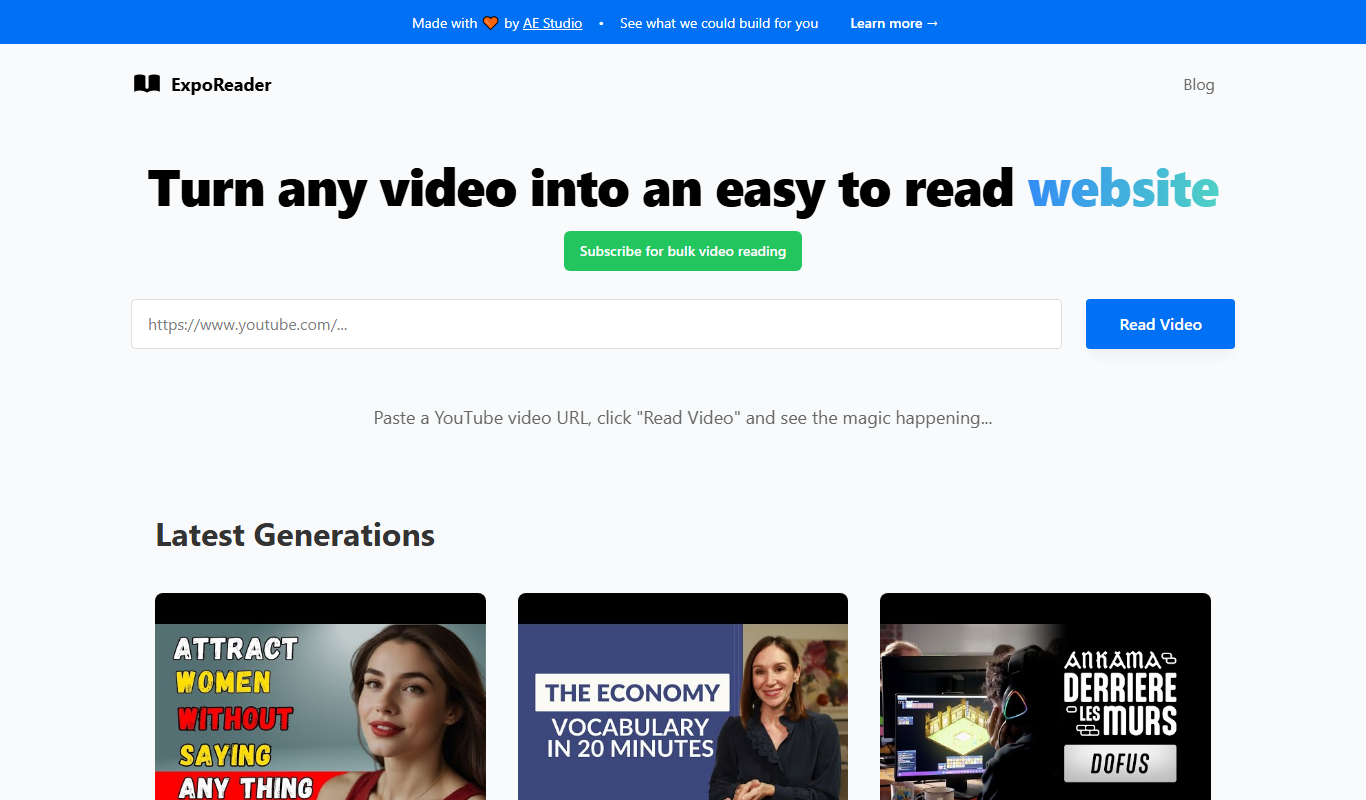
What is ExpoReader?
ExpoReader converts YouTube videos into clear, concise blog posts. You paste a YouTube video URL, click Read Video and get the video as an easy to read web page. It is made by AE Studio, and a subscription for bulk video reading has not been released yet.
Key features of ExpoReader
ExpoReader turns any YouTube video into an easy to read website from a pasted URL, with community generations shown on its blog.
Video to blog post
Converts YouTube videos into clear, concise blog posts.
Paste a URL
Paste a YouTube video URL and click Read Video.
Community generations
The blog shows the latest posts created by the community.
Text Extraction
Extracts text from PDFs for easier analysis and reuse.
Pros and cons of ExpoReader
Pros
- Works from a pasted YouTube video URL
- Output is a clear, concise blog post
- Interactive Q&A enhances document engagement
Cons
- Bulk video reading subscription not yet released
- Takes a YouTube video URL as its input
Key use cases for ExpoReader
Reading instead of watching
Get a YouTube video as a clear, concise blog post.
Text Summarization
Generate concise summaries of lengthy documents to quickly grasp key points without reading the entire text.
Research Assistance
Use AI to highlight important information and answer questions based on document content, aiding research workflows.
Content Extraction
Extract text and data from PDFs and other documents for further analysis or repurposing.
How ExpoReader works
- 1
Paste the URL
Paste a YouTube video URL into ExpoReader.
- 2
Click Read Video
Click Read Video to start the conversion.
- 3
Read the page
Read the video as an easy to read website.
Who is using ExpoReader
ExpoReader pricing
Free
$0/month
Basic access with limited document uploads and features.
Pro
$9.99/month
Unlimited document uploads, advanced AI features, and priority support.
Plans and prices are as published by the vendor and can change. Check the official site before you buy. Open the pricing page (opens in a new tab)
Frequently asked questions about ExpoReader
It converts YouTube videos into clear, concise blog posts.
Paste a YouTube video URL and click Read Video.
A subscription for bulk video reading is announced but not yet released; you can sign up to be notified.
It is made by AE Studio.
Some tools offer a free plan or trial with limited features. Availability can vary, so confirm on the official website.
Yes, it can help with that use case depending on how you configure it and what features are available. You’ll get the best results with clear inputs and a defined goal.
Conclusion
Reading replaces watching here: once a YouTube video URL is pasted and Read Video is clicked, the video comes back as a clear, concise blog post on an easy to read page. Posts created by the community appear on its blog.
The tool comes from AE Studio and appears to be at an early, experimental stage. A subscription for bulk video reading is announced but not yet released, and the site only offers a sign-up to be notified when it is available.
Sources
Sign in to review this tool.
Sign In to ReviewNo reviews yet
Be the first to share how this tool worked for you.
Ask about pricing, limits, or how it compares — or answer someone else.
Sign In to AskNo questions yet
Have a question about using or paying for this tool? Be the first to ask.
Featured on TiorAI



Alternative Tools
Explore similar AI tools that might fit your needs

Sumnotes
Sumnotes is an online tool that extracts highlights and annotations from PDF files, Kindle, Instapaper and web pages.
More AI Content Creation Tools tools
Other tools in the same category, for when this one is not quite the fit.

Nextool
Nextool.ai is a free, curated directory of 1,900+ AI tools across 148 categories.

PixelDojo
PixelDojo is an AI image and video generator with 118 tools, image and video models, LoRA training and creative studios in one subscription.

VideoGen – AI Video Generator
VideoGen is an AI video generator that transforms text scripts into fully automated videos with voiceovers and visuals, ideal for marketers and content creators.

SummarAIze AI
SummarAIze repurposes content from podcast episodes, webinars and other video into social posts, newsletters, video clips and more.

Summate
Summate.it quickly summarizes web articles with OpenAI: add an article address after summate.it/ to get its summary.

Clarice.ai
Clarice.ai is an AI writing assistant that improves texts with suggestions on clarity, style, grammar and humanization.

WordRocket AI
WordRocket AI is a web-based AI writing assistant that helps users generate SEO-optimized content, including blog posts and marketing copy, with customizable tone and style.

Origin
Origin is an all-in-one financial platform with AI-powered budgeting, spend tracking, investment tools, forecasting and estate planning, plus an AI financial advisor.