

Obsidian Note-Taking App for Knowledge Management and Personal Wikis
Obsidian is a markdown note-taking app that helps users build a personal knowledge base with linked notes, graph visualization, and extensive customization options.
- Best for
- Personal Knowledge Management
- Key capability
- Bidirectional Linking
Save Obsidian, follow its updates and vote on it — everything stays in your account.
Sign in or create a free account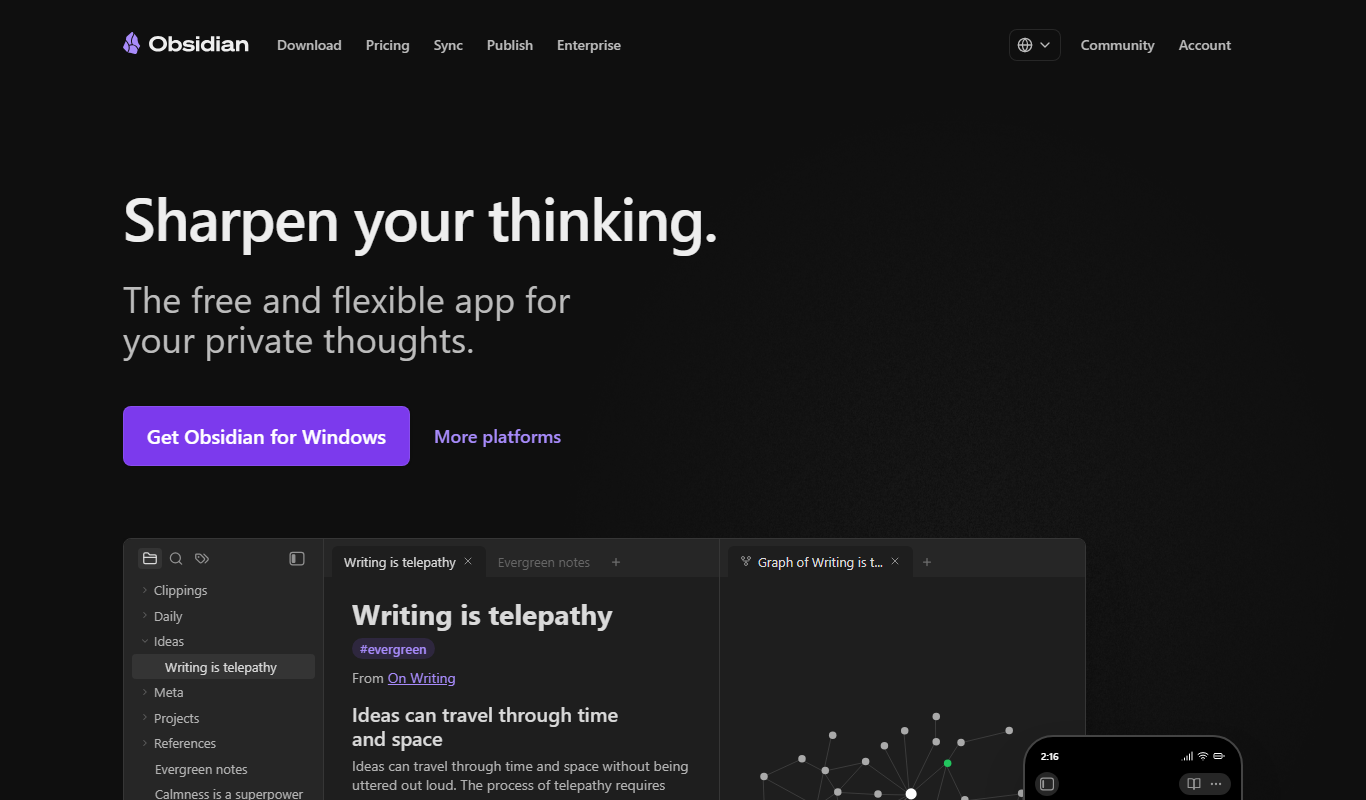
What is Obsidian?
Obsidian is a powerful knowledge base and note-taking application that uses markdown files stored locally on your device. It allows users to create a network of linked notes, enabling a non-linear way of organizing information often referred to as a personal wiki or digital garden. Obsidian emphasizes privacy and ownership by keeping all data on the user’s device, while offering extensive customization through plugins and themes.
Key features of Obsidian
Obsidian offers a rich set of features including bidirectional linking between notes, graph visualization of note connections, markdown support, customizable plugins, offline access, and cross-platform synchronization options. It is designed to help users build a connected knowledge system tailored to their workflow.
Bidirectional Linking
Create links between notes that automatically generate backlinks, enabling easy navigation.
Graph View
Visualize the network of your notes as an interactive graph to discover connections.
Markdown Support
Write notes using markdown syntax for easy formatting and compatibility.
Plugins and Themes
Customize Obsidian with a wide range of community-developed plugins and themes.
Local Storage and Privacy
All notes are stored locally on your device, ensuring full control over your data.
Cross-Platform Sync
Optional sync service to keep notes updated across devices securely.
Pros and cons of Obsidian
Pros
- Complete ownership of notes with local markdown files
- Powerful linking and graph visualization features
- Highly customizable with plugins and themes
- Works offline and cross-platform
- Strong community and active development
Cons
- Steeper learning curve for new users
- No native collaborative editing features
- Some advanced features require paid subscriptions
Key use cases for Obsidian
Personal Knowledge Management
Organize and interlink notes to build a personal knowledge base or digital garden.
Academic Research
Take detailed research notes, link ideas, and manage citations efficiently.
Writing and Content Creation
Draft articles, books, or blog posts using markdown with easy navigation between ideas.
Project Management
Track tasks, ideas, and project documentation in a flexible, linked note environment.
Software Development Documentation
Document code, APIs, and development notes with markdown and backlinks for easy reference.
How Obsidian works
- 1
Download and Install
Get Obsidian for your desktop or mobile device from the official website or app stores.
- 2
Create a Vault
Set up a vault, which is a folder on your device where all your markdown notes are stored.
- 3
Add and Link Notes
Write notes in markdown and create links between them using Obsidian’s backlinking syntax.
- 4
Customize with Plugins
Enhance functionality by installing community plugins or creating your own.
- 5
Visualize Your Knowledge
Use the graph view to see how your notes connect and explore relationships visually.
Who is using Obsidian
Obsidian pricing
Free
$0
Full core functionality with local storage and community plugins.
Catalyst
One-time $25
Support development and get early access to insider builds.
Obsidian Sync
$4 per user per month billed annually, or $5 billed monthly
Sync notes across devices with end-to-end encryption, version history and collaboration on shared vaults.
Obsidian Publish
$8 per site per month billed annually, or $10 billed monthly
Publish your notes online as a website.
Commercial
$50 per user per year
Optional license for organizations that supports development; commercial use does not require it.
Plans and prices are as published by the vendor and can change. Check the official site before you buy. Open the pricing page (opens in a new tab)
Compare similar tools
How Obsidian lines up against the tools people weigh it against.
 Notion AI
Notion AI vs Obsidian: Productivity Features, AI & Pricing
Frequently asked questions about Obsidian
Yes, Obsidian’s core features are free with optional paid services like Sync and Publish.
Absolutely, Obsidian stores all notes locally and works fully offline.
Yes, Obsidian has apps for iOS and Android.
Yes, through community plugins, themes, and custom CSS.
This tool is designed to help users accomplish its core tasks more efficiently. It is typically used by individuals or teams looking to improve productivity and workflow.
Some tools offer a free plan or trial with limited features. Availability can vary, so confirm on the official website.
It depends on your specific needs and how you plan to use the tool. The official website and documentation are the best sources for the latest details.
Yes, it can help with that use case depending on how you configure it and what features are available. You’ll get the best results with clear inputs and a defined goal.
Conclusion
Notes are markdown files kept in a vault, a folder on the device, so they stay accessible offline and in open file formats. Links between notes generate backlinks automatically, the graph view shows how notes connect, and Canvas adds an infinite space to brainstorm and lay out ideas. A wide range of community-developed plugins and themes can customize the app.
Knowledge workers and researchers, writers and students are its core users, though new users face a steeper learning curve. The app itself is free without limits and needs no sign-up. Sync is an optional add-on that syncs notes across devices with end-to-end encryption and supports collaboration on shared vaults, while Publish turns notes into a website.
Sources
Sign in to review this tool.
Sign In to ReviewNo reviews yet
Be the first to share how this tool worked for you.
Ask about pricing, limits, or how it compares — or answer someone else.
Sign In to AskNo questions yet
Have a question about using or paying for this tool? Be the first to ask.
Featured on TiorAI



Alternative Tools
Explore similar AI tools that might fit your needs
Roam Research
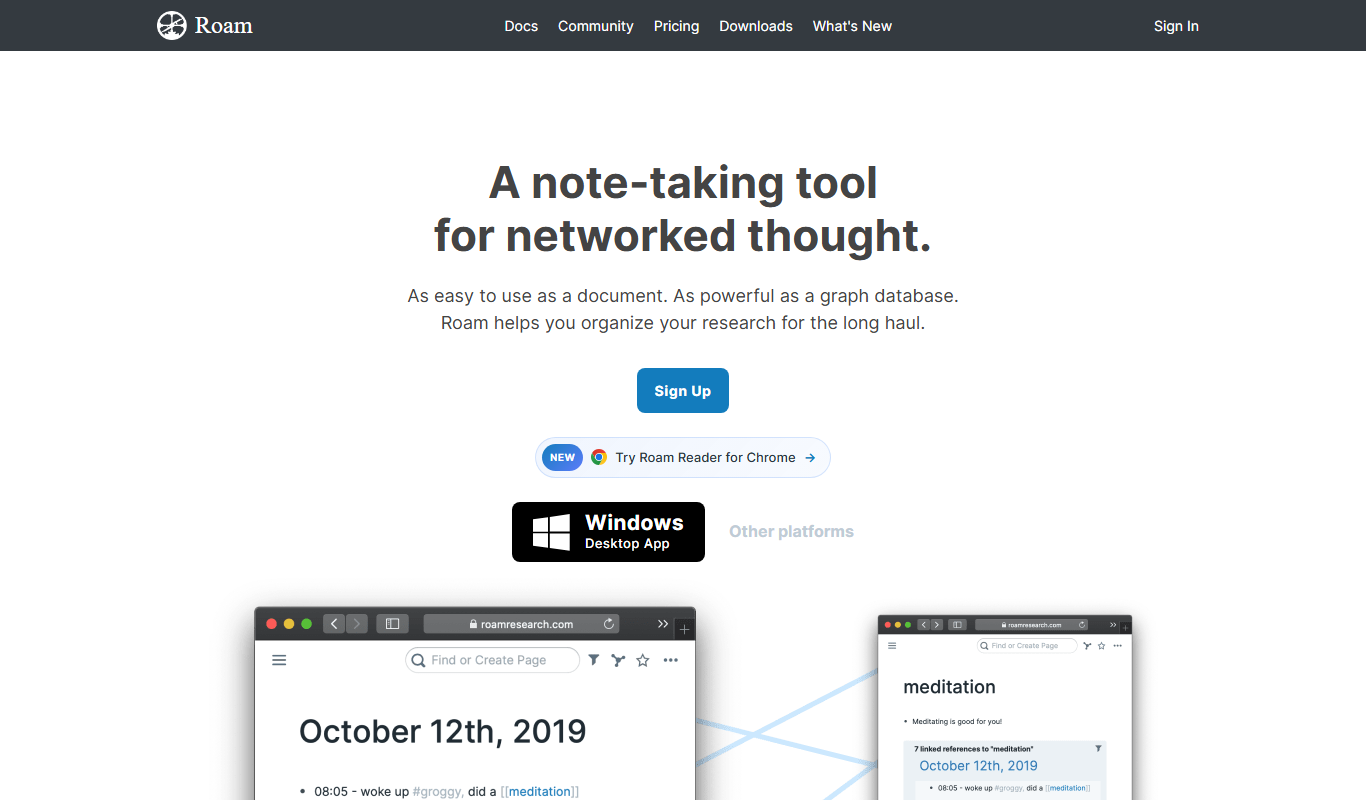
Roam Research is a note-taking and knowledge management tool that uses bidirectional linking and graph visualization to help users organize and connect ideas effectively.
More Business Management tools
Other tools in the same category, for when this one is not quite the fit.

Percepto Autonomous Inspection
Percepto Autonomous Inspection is an AI-powered autonomous drone platform that automates industrial site inspections, providing real-time anomaly detection, 3D mapping, and remote asset monitoring to enhance safety and operational efficiency.

Intuit ProConnect
Intuit ProConnect is a cloud-based tax software designed for professional accountants and tax firms to prepare, review, and electronically file federal and state tax returns efficiently.

Visier People Analytics
Visier People Analytics is a cloud-based platform that helps organizations analyze workforce data to improve talent management, predict turnover, and support strategic HR decisions.

LogicManager
LogicManager is a cloud-based governance, risk, and compliance software platform designed to help organizations identify, assess, and mitigate risks while ensuring regulatory compliance through audit, policy, and incident management tools.
Podpage
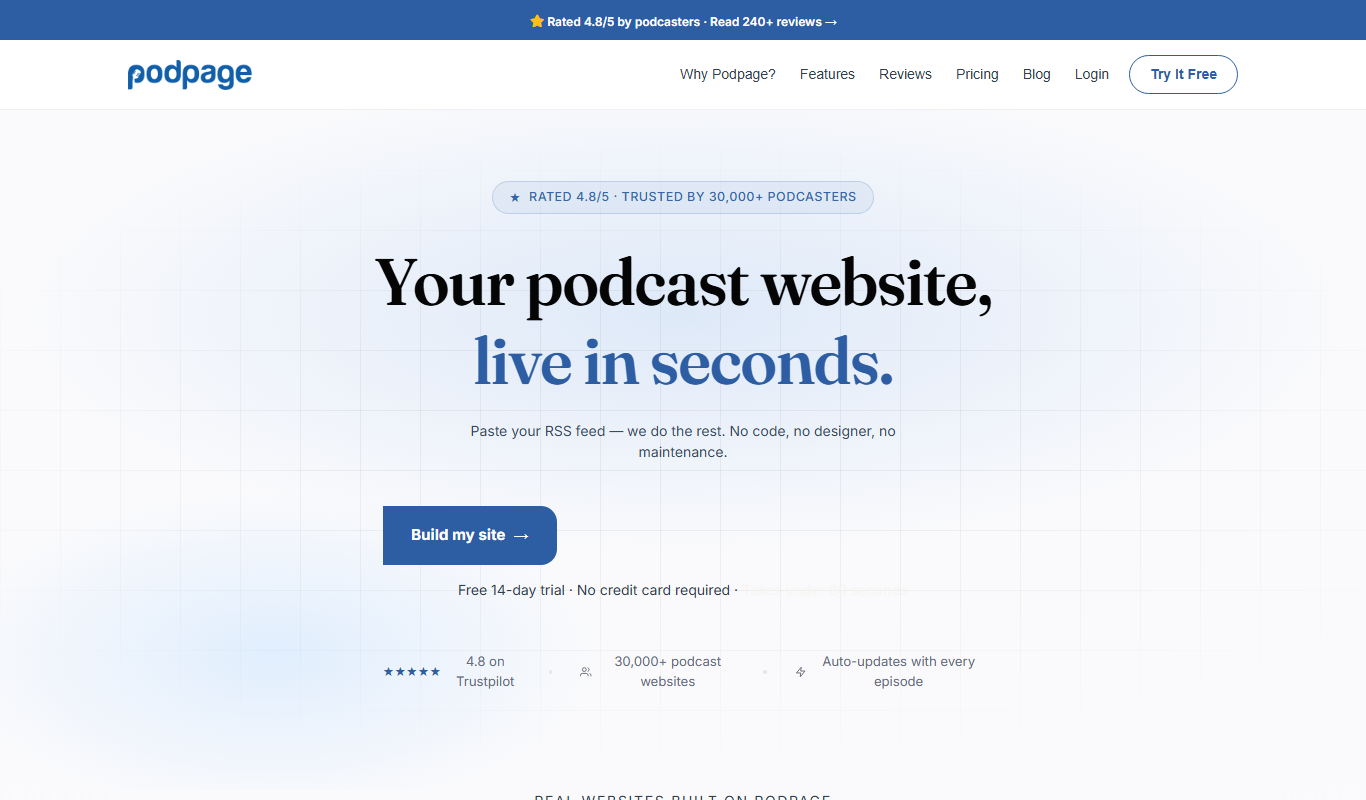
Podpage is a web platform that automatically creates and manages podcast websites by importing episodes from your RSS feed, offering SEO optimization and customization without coding.
NewsBlur
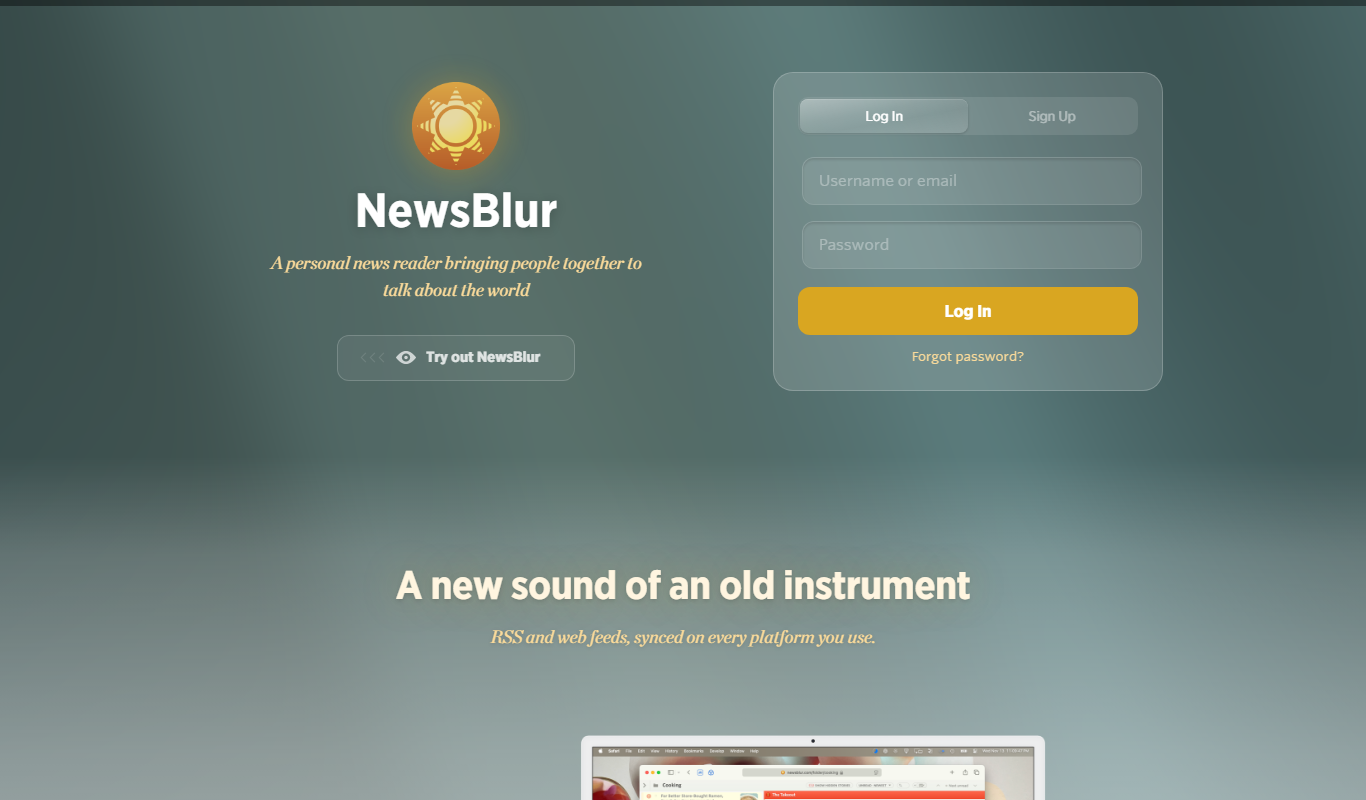
NewsBlur is a personal RSS reader and news aggregator that collects and filters news from multiple sources, allowing users to customize their news feed and read across web and mobile platforms.
Clinked
Clinked is a secure client portal platform that enables businesses to collaborate with clients and teams through file sharing, task management, messaging, and workflow automation in a branded environment.
VinSolutions CRM
VinSolutions CRM is a specialized customer relationship management platform designed for automotive dealerships to manage leads, automate sales processes, and run targeted marketing campaigns.