

Quip Collaborative Productivity Suite for Team Documents and Messaging
Quip is a cloud-based collaboration tool that integrates documents, spreadsheets, chat, and Salesforce CRM data to enable real-time team productivity and project management.
- Best for
- Team Collaboration
- Key capability
- Real-Time Collaborative Editing
Save Quip, follow its updates and vote on it — everything stays in your account.
Sign in or create a free account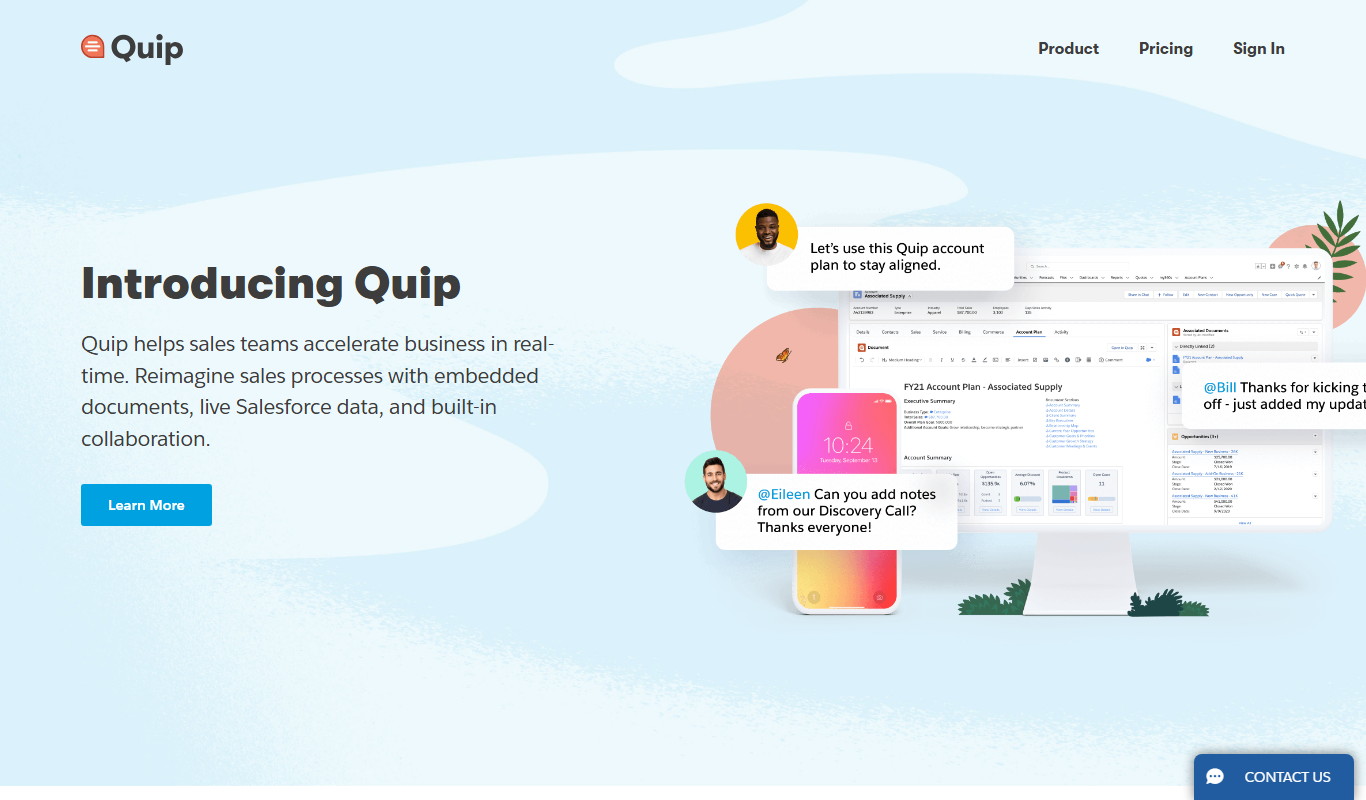
What is Quip?
Quip is a cloud-based collaborative productivity platform that combines documents, spreadsheets, checklists and team chat and integrates with Salesforce CRM. Salesforce has announced the retirement of Quip Starter, Plus and Advanced: there are no renewals after 2027-03-01, and free accounts close on 2027-03-31.
Key features of Quip
Quip offers real-time collaborative editing, integrated chat alongside documents, task and project management tools, Salesforce integration, mobile and desktop accessibility, and robust sharing and permission controls to enhance team productivity.
Real-Time Collaborative Editing
Multiple users can edit documents and spreadsheets simultaneously with live updates.
Integrated Team Chat
Chat is embedded directly alongside documents to facilitate contextual communication.
Salesforce Integration
Embed and update Salesforce CRM data within documents to align sales and service teams.
Task and Project Management
Create checklists, assign tasks, and track project progress within shared documents.
Cross-Platform Accessibility
Access Quip on web browsers, mobile apps (iOS and Android), and desktop clients.
Pros and cons of Quip
Pros
- Seamless integration of chat and documents in one platform
- Strong Salesforce CRM integration for sales teams
- Real-time collaboration with live updates
- Cross-platform support including mobile and desktop
- Task management features embedded in documents
Cons
- Limited offline functionality compared to some competitors
- Pricing can be high for small teams without Salesforce needs
- Learning curve for users new to integrated collaboration tools
Key use cases for Quip
Team Collaboration
Facilitates real-time collaboration on documents, spreadsheets, and task lists with integrated chat.
Project Management
Organize projects with shared documents, checklists, and progress tracking to keep teams aligned.
Salesforce Integration
Embed live Salesforce data into documents to streamline workflows and improve sales team productivity.
Remote Work Communication
Supports remote teams with chat and document collaboration in a single platform.
Document Creation and Editing
Create, edit, and share documents and spreadsheets collaboratively with version control.
How Quip works
- 1
Create an Account
Sign up for Quip using your email or Salesforce credentials to start collaborating.
- 2
Set Up Your Workspace
Create teams and folders to organize your documents, spreadsheets, and projects.
- 3
Collaborate in Real Time
Invite team members to edit documents and chat simultaneously, with changes syncing instantly.
- 4
Integrate Salesforce Data
Embed live Salesforce reports and records into your documents to keep information up to date.
- 5
Manage Tasks and Projects
Use checklists and task assignments within documents to track progress and deadlines.
Who is using Quip
Quip pricing
Free Trial
$0 for 30 days
Full feature access for 30 days to evaluate the platform.
Quip Starter
$10/user/month
Basic collaboration features suitable for small teams.
Quip Plus
$25/user/month
Advanced features including Salesforce integration and enhanced security.
Quip Advanced
$100/user/month
Real-time collaboration inside Salesforce for sales teams: all Plus features plus editing live documents in Salesforce; billed annually.
Plans and prices are as published by the vendor and can change. Check the official site before you buy. Open the pricing page (opens in a new tab)
Frequently asked questions about Quip
Yes, Quip functions as a standalone collaboration tool but offers additional benefits when integrated with Salesforce.
Quip offers limited offline access through its mobile apps, syncing changes when reconnected.
Quip uses enterprise-grade security protocols including encryption in transit and at rest.
Yes, you can import documents from formats like Microsoft Word and Excel into Quip.
This tool is designed to help users accomplish its core tasks more efficiently. It is typically used by individuals or teams looking to improve productivity and workflow.
Integration support depends on the tool and its available connectors or API. Check the official documentation or integrations page to confirm what is supported.
Some tools offer a free plan or trial with limited features. Availability can vary, so confirm on the official website.
Yes, it can help with that use case depending on how you configure it and what features are available. You’ll get the best results with clear inputs and a defined goal.
Conclusion
Teams set up folders for documents, spreadsheets and projects, then edit together while chat sits directly alongside the content. Checklists and task assignments inside documents track progress and deadlines. Live Salesforce reports and records can be embedded so CRM information in a document stays up to date, though Quip also works as a standalone tool.
Sales teams using Salesforce CRM, customer service and support teams, and remote and distributed teams are its main audience. Current plans are Quip Starter at $10/user/month, Quip Plus at $25/user/month and Quip Advanced at $100/user/month. Salesforce has announced the retirement of all three, with no renewals after 2027-03-01 and free accounts closing on 2027-03-31.
Sources
Sign in to review this tool.
Sign In to ReviewNo reviews yet
Be the first to share how this tool worked for you.
Ask about pricing, limits, or how it compares — or answer someone else.
Sign In to AskNo questions yet
Have a question about using or paying for this tool? Be the first to ask.
Featured on TiorAI


More AI Workflow tools
Other tools in the same category, for when this one is not quite the fit.

Lens Protocol
Lens Protocol is a blockchain stack built for SocialFi, made up of Lens Chain, the Social Protocol and Storage Nodes, where one Lens account works across many apps.

Botkeeper
Botkeeper is an AI accounting solution purpose-built for accounting firms that automates the most manual and time-consuming bookkeeping work.

Furkot
Furkot is a web-based trip planner that helps users create multi-stop routes, optimize travel paths, schedule accommodations and activities, and share itineraries for efficient road trip planning.

Trials.ai
Trials.ai is an AI-driven platform that helps medical researchers design optimized clinical trial protocols, improve patient recruitment, and ensure regulatory compliance to accelerate trial success.

ZipBooks
ZipBooks is a cloud-based accounting software designed for small businesses and freelancers to manage invoicing, expenses, payments, and financial reporting with ease.

Lookeen
Lookeen is a Windows desktop search software that enables fast and comprehensive searching of emails, files, and documents, integrating deeply with Microsoft Outlook and supporting network drives.
Ataccama
Ataccama is an AI-driven data management platform that integrates data governance, master data management, and data quality automation to help enterprises manage and improve their data assets efficiently.
FloQast
FloQast is a cloud software designed to streamline and automate the accounting month-end close process, improving accuracy and collaboration for finance teams.