

From my experience with SnapDownloader, it stands out as a reliable and straightforward tool for downloading videos from a wide array of platforms, not just YouTube. Its support for high-resolution downloads up to 8K and batch downloading capabilities make it especially useful for content creators and social media managers who need offline access to multiple videos efficiently. The desktop-only availability means it’s best suited for users comfortable with installing software on Windows or macOS. While the free trial is limited, the affordable pricing plans provide good value for frequent users. Overall, SnapDownloader is a solid choice if you want a versatile video downloader with quality and speed.
SnapDownloader Video Downloader Software for YouTube and Social Media
SnapDownloader is a desktop application that allows users to download videos and audio from YouTube and over 900 other websites in high quality, including 4K and 8K resolutions, with batch downloading and format conversion features.
- Best for
- Download Videos from YouTube and Other Platforms
- Key capability
- Supports 900+ Websites
Your actions
Save SnapDownloader, follow its updates and vote on it — everything stays in your account.
Sign in or create a free account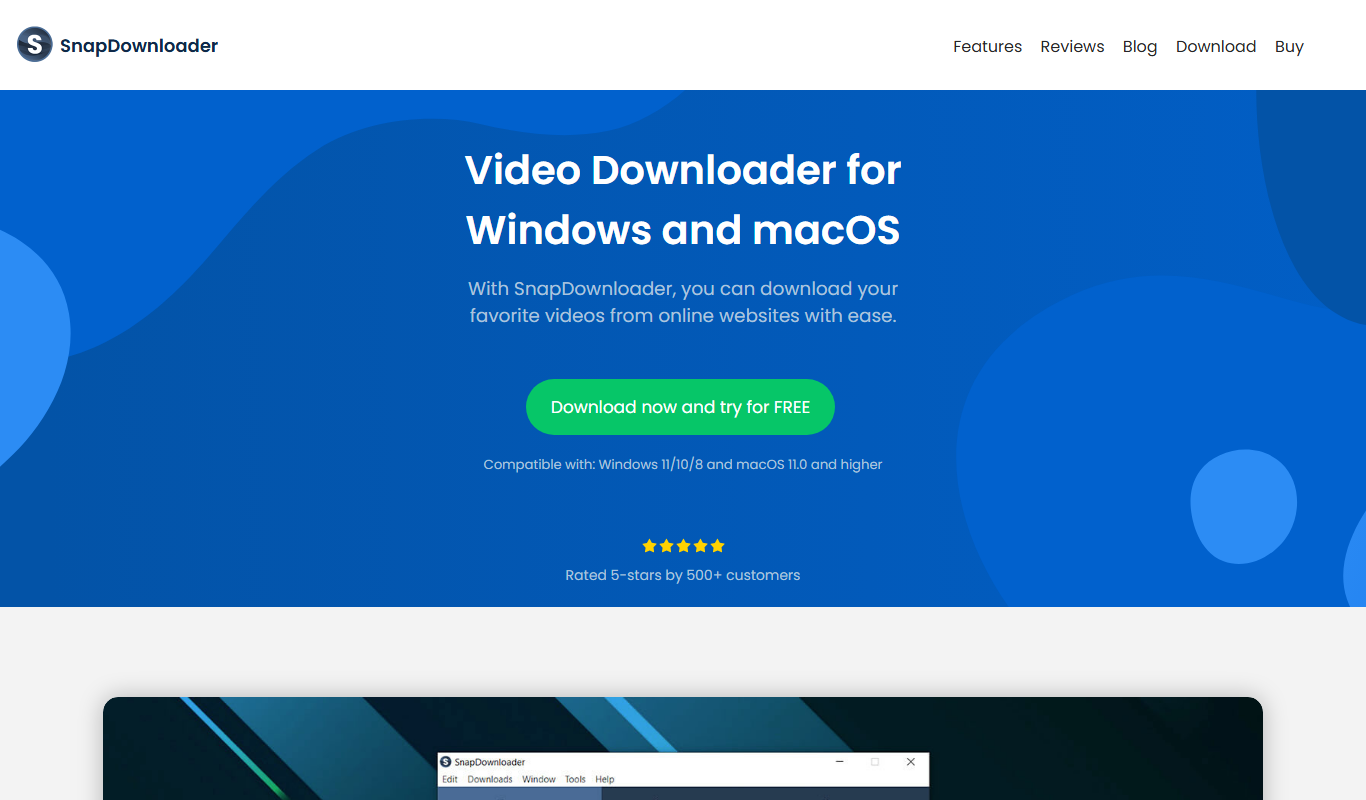
What is SnapDownloader?
SnapDownloader is a desktop video downloader software designed to help users easily download videos and audio from a wide range of online platforms including YouTube, Facebook, Twitter, and more. It supports high-resolution downloads up to 8K and offers batch downloading and format conversion features, making it a versatile tool for offline media consumption.
Key features of SnapDownloader
SnapDownloader provides a user-friendly interface for downloading videos in various resolutions and formats, batch downloading capabilities, and audio extraction. It supports over 900 websites and ensures fast, reliable downloads on Windows and macOS.
Supports 900+ Websites
Download videos from a vast range of platforms beyond just YouTube.
4K and 8K Video Downloads
Access ultra-high definition video downloads when available.
Batch Downloading
Download multiple videos simultaneously to save time.
Video to MP3 Conversion
Extract audio from videos and save as MP3 files.
Cross-Platform Desktop App
Available for both Windows and macOS users.
Pros and cons of SnapDownloader
Pros
- Supports a wide range of video platforms beyond YouTube
- High-quality video downloads up to 8K resolution
- Batch downloading saves time
- Simple and intuitive user interface
- Available on both Windows and macOS
Cons
- No mobile app version available
- Limited free trial features
- Requires desktop installation
Key use cases for SnapDownloader
Download Videos from YouTube and Other Platforms
Allows users to download videos from YouTube, Facebook, Twitter, Vimeo, and over 900 other websites for offline viewing.
Convert Videos to Multiple Formats
Enables conversion of downloaded videos into MP4, MP3, and other popular formats suitable for various devices.
Batch Downloading
Supports downloading multiple videos simultaneously to save time and improve workflow efficiency.
High-Quality Video Downloads
Offers options to download videos in HD, 4K, and 8K resolutions depending on source availability.
Extract Audio from Videos
Allows users to extract audio tracks from videos and save them as MP3 files.
How SnapDownloader works
- 1
Install the Software
Download and install SnapDownloader on your Windows or macOS computer.
- 2
Copy Video URL
Copy the URL of the video you want to download from supported websites.
- 3
Paste URL and Choose Format
Paste the video URL into SnapDownloader, select the desired video resolution and format.
- 4
Download Video
Click the download button to start downloading the video or audio file to your device.
Who is using SnapDownloader
Content creators needing offline video access
Social media managers
Educators and students
Video editors
General users wanting to save videos offline
SnapDownloader pricing
Free Trial
$0
Limited access to features for evaluation purposes.
1-Year License
$19.99
Full access to all features for one year with updates.
Lifetime License
$39.99
One-time payment for lifetime access and updates.
Plans and prices are as published by the vendor and can change. Check the official site before you buy. Open the pricing page (opens in a new tab)
Frequently asked questions about SnapDownloader
Yes, SnapDownloader is safe and free from malware. It is a trusted software used by many users worldwide.
Yes, SnapDownloader supports downloading videos from YouTube as well as many other popular video platforms.
Yes, you can download multiple videos at the same time using the batch download feature.
SnapDownloader supports MP4, MP3, and several other common video and audio formats.
It depends on your specific needs and how you plan to use the tool. The official website and documentation are the best sources for the latest details.
Some tools offer a free plan or trial with limited features. Availability can vary, so confirm on the official website.
Yes, it can help with that use case depending on how you configure it and what features are available. You’ll get the best results with clear inputs and a defined goal.
Yes, it can help with that use case depending on how you configure it and what features are available. You’ll get the best results with clear inputs and a defined goal.
Sign in to review this tool.
Sign In to ReviewNo reviews yet
Be the first to share how this tool worked for you.
Ask about pricing, limits, or how it compares — or answer someone else.
Sign In to AskNo questions yet
Have a question about using or paying for this tool? Be the first to ask.
Featured on TiorAI



More AI Video Generator tools
Other tools in the same category, for when this one is not quite the fit.

Free
Presently AI
Presently AI is an AI-driven platform that transforms text scripts into video presentations with automated slides and voice narration, ideal for business and marketing videos.

One-time purchase
Swing Catalyst
Swing Catalyst is a golf swing analysis software that uses high-speed video, 3D motion capture, and pressure plate data to help golfers and coaches improve swing mechanics and performance.

Freemium
Youku
Youku is a Chinese online video streaming platform owned by Alibaba Group, offering a vast library of movies, TV shows, and original content primarily for Chinese audiences.

Commission-based
ManyVids
ManyVids is an adult content platform that allows creators to monetize videos, photos, live streams, and subscriptions directly with fans through a secure marketplace.
Free
Flowframes
Flowframes is a free Windows desktop software that uses AI to interpolate video frames, creating smooth slow motion and enhancing video frame rates without internet connection.
Free
FaceSwap
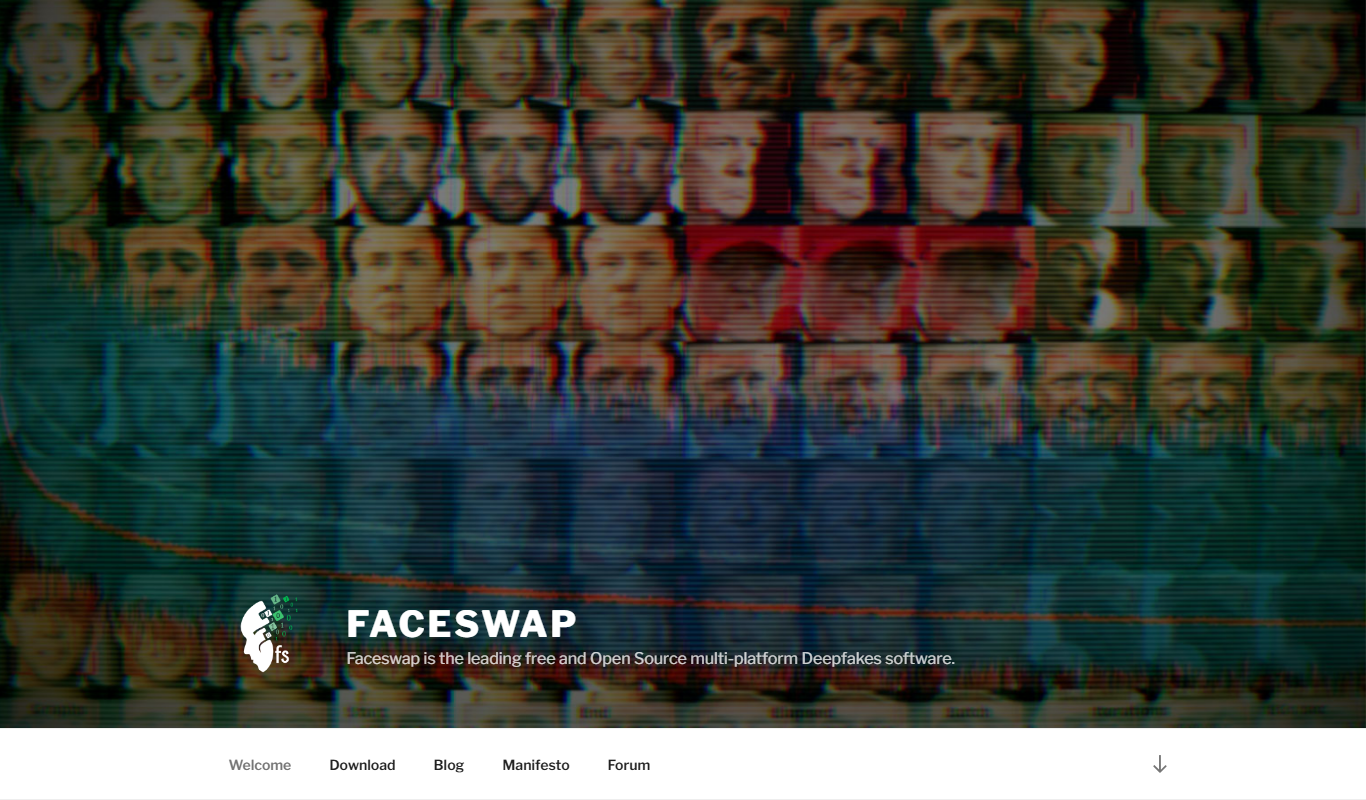
FaceSwap is a free, open-source AI software that enables realistic face swapping in images and videos using deep learning techniques.

Free
OpenShot
OpenShot is a free, open-source video editing software that supports Windows, macOS, and Linux. It offers features like unlimited tracks, video transitions, 3D animated titles, and a drag-and-drop interface, making it ideal for beginners and intermediate users.

Custom Pricing
SmartDrive Systems
SmartDrive Systems is an AI-driven video telematics platform that uses AI to monitor driver behavior, detect risky events, and provide actionable insights to improve fleet safety and operational efficiency.