

Video Editor AI - Online Automated Video Editing Software for Creators
Video Editor AI lets you edit any video with AI: remove objects, blur faces, remove backgrounds, upscale and add subtitles. Free, no watermark.
- Best for
- Object removal
- Key capability
- Remove Object
Save Video Editor AI, follow its updates and vote on it — everything stays in your account.
Sign in or create a free account
What is Video Editor AI?
Video Editor AI is an online AI video editor: upload a video, circle what you want changed, and the AI removes objects, blurs faces, swaps backgrounds, upscales or adds subtitles, with no watermark.
Key features of Video Editor AI
Video Editor AI offers AI cleanup (remove object, remove watermark, remove background, blur faces), enhancement (upscale, slow motion), basic editing (trim, crop, merge, speed) and audio and text tools (add subtitles, transcribe, translate or dub, AI voiceover).
Remove Object
Circle what you want gone and the AI tracks the object across every frame and fills the space behind it.
Remove Watermark
Mark a watermark or logo once and the AI removes it from the entire clip, reconstructing what was behind it.
Blur Faces
Click any face or object to track and blur it for the rest of the clip, for example to protect identities and license plates.
Upscale
Increase resolution and recover detail in old or low-quality footage with an AI upscaler.
Add Subtitles
Auto-transcribe your video and burn in clean, styled captions.
Translate / Dub
Automatically translate and dub your video into another language while keeping natural-sounding voices.
Pros and cons of Video Editor AI
Pros
- Automates time-consuming editing tasks
- Easy to use for beginners
- Optimized exports for social media
- Affordable pricing tiers
- Supports multiple video formats
Cons
- Limited manual control compared to professional editors
- Free plan includes watermarks and video length restrictions
- No desktop or mobile app, web-only platform
Key use cases for Video Editor AI
Object removal
Remove unwanted objects from a clip by circling them once.
Content Creation for Social Media
Create engaging short-form videos optimized for platforms like Instagram, TikTok, and YouTube without manual editing.
Marketing Video Production
Produce promotional videos quickly with AI assistance to streamline the editing process and maintain brand consistency.
Video Summarization
Generate concise highlight reels or summaries from longer videos to capture key moments efficiently.
Video Enhancement
Increase resolution and recover detail in old or low-quality footage, or add AI slow motion.
How Video Editor AI works
- 1
Upload Video
Users start by uploading their raw video footage to the platform.
- 2
Circle what to change
Scrub to the right frame and circle what you want changed or removed.
- 3
AI edit
The AI tracks the selection across every frame and fills the space behind it.
- 4
Preview and Customize
Users can preview the edited video and make manual adjustments if desired.
- 5
Export and Share
Once satisfied, users export the final video in formats optimized for their target platforms.
Who is using Video Editor AI
Video Editor AI pricing
Free
Free to try
Free to try with no watermark and no signup needed to start.
Video Editor AI Pro (monthly)
$7.15 per person per month
No conversion limit, edit unlimited videos, no restricted functions and faster, higher quality videos; each extra person costs 15% less when the team has 3 or more people.
Video Editor AI Pro (annual)
$64.31 per person per year ($5.36/month, billed annually)
The same Pro features billed annually: no conversion limit, unlimited videos, no restricted functions and faster, higher quality videos.
Plans and prices are as published by the vendor and can change. Check the official site before you buy. Open the pricing page (opens in a new tab)
Frequently asked questions about Video Editor AI
Yes, the platform is designed to be user-friendly and automates most editing tasks, making it accessible for beginners.
It supports common video formats such as MP4, MOV, and AVI.
Yes, the free plan limits video length to a few minutes and includes a watermark on exports.
Yes, after the AI completes the initial edit, users can preview and make manual changes.
It depends on your specific needs and how you plan to use the tool. The official website and documentation are the best sources for the latest details.
Some tools offer a free plan or trial with limited features. Availability can vary, so confirm on the official website.
Yes, it can help with that use case depending on how you configure it and what features are available. You’ll get the best results with clear inputs and a defined goal.
Yes, it can help with that use case depending on how you configure it and what features are available. You’ll get the best results with clear inputs and a defined goal.
Conclusion
Once a clip is uploaded, the user circles the part to change and the AI carries out the edit. Cleanup tools remove objects, backgrounds or a marked watermark or logo, with the AI tracking the selection across every frame and filling the space behind it. Blur Faces follows a clicked face or license plate through the rest of the clip to protect identities. Enhancement tools upscale old or low-quality footage and add AI slow motion. For audio and text, it can burn in subtitles, produce an SRT transcript, and translate or dub a video into another language.
No signup is needed to start, and edited videos carry no watermark even when the tool is tried for free. The paid Pro plan is priced per person and removes conversion limits and restricted functions, with a discount per extra person on larger teams. Developer pricing for the API is offered separately.
Sources
Sign in to review this tool.
Sign In to ReviewNo reviews yet
Be the first to share how this tool worked for you.
Ask about pricing, limits, or how it compares — or answer someone else.
Sign In to AskNo questions yet
Have a question about using or paying for this tool? Be the first to ask.
Featured on TiorAI


More AI Animated Video tools
Other tools in the same category, for when this one is not quite the fit.

Animate Old Photos
Animate Old Photos uses AI to turn old photos into short videos with optional speech, singing or music, alongside photo restoration and hug video tools, paid with credits.
Flickify
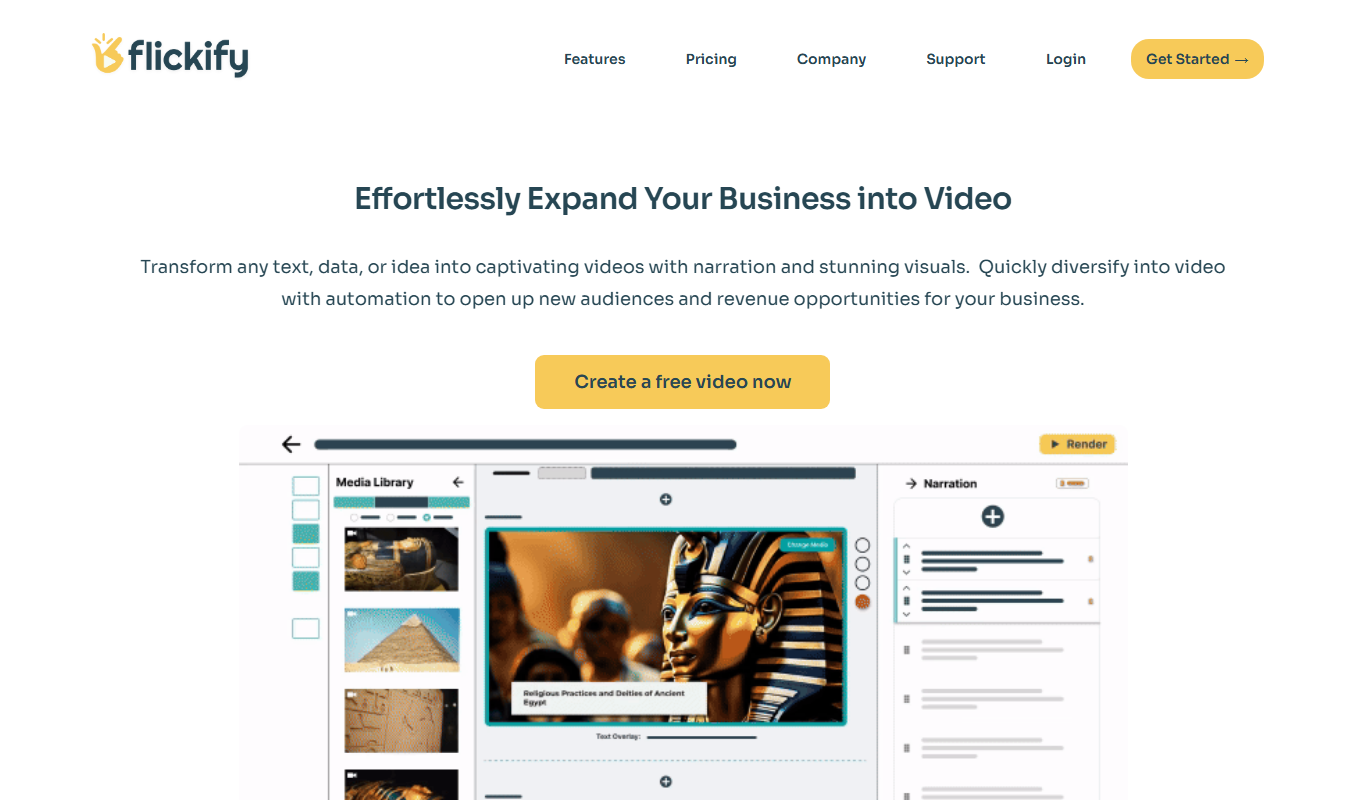
Flickify is an AI-powered video creation tool that converts text, URLs, or scripts into videos optimized for YouTube and social media, featuring AI voiceovers, subtitles, and direct publishing.

Animatable
Animatable is a web-based AI tool that turns your videos into animations in a chosen style, with prompts to tweak details such as hair, eyes and clothing colors.

Animaker ai
Animaker AI is a web-based platform that uses AI to help users create animated videos easily through templates, text-to-video conversion, and drag-and-drop editing.

OC Maker: Create and Animate Your OCs
OC Maker is an AI character maker that creates and animates original characters.

Colossyan
Colossyan is an AI video creation platform that converts text scripts into videos featuring realistic virtual actors, enabling fast and easy video production without cameras or actors.

Animate AI
Animate AI is an all-in-one AI video generator that creates consistent character videos for animated stories.

DomoAI
DomoAI is an AI video generator and animation tool: create videos from text, images or footage, restyle them, add talking avatars and lip sync, and upscale the results.