

Sub Translate AI - Automatic Subtitle Translation and Generation Tool
Sub Translate AI is a web-based tool that automatically generates and translates subtitles for videos into multiple languages using AI technology.
- Best for
- Video Content Localization
- Key capability
- AI-Powered Subtitle Translation
Save Sub Translate Ai, follow its updates and vote on it — everything stays in your account.
Sign in or create a free account

What is Sub Translate Ai?
Sub Translate AI is a web-based tool that leverages artificial intelligence to automatically translate and generate subtitles for video content. It simplifies the process of creating multilingual subtitles, enabling content creators to reach broader audiences without manual translation efforts.
Key features of Sub Translate Ai
The tool offers automatic subtitle generation, AI-powered translation into multiple languages, subtitle editing capabilities, and easy export options compatible with popular video platforms.
AI-Powered Subtitle Translation
Automatically translates subtitles into multiple languages using advanced AI models.
Subtitle Generation from Audio
Generates accurate subtitles from video audio when no subtitle file is provided.
Multi-language Support
Translates SRT files into 100+ languages.
Subtitle Editing Interface
Allows users to review and adjust subtitles to ensure translation quality.
Flexible Export Options
Exports subtitles in common formats like SRT, VTT, and supports direct video embedding.
Pros and cons of Sub Translate Ai
Pros
- Easy-to-use web interface
- Supports many languages
- Automatic subtitle generation and translation
- Flexible export formats
- Affordable pricing tiers
Cons
- No desktop or mobile app versions
- Translation quality may require manual review
- Limited advanced video editing features
Key use cases for Sub Translate Ai
Video Content Localization
Automatically translate and generate subtitles to localize video content for global audiences.
Content Accessibility
Create subtitles in multiple languages to improve accessibility for hearing-impaired viewers.
Social Media Video Enhancement
Add translated subtitles to videos for better engagement on social media platforms.
Educational Video Translation
Translate educational videos to reach students in different languages.
Marketing and Promotional Videos
Generate multilingual subtitles to expand marketing reach across regions.
How Sub Translate Ai works
- 1
Upload Video or Subtitle File
Users upload their video or existing subtitle files to the platform.
- 2
Automatic Subtitle Generation
If no subtitle file is provided, the AI generates subtitles from the video audio.
- 3
Select Target Language
Choose the language(s) into which the subtitles should be translated.
- 4
Review and Edit
Users can review and manually edit the translated subtitles for accuracy.
- 5
Export Subtitles
Download the translated subtitles in various formats or embed them directly into videos.
Who is using Sub Translate Ai
Sub Translate Ai pricing
Starter
$9.9/month
60 credits per month, max audio or video duration 60 minutes, max 6000 subtitles per translation, up to 5 files and 5 languages at once, translated files saved for 15 days.
Premium
$19.9/month
200 credits per month, all Starter plan features, max audio or video duration 180 minutes, customized translation instructions, up to 10 files and 10 languages at once.
Platinum
$39.9/month
500 credits per month, everything else the same as Premium, max audio or video duration 360 minutes.
Businesses
Contact for pricing
Pricing plans tailored for businesses with personalized options.
Plans and prices are as published by the vendor and can change. Check the official site before you buy. Open the pricing page (opens in a new tab)
Frequently asked questions about Sub Translate Ai
Supported audio and video file formats are mp3, wav and mp4.
The AI provides high-quality translations but users are encouraged to review and edit subtitles for best results.
Yes, exported subtitles can be uploaded directly to YouTube and other video platforms.
Limits depend on your subscription plan, with higher tiers allowing longer videos.
It depends on your specific needs and how you plan to use the tool. The official website and documentation are the best sources for the latest details.
Yes, it can help with that use case depending on how you configure it and what features are available. You’ll get the best results with clear inputs and a defined goal.
Yes, it can help with that use case depending on how you configure it and what features are available. You’ll get the best results with clear inputs and a defined goal.
Some tools offer a free plan or trial with limited features. Availability can vary, so confirm on the official website.
Conclusion
Files go in as SRT, VTT, STL or TXT subtitles, or as audio and video, and come back translated into any of more than 100 languages. The translator analyzes preceding and succeeding lines so phrasing follows the context of each scene, and it keeps timing information and line breaks intact. Special terminology, translation style and keywords to keep unchanged can be specified in advance, while saved glossary rules keep naming consistent across a channel.
It is designed for video content creators, marketing teams and educational institutions, with video localization and accessibility subtitles as typical uses. Without a paid plan it handles one file, one language and the first 90 subtitles or 30 seconds of media. Paid plans are monthly credit subscriptions, and the max audio or video duration rises from 60 minutes to 360 minutes across the tiers. Translation quality may require manual review, so users can review and edit the translated subtitles before export.
Sources
Sign in to review this tool.
Sign In to ReviewNo reviews yet
Be the first to share how this tool worked for you.
Ask about pricing, limits, or how it compares — or answer someone else.
Sign In to AskNo questions yet
Have a question about using or paying for this tool? Be the first to ask.
Featured on TiorAI



More AI Ai Tools tools
Other tools in the same category, for when this one is not quite the fit.

Presentify.ai
Presentify.ai is an AI-driven presentation software that helps users create professional slide decks quickly by generating content and optimizing design automatically.
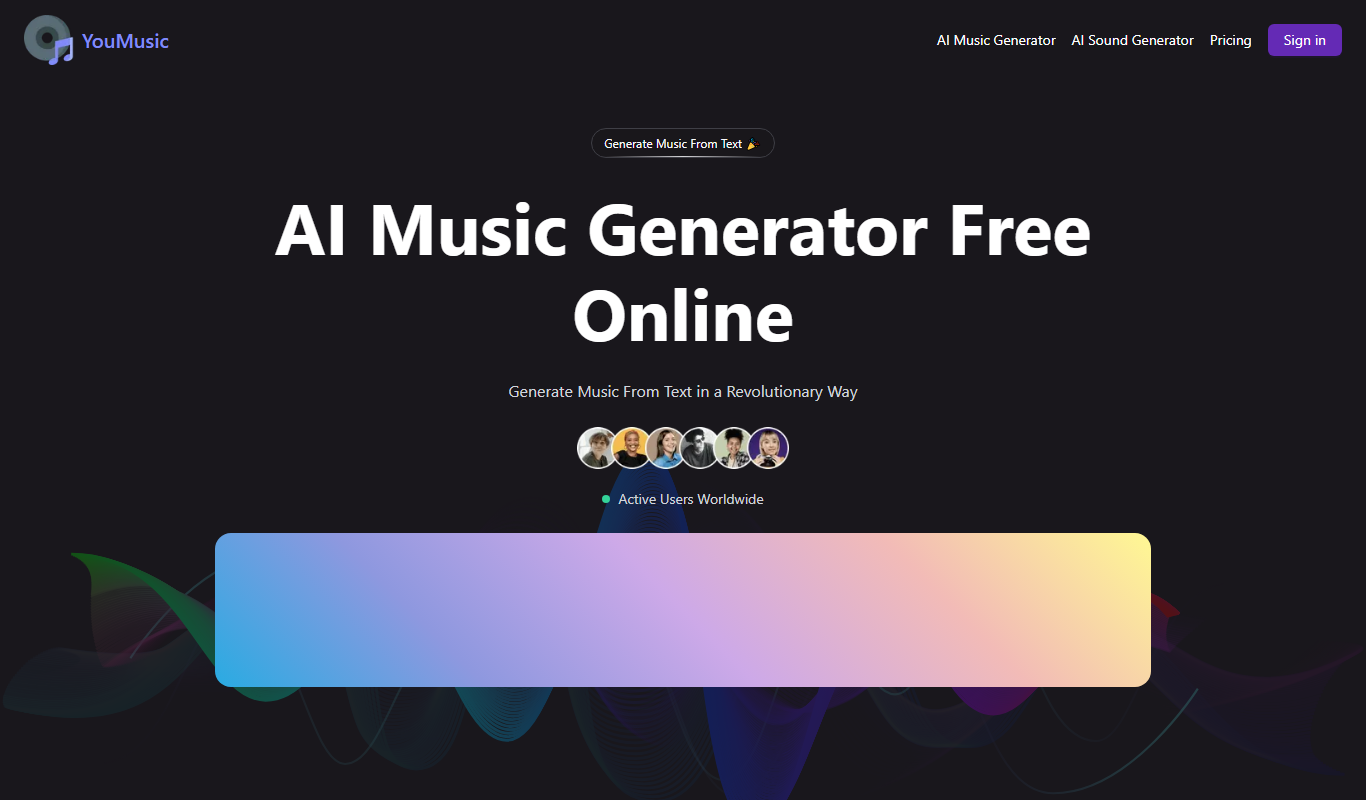
YouMusic.AI
YouMusic.AI turns text prompts or your own lyrics into complete songs, with free credits for new users and commercial rights on paid plans.

Wizard of Swipe for Tinder
Wizard of Swipe for Tinder is an AI-powered automation tool that automates swiping on Tinder based on user preferences to increase match chances and save time.

AI Pickup Lines
AI Pickup Lines is a free web tool that instantly generates creative and humorous pickup lines to help users start conversations in dating or social settings.

Anthropics Technology Ltd
Anthropics Technology Ltd offers AI-driven image editing software specializing in portrait retouching and photo enhancement, available for Windows and Mac with options for batch processing.
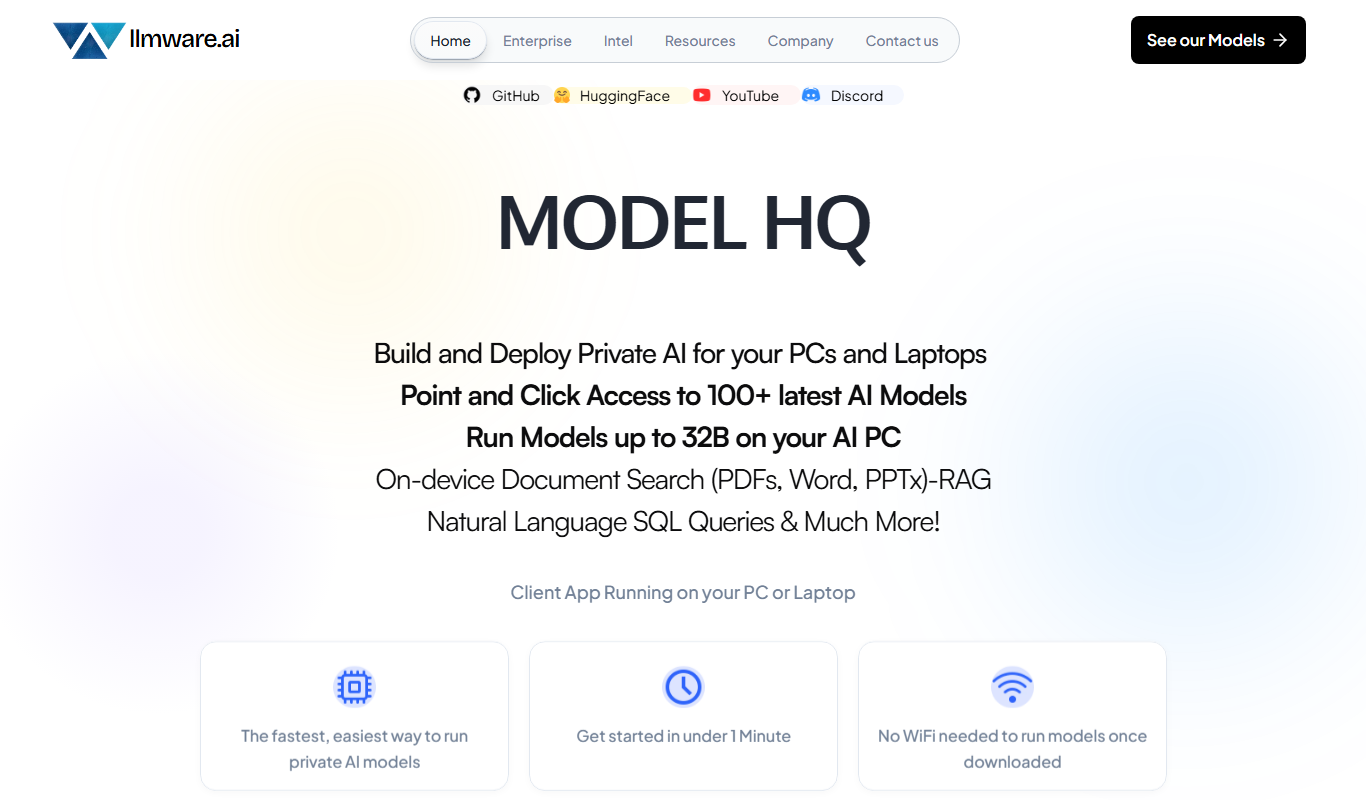
LLMWare
LLMWare is an AI platform that enables enterprises to deploy, manage, and scale large language models securely with flexible infrastructure and integration options.
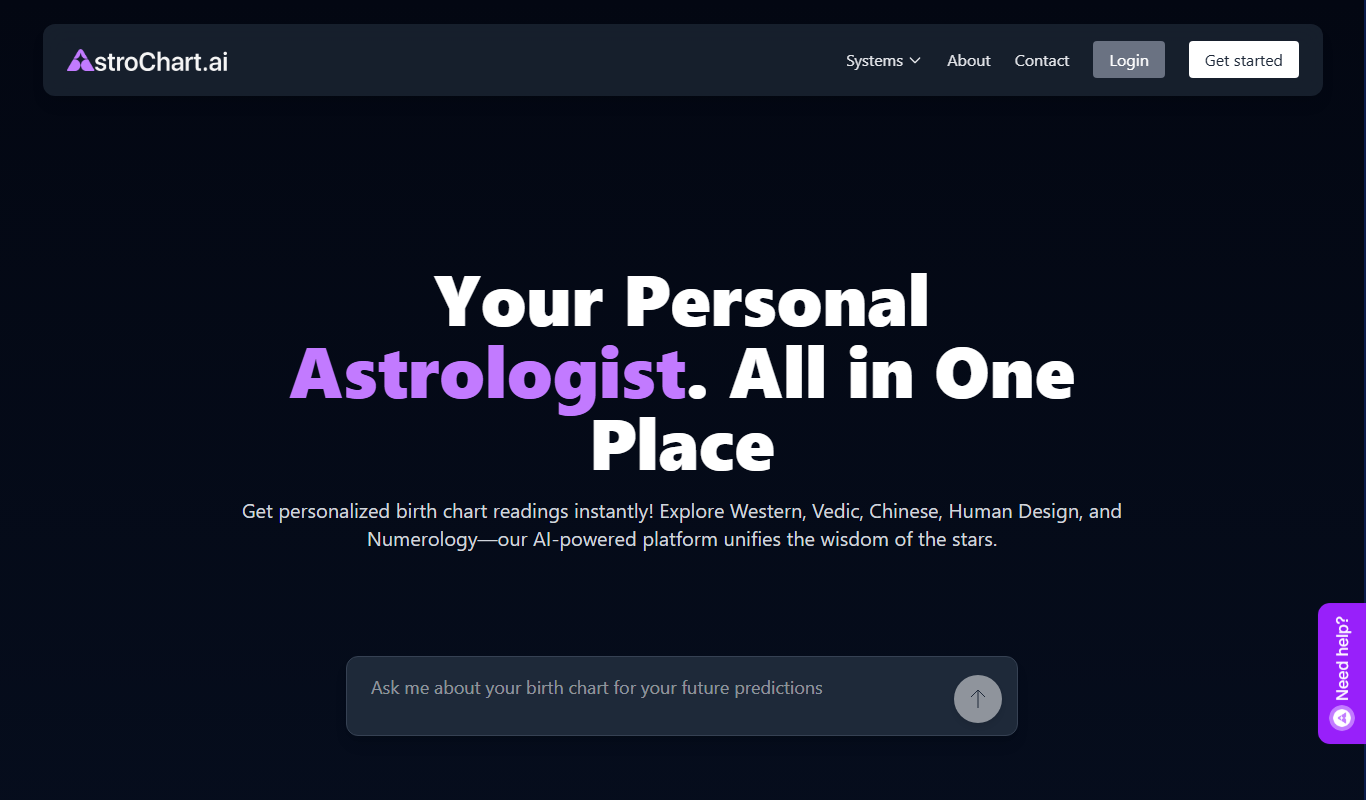
AstroChart.ai
AstroChart.ai is an AI-driven platform that creates personalized astrology birth charts and detailed interpretations based on your birth data, helping users understand their astrological profile easily online.

Moodset
Moodset is a mood tracker that uses valence and arousal and music analysis from Spotify, on Android.