

Integrito - Google Doc activity reports and AI detection for academic integrity
Integrito shows how a Google Doc was written with an Activity Report and checks text for plagiarism and AI, helping teachers prevent cheating and students prove their contribution.
- Best for
- Checking assignment authenticity
- Key capability
- Google Doc Activity Report
Save Integrito, follow its updates and vote on it — everything stays in your account.
Sign in or create a free account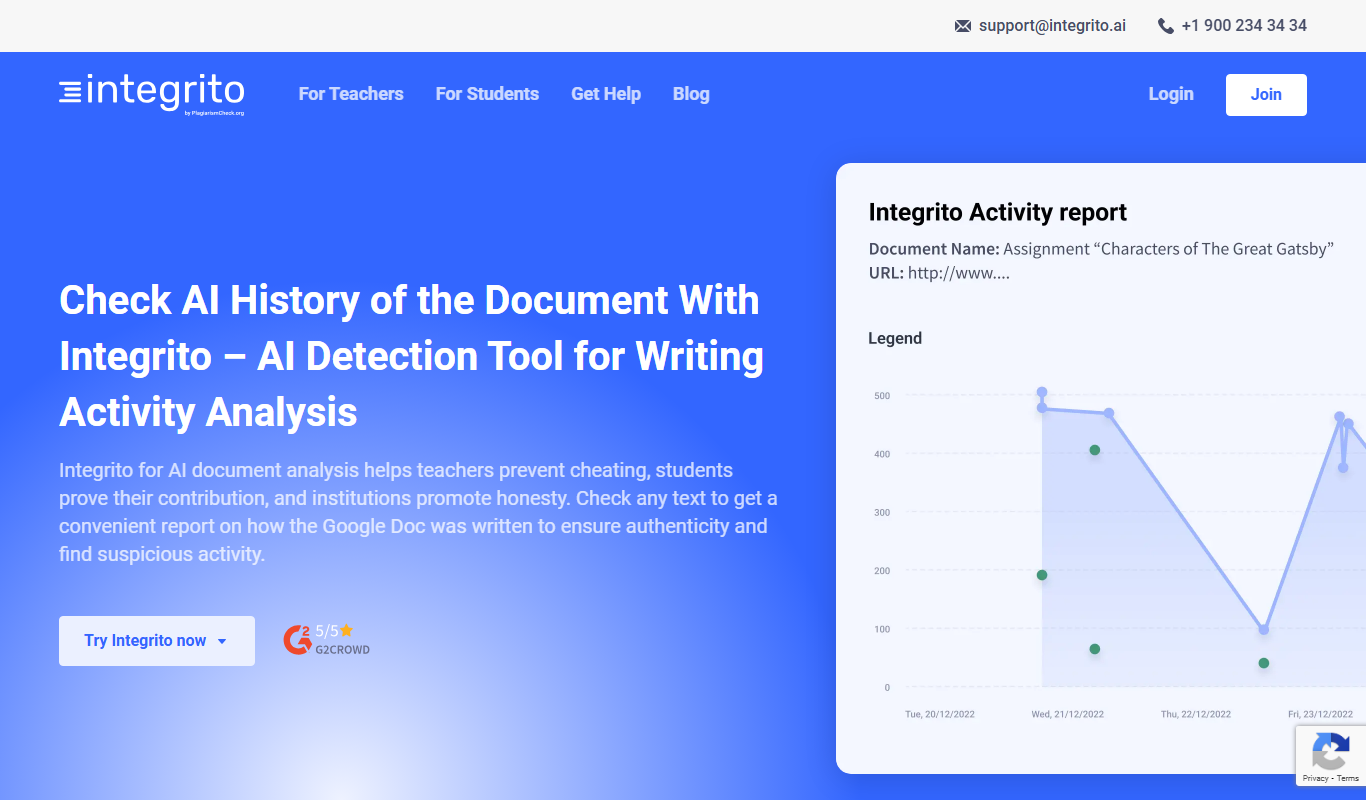
What is Integrito?
Integrito is an academic integrity tool delivered as a browser extension. Its Activity Report shows how a Google Doc was written: how much time was spent, suspicious events such as pasted chunks of text, and who contributed. It also checks text for plagiarism and content generated by AI, so teachers can check for cheating and students can prove their work.
Key features of Integrito
Integrito adds an Activity Report to a Google Doc that shows writing time, editing stages, pasted content and contributors, and its extension checks selected text or web pages for plagiarism and AI with a similarity and AI percentage and a detailed report.
Google Doc Activity Report
See how much time was spent composing a Google Doc, follow the writing process step by step and compare each stage to the final version.
Suspicious event detection
Detect suspicious events such as pasting a large chunk of content.
Contributor view
View the contributors to a document to help prevent contract cheating.
Plagiarism and AI check
Get a similarity and AI percentage, a detailed report of similarity sources and a PDF report to share.
Canvas checks
Check Quizzes and Discussions in Canvas for Plagiarism and AI.
Pros and cons of Integrito
Pros
- Shows how a text was written instead of guessing from the final text
- Extensions for Chrome, Firefox and Edge
- Free onboarding, unlimited faculty training and 24/7 support
- Free account access to the extension
- Flexible pricing plans including enterprise options
Cons
- The Activity Report needs editing access to the Google Doc
- The Activity Report is guidance, not the ultimate judgment
Key use cases for Integrito
Checking assignment authenticity
Teachers check documents for suspicious actions and apply plagiarism and AI detection when a report seems questionable.
Proving authorship
Students show the Activity Report to prove their contribution.
Institutional academic integrity
Schools and universities implement high standards and promote academic integrity.
Checking web content
Check any web content for plagiarism and AI in one click.
Improve Team Productivity
By automating routine tasks, teams can focus on higher-value activities, enhancing overall productivity.
How Integrito works
- 1
Install the extension
Install the Integrito Writing Activity extension for your browser.
- 2
Log in or register
Log in or register for free access to the account used in your browser.
- 3
Open the Activity Report
Open a Google Doc you want to check and click the Activity Report button; editing access to the document is required.
Who is using Integrito
Integrito pricing
Free Trial
$0 for 14 days
Full feature access for two weeks to evaluate the platform.
Professional
$49/month
Includes unlimited workflows, priority support, and advanced integrations.
Enterprise
Custom pricing
Tailored solutions with dedicated support and custom features for large organizations.
Plans and prices are as published by the vendor and can change. Check the official site before you buy. Open the pricing page (opens in a new tab)
Frequently asked questions about Integrito
An AI document analysis tool that helps teachers prevent cheating, students prove their contribution and institutions promote honesty.
How much time was spent composing the text, each stage of the writing process, suspicious events like pasted content, and the document’s contributors.
Integrito is available for Chrome, Firefox and Edge.
Yes. You need editing access to the Google Doc to see the Activity Report button.
Yes. Students can show the Activity Report to prove their contribution.
Yes. You can check quizzes and discussions on Canvas and Brightspace in one click.
Integration support depends on the tool and its available connectors or API. Check the official documentation or integrations page to confirm what is supported.
Some tools offer a free plan or trial with limited features. Availability can vary, so confirm on the official website.
Conclusion
How a paper was written matters more here than how it reads: inside a Google Doc, the Activity Report shows the time spent composing, each writing stage, suspicious events such as a large pasted chunk and every contributor. Opening that report requires the browser extension and editing access to the document. The same extension, offered for Chrome, Firefox and Edge, also checks selected text or web content for plagiarism and AI and returns a similarity and AI percentage with a downloadable PDF report.
Teachers use it to look into a questionable assignment, students to prove their own contribution, and schools to support academic integrity, with Canvas quizzes and discussions covered as well. Integrito itself cautions that the report is guidance, not the ultimate judgment. Users log in or register for free access, and the extension offers in-app purchases.
Sources
Sign in to review this tool.
Sign In to ReviewNo reviews yet
Be the first to share how this tool worked for you.
Ask about pricing, limits, or how it compares — or answer someone else.
Sign In to AskNo questions yet
Have a question about using or paying for this tool? Be the first to ask.
Featured on TiorAI



More AI Education & Learning Tools tools
Other tools in the same category, for when this one is not quite the fit.

Penseum
Penseum is a free AI study tool that turns your notes into study guides, flashcards and quizzes, with an AI tutor that explains the material step by step.

AppGen
AppGen offers thousands of AI apps made by teachers, students and creators: fill in a few blanks to get lesson plans or research titles, or build your own app without code.

flAI
Flai is an AI speaking coach app from Flalingo with live voice lessons, notes on what the learner said after every lesson and a free 3-minute speaking test.
AdeptLR
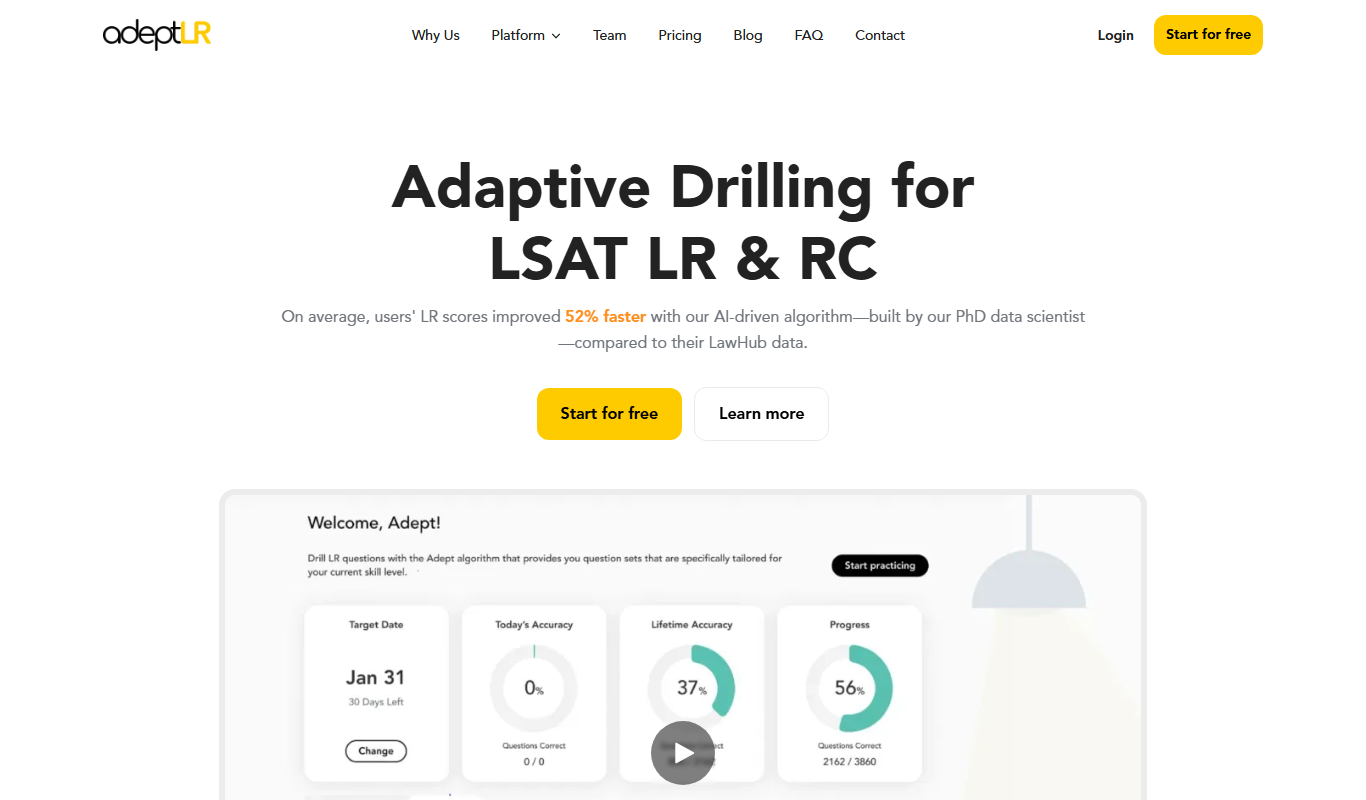
AdeptLR is an AI-driven adaptive drilling platform for LSAT Logical Reasoning and Reading Comprehension questions, with performance analytics and LawHub import.

Cognito
Cognito offers free GCSE, A-Level, IB and AP exam revision: video lessons, revision notes, questions, flashcards and exam questions in one place.

Readable
Readable translates PDF files into Japanese with AI while keeping the layout of tables and figures, with glossary registration and large file support.

Automated Combat
Automated Combat stages AI-powered debates between historical figures: pick the figures and watch GPT-4 create the arguments.
Certiverse
Certiverse is an end-to-end certification platform that helps organizations build, deliver and manage psychometrically valid exams with AI assistance.