

From my experience with InstaRoom, I found it excels at providing seamless AI-powered virtual backgrounds without the hassle of green screens or software installs. Using the browser-based platform made setup straightforward, and the local video processing ensured my privacy was respected. It’s particularly well-suited for remote professionals and streamers who want quick, polished video backgrounds without technical complexity. However, the reliance on good lighting and webcam quality can affect the background removal accuracy. Overall, if you need an easy-to-use, privacy-conscious virtual background tool for video calls or streaming, InstaRoom delivers solid, practical results.
InstaRoom AI Virtual Background Generator for Video Calls and Streaming
InstaRoom is a browser-based AI tool that removes and replaces video call backgrounds in real-time without green screens, enhancing video conferencing and streaming experiences.
- Best for
- Video Conferencing Enhancement
- Key capability
- AI Background Removal


Do you recommend this tool?
What is InstaRoom?
InstaRoom is an AI-powered virtual background generator designed to enhance video calls and live streams by replacing or augmenting the user’s background in real-time. It leverages advanced AI algorithms to detect and separate the user from their environment, allowing seamless insertion of custom backgrounds without the need for green screens or complex setups.
Key features of InstaRoom
InstaRoom offers real-time AI background removal, a library of customizable backgrounds, easy integration with popular video conferencing and streaming platforms, and a user-friendly web interface that requires no installation.
AI Background Removal
Advanced AI algorithms accurately separate the user from the background in real-time without green screens.
Custom Background Library
Access a variety of backgrounds or upload personalized images and videos.
Browser-Based Operation
Works entirely in the browser with no downloads or installations required.
Virtual Camera Output
Outputs video as a virtual camera source compatible with popular conferencing and streaming apps.
Privacy-Focused Processing
Processes video locally in the browser to ensure user privacy and data security.
Pros and cons of InstaRoom
Pros
- No installation required; works in-browser
- Accurate AI background removal without green screens
- Supports custom background uploads
- Privacy-focused local processing
- Affordable pricing with a free tier
Cons
- Requires a good webcam and lighting for best results
- Limited to web platform; no desktop or mobile apps yet
- Free plan includes watermark on video output
Key use cases for InstaRoom
Video Conferencing Enhancement
Create professional and personalized virtual backgrounds to improve the visual experience during video calls on platforms like Zoom, Microsoft Teams, and Google Meet.
Live Streaming Backgrounds
Generate custom AI-powered backgrounds for live streaming on Twitch, YouTube, and other platforms without requiring green screens.
Content Creation
Produce engaging video content with dynamic backgrounds for social media, marketing, and presentations.
Remote Work Professionalism
Help remote workers maintain a polished and distraction-free video presence during meetings.
How InstaRoom works
- 1
Access the Web Platform
Open InstaRoom’s web app on any modern browser without installing software.
- 2
Enable Camera and AI Processing
Allow camera access and let InstaRoom’s AI detect and segment your image from the background.
- 3
Select or Upload Background
Choose from pre-made backgrounds or upload your own custom images or videos.
- 4
Integrate with Video Call or Stream
Use InstaRoom as a virtual camera source in your video conferencing or streaming software.
Who is using InstaRoom
Remote workers and professionals
Live streamers and content creators
Marketing and social media teams
Educators and online trainers
Small businesses conducting virtual meetings
InstaRoom pricing
Free
$0/month
Basic access with limited background options and watermark on output.
Pro
$9.99/month
Access to full background library, HD output, watermark removal, and priority support.
Plans and prices are as published by the vendor and can change. Check the official site before you buy. Open the pricing page (opens in a new tab)
Frequently asked questions about InstaRoom
No, InstaRoom uses AI to remove backgrounds in real-time without the need for a green screen.
Yes, InstaRoom outputs a virtual camera that can be selected in most video conferencing and streaming apps.
No, all video processing happens locally in your browser to protect your privacy.
A modern web browser with webcam support and a stable internet connection are required.
It depends on your specific needs and how you plan to use the tool. The official website and documentation are the best sources for the latest details.
Yes, it can help with that use case depending on how you configure it and what features are available. You’ll get the best results with clear inputs and a defined goal.
Some tools offer a free plan or trial with limited features. Availability can vary, so confirm on the official website.
It depends on your specific needs and how you plan to use the tool. The official website and documentation are the best sources for the latest details.
Sign in to review this tool.
Sign In to ReviewNo reviews yet
Be the first to share how this tool worked for you.
Ask about pricing, limits, or how it compares — or answer someone else.
Sign In to AskNo questions yet
Have a question about using or paying for this tool? Be the first to ask.
Featured on TiorAI



Alternative Tools
Explore similar AI tools that might fit your needs
Free
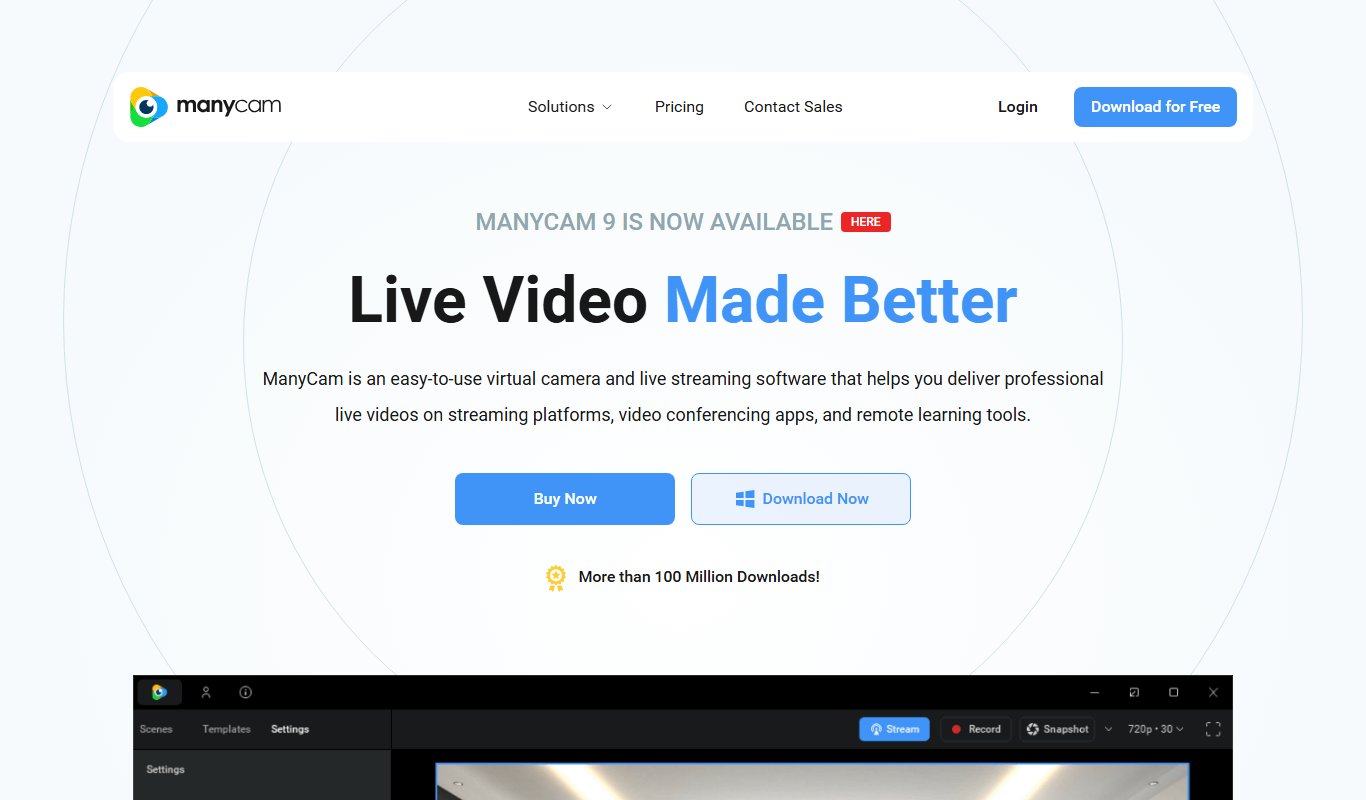
ManyCam
ManyCam is virtual webcam software that allows users to add live video effects, switch between multiple video sources, and use virtual backgrounds to enhance live streams and video calls on platforms like Zoom, YouTube, and Twitch.

Free
ChromaCam
ChromaCam is AI-driven software that removes or replaces webcam backgrounds in real-time without a green screen, compatible with popular video platforms.