

Inpaint Photo Editing Tool for Image Restoration and Object Removal
Inpaint is a photo editing software that removes unwanted objects and restores images by intelligently filling selected areas with matching backgrounds.
- Best for
- Object Removal
- Key capability
- Smart Object Removal
Save Inpaint, follow its updates and vote on it — everything stays in your account.
Sign in or create a free account
What is Inpaint?
Inpaint is a photo editing software designed to remove unwanted objects and restore images effortlessly. It uses intelligent algorithms to fill in the removed areas with realistic textures, making edits appear natural. The tool is suitable for both casual users and professionals who want to enhance photos without complex software.
Key features of Inpaint
Inpaint offers simple object removal, scratch and watermark removal, background erasing, and photo restoration features. Its intuitive interface allows users to edit images quickly without prior experience.
Smart Object Removal
Automatically removes unwanted elements and fills gaps with natural textures.
Scratch and Watermark Removal
Restore old photos by erasing scratches, watermarks, and other imperfections.
Background Eraser
Easily remove or clean up backgrounds to isolate subjects.
User-Friendly Interface
Simple tools designed for users with no advanced photo editing skills.
Cross-Platform Availability
Desktop app for Windows 8 or later and macOS 10.14 or later.
Pros and cons of Inpaint
Pros
- Easy to use with minimal learning curve
- Effective object and watermark removal
- Free updates for 1 year and an unlimited number of processed images with a license
- Available for Windows and macOS
Cons
- Limited advanced editing features
- May not handle very complex edits perfectly
Key use cases for Inpaint
Object Removal
Remove unwanted objects, people, or text from photos seamlessly.
Photo Restoration
Restore old or damaged photos by removing scratches, watermarks, and blemishes.
Background Cleanup
Erase backgrounds or distracting elements to enhance photo composition.
Image Retouching
Touch up photos for professional or personal use with easy editing tools.
Real Estate and Product Photography
Improve images by removing imperfections and distractions to showcase properties or products.
How Inpaint works
- 1
Upload Image
Load the image you want to edit into the Inpaint app on Windows or Mac.
- 2
Mark Unwanted Areas
Use the marker tool to highlight objects, text, or blemishes to remove.
- 3
Process Image
Run the inpainting algorithm to automatically fill the selected areas with matching background.
- 4
Download or Save
Erase the selected area and save the edited image.
Who is using Inpaint
Inpaint pricing
Free trial
Free
Download and try Inpaint before purchase, available for Windows and macOS.
1-year license
$29.99 per 1-year license, renewal at the same price
License key delivered after payment, free updates for 1 year, unlimited number of processed images, support included.
Plans and prices are as published by the vendor and can change. Check the official site before you buy. Open the pricing page (opens in a new tab)
Frequently asked questions about Inpaint
Inpaint works best for removing objects and small background areas but may struggle with very complex backgrounds.
It is ideal for quick fixes and restoration but not a full replacement for advanced editors like Photoshop.
Yes. Inpaint includes batch processing, along with Guide Lines and MultiView for more demanding edits.
It depends on your specific needs and how you plan to use the tool. The official website and documentation are the best sources for the latest details.
Some tools offer a free plan or trial with limited features. Availability can vary, so confirm on the official website.
Yes, it can help with that use case depending on how you configure it and what features are available. You’ll get the best results with clear inputs and a defined goal.
Conclusion
Removing a distraction takes two moves: mark the unwanted area, then run the repair, and the software rebuilds it from pixels around the boundary while the rest of the image stays intact. Tourists, watermarks, date stamps, power lines and scratches on old scans are the usual targets. For trickier shots, a Donor Area setting controls which pixels are used, and Guide Lines help when the object crosses different background patterns.
The editor itself is a desktop app for Windows 8 or later and macOS 10.14 or later, with no limits by image count, image size or file size. Batch processing and MultiView are included for more demanding edits. Casual photographers, real estate agents and photo restoration enthusiasts are the intended users. On complex photos, the tutorials advise removing objects one at a time instead of erasing everything in a single pass. A free trial can be downloaded before purchase, and the paid license runs for one year with free updates but no refunds after purchase.
Sources
Sign in to review this tool.
Sign In to ReviewNo reviews yet
Be the first to share how this tool worked for you.
Ask about pricing, limits, or how it compares — or answer someone else.
Sign In to AskNo questions yet
Have a question about using or paying for this tool? Be the first to ask.
Featured on TiorAI



Alternative Tools
Explore similar AI tools that might fit your needs

PhotoWorks
PhotoWorks is an AI-driven photo editing software for Windows and macOS that automates background removal, portrait retouching, and photo restoration.
More AI Background Remover tools
Other tools in the same category, for when this one is not quite the fit.

Pixbim
Pixbim sells separate one-time-purchase AI programs such as Color Surprise AI for colorizing photos and Object Remover AI for restoring old photos and removing objects.

ProCam 8
ProCam - Pro Camera, formerly ProCam 8, is a camera app from Tinkerworks Apps sold for $9.99 as a one-time purchase, with paid in-app add-ons.
Postimages
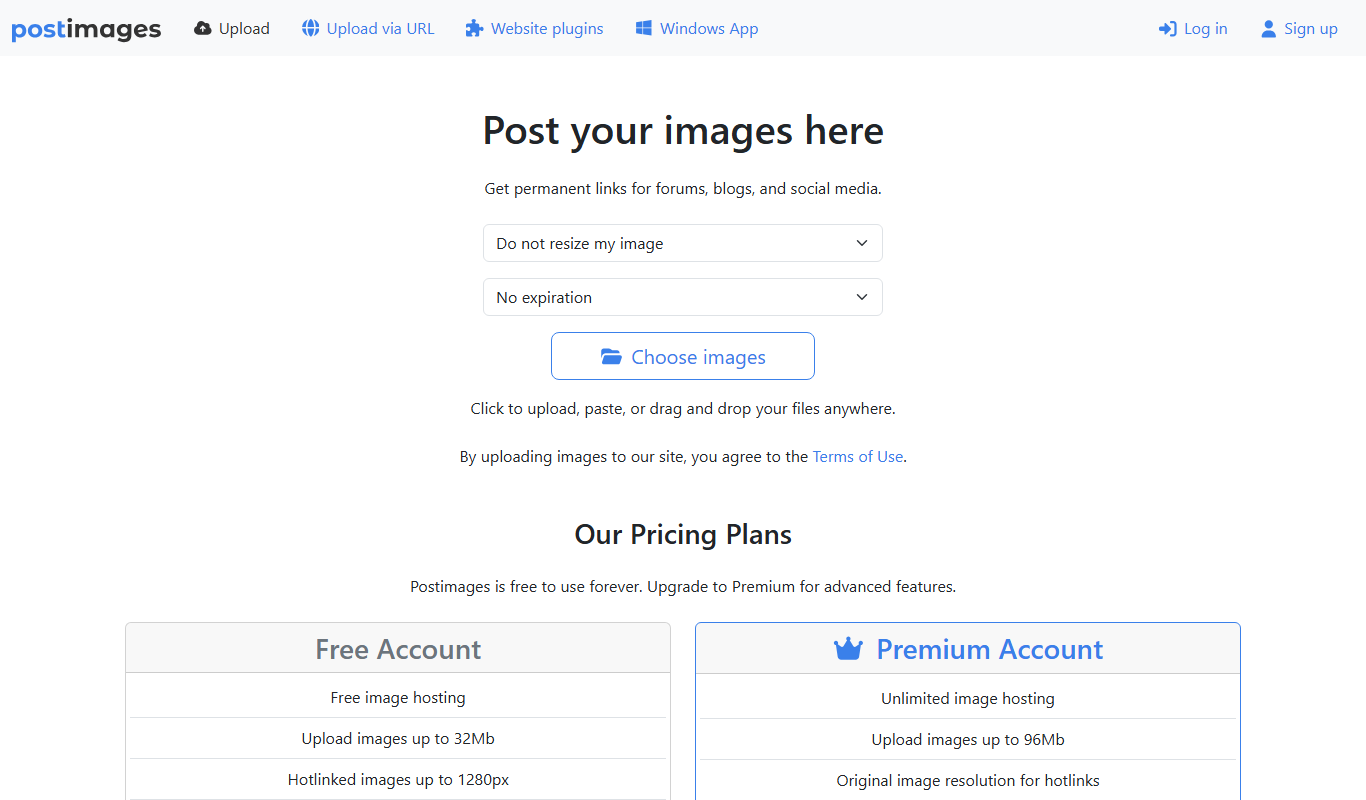
Postimages is a free online image hosting service that allows users to upload images quickly without registration, providing multiple link formats for sharing and embedding images on forums, websites, and social media.

LetsEnhance
LetsEnhance is an AI-powered web platform that upscales images, removes backgrounds, restores photos, and enhances colors to improve photo quality efficiently.

Clipping Magic
Clipping Magic is an AI-based online tool that automatically removes backgrounds from images with options for manual refinement, ideal for e-commerce, design, and social media content creation.

Camera+ 2
Camera+ 2 is an iOS photography app that combines manual camera controls with AI-powered editing features like background removal and portrait enhancements, designed for professional and enthusiast iPhone photographers.

FittingBox
FittingBox is an augmented reality platform that enables virtual try-on of eyewear using 3D modeling and face detection technology, enhancing online and in-store shopping experiences.

MakePassportPhoto.com
MakePassportPhoto.com is an online tool that helps users create official passport and ID photos by uploading a photo, automatically removing the background, resizing, and formatting it to meet country-specific requirements.