

From my experience with FocuSee, it stands out as a straightforward and effective screen recording tool that balances ease of use with essential features like audio capture and basic editing. It’s particularly well-suited for educators, content creators, and professionals needing quick, reliable recordings without a steep learning curve. However, the free version’s watermark can be a drawback for polished presentations, and advanced editing requires other software. Overall, if you want a simple yet capable recorder for Windows or Mac, FocuSee delivers solid performance at an affordable price.
FocuSee Screen Recorder for Windows and Mac with Audio Capture Features
FocuSee is a screen recording software by iMobie for Windows and Mac that captures screen video and audio, offers webcam overlay, and includes basic editing tools.
- Best for
- Create Tutorials and How-To Videos
- Key capability
- Multiple Recording Modes
Your actions
Save FocuSee, follow its updates and vote on it — everything stays in your account.
Sign in or create a free account
What is FocuSee?
FocuSee is a screen recording software developed by iMobie that allows users to capture video and audio from their computer screens on both Windows and Mac platforms. It is designed to help users create high-quality recordings for tutorials, gameplay, meetings, and product demos with an easy-to-use interface and editing capabilities.
Key features of FocuSee
FocuSee offers full-screen and custom-area recording, audio capture from system and microphone, webcam overlay, and a built-in video editor to trim and enhance recordings. It supports multiple video formats and provides options for scheduled recording and hotkey controls.
Multiple Recording Modes
Record full screen, custom regions, or specific windows to suit different needs.
Audio Capture
Simultaneously record system sounds and microphone audio for comprehensive sound capture.
Webcam Overlay
Add webcam footage to your recordings to personalize tutorials or presentations.
Built-in Video Editor
Trim, crop, and add effects to recordings without needing separate software.
Scheduled Recording
Set timers to start and stop recording automatically at specified times.
Hotkey Support
Use customizable keyboard shortcuts for quick control during recording sessions.
Pros and cons of FocuSee
Pros
- User-friendly interface suitable for beginners
- Supports multiple recording modes and audio sources
- Includes basic video editing tools
- Affordable pricing with a free version available
Cons
- Free version adds watermark to recordings
- Limited advanced editing features compared to dedicated editors
- No mobile app support
Key use cases for FocuSee
Create Tutorials and How-To Videos
Record your screen with audio to create instructional content for training or educational purposes.
Capture Gameplay
Record gameplay sessions with high-quality video and audio for sharing or streaming.
Record Video Calls and Meetings
Save video conferences or online meetings for later review or sharing with colleagues.
Make Product Demos
Showcase software or digital products by recording demonstrations with voiceover.
Edit and Enhance Videos
Use built-in editing tools to trim, crop, and add effects to recorded videos.
How FocuSee works
- 1
Download and Install
Get FocuSee from the official website and install it on your Windows or Mac computer.
- 2
Select Recording Mode
Choose to record full screen, a selected area, or a specific application window.
- 3
Configure Audio and Webcam
Enable system audio, microphone input, and optionally add webcam overlay.
- 4
Start Recording
Click the record button or use hotkeys to begin capturing your screen activity.
- 5
Edit and Save
Use the built-in editor to trim or enhance your video, then save or export it in your preferred format.
Who is using FocuSee
Educators and trainers
Content creators and YouTubers
Remote workers and professionals
Gamers and streamers
Small business owners
FocuSee pricing
Free
$0
Basic screen recording features with watermark and limited editing options.
Pro
$29.99/year
Full features including watermark removal, advanced editing, and priority support.
Plans and prices are as published by the vendor and can change. Check the official site before you buy. Open the pricing page (opens in a new tab)
Frequently asked questions about FocuSee
Yes, FocuSee supports both Windows and Mac operating systems.
Yes, FocuSee allows recording of system audio and microphone input at the same time.
Yes, videos recorded with the free version include a watermark.
Yes, FocuSee includes a built-in video editor for basic trimming and enhancements.
It depends on your specific needs and how you plan to use the tool. The official website and documentation are the best sources for the latest details.
Yes, it can help with that use case depending on how you configure it and what features are available. You’ll get the best results with clear inputs and a defined goal.
Some tools offer a free plan or trial with limited features. Availability can vary, so confirm on the official website.
Sign in to review this tool.
Sign In to ReviewNo reviews yet
Be the first to share how this tool worked for you.
Ask about pricing, limits, or how it compares — or answer someone else.
Sign In to AskNo questions yet
Have a question about using or paying for this tool? Be the first to ask.
Featured on TiorAI



Alternative Tools
Explore similar AI tools that might fit your needs

Free
OBS Studio
OBS Studio is a free and open-source software for live streaming and video recording that supports multiple platforms and customizable scenes.

Free
Bandicam
Bandicam is a screen recording software for Windows and Mac that captures high-quality video from your screen, games, and external devices with features like real-time drawing and webcam overlay.
More AI Productivity Tools tools
Other tools in the same category, for when this one is not quite the fit.

Free
PromptPoint
PromptPoint is a web platform that helps users create, manage, and optimize AI prompts to improve the quality and relevance of AI-generated content, with features for collaboration and analytics.

Free
The GPT Repo
The GPT Repo is a community directory of custom GPTs submitted by users.

Custom Pricing
AI Consulting for Finance Teams
GenFinance AI provides specialized AI consulting services designed to help finance teams improve financial analysis, forecasting, risk management, and automation through tailored AI solutions.
Free Trial
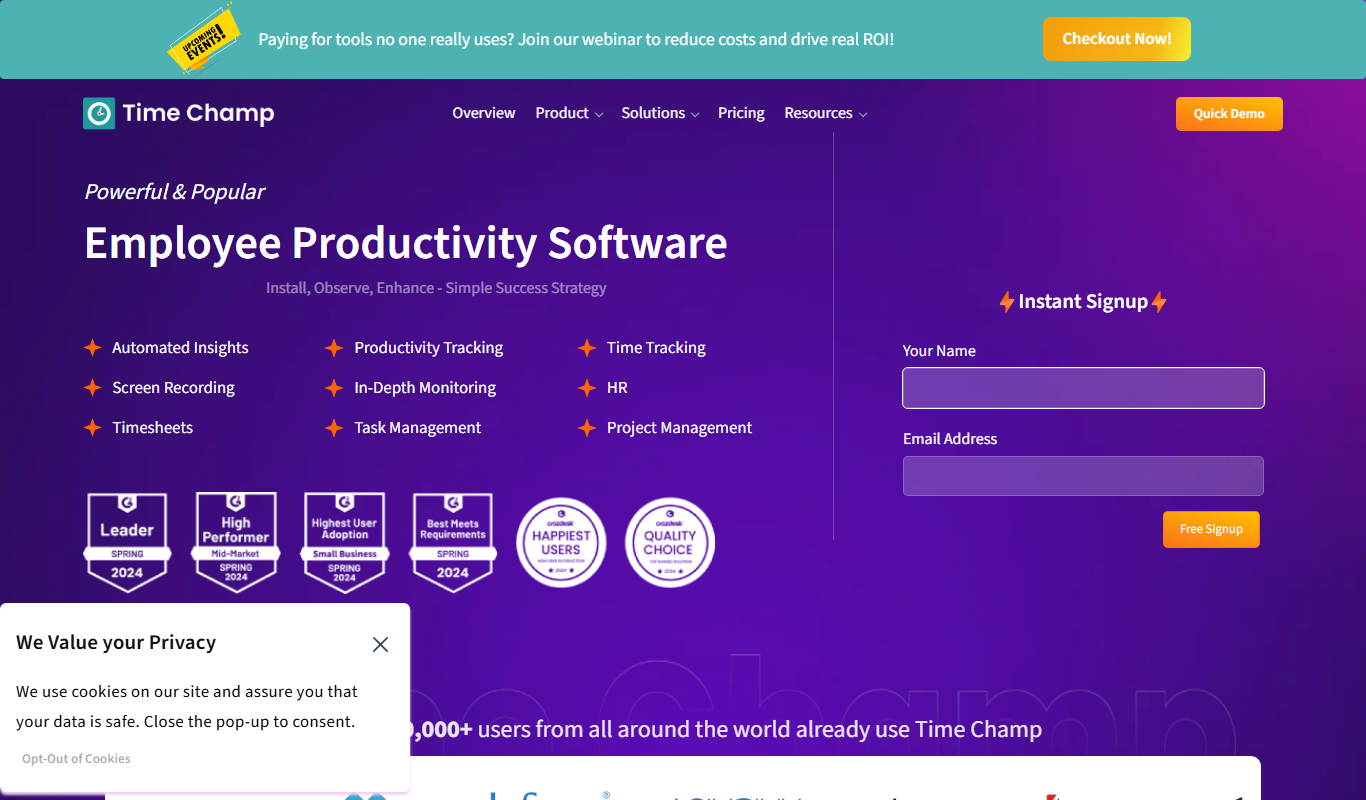
Time Champ
Time Champ is a multi-platform time tracking and employee monitoring software that helps businesses track work hours, manage projects, and analyze productivity with features like automatic tracking, screenshots, and timesheet automation.
Free
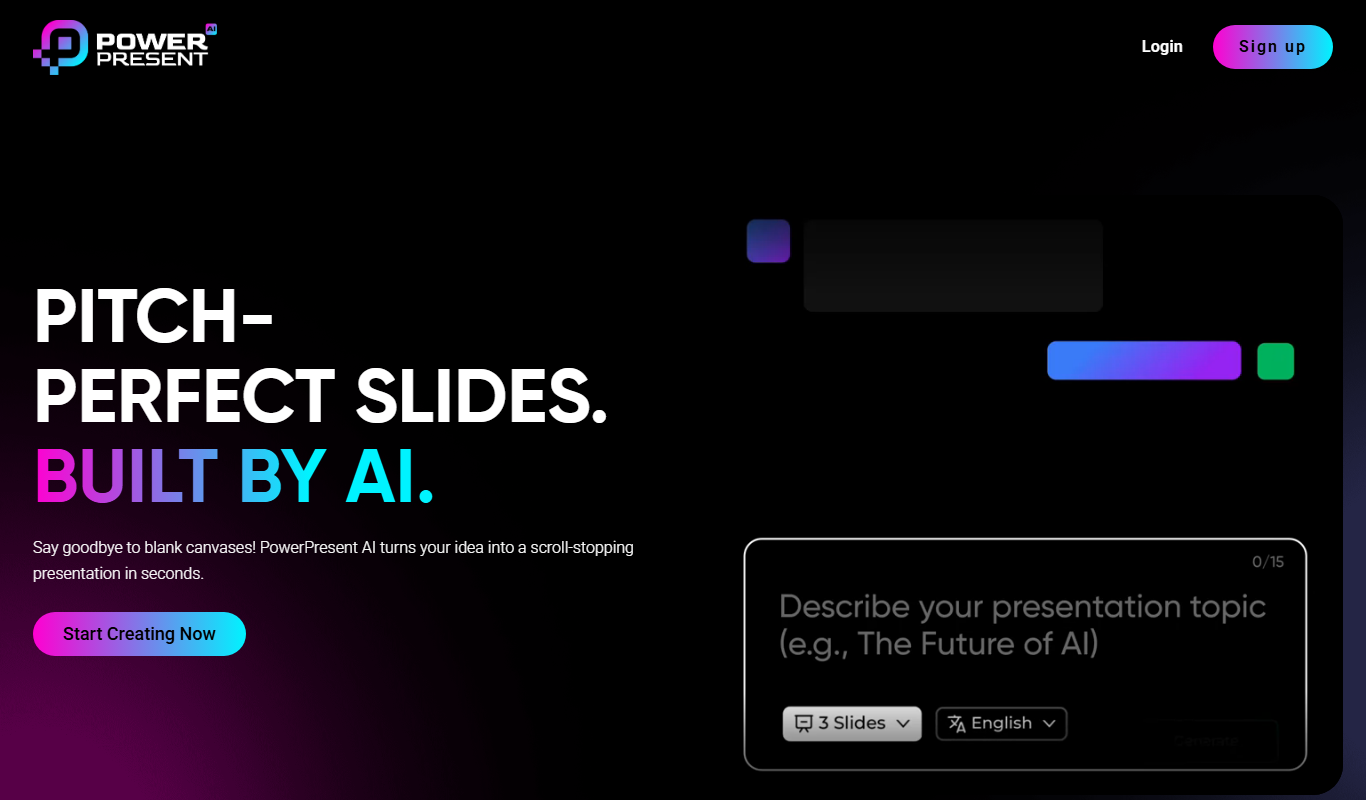
Powerpresent AI
Powerpresent AI is a web-based tool that uses artificial intelligence to automatically generate professional presentation slides from user input, offering customizable templates and easy editing.

Freemium
WorkPPT
WorkPPT is a web-based presentation tool by SoftTooler that uses AI to help users create and customize professional slides quickly, supporting collaboration and export in PPTX and PDF formats.

Freemium
Pi by DeepVinci
Pi by DeepVinci is an AI presentation tool that creates slides from a sentence, an uploaded document or a connected knowledge base.

Freemium
AI Slide Studio
AI Slide Studio is a web-based tool that uses artificial intelligence to automatically generate and design presentation slides from text input, helping users create professional slide decks quickly and easily.