

From my experience with FineShare, I found it excels at providing an intuitive and straightforward screen recording experience with useful editing features built-in. After spending time with the platform, I can say it’s particularly well-suited for educators, content creators, and remote workers who need reliable video capture without a steep learning curve. However, there’s a trade-off: the free version includes a watermark and limited recording time, which may not suit professional needs. Overall, if you need a simple yet capable screen recorder for Windows or Mac, FineShare delivers solid results at an affordable price.
FineShare Screen Recorder Software for High-Quality Video Capture
FineShare is a screen recording software that allows users to capture video and audio from their computer screens with options for editing and exporting in multiple formats.
- Best for
- Online Meeting Recording
- Key capability
- Multiple Recording Modes
Your actions
Save FineShare, follow its updates and vote on it — everything stays in your account.
Sign in or create a free account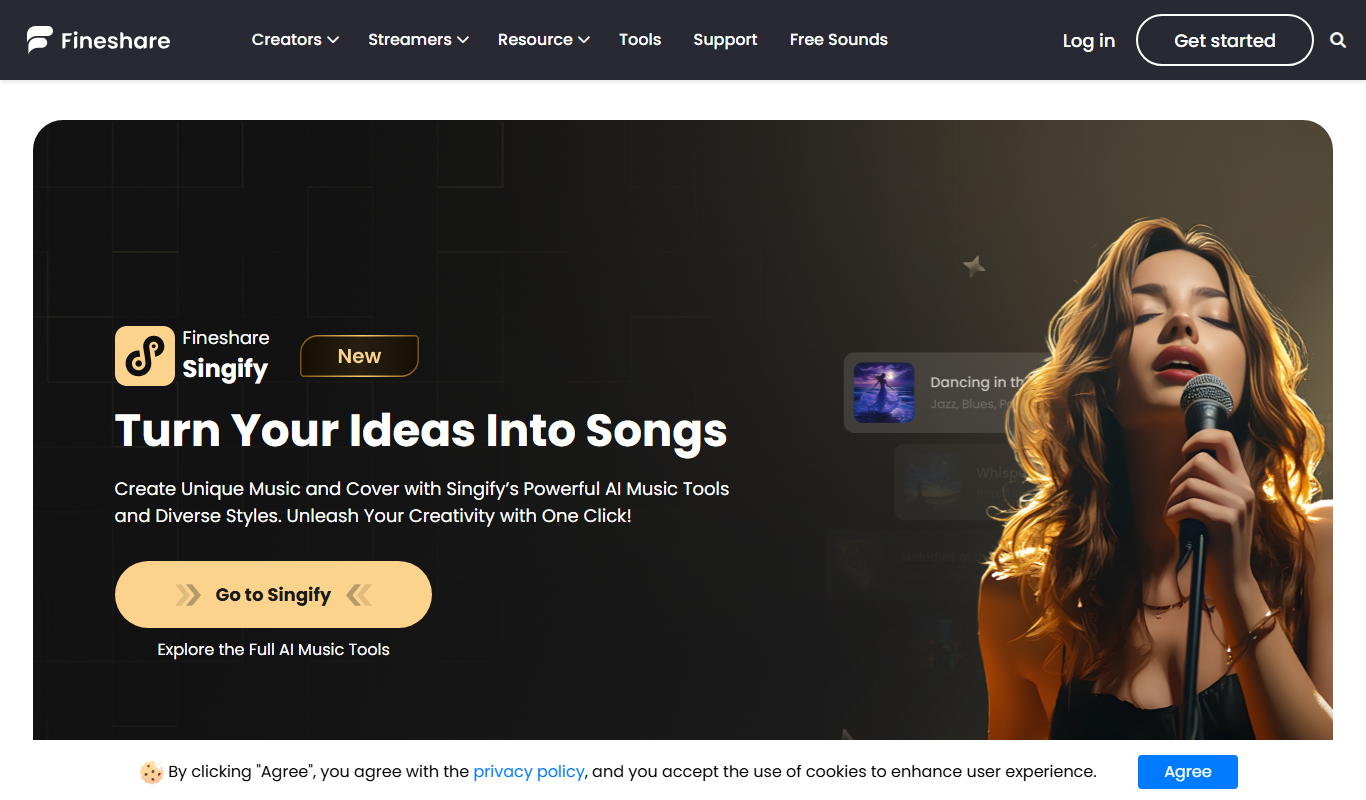
What is FineShare?
FineShare is a versatile screen recording software designed to capture high-quality video and audio from your computer screen. It supports recording full screen, specific windows, or custom regions, making it suitable for various purposes such as online meetings, tutorials, gameplay, and more. The tool also includes basic video editing features to enhance your recordings before sharing.
Key features of FineShare
FineShare offers flexible screen capture options, simultaneous audio recording from multiple sources, real-time annotation tools, and simple video editing capabilities. It supports exporting videos in multiple formats and resolutions, ensuring compatibility with different platforms.
Multiple Recording Modes
Supports full screen, window, and custom region recording.
Simultaneous Audio Capture
Records system audio and microphone input at the same time.
Real-Time Annotations
Add text, shapes, and highlights during recording.
Basic Video Editing
Trim, crop, and merge recordings within the app.
High-Quality Export
Export videos in HD formats with customizable resolution and frame rate.
Pros and cons of FineShare
Pros
- User-friendly interface with easy setup
- Supports multiple recording modes
- Includes basic video editing tools
- Simultaneous audio recording from multiple sources
- Affordable pricing for Pro version
Cons
- Free version adds watermark to videos
- Limited advanced editing features compared to specialized editors
- No mobile app available
Key use cases for FineShare
Online Meeting Recording
Capture video and audio from online meetings for later review or sharing.
Tutorial and Demo Creation
Record screen activities to create instructional videos or software demos.
Gameplay Recording
Record gameplay footage with high quality and minimal lag.
Video Editing
Edit recorded videos with built-in trimming, cropping, and annotation tools.
Audio Recording
Capture system sound and microphone input simultaneously for podcasts or voiceovers.
How FineShare works
- 1
Download and Install
Get FineShare from the official website and install it on your Windows or Mac device.
- 2
Select Recording Mode
Choose to record full screen, a selected window, or a custom area.
- 3
Configure Audio Settings
Set up system sound and microphone inputs as needed.
- 4
Start Recording
Begin capturing your screen activity with optional real-time annotations.
- 5
Edit and Export
Trim, crop, or annotate your recording, then export it in your preferred format.
Who is using FineShare
Educators creating tutorials
Content creators and vloggers
Remote workers recording meetings
Gamers capturing gameplay
Small businesses producing training videos
FineShare pricing
Free
$0
Basic screen recording features with watermark and limited recording time.
Pro
$29.99/year
Removes watermark, unlimited recording time, and access to all editing features.
Plans and prices are as published by the vendor and can change. Check the official site before you buy. Open the pricing page (opens in a new tab)
Frequently asked questions about FineShare
Yes, FineShare supports both Windows and Mac operating systems.
Yes, FineShare allows simultaneous recording of system audio and microphone input.
Yes, recordings made with the free version include a watermark.
FineShare supports exporting videos in MP4, AVI, and MOV formats.
It depends on your specific needs and how you plan to use the tool. The official website and documentation are the best sources for the latest details.
Yes, it can help with that use case depending on how you configure it and what features are available. You’ll get the best results with clear inputs and a defined goal.
Some tools offer a free plan or trial with limited features. Availability can vary, so confirm on the official website.
Yes, it can help with that use case depending on how you configure it and what features are available. You’ll get the best results with clear inputs and a defined goal.
Sign in to review this tool.
Sign In to ReviewNo reviews yet
Be the first to share how this tool worked for you.
Ask about pricing, limits, or how it compares — or answer someone else.
Sign In to AskNo questions yet
Have a question about using or paying for this tool? Be the first to ask.
Featured on TiorAI



Alternative Tools
Explore similar AI tools that might fit your needs

Free
OBS Studio
OBS Studio is a free and open-source software for live streaming and video recording that supports multiple platforms and customizable scenes.

Free
Bandicam
Bandicam is a screen recording software for Windows and Mac that captures high-quality video from your screen, games, and external devices with features like real-time drawing and webcam overlay.
More AI Productivity Tools tools
Other tools in the same category, for when this one is not quite the fit.

Custom Pricing
AI Consulting for Finance Teams
GenFinance AI provides specialized AI consulting services designed to help finance teams improve financial analysis, forecasting, risk management, and automation through tailored AI solutions.
Free Trial
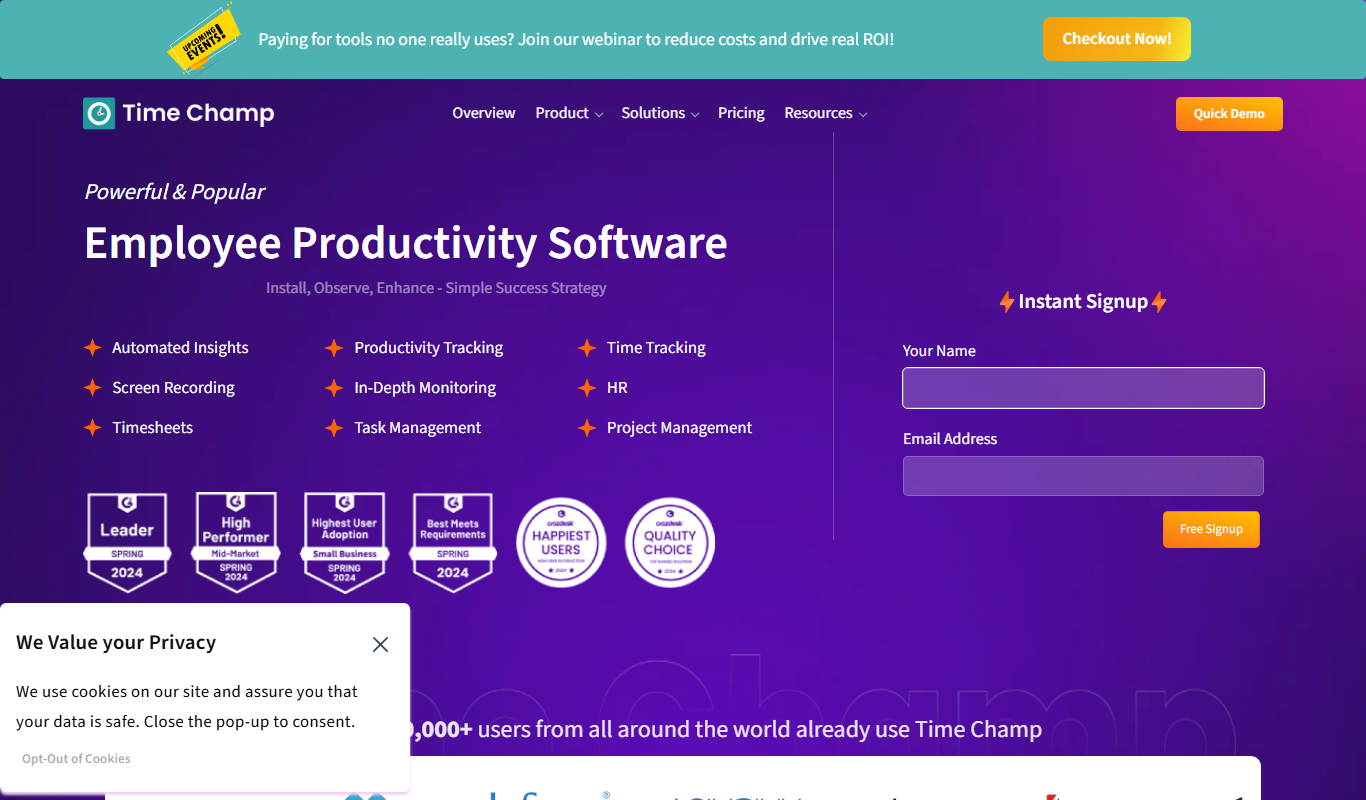
Time Champ
Time Champ is a multi-platform time tracking and employee monitoring software that helps businesses track work hours, manage projects, and analyze productivity with features like automatic tracking, screenshots, and timesheet automation.
Free
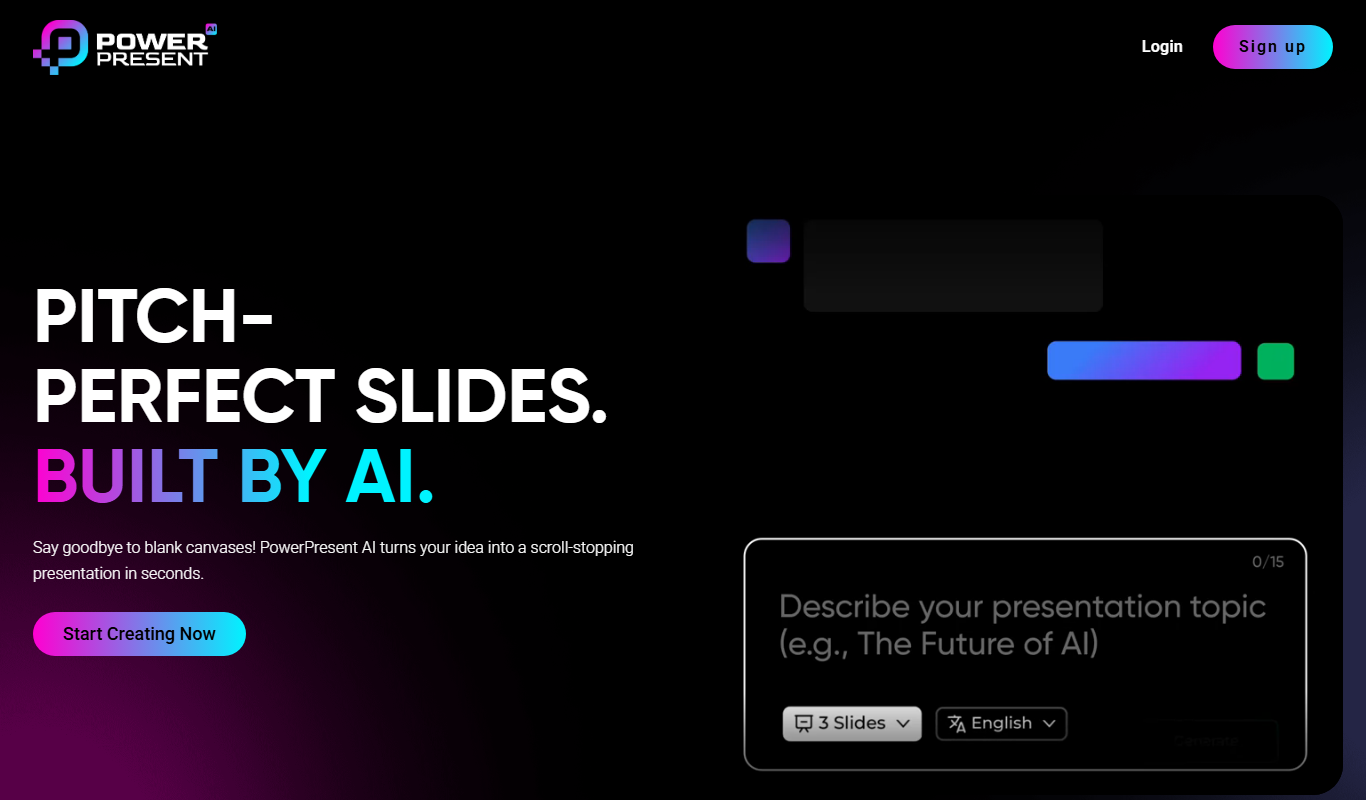
Powerpresent AI
Powerpresent AI is a web-based tool that uses artificial intelligence to automatically generate professional presentation slides from user input, offering customizable templates and easy editing.
Freemium
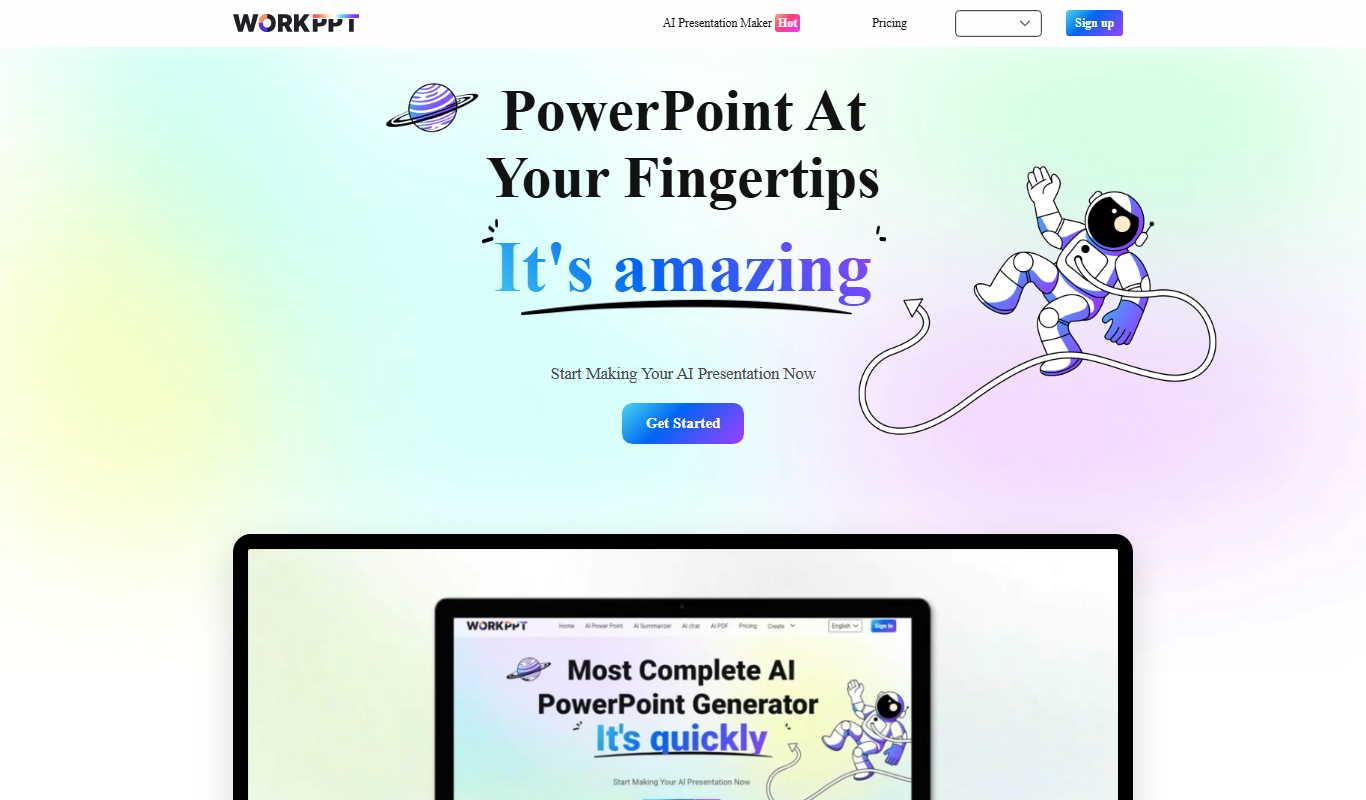
WorkPPT
WorkPPT is a web-based presentation tool by SoftTooler that uses AI to help users create and customize professional slides quickly, supporting collaboration and export in PPTX and PDF formats.

Freemium
Pi by DeepVinci
Pi by DeepVinci is an AI presentation tool that creates slides from a sentence, an uploaded document or a connected knowledge base.

Freemium
AI Slide Studio
AI Slide Studio is a web-based tool that uses artificial intelligence to automatically generate and design presentation slides from text input, helping users create professional slide decks quickly and easily.

Free
AutoPPT
AutoPPT is an AI-powered tool that automates the creation of professional presentations by generating slides from text inputs, allowing users to customize and export decks quickly.

Free
Jeda.ai – Ai Workspace Canvas
Jeda.ai is an AI-powered collaborative workspace canvas that helps teams brainstorm, plan, and manage projects visually with AI assistance.