

From my experience with CANVID for Windows, I found it excels at providing a no-frills, lightweight screen recording and GIF creation experience. The simplicity of the interface makes it easy to quickly capture screen content without distractions or complex settings. It’s particularly well-suited for educators, social media users, and small businesses needing fast, straightforward video clips or GIFs. However, the lack of audio recording and post-capture editing features means it may not fit all advanced use cases. Overall, if you want a free, efficient tool for basic screen capture and GIF making on Windows, CANVID delivers solid results.
CANVID for Windows Review: Lightweight Screen Recorder and GIF Maker
CANVID for Windows is a free, lightweight screen recording and GIF creation tool designed for quick and easy desktop capture without audio support.
- Best for
- Screen Recording
- Key capability
- Lightweight and Fast
Your actions
Save CANVID for Windows, follow its updates and vote on it — everything stays in your account.
Sign in or create a free account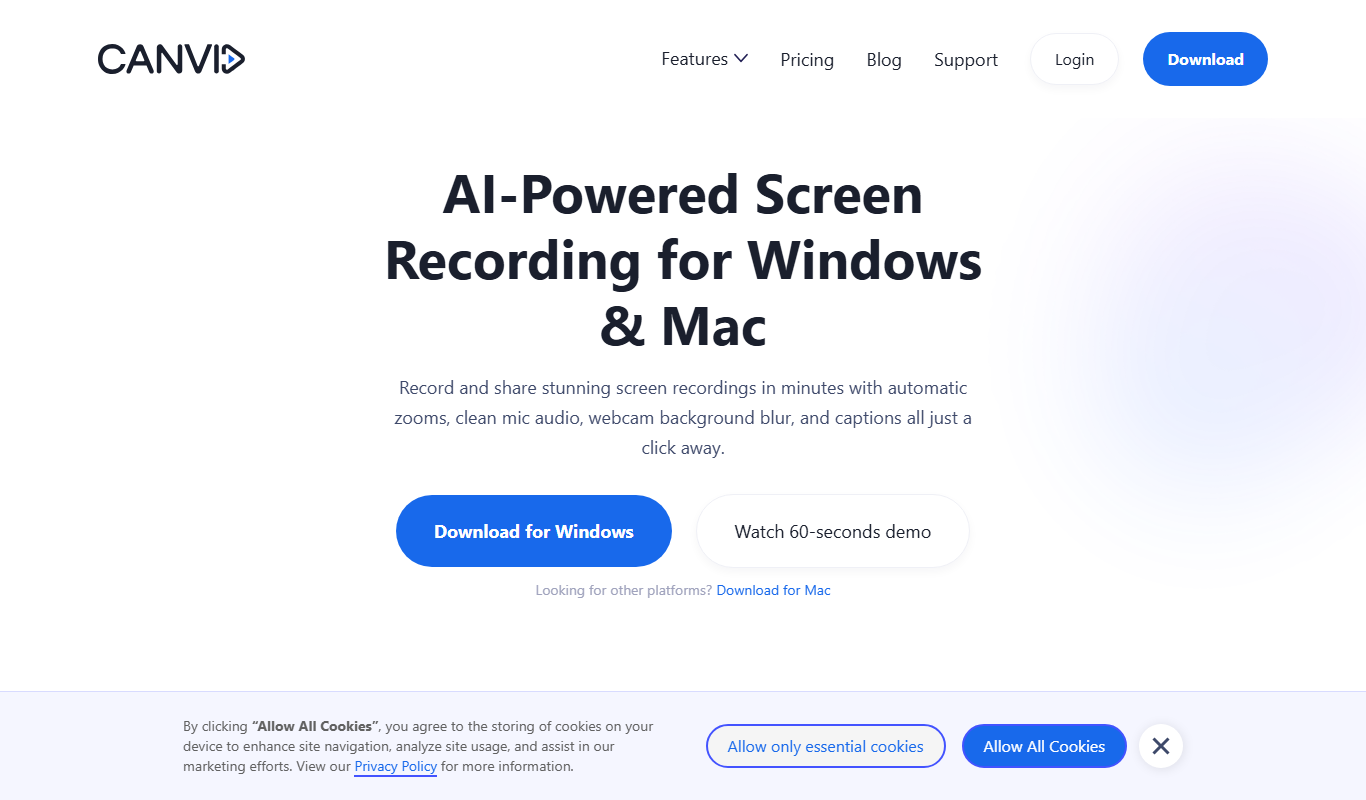
What is CANVID for Windows?
CANVID for Windows is a lightweight, free screen recording and GIF creation application designed for quick and easy capture of desktop activity. It focuses on simplicity and speed, allowing users to record video or create GIFs without the overhead of complex editing features.
Key features of CANVID for Windows
CANVID offers straightforward screen recording with options to capture full screen or custom areas, GIF export capabilities, and a minimalistic interface that prioritizes ease of use and fast performance on Windows systems.
Lightweight and Fast
Minimal system resource usage ensures smooth recording even on lower-end PCs.
GIF Export
Convert recordings into animated GIFs easily for quick sharing.
Customizable Capture Area
Record full screen or select a specific region to focus on.
No Watermarks or Time Limits
Free to use without restrictions on recording length or branding.
Pros and cons of CANVID for Windows
Pros
- Simple and intuitive interface
- Lightweight with minimal system impact
- Free with no watermarks or time limits
Cons
- No audio recording capability
- Limited editing features after recording
Key use cases for CANVID for Windows
Screen Recording
Capture your desktop activity with a simple, lightweight tool ideal for tutorials, demos, and presentations.
GIF Creation
Easily create animated GIFs from screen recordings or video clips for sharing on social media or messaging.
Quick Video Clips
Record short video clips without complex setups, perfect for quick feedback or sharing moments.
Content Creation
Assist content creators in producing engaging visual content with minimal resource usage.
How CANVID for Windows works
- 1
Download and Install
Get CANVID from the official website and install it on your Windows PC.
- 2
Select Recording Area
Choose whether to record the full screen or a specific portion of your desktop.
- 3
Start Recording
Click the record button to begin capturing your screen activity.
- 4
Stop and Save
Stop recording when done and save your video or export it as a GIF.
Who is using CANVID for Windows
Educators creating tutorials
Social media users making GIFs
Small businesses needing quick screen captures
Content creators seeking lightweight tools
CANVID for Windows pricing
Free
$0
Full access to all features with no cost.
Plans and prices are as published by the vendor and can change. Check the official site before you buy. Open the pricing page (opens in a new tab)
Frequently asked questions about CANVID for Windows
Yes, CANVID is completely free with no hidden charges.
CANVID primarily focuses on screen capture and GIF creation; it does not support audio recording.
No, CANVID does not add watermarks to your videos or GIFs.
CANVID supports Windows 10 and later versions.
Yes, it can help with that use case depending on how you configure it and what features are available. You’ll get the best results with clear inputs and a defined goal.
Yes, it can help with that use case depending on how you configure it and what features are available. You’ll get the best results with clear inputs and a defined goal.
Some tools offer a free plan or trial with limited features. Availability can vary, so confirm on the official website.
Sign in to review this tool.
Sign In to ReviewNo reviews yet
Be the first to share how this tool worked for you.
Ask about pricing, limits, or how it compares — or answer someone else.
Sign In to AskNo questions yet
Have a question about using or paying for this tool? Be the first to ask.
Featured on TiorAI



Alternative Tools
Explore similar AI tools that might fit your needs

Free
OBS Studio
OBS Studio is a free and open-source software for live streaming and video recording that supports multiple platforms and customizable scenes.

Free
ShareX
ShareX is a free, open-source Windows application that enables advanced screen capturing, screen recording, image editing, and automated file sharing.

Free
LICEcap
LICEcap is a free tool that records your screen and saves the recording as an animated GIF, supporting Windows and Mac platforms.
More AI Audio Enhancer tools
Other tools in the same category, for when this one is not quite the fit.

Free Trial
Audible
Audible is a subscription-based platform offering a vast library of audiobooks, podcasts, and spoken-word content with features like offline listening and Whispersync for Voice.

Free
Spreaker
Spreaker is a podcast hosting and live audio streaming platform that enables creators to record, edit, distribute, and monetize audio content with integrated analytics and live audience engagement.

Paid
NUGEN Audio VisLM
NUGEN Audio VisLM is a professional loudness metering plugin that ensures audio content complies with international loudness standards such as EBU R128 and ATSC A/85, widely used in broadcast and post-production environments.
Free
AudioKit
AudioKit offers open-source Swift audio libraries for iOS, macOS and tvOS.

Custom Pricing
Veritone
Veritone is an AI-powered media intelligence platform that automates transcription, content analysis, and advertising verification for audio and video media.
Free
Noisli
Noisli is an ambient sound generator that helps users improve focus, relaxation, and sleep by mixing customizable background sounds like rain, white noise, and coffee shop chatter.

Free
SongBPM
SongBPM is a free web tool that allows users to find the beats per minute (BPM) of songs by searching its extensive database, helping DJs, producers, and music fans identify song tempos quickly and accurately.
Free
Deezer
Deezer is a music streaming service providing access to over 90 million songs, personalized playlists via AI, podcasts, and high-quality audio streaming across multiple platforms.