

VisionStory AI Review: AI-Powered Visual Storytelling Platform Features & Pricing
VisionStory is an AI video generator that turns prompts, photos, slides, audio and scripts into publish-ready AI videos with lifelike avatars, natural voices and captions.
- Best for
- Marketing Campaigns
- Key capability
- AI Video Agent
Save VisionStory AI, follow its updates and vote on it — everything stays in your account.
Sign in or create a free account
What is VisionStory AI?
VisionStory is an AI video generator for avatars, agents and creators. It turns prompts, photos, slides, audio and scripts into publish-ready AI videos with lifelike avatars, natural voices, captions and creator tools.
Key features of VisionStory AI
The platform offers AI-powered story generation, customizable video templates, automated visual asset integration, and easy export options. It focuses on simplifying video and visual content creation to boost marketing efforts and audience engagement.
AI Video Agent
Turn a prompt, URL, or script into a complete AI video with script, avatar, voiceover and captions in one flow.
AI Avatar Generator
Create AI avatar videos up to 10 minutes long while keeping the character's appearance and identity consistent in every scene.
Visual Asset Integration
Seamlessly incorporates images, icons, and video clips to enhance storytelling.
Easy Export Options
Supports exporting videos and stories in multiple formats suitable for social media and marketing.
User-Friendly Interface
Designed for users with no technical background to create professional visual stories quickly.
Pros and cons of VisionStory AI
Pros
- Intuitive interface suitable for beginners
- AI automates time-consuming storytelling tasks
- Customizable templates enhance brand consistency
- Affordable pricing with a free tier
- Quick export options for multiple platforms
Cons
- Limited language support (English only)
- No desktop or mobile app versions currently
- Some advanced features reserved for paid plans
Key use cases for VisionStory AI
Marketing Campaigns
Create engaging visual stories to enhance brand messaging and audience engagement.
Social Media Content
Generate AI-powered videos and visuals optimized for social media platforms.
Content Automation
Automate the creation of visual narratives to save time and maintain consistent content output.
Storytelling for Brands
Craft compelling brand stories using AI-generated visuals and narratives.
Video Production
Produce short videos quickly with AI assistance for promotional or informational purposes.
How VisionStory AI works
- 1
Sign Up
Create an account on VisionStory AI’s website to access the platform.
- 2
Input Story Details
Provide key information or themes for your story to guide the AI in content generation.
- 3
Customize Visuals
Select or adjust video templates, images, and styles to fit your brand and message.
- 4
Generate Story
Let the AI create a visual narrative combining text and images into a cohesive story or video.
- 5
Review and Export
Preview the generated content, make edits if needed, and export it for use on various platforms.
Who is using VisionStory AI
VisionStory AI pricing
Free
$0/month
10 credits on sign up, video length up to 30 seconds, 160+ stock avatars, video resolution up to 720p.
Pro
$9.99/month
120 monthly credits, video length up to 3 minutes, credits carry over, access to all premium features, clone 10 voices.
Advanced
$29.9/month
480 monthly credits, video length up to 10 minutes, resolution up to 1080P and 2K, everything in Pro, clone 20 voices.
Ultra
$99.9/month
1920 monthly credits, video length up to 10 minutes, everything in Advanced, clone 50 voices.
Plans and prices are as published by the vendor and can change. Check the official site before you buy. Open the pricing page (opens in a new tab)
Frequently asked questions about VisionStory AI
Yes, the platform is designed to be user-friendly and requires no prior video editing skills.
You can export your visual stories and videos in common formats like MP4 suitable for social media and presentations.
Yes, VisionStory AI offers a free plan with limited features to try the platform before upgrading.
Absolutely, users can edit and customize the generated content to better fit their brand and message.
This tool is designed to help users accomplish its core tasks more efficiently. It is typically used by individuals or teams looking to improve productivity and workflow.
Pricing depends on the plan and included features. For the most accurate and up-to-date details, check the official pricing page.
Yes, it can help with that use case depending on how you configure it and what features are available. You’ll get the best results with clear inputs and a defined goal.
Yes, it can help with that use case depending on how you configure it and what features are available. You’ll get the best results with clear inputs and a defined goal.
Conclusion
Prompts, photos, slides, audio or scripts are the starting material. What comes out is a publish-ready AI video with lifelike avatars, natural voices and captions. Its AI Video Agent plans a multi-shot talking video from a one-sentence description or from a URL, PDF or deck, covering script, scenes, voiceover and captions. Any shot can then be refined by chatting and generated in 16:9, 9:16 or 1:1. Separate tools handle AI music videos with singing lip sync, video face swap and video ads for social channels.
Avatars can speak in thousands of natural AI voices across multiple languages and regional accents, and avatar videos can run up to 10 minutes. Usage is credit-based, with the free plan limited to sign-up credits and videos up to 30 seconds at 720p. Paid plans allow longer videos, carry credits over and add voice cloning.
Sources
Sign in to review this tool.
Sign In to ReviewNo reviews yet
Be the first to share how this tool worked for you.
Ask about pricing, limits, or how it compares — or answer someone else.
Sign In to AskNo questions yet
Have a question about using or paying for this tool? Be the first to ask.
Featured on TiorAI



More AI Storytelling Tools tools
Other tools in the same category, for when this one is not quite the fit.

Neurotale
Neurotale is an AI powered writing enhancement tool for notes, blog posts and fiction novels, with a library of stories written with AI assistance.

Dream Kid
DreamKid is an AI storyteller that writes, narrates and illustrates personalised stories with your child as the hero.
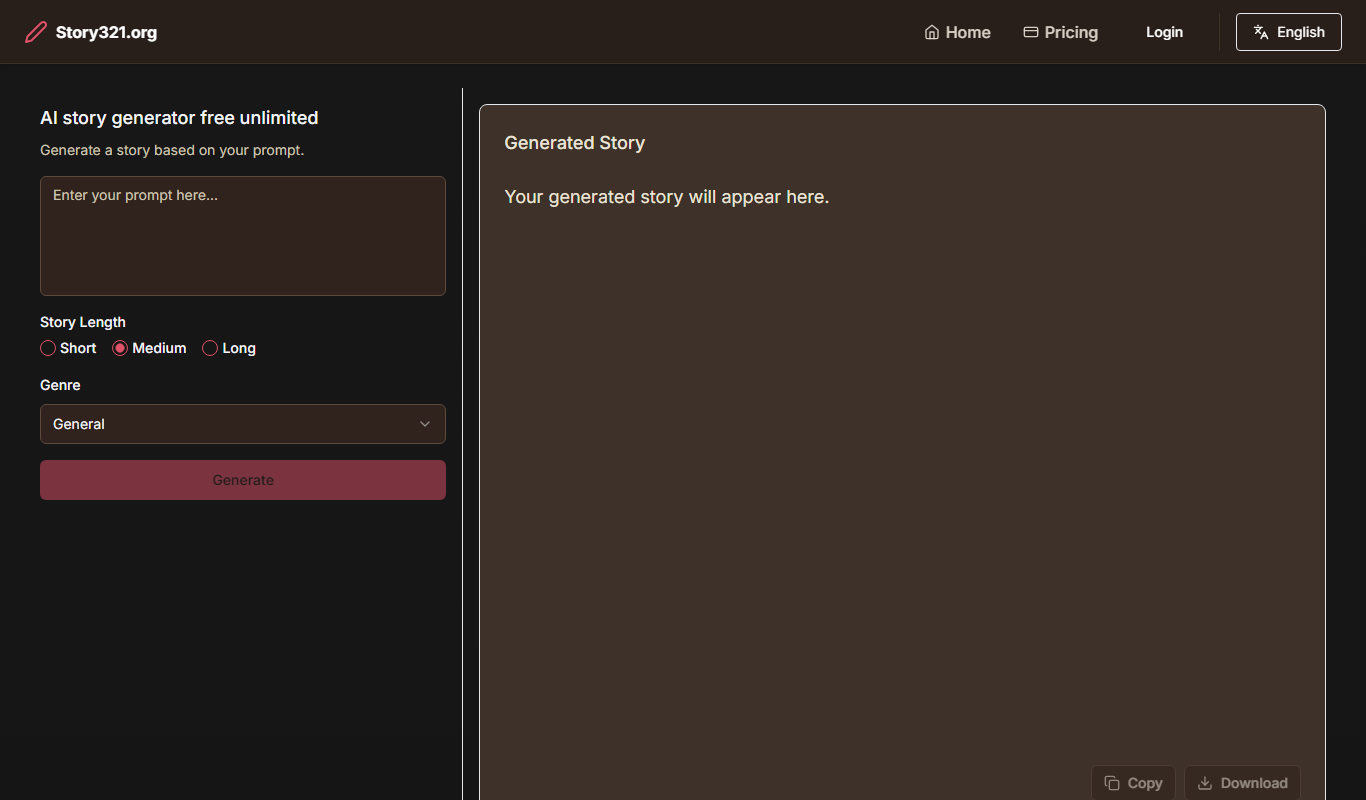
Story321 AI Story Generator
Story321's AI story generator turns any idea into a story: choose a genre and length, generate online without signing up, then copy or download the draft.
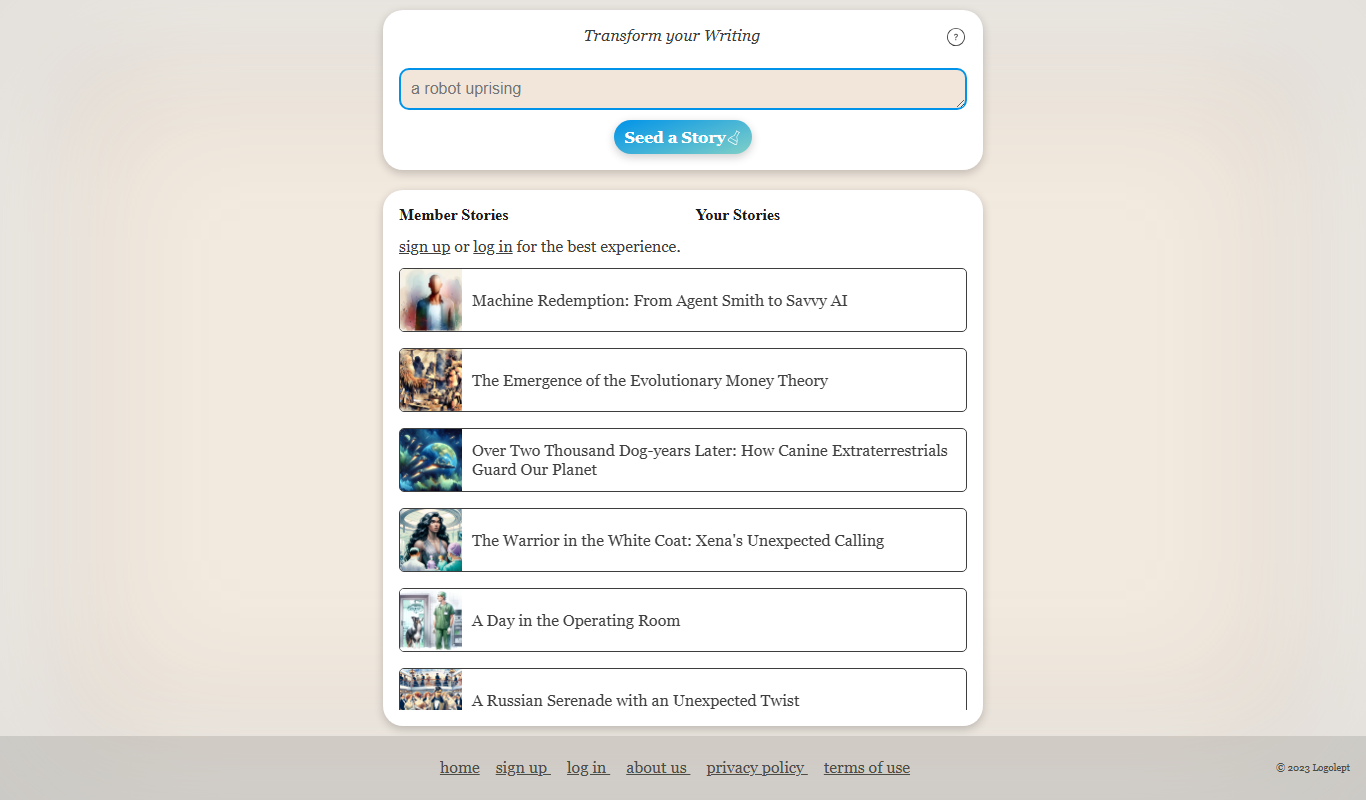
Logolept
Logolept is an AI story book maker: seed your story with a prompt, find inspiration and read stories other members created.

AI Game Master- Dungeon RPG
AI Game Master is a text-based RPG for iOS and Android in which the AI is your Dungeon Master: create a character, pick a world and type your actions.

LitRPG Adventures
LitRPG Adventures offers AI generators for tabletop RPG content such as D&D backstories, quests, monsters, spells and dungeons, plus a large RPG library.

ArcaneLand
ArcaneLand is a text-based adventure game with an AI dungeon master powered by ChatGPT and a UI for XP, items and quests, free to play with no sign up.

Narratize
Narratize is the AI-powered System of Intelligence for New Product Development in advanced manufacturing, uniting systems data and expert knowledge to launch faster.