

Vizard AI Video Editor for Quick Automated Video Creation and Editing
Vizard uses AI to turn long-form videos into short clips ready for TikTok, Instagram, YouTube Shorts and more.
- Best for
- Automated Video Editing
- Key capability
- AI Clipping
Save Vizard, follow its updates and vote on it — everything stays in your account.
Sign in or create a free account

What is Vizard?
Vizard is an AI video editing and clipping tool that turns long-form videos into short clips ready for channels like TikTok, Instagram and YouTube Shorts. It also includes a text-based video editor with caption translation and Vizard Agent, which offers 22 templates.
Key features of Vizard
Vizard offers automated video editing, AI-driven content repurposing, subtitle generation, and a user-friendly web interface that supports collaborative workflows. Its AI algorithms analyze raw footage to identify highlights and optimize video length and format for various platforms.
AI Clipping
Finds highlights, cuts them with one click and centers key subjects in vertical format for TikTok, Reels and Shorts.
Automatic Captioning
Generates accurate subtitles to enhance accessibility and engagement.
Content Repurposing Tools
Transforms long-form videos into multiple short clips optimized for social platforms.
Cloud-Based Collaboration
Allows teams to work together on video projects from anywhere.
Multi-Format Export
Supports exporting videos in various resolutions and aspect ratios tailored for different platforms.
Pros and cons of Vizard
Pros
- Automates time-consuming editing tasks effectively
- Easy to use with minimal learning curve
- Supports content repurposing for social media
- Cloud-based with collaboration capabilities
- Affordable pricing with a free tier
Cons
- Limited advanced manual editing features
- Free plan videos include watermarks
- Currently supports only English language
Key use cases for Vizard
Automated Video Editing
Use AI to automatically edit raw footage into polished videos, saving time on manual editing.
Content Repurposing
Transform long videos or webinars into short clips optimized for social media and marketing.
Marketing Video Creation
Create engaging promotional videos quickly to support campaigns and brand awareness.
Video Captioning and Subtitling
Automatically generate captions and subtitles to improve accessibility and viewer engagement.
Collaborative Video Projects
Enable teams to work together on video editing projects through a cloud-based platform.
How Vizard works
- 1
Upload Video
Users upload raw video footage to the Vizard platform via the web interface.
- 2
AI Analysis
The AI engine analyzes the video to detect key moments, speech, and visual elements.
- 3
Automated Editing
Vizard automatically trims, adds captions, and formats the video based on user preferences.
- 4
Review and Customize
Users can review the edited video and make manual adjustments if needed.
- 5
Export and Share
Final videos can be exported in multiple formats and shared directly to social media or downloaded.
Who is using Vizard
Vizard pricing
Free
$0/month
60 credits per month, private workspace, 1 social media account, AI-generated clips, export in 720p, full access to the video editor and 3-day storage.
Creator
$29 per month, or $14.5 per month billed yearly at $174
No watermark, export in 4K, schedule social posts, 100 GB storage and 6 social media accounts; 1 credit = 1 minute of video.
Business
$39 per month, or $19.5 per month billed yearly at $234
Everything in Creator plus a shared workspace, 20 social media accounts, team members at $5 per month per seat, project sharing, brand kit and unlimited storage.
Plans and prices are as published by the vendor and can change. Check the official site before you buy. Open the pricing page (opens in a new tab)
Frequently asked questions about Vizard
Yes, Vizard is designed to be user-friendly and automates most editing tasks, making it accessible for beginners.
Vizard supports common video formats including MP4, MOV, and AVI.
Yes, the platform supports cloud-based collaboration allowing multiple users to work on projects.
Yes, videos exported on the free plan include a Vizard watermark.
It depends on your specific needs and how you plan to use the tool. The official website and documentation are the best sources for the latest details.
It depends on your specific needs and how you plan to use the tool. The official website and documentation are the best sources for the latest details.
Pricing depends on the plan and included features. For the most accurate and up-to-date details, check the official pricing page.
Conclusion
A long recording goes in, and Vizard transcribes it, identifies the engaging moments and turns it into 30+ clips in one click for TikTok, Reels and Shorts. Key subjects are centered in vertical format automatically, with no manual resizing needed. Finished clips can be downloaded, shared as links or published directly.
For finer control, the editor trims video by deleting transcript text and fine-tunes cuts on a timeline down to seconds. Captions can be translated to over 100 languages, and Vizard Agent offers 22 templates such as product ads, podcast clips and explainers. Podcasters, coaches, consultants, marketers and agencies are the groups its use cases are written for.
The Free plan exports videos in 720p with 3-day storage, while the Creator plan adds no watermark and exports videos in 4K.
Sources
Sign in to review this tool.
Sign In to ReviewNo reviews yet
Be the first to share how this tool worked for you.
Ask about pricing, limits, or how it compares — or answer someone else.
Sign In to AskNo questions yet
Have a question about using or paying for this tool? Be the first to ask.
Featured on TiorAI


More AI Artificial Intelligence Tools tools
Other tools in the same category, for when this one is not quite the fit.

Openfabric AI
Openfabric AI is a Layer 1 blockchain network for building and connecting decentralized AI applications, with an AI apps marketplace and a utility token.

Stockaivisor
Stockaivisor is an AI-based platform that provides stock market analysis, forecasts, and portfolio management tools to help investors make informed decisions.

Neunera
Neunera is an AI-powered platform that automates Pinterest marketing, from pin creation to blog hosting, helping businesses and creators grow with affiliate marketing.

connecterra.ai
Connecterra is a data platform for the dairy industry that integrates herd management, feed, processor, milk yield and wearables data and adds AI-powered summaries and decision support.

DreamCreator AI
Dream Creator AI is a one-stop AI platform for text, image, video and digital human creation.

Delphos | AI Music
Delphos Copilot is a virtual composition assistant that automates composition workflows so composers can craft their creative vision without obstacles.
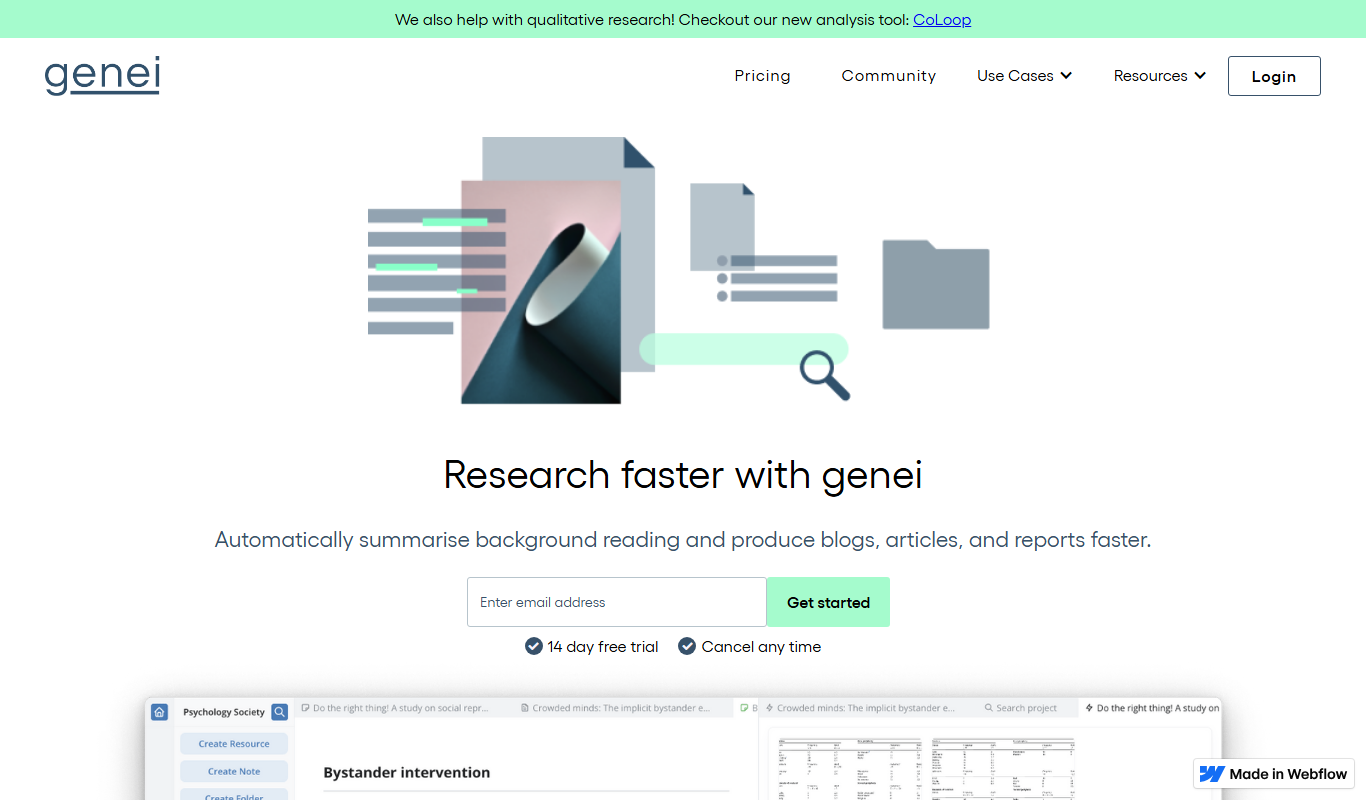
Genei
Genei is an AI-driven research summarization tool that quickly condenses lengthy documents into concise summaries, helping users save time and extract key insights efficiently.
Salesforce Platform for AI App Development
Salesforce Platform lets businesses build apps, connect data and create AI agents, with low code and pro code app development tools that work natively with Salesforce CRM data.