Capcut AI vs Clipchamp: Video Quality, Features & Pricing Compared
CapCut AI vs Clipchamp — compare AI video quality, editing features, generation speed, pricing plans, and workflow fit.
- Category
- Image Generation & Editing
- Format
- Head-to-head
- Updated
- April 17, 2026



How they compare
| Feature |
CapCut AI
|
Clipchamp
|
|---|---|---|
| Made by | ByteDance Ltd. | Microsoft Corporation |
| Category | AI Video Editing Image Generation & Editing Photo & Video Editing Video To Video | AI Video Editing Image Generation & Editing Photo & Video Editing Video To Video |
| Pricing model | Free Freemium | Free Freemium Subscription |
| Platforms | Android Desktop iOS Web | Mac Web Windows |
| Built with | JavaScript Python TensorFlow | JavaScript React WebAssembly |
| Languages | Chinese English Japanese Korean +2 more | English French German Japanese +2 more |
| Based in | China | United States |
Greyed rows are the same for both tools.
What each one is
CapCut AI
CapCut AI is an advanced video editing application developed by Bytedance that integrates artificial intelligence to simplify and enhance video creation. It offers a suite of AI-powered features such as automated editing, smart effects, and content optimization tailored for social media creators and professionals. The tool supports multi-platform usage, enabling users to create, edit, and share videos seamlessly across devices.
Clipchamp
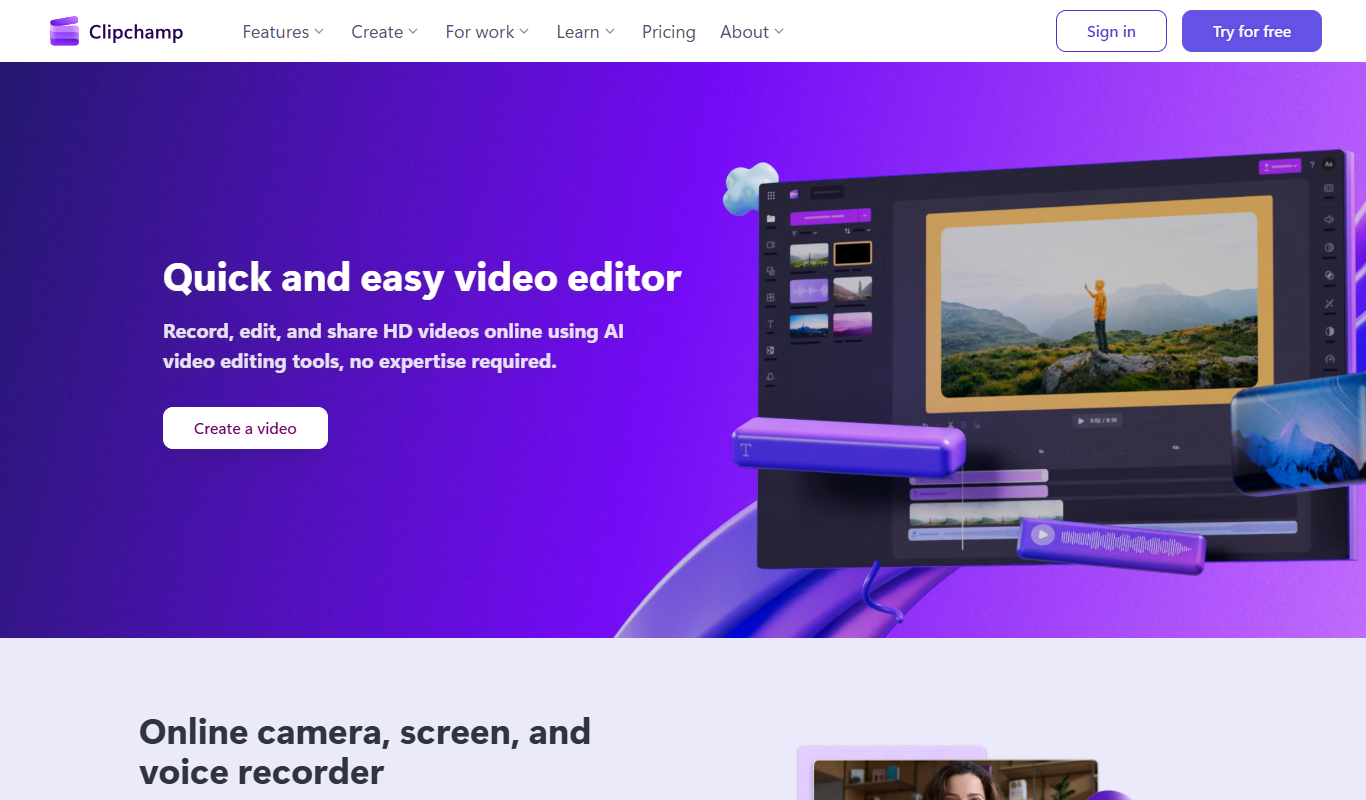
Clipchamp is a web-based video editing and creation platform that allows users to produce professional-quality videos directly in their browser. It offers a user-friendly interface with drag-and-drop functionality, a wide range of customizable templates, stock media, and editing tools suitable for beginners and professionals alike. Since its acquisition by Microsoft, Clipchamp integrates seamlessly with Windows and Microsoft 365 environments, making video creation accessible for diverse use cases.
Key features
CapCut AI
-
AI Auto-Editing
Automatically trims and arranges clips based on scene detection and rhythm analysis.
-
Background Removal
AI-powered removal of video backgrounds without green screen requirements.
-
Text-to-Video Generation
Create videos from text prompts using AI to generate relevant visuals and animations.
-
Voice Recognition and Subtitles
Automatically transcribes speech to generate accurate subtitles in multiple languages.
-
AI Filters and Effects
Apply stylized filters and dynamic effects powered by AI for creative enhancements.
Clipchamp
-
Browser-Based Editing
No software installation required; edit videos directly in your web browser with fast performance.
-
Stock Media Library
Access millions of royalty-free videos, images, and audio clips to enhance your projects.
-
Multi-Track Timeline
Layer multiple video and audio tracks for complex editing and creative control.
-
AI-Powered Tools
Automatic video resizing for different platforms and AI-generated captions improve workflow efficiency.
-
Direct Social Sharing
Export videos optimized for social media and share directly to platforms like YouTube, Facebook, and Instagram.
Pricing
Plans as published by each vendor. Check the vendor site before buying — pricing changes.
CapCut AI
Free $0/month
Access to basic editing tools and standard AI features with watermark on exports.
Pro $9.99/month
Unlocks premium AI features, removes watermarks, and offers higher export resolutions.
Pro+ $19.99/month
Clipchamp
Free $0/month
Basic editing features with export up to 480p resolution and access to limited stock assets.
Microsoft 365 Personal $6.99/month
Includes 720p exports, unlimited video exports, and access to premium stock content.
Microsoft 365 Family $9.99/month
Offers 1080p exports, brand kit features, and priority support for professional use.
Strengths and trade-offs
CapCut AI
Strengths
- User-friendly interface suitable for beginners and pros
- Robust AI features automate tedious editing tasks
- Cross-platform availability for flexible editing
- Strong integration with social media platforms
- Free tier provides substantial functionality
Trade-offs
- Some advanced features require paid subscription
- Occasional AI inaccuracies in background removal
- Limited offline editing capabilities
Clipchamp
Strengths
- User-friendly drag-and-drop interface
- Rich stock media library included
- No software installation needed
- Supports multiple export resolutions
- Integrates well with Microsoft products
Trade-offs
- Free plan limits export resolution to 480p
- Some advanced features require paid subscription
- Performance depends on internet connection
Who it is for
CapCut AI
- Social media content creators
- Video marketing professionals
- Small business owners
- Influencers and vloggers
- Amateur and professional video editors
Clipchamp
- Social media content creators
- Small business marketers
- Educators and trainers
- Video marketing professionals
- Personal video hobbyists
What people use it for
CapCut AI
-
Social Media Video Creation
Create engaging short videos optimized for platforms like TikTok, Instagram, and YouTube using AI-powered editing tools.
-
Automated Video Editing
Leverage AI to automatically trim, enhance, and add effects to raw footage, saving time on manual editing.
-
Content Repurposing
Transform existing video content into new formats or styles with AI-driven filters, transitions, and captions.
-
Creative Video Effects
Apply AI-generated effects such as background removal, motion tracking, and style transfer to enhance video creativity.
-
Collaborative Video Projects
Work with teams remotely by sharing projects and assets within the CapCut platform.
Clipchamp
-
Social Media Video Creation
Create engaging videos optimized for platforms like Instagram, TikTok, and YouTube with easy-to-use templates and editing tools.
-
Marketing and Advertising Videos
Produce professional promotional videos, ads, and branded content to enhance marketing campaigns.
-
Educational and Training Videos
Develop instructional videos, tutorials, and presentations for educational purposes or corporate training.
-
Personal Video Projects
Edit personal videos such as travel vlogs, event highlights, and family moments with intuitive drag-and-drop features.
-
Business Video Communication
Create internal communication videos, product demos, and explainer videos to support business operations.
Getting started
CapCut AI
Download and Install
Get CapCut AI from the official website or app stores on your preferred device.
Import Media
Upload your video clips, images, and audio files into the project workspace.
Apply AI Features
Use AI tools like auto-trim, background removal, and smart filters to enhance your video.
Edit and Customize
Manually adjust clips, add transitions, text, and effects to tailor your video.
Export and Share
Render your final video and share it directly to social media platforms or save locally.
Clipchamp
Sign Up or Log In
Create a free account or log in using Microsoft or Google credentials to access the Clipchamp platform.
Choose a Template or Start from Scratch
Select from a variety of pre-designed templates tailored for different video types or begin with a blank project.
Upload or Select Media
Add your own videos, images, and audio files or choose from Clipchamp's extensive stock library.
Edit Your Video
Use the drag-and-drop editor to trim clips, add transitions, text, filters, and adjust audio levels.
Export and Share
Render your video in various resolutions and formats, then download or share directly to social media platforms.
Common questions
Yes, CapCut AI offers a free tier with basic features and watermark on exported videos.
Yes, Clipchamp offers a free plan with basic editing features and 480p video exports.
Removing the watermark requires upgrading to the Pro subscription plan.
Clipchamp is a web-based platform accessible on any modern browser, compatible with both Mac and Windows.
CapCut AI is available on Web, iOS, Android, and Desktop platforms.
4K export is available on the Business Platinum plan.
Yes, it supports several languages including English, Chinese, Spanish, Portuguese, Japanese, and Korean.
Yes, users can upload their own media files to include in their videos.
More comparisons with these tools

Clipchamp Free vs Paid: Free vs Paid Compared
Compare the free and paid tiers of Clipchamp Free and Paid — features, usage limits, and which plan is worth paying for.
-
Clipchamp vs Canva: Which AI Video Tool Is Worth It in 2026?
We tested Clipchamp and Canva on video quality, prompt accuracy, editing features, and pricing — here's the verdict.
- Clipchamp: $6.99/month Starts at Canva: $15/month
- Clipchamp: 3 Platforms Canva: 5
-
Clipchamp vs Invideo AI: Video Quality, Features & Pricing Compared
Clipchamp vs InVideo AI — compare AI video quality, editing features, generation speed, pricing plans, and workflow fit.
- Clipchamp: $6.99/month Starts at InVideo AI: $25/month
- Clipchamp: 3 Platforms InVideo AI: 2
-
Clipchamp vs Descript: Which Handles Long-Form Video Better?
We compared Clipchamp and Descript on long-form video quality, chapter control, voiceover sync, and pricing.
- Clipchamp: $6.99/month Starts at Descript: $24/month
- Clipchamp: 3 Platforms Descript: 3
-
Clipchamp vs Davinci Resolve: Editing Controls, Templates & Workflow
Clipchamp vs Davinci Resolve — compare editing flexibility, template library, timeline controls, and workflow efficiency.
- Clipchamp: $6.99/month Starts at DaVinci Resolve: $295 (one-time)
- Clipchamp: 3 Platforms DaVinci Resolve: 3
-
Clipchamp vs Capcut AI: Enterprise Features, API & Team Plans
Compare Clipchamp and CapCut AI on enterprise features, API access, team collaboration, compliance, and pricing.
- Clipchamp: $6.99/month Starts at CapCut AI: $9.99/month
- Clipchamp: 3 Platforms CapCut AI: 4