

Crop Image
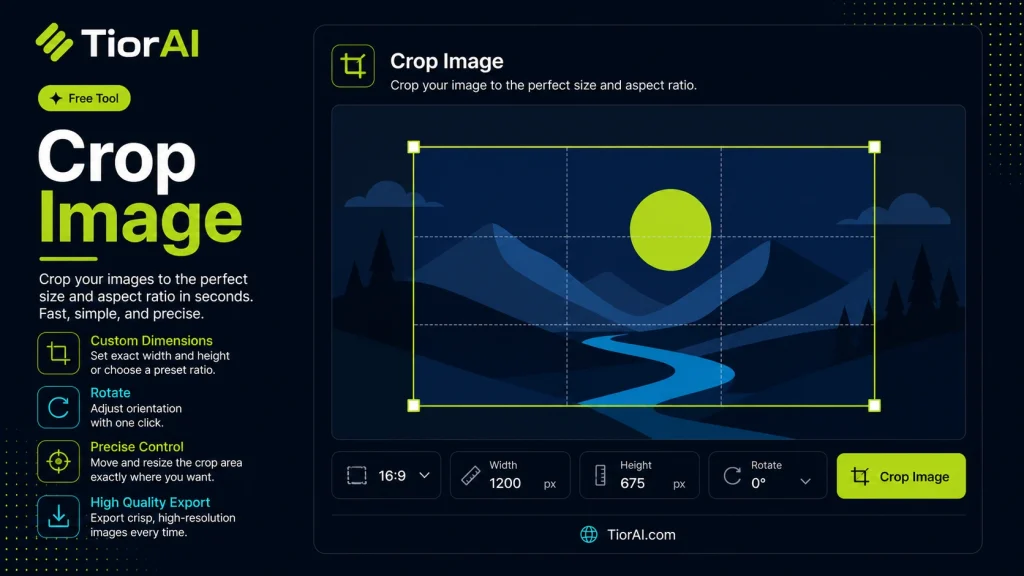
Drag a selection over the image or type exact pixel values, then crop and download the result. Everything happens in your browser — the image is never uploaded.
| File name | - |
|---|---|
| Output format | - |
| Original dimensions | - |
| Crop area | - |
| Cropped dimensions | - |
| Original size | - |
| Output size | - |
How It Works
The image is decoded and cropped on a canvas inside your browser, so it never leaves your device and no upload quota is used.
- X and Y are measured in pixels from the top-left corner of the original image.
- Choosing an aspect ratio locks the height to the width you set or drag.
- PNG stays PNG; JPG and WebP keep their own format, so transparency is preserved only for PNG and WebP.
How to use it
- Upload Your Image Upload or drag and drop your image into the Crop Image. Supports PNG, JPG, WebP, and other common formats.
- Process the Image Configure your desired settings and click process. The tool applies changes to your image in seconds.
- Download the Result Preview the processed image and download it in your preferred format, ready for use.
Tip The Crop Image preserves image quality while optimizing — your photos stay sharp even after processing.
Understanding Image Cropping
Image cropping is the process of removing unwanted outer areas from a digital image to improve framing, focus on a subject, or change the aspect ratio. This operation is fundamental in image editing and is widely used in photography, graphic design, and web content creation.
When you crop an image, you select a rectangular portion of the original picture and discard the rest. This helps eliminate distractions, emphasize important elements, or fit the image into a specific size or shape required for printing, social media, or website layouts.
Why is cropping important?
Improves composition:By removing unnecessary parts, the main subject becomes clearer and more visually appealing.Adjusts aspect ratio:Cropping can change the width-to-height ratio to match display requirements.Focuses attention:It helps direct the viewer’s eye to the most important part of the image.
Common situations where cropping is used include preparing profile pictures, resizing images for thumbnails, or removing background clutter. Cropping is a non-destructive operation in many advanced editors, but online tools often permanently remove the cropped-out pixels.
What is Image Cropping?
Image cropping is the process of cutting out unwanted parts of a photo or graphic to improve its composition or fit specific size requirements. It helps focus on the main subject by removing distractions and adjusting the image’s framing.
When to Use Image Cropping
- Remove background clutter or irrelevant details from a photo.
- Resize images to fit social media profile pictures or website banners.
- Adjust the aspect ratio to match printing or display standards.
- Create uniform image sizes for presentations or galleries.
Common Mistakes to Avoid
- Cropping too tightly and cutting off important parts of the image.
- Ignoring aspect ratio constraints, which can distort the image when resized.
Understanding how cropping affects your image’s composition and resolution is key to using this tool effectively. While cropping removes pixels, it does not inherently reduce image quality unless the cropped image is enlarged beyond its resolution. Using cropping thoughtfully can enhance your images for any digital or print project.
Frequently asked questions
Reviews and questions
Whether this tool gave people the answer they needed, and what they asked about it.
Sign in to review this tool.
Sign In to ReviewNo reviews yet
Be the first to say whether this tool gave you what you needed.
Ask how to read the result, or what the tool does with an edge case — or answer someone else.
Sign In to AskNo questions yet
Not sure how to read a result? Be the first to ask.