

Image Resizer
Resize an image to exact dimensions in your browser and download the new copy.
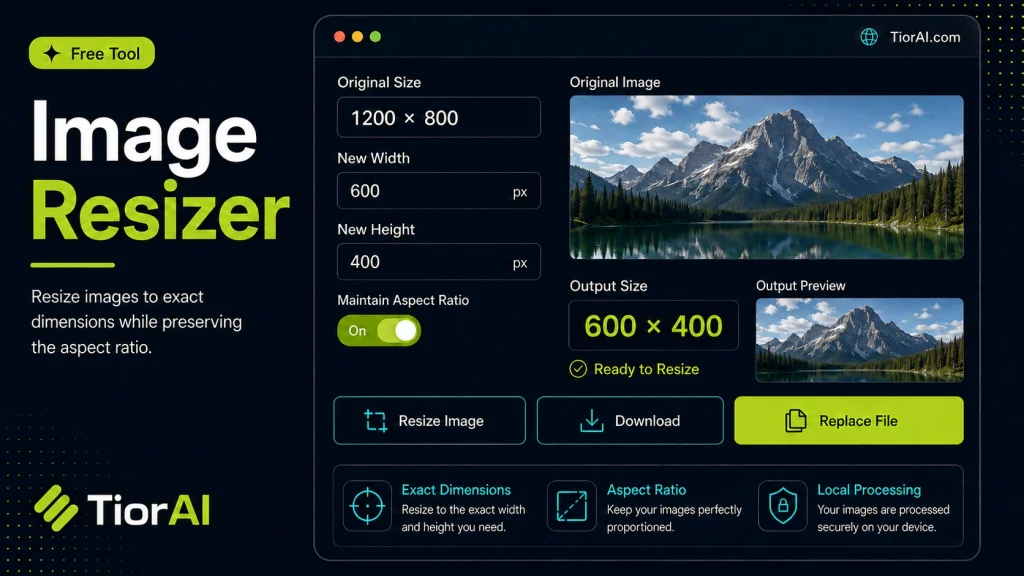
| File name | - |
|---|---|
| Output format | - |
| Original dimensions | - |
| New dimensions | - |
| Aspect ratio | - |
| Original size | - |
| Output size | - |
How to use it
- Upload Your Image Upload or drag and drop your image into the Image Resizer. Supports PNG, JPG, WebP, and other common formats.
- Process the Image Configure your desired settings and click process. The tool applies changes to your image in seconds.
- Download the Result Preview the processed image and download it in your preferred format, ready for use.
Tip Check the before-and-after preview in the Image Resizer to fine-tune settings before downloading your final image.
Understanding Image Resizing and Its Importance
Image resizing is the process of changing the dimensions of a digital image, either by increasing or decreasing its width and height. This operation adjusts the pixel count, which directly affects the image’s file size and display quality. Resizing is essential for optimizing images for various uses, such as web pages, social media, presentations, or print.
When you resize an image, you are essentially scaling it to fit specific requirements. For example, a high-resolution photo taken by a camera might be too large to upload directly to a website without slowing down page load times. Resizing reduces the file size, making it faster to load and easier to share.
Common scenarios for image resizing include:
- Preparing images for online platforms that have size limits or recommended dimensions.
- Reducing file size to save storage space or bandwidth.
- Adjusting images to fit specific design layouts without distortion.
- Creating thumbnails or preview images.
Technically, resizing can be done by algorithms that either remove pixels (downscaling) or interpolate new pixels (upscaling). Downscaling usually preserves quality better, while upscaling can cause blurriness or pixelation if done excessively.
What is Image Resizing?
Image resizing changes the dimensions of an image by adjusting its width and height. This process affects the image’s pixel count and file size, which is important for optimizing images for different uses like websites, social media, or email attachments.
Resizing helps reduce file size, making images faster to load and easier to share. It can also ensure images fit specific design layouts without distortion.
When to Use an Image Resizer
- To reduce image file size for faster website loading.
- To meet size requirements for social media uploads.
- To create thumbnails or smaller previews.
- To prepare images for email attachments with size limits.
Common Mistakes to Avoid
- Not maintaining the aspect ratio, which causes stretched or squashed images.
- Upscaling low-resolution images too much, leading to pixelation.
- Confusing resizing with cropping, which removes parts of the image instead of scaling it.
Understanding these points helps you use image resizing effectively to optimize your images without losing quality or causing distortion.
Frequently asked questions
Reviews and questions
Whether this tool gave people the answer they needed, and what they asked about it.
Sign in to review this tool.
Sign In to ReviewNo reviews yet
Be the first to say whether this tool gave you what you needed.
Ask how to read the result, or what the tool does with an edge case — or answer someone else.
Sign In to AskNo questions yet
Not sure how to read a result? Be the first to ask.
AI tools related to this topic
Tools from the TiorAI directory that work on the same kind of job.
Rapid Resizer Outline Maker
Rapid Resizer Outline Maker refers to the Picture Stencil Maker on Rapid Resizer, a web-based tool for turning photos or drawings into stencils and patterns for crafts and cutting projects.