
From my experience with Screenle, I found it excels at providing a straightforward, no-installation-required screen recording experience ideal for quick video tutorials and presentations. The web-based platform makes it accessible from any device with a browser, which is great for educators and marketers needing fast content creation. However, the free plan’s recording time limit and basic editing tools mean it may not suit users needing longer or more polished videos. Overall, if you want an easy-to-use screen recorder without software hassles, Screenle delivers solid, practical functionality.
Screenle Screen Recording Software for Video Tutorials and Presentations
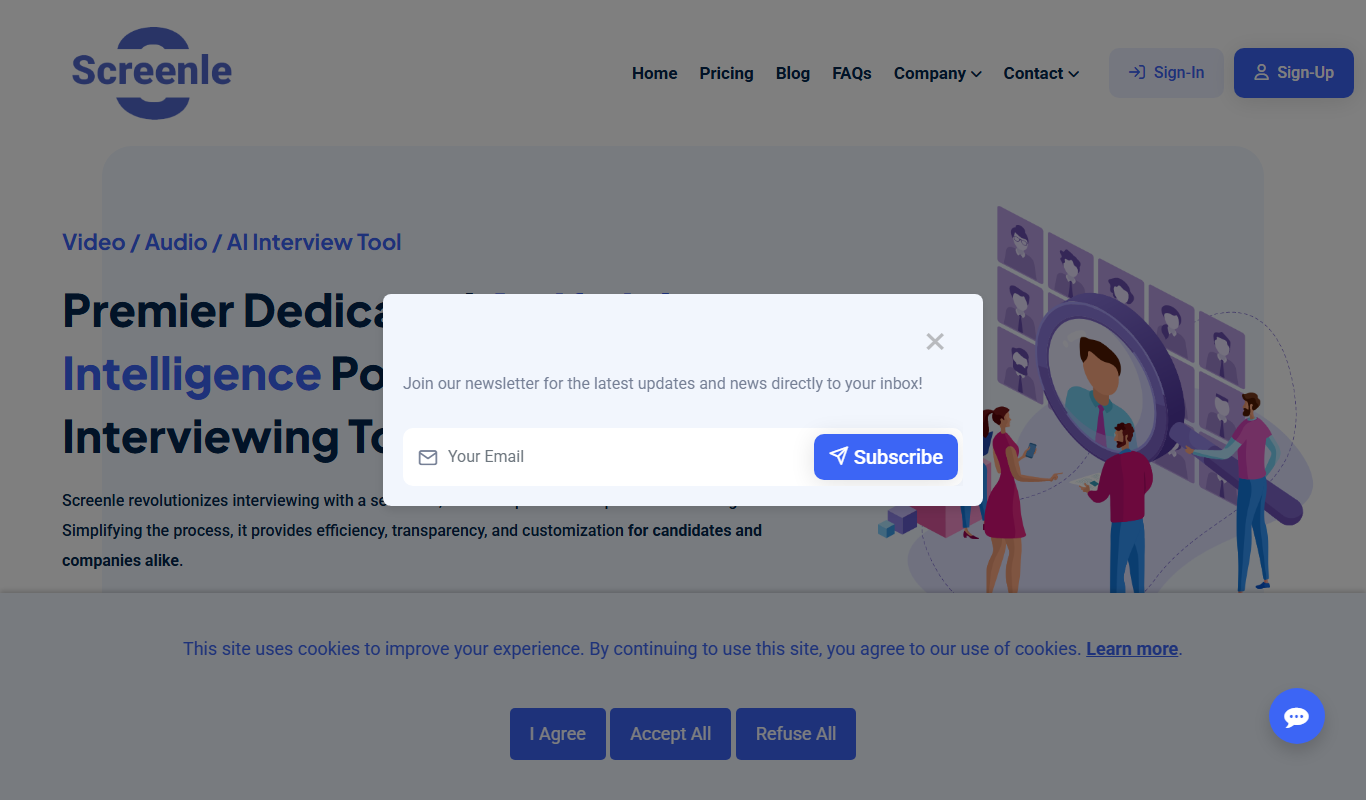
Screenle is a web-based screen recording tool that lets you capture your screen, webcam, and audio to create video tutorials, presentations, and demos without installing software.
What is Screenle?
Screenle is a web-based screen recording software designed to help users capture their screen activity along with audio to create video tutorials, presentations, and demos. It provides an intuitive interface for recording, editing, and sharing videos without the need for complex installations or setups.
Key Features of Screenle
Web-Based Recording
No installation required; record directly from your browser.
Screen and Webcam Capture
Record your screen with optional webcam overlay for personalized videos.
Audio Recording
Capture system audio and microphone input simultaneously.
Basic Video Editing
Trim recordings and adjust clips within the platform.
Easy Sharing
Export videos in common formats and share via links or social channels.
Pros and Cons of Screenle
Pros
- No software installation needed
- Simple and intuitive user interface
- Supports webcam and audio recording
- Basic editing tools included
- Affordable pricing for Pro plan
Cons
- Limited recording time on free plan
- Editing features are basic compared to dedicated editors
- Only available as a web app, no desktop client
Key Use Cases for Screenle
Creating Video Tutorials
Screenle allows educators and trainers to capture their screen and voice to create clear and engaging video tutorials.
Recording Presentations
Professionals can record presentations with voiceover to share with remote teams or clients.
Content Creation for Social Media
Content creators can produce screen recordings for social media posts, product demos, and marketing videos.
Software Demonstrations
Developers and marketers can showcase software features and workflows through recorded demos.
Customer Support Videos
Support teams can create videos to visually explain solutions and troubleshooting steps to customers.
How Screenle Works
-
1
Access the Web Platform
Open Screenle in a supported web browser without installing software.
-
2
Start a New Recording
Select the screen area or application window to record, enable webcam and microphone if needed.
-
3
Record Your Screen
Capture your screen activity along with audio narration.
-
4
Edit the Recording
Use built-in editing tools to trim or enhance your video.
-
5
Export and Share
Save the video locally or share it directly via links or social media.
Who's Using Screenle
Educators and trainers
Marketing professionals
Content creators
Customer support teams
Software developers
Screenle Pricing
Free
$0/month
Basic screen recording with limited recording duration and watermark.
Pro
$9.99/month
Unlimited recording time, no watermark, HD exports, and advanced editing features.
Frequently Asked Questions About Screenle
No, Screenle is fully web-based and works directly in your browser.
Yes, Screenle supports simultaneous webcam and screen recording.
Yes, the free plan limits recording duration to 5 minutes per video.
Screenle exports videos in MP4 format, compatible with most platforms.
It depends on your specific needs and how you plan to use the tool. The official website and documentation are the best sources for the latest details.
Some tools offer a free plan or trial with limited features. Availability can vary, so confirm on the official website.
Yes, it can help with that use case depending on how you configure it and what features are available. You’ll get the best results with clear inputs and a defined goal.
Yes, it can help with that use case depending on how you configure it and what features are available. You’ll get the best results with clear inputs and a defined goal.
Share your review
Reviews are limited to one per logged-in user and are published after moderation.
You need an account to review this tool.
0.0
★
★
★
★
★
0 reviews
5 star
0
4 star
0
3 star
0
2 star
0
1 star
0
No reviews yet
Be the first to share how this tool worked for you.
Questions from the community
Read questions and answers about this tool, or ask your own.
No questions yet
Start the conversation by asking the first question about this tool.
Is this tool helpful?
Alternative Tools
Explore similar AI tools that might fit your needs

Free
Loom
Loom is a video messaging platform that enables users to quickly record and share screen and webcam videos for remote communication, collaboration, and tutorials.

Free
Screencastify
Screencastify is a Chrome extension that enables users to record their screen, webcam, and audio to create video tutorials, presentations, and demos with built-in editing and easy sharing options.

Free
OBS Studio
OBS Studio is a free and open-source software for live streaming and video recording that supports multiple platforms and customizable scenes.
Free
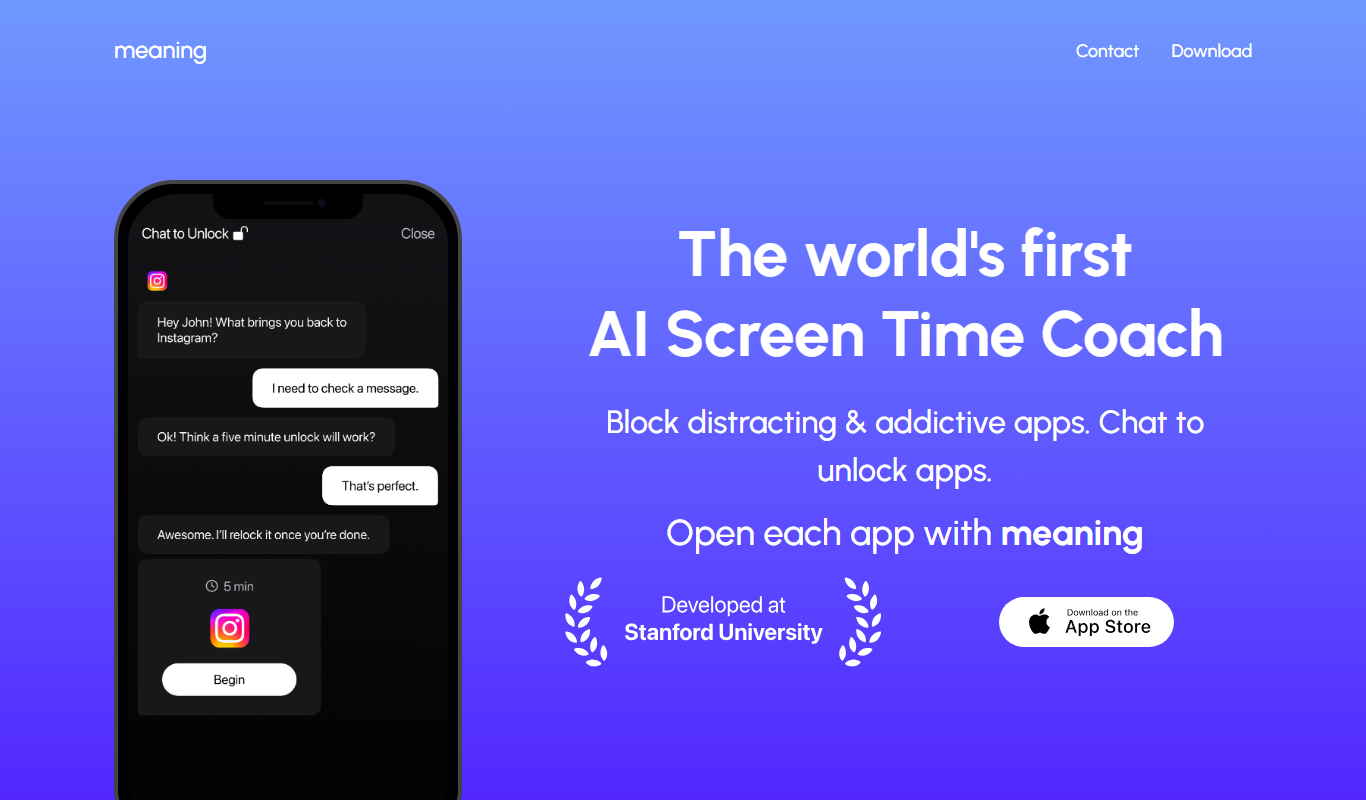
Meaning
Meaning is an AI-powered writing assistant that enhances clarity and conciseness by providing real-time rewriting suggestions to improve your text.
Freemium
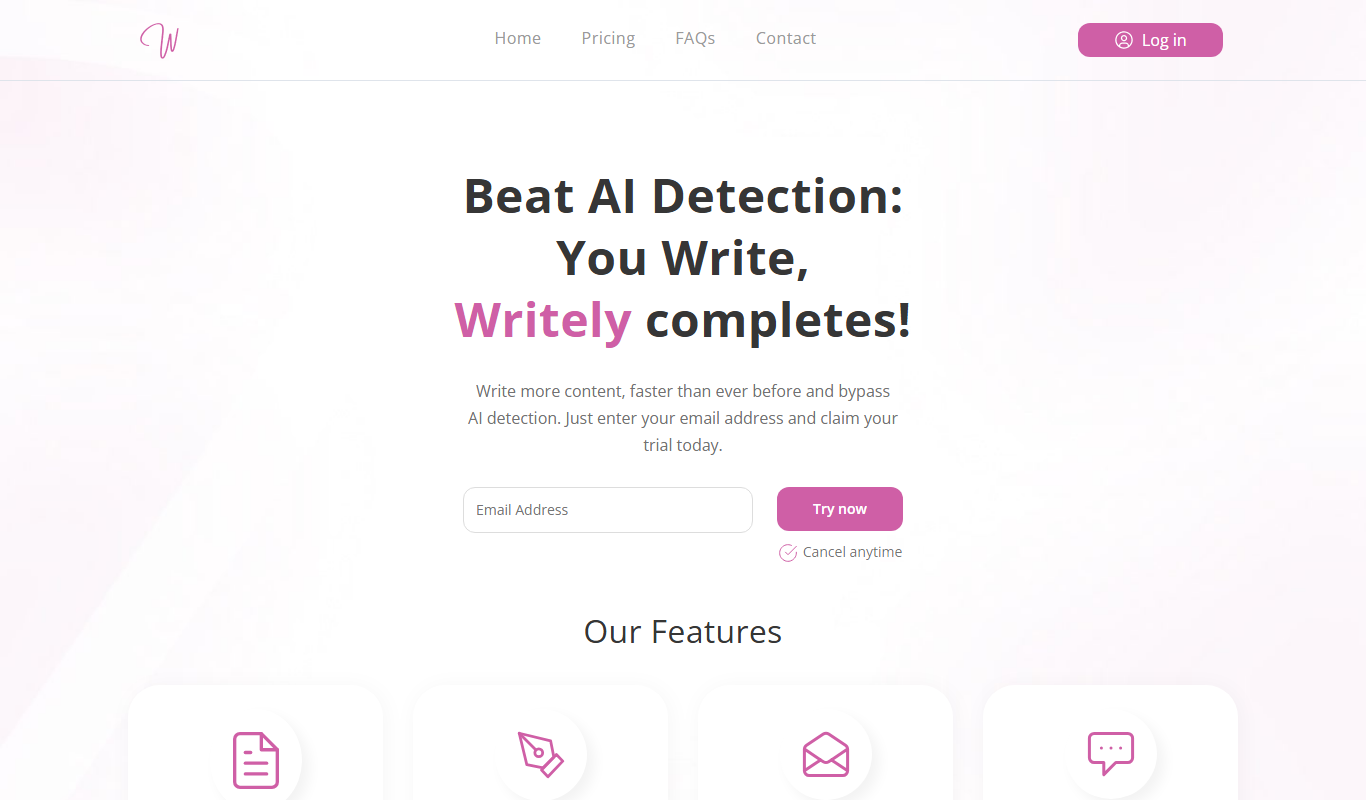
Writely
Writely is an AI-powered writing assistant that generates and optimizes content for blogs, marketing, and SEO purposes through a web-based platform.

Freemium
Vibrant.ink
Vibrant.ink is an AI-powered writing assistant that helps users generate and refine creative and marketing content with customizable tone and style options.

Free
Promptologer
Promptologer is an AI prompt generator tool that helps users create creative and effective prompts for AI models and content creation, streamlining the process of prompt engineering.
Freemium
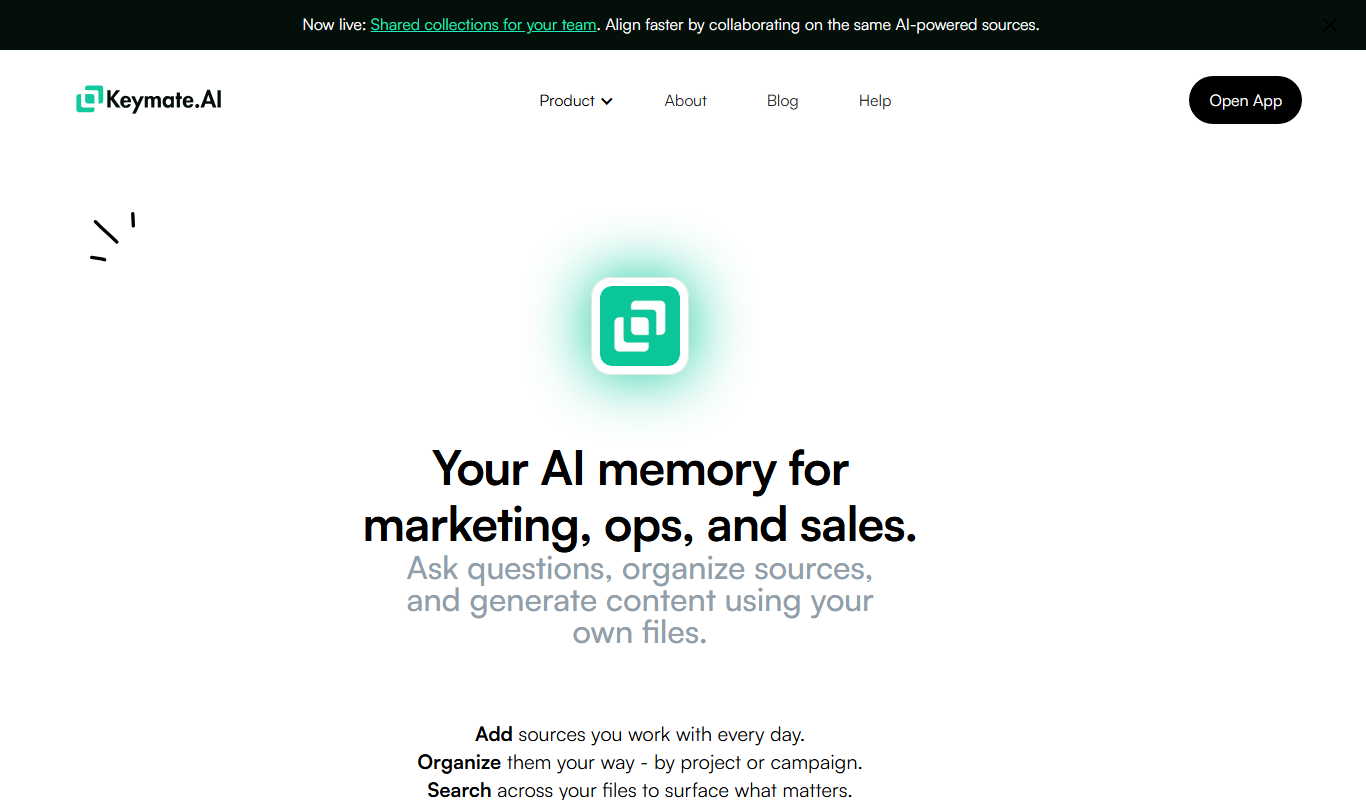
Keymate.AI
Keymate.AI is an AI writing assistant that helps users generate high-quality, SEO-optimized content and emails through a Chrome extension and web platform.

Freemium
Diry
Diry is an AI writing assistant that helps users create, edit, and optimize content with grammar corrections and SEO suggestions.
Free Trial
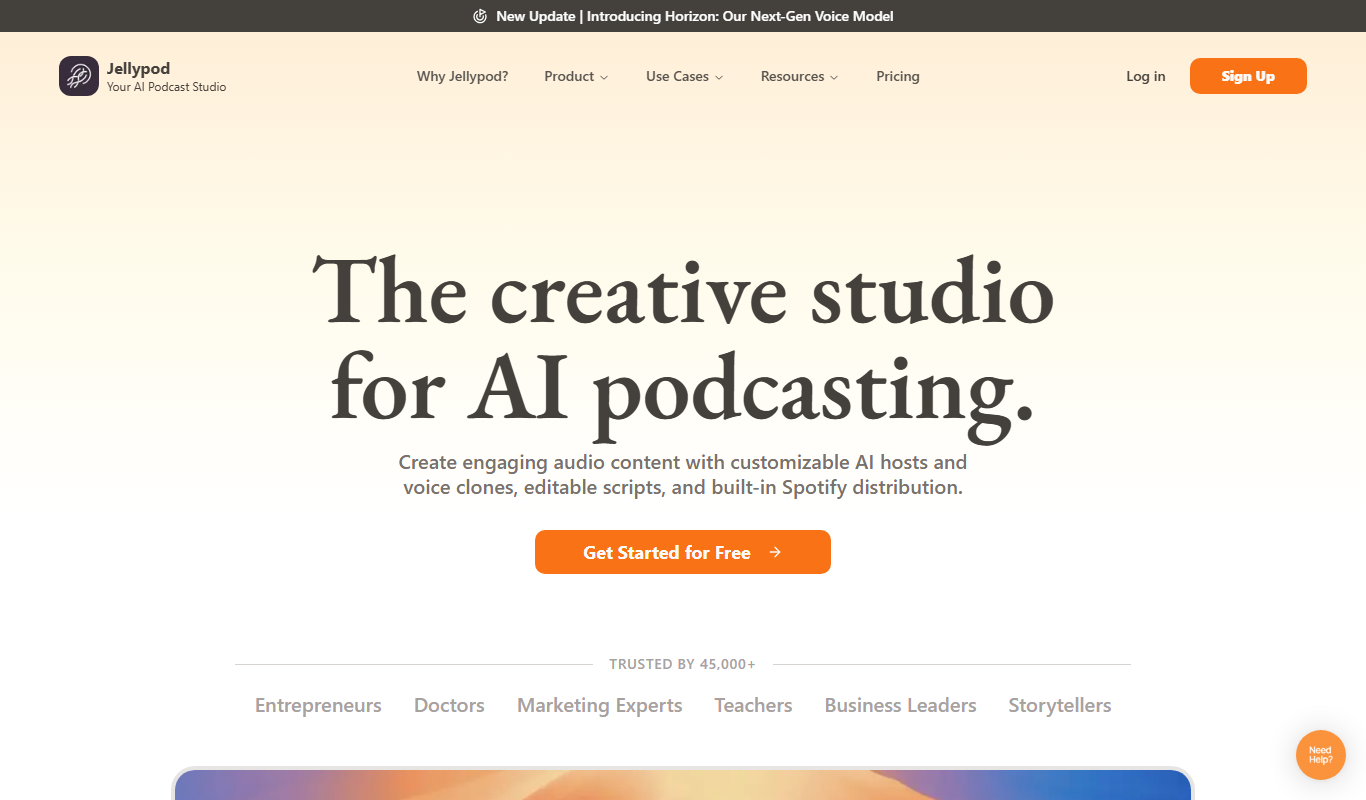
Jellypod
Jellypod is an AI-powered platform that converts text scripts into natural-sounding podcast episodes, automating audio content creation for marketers, podcasters, and content creators.
Freemium
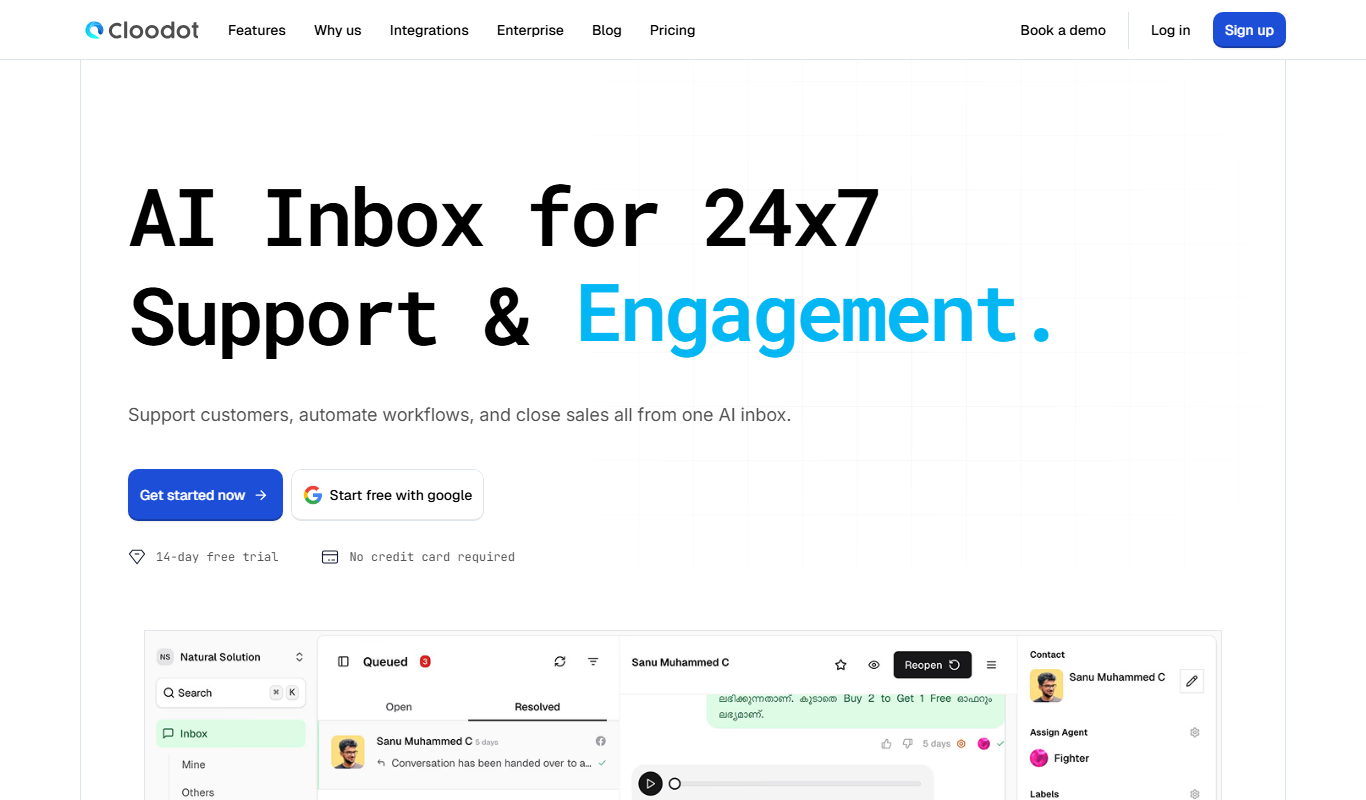
cloodot.com
Cloodot is an AI writing assistant that generates marketing content, blog posts, and social media copy to streamline content creation for businesses and marketers.