

From my experience with VideoGen, I found it excels at simplifying video creation by automating the entire process from text input to finished video. The AI-generated voiceovers and scene suggestions significantly reduce the time and effort needed, making it accessible even for users without video editing skills. It’s particularly well-suited for marketers and content creators who need quick, engaging videos for social media or campaigns. However, the platform’s customization options are somewhat limited compared to manual editors, and the free plan includes watermarks. Overall, if you want fast, automated video production from scripts, VideoGen delivers solid, user-friendly results.
AI Video Generator VideoGen for Automated Video Creation Online
VideoGen is an AI video generator that transforms text scripts into fully automated videos with voiceovers and visuals, ideal for marketers and content creators.
- Best for
- Marketing Video Production
- Key capability
- Automated Text-to-Video Conversion
Your actions
Save VideoGen – AI Video Generator, follow its updates and vote on it — everything stays in your account.
Sign in or create a free account

What is VideoGen – AI Video Generator?
VideoGen is an AI-powered video generation platform that converts text input into fully automated videos. It leverages advanced machine learning models to analyze scripts and generate relevant visuals, voiceovers, and animations without requiring manual video editing skills. This tool is designed to streamline video content creation for marketers, educators, and content creators by automating the entire production process.
Key features of VideoGen – AI Video Generator
VideoGen offers automated text-to-video conversion, customizable templates, AI-generated voiceovers, scene suggestions, and easy export options. It simplifies video creation by handling scripting, visual selection, and audio synchronization within a user-friendly web interface.
Automated Text-to-Video Conversion
Transforms written content into engaging videos without manual editing.
AI-Generated Voiceovers
Creates natural-sounding narration from text using advanced speech synthesis.
Customizable Video Templates
Offers a variety of templates to match different video styles and purposes.
Scene and Visual Suggestions
AI recommends relevant images, clips, and animations to complement the script.
Easy Export Options
Supports multiple video formats optimized for social media and professional use.
Pros and cons of VideoGen – AI Video Generator
Pros
- Fully automated video creation from text
- User-friendly interface with minimal learning curve
- AI voiceovers sound natural and clear
- Multiple templates for diverse video styles
- Affordable pricing with a free tier
Cons
- Limited customization compared to manual video editors
- Free plan videos include watermark
- Currently supports only English language
- Web-only platform without mobile apps
Key use cases for VideoGen – AI Video Generator
Marketing Video Production
Create promotional videos quickly for social media, ads, and campaigns without manual editing.
Content Repurposing
Transform blog posts, articles, or scripts into engaging video content to reach wider audiences.
Educational Videos
Generate explainer videos or tutorials automatically from text to support e-learning and training.
Social Media Content
Produce short, shareable videos optimized for platforms like Instagram, TikTok, and Facebook.
Internal Communications
Create video updates and announcements for teams and organizations efficiently.
How VideoGen – AI Video Generator works
- 1
Input Text Script
Users provide the text or script they want to convert into a video.
- 2
AI Video Generation
The AI analyzes the script, selects relevant visuals, generates voiceover narration, and assembles the video.
- 3
Customize and Preview
Users can adjust scenes, change templates, and preview the video before finalizing.
- 4
Export and Share
Once satisfied, users export the video in various formats for social media, websites, or presentations.
Who is using VideoGen – AI Video Generator
Digital marketers
Content creators and bloggers
Educators and trainers
Small business owners
Social media managers
VideoGen – AI Video Generator pricing
Free
$0/month
Basic access with limited video length and watermark on exports.
Pro
$29/month
Extended video length, no watermark, premium templates, and faster processing.
Enterprise
Custom pricing
Tailored solutions with advanced features, dedicated support, and team collaboration.
Plans and prices are as published by the vendor and can change. Check the official site before you buy. Open the pricing page (opens in a new tab)
Frequently asked questions about VideoGen – AI Video Generator
Yes, VideoGen automates video creation so no prior editing skills are needed.
It supports common formats like MP4 optimized for social media and presentations.
Yes, the free plan limits video length and includes a watermark on exports.
You can select from different voice options and adjust speech speed.
It depends on your specific needs and how you plan to use the tool. The official website and documentation are the best sources for the latest details.
Pricing depends on the plan and included features. For the most accurate and up-to-date details, check the official pricing page.
Yes, it can help with that use case depending on how you configure it and what features are available. You’ll get the best results with clear inputs and a defined goal.
Sign in to review this tool.
Sign In to ReviewNo reviews yet
Be the first to share how this tool worked for you.
Ask about pricing, limits, or how it compares — or answer someone else.
Sign In to AskNo questions yet
Have a question about using or paying for this tool? Be the first to ask.
Featured on TiorAI



More AI Ai Tools tools
Other tools in the same category, for when this one is not quite the fit.

Freemium
Planit Teachers
Planit Teachers generates lesson plans, slide decks, worksheets and marking feedback for primary and secondary teachers, aligned to the National Curriculum.

Free
The Prompt Index
The Prompt Index combines 780+ curated AI prompts with 24 built-in AI tools for writing, research, decisions, images and slides, with a Free plan and paid Basic and Pro plans.
Free
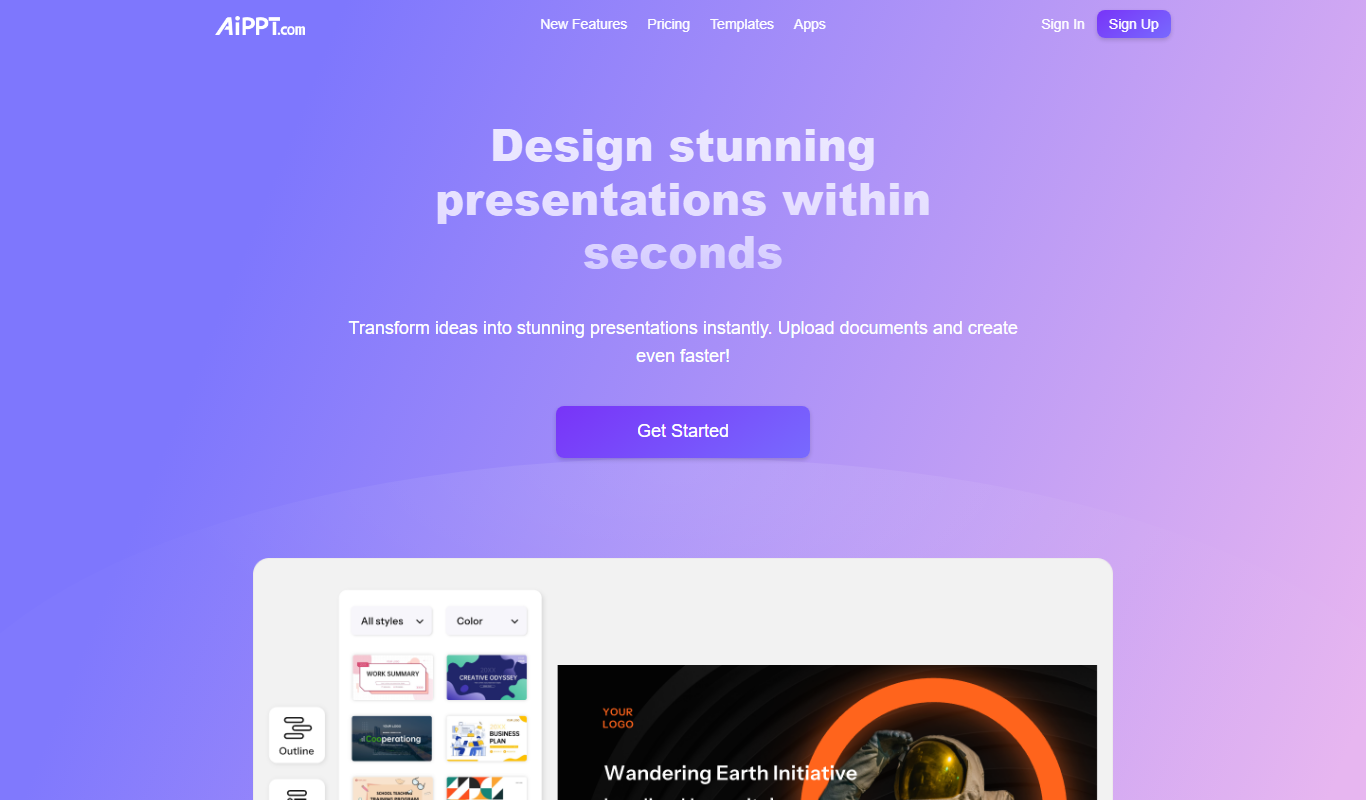
AiPPT
AiPPT is an AI-driven web tool that helps users create professional presentations quickly by generating slide content and designs automatically.
Free Trial
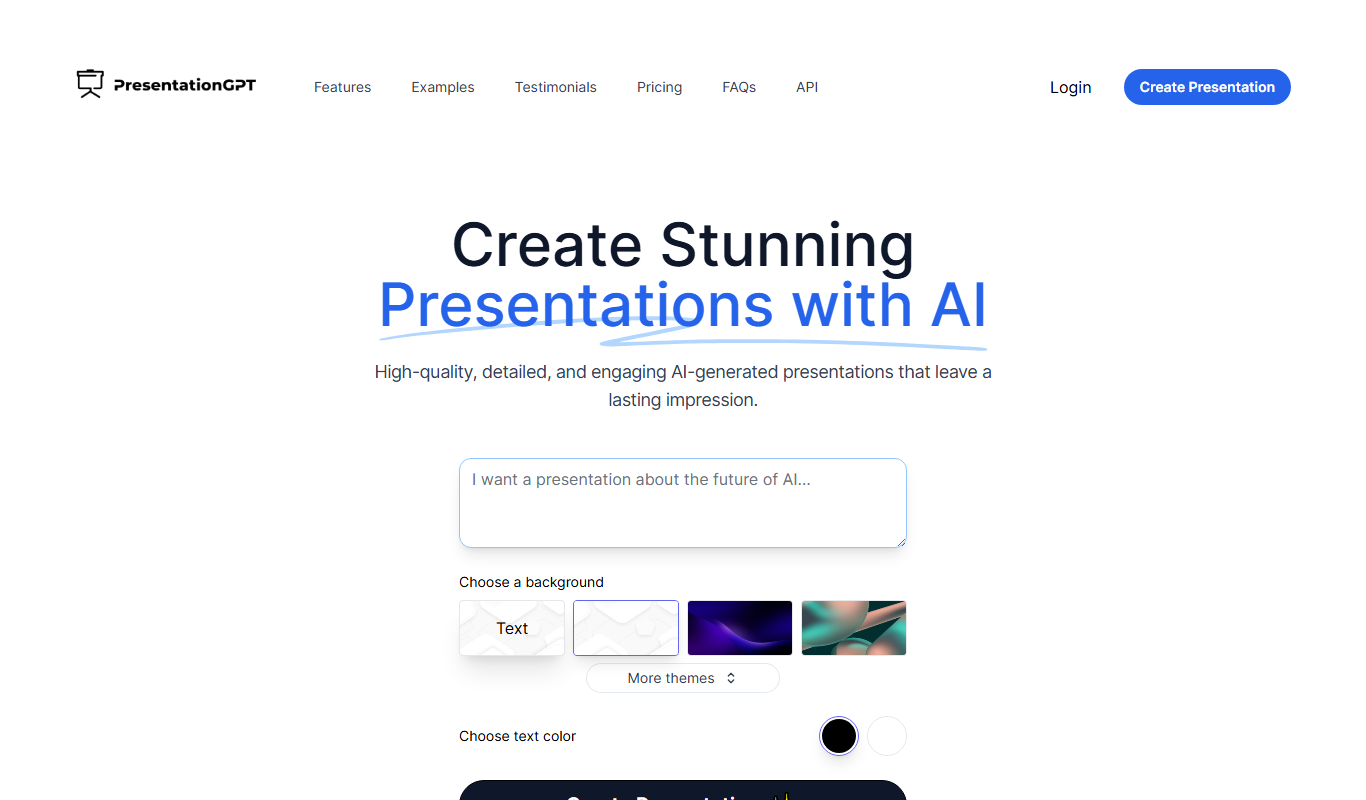
PresentationGPT
PresentationGPT is an AI-driven tool that helps users quickly create professional presentation slides by generating content and layouts based on user input.
Free
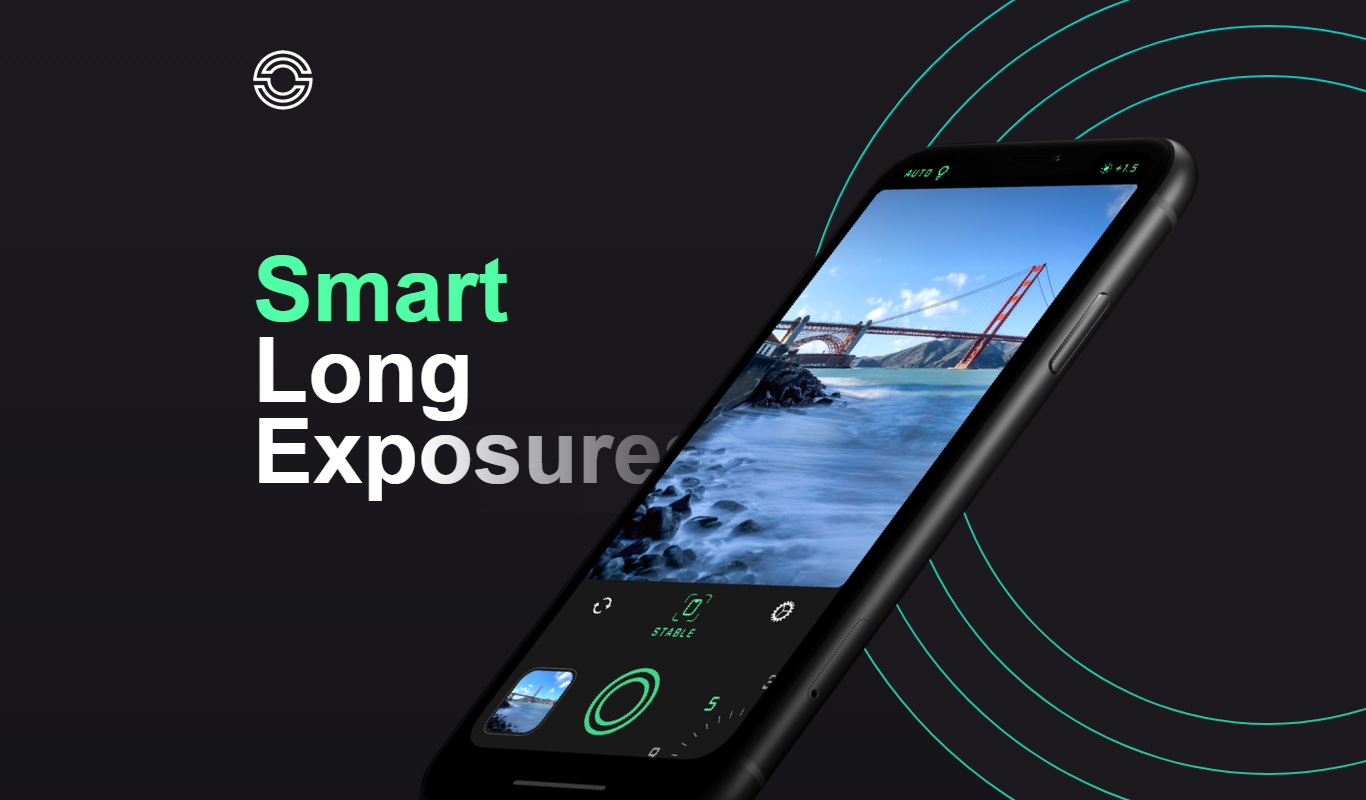
Spectre Camera
Spectre Camera is an iOS app that uses AI to create long exposure photos by stabilizing shots and combining multiple frames, enabling effects like light trails and motion blur without professional equipment.

Free
aimusic.one
aimusic.one is an AI-driven online platform that generates original, royalty-free music tracks customized by style, mood, and tempo, suitable for content creators and hobbyists.

Free
DiffRhythm
DiffRhythm is an AI music generation platform that creates custom soundtracks and beats tailored to your project’s style and mood.

Free
PracticeInterview.ai
PracticeInterview.ai is an AI-driven platform that simulates job interviews with tailored questions and provides personalized feedback to help users improve their interview skills.