

From my experience with Wisent, I found it excels at automating complex data labeling tasks, especially for image and video datasets. The platform’s AI-assisted annotation tools significantly reduce manual effort while maintaining high accuracy, which is crucial for training reliable machine learning models. Wisent’s collaborative workflows also make it a strong choice for teams working on large-scale annotation projects. However, the custom pricing model may be a barrier for smaller teams or startups. Overall, if you require scalable, high-quality data annotation for AI development, Wisent delivers a robust and flexible solution.
Wisent AI Platform for Automated Data Labeling and Annotation Services
Wisent is an AI-powered platform that automates data labeling and annotation for images, videos, and text, helping teams prepare high-quality training datasets efficiently.
- Best for
- Automated Data Labeling
- Key capability
- AI-Assisted Annotation


Do you recommend this tool?
What is Wisent?
Wisent is an AI-powered data labeling and annotation platform designed to streamline the preparation of high-quality training datasets for machine learning and artificial intelligence projects. It offers automated and semi-automated annotation tools for images, videos, and text, enabling teams to efficiently create labeled data with improved accuracy and reduced manual workload.
Key features of Wisent
Wisent provides a comprehensive suite of annotation tools including automated labeling, collaborative workflows, quality control mechanisms, and support for multiple data types such as images, videos, and text. Its platform is built to accelerate dataset preparation for AI model training while maintaining high standards of data quality.
AI-Assisted Annotation
Automate labeling processes using AI models to speed up dataset preparation.
Multi-Modal Data Support
Supports annotation of images, videos, and text for diverse AI applications.
Collaborative Workflows
Enable teams to work together on annotation projects with task assignments and progress tracking.
Quality Assurance Tools
Integrated review and validation tools to ensure high-quality labeled data.
Customizable Annotation Interfaces
Tailor annotation tools and workflows to specific project needs.
Pros and cons of Wisent
Pros
- Automates tedious data labeling tasks with AI assistance
- Supports multiple data types including images, videos, and text
- Facilitates team collaboration with workflow management
- Includes quality assurance features to maintain annotation accuracy
Cons
- Pricing is custom and may be expensive for small projects
- Limited public information on technology stack and integrations
Key use cases for Wisent
Automated Data Labeling
Use Wisent to automatically label large datasets for machine learning models, reducing manual effort and improving accuracy.
Image and Video Annotation
Annotate images and videos with bounding boxes, segmentation, and keypoints to prepare training data for computer vision applications.
Natural Language Processing Data Preparation
Label text data for NLP tasks such as entity recognition, sentiment analysis, and intent classification.
Quality Control and Review
Leverage Wisent’s tools for quality assurance to review and validate annotations ensuring high-quality datasets.
Custom Workflow Automation
Design and implement custom annotation workflows tailored to specific project requirements and data types.
How Wisent works
- 1
Upload Data
Users upload raw datasets including images, videos, or text documents to the Wisent platform.
- 2
Configure Annotation Tasks
Set up annotation parameters and select appropriate labeling tools based on the data type and project goals.
- 3
Automated and Manual Labeling
Leverage AI-assisted automated labeling or assign manual annotation tasks to team members.
- 4
Quality Review
Use built-in quality control features to review and validate annotations for accuracy and consistency.
- 5
Export Labeled Data
Download the annotated datasets in various formats compatible with machine learning frameworks.
Who is using Wisent
Machine learning engineers
Data scientists
AI development teams
Enterprises requiring large-scale data annotation
Computer vision and NLP project managers
Wisent pricing
Custom Enterprise Pricing
Contact for pricing
Tailored pricing based on project scale, data volume, and feature requirements.
Plans and prices are as published by the vendor and can change. Check the official site before you buy. Open the pricing page (opens in a new tab)
Frequently asked questions about Wisent
Wisent supports annotation for images, videos, and text data.
Yes, Wisent provides AI-assisted automated annotation to accelerate labeling tasks.
Yes, Wisent includes collaborative workflows with task management and progress tracking.
Wisent offers quality control tools for reviewing and validating annotations.
This tool is designed to help users accomplish its core tasks more efficiently. It is typically used by individuals or teams looking to improve productivity and workflow.
Yes, it can help with that use case depending on how you configure it and what features are available. You’ll get the best results with clear inputs and a defined goal.
It depends on your specific needs and how you plan to use the tool. The official website and documentation are the best sources for the latest details.
Sign in to review this tool.
Sign In to ReviewNo reviews yet
Be the first to share how this tool worked for you.
Ask about pricing, limits, or how it compares — or answer someone else.
Sign In to AskNo questions yet
Have a question about using or paying for this tool? Be the first to ask.
Featured on TiorAI



More AI Artificial Intelligence Tools tools
Other tools in the same category, for when this one is not quite the fit.
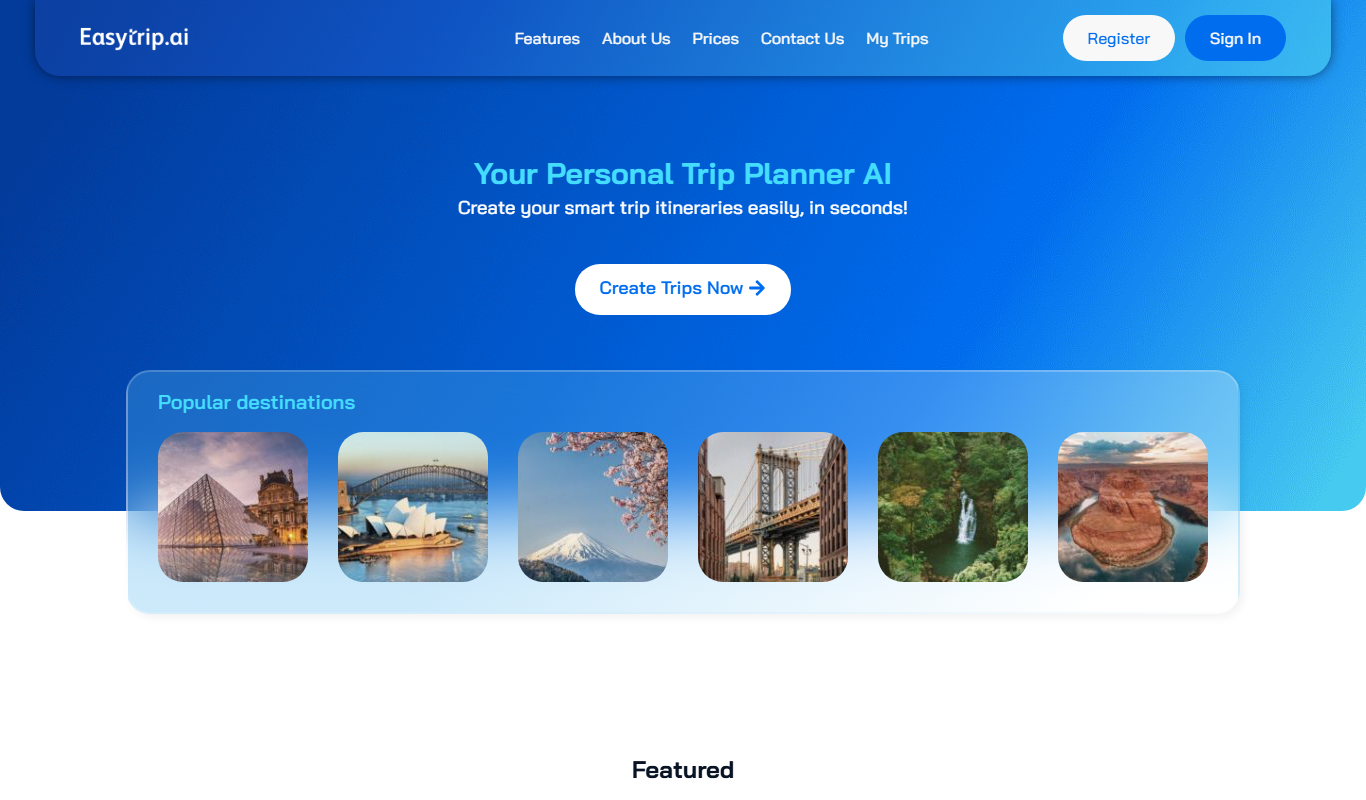
Freemium
EasyTrip AI
EasyTrip AI is an AI-driven travel planner that generates customized trip itineraries based on your travel dates, destinations, and preferences, helping you organize your trip efficiently.

Freemium
Travel Itinerary AI
Travel Itinerary AI is an AI-powered web tool that creates personalized travel itineraries based on your preferences, helping you plan and manage trips efficiently.

Free
NilgAI Travel
NilgAI Travel is an AI-driven travel planning tool that creates personalized itineraries based on your preferences, travel dates, and budget, helping you efficiently plan trips worldwide.

Custom Pricing
sentiance.com
Sentiance is an AI-powered platform that transforms sensor and contextual data into actionable behavioral insights, enabling businesses to understand user behavior and deliver personalized experiences in real-time.

Contact for pricing
ODESIS
ODESIS is an AI-driven analytics platform that helps businesses transform data into actionable insights through machine learning, visualization, and predictive analytics.

Contact for pricing
QUINETICS
Quinetics is an AI platform that provides businesses with advanced data analytics, workflow automation, and custom machine learning model development to optimize operations and decision-making.

Free
aigclist
AIGCList is a free online directory that aggregates and categorizes AI tools, providing detailed information, user reviews, and AI industry news to help users discover and compare AI solutions.

Free
AI Tool Center
AI Tool Center is a free online directory that helps users discover, compare, and review AI tools across various categories and industries.