

From my experience with VidNarrate, I found it excels at simplifying the video narration process by automating voiceover and caption creation with AI. The platform’s intuitive web interface and multi-language support make it especially useful for content creators and marketers who need to produce videos quickly without recording their own voice. However, the free plan’s watermark and limited voice customization mean it may not fully replace professional voice actors for high-end productions. Overall, if you want to speed up video content creation with quality AI narration and captions, VidNarrate delivers solid, practical results.
VidNarrate AI Video Narration Tool for Automated Voiceovers and Captions
VidNarrate is an AI video narration tool that automates voiceover creation and captioning, supporting multiple languages and customizable voices for quick video production.
- Best for
- Automated Video Voiceovers
- Key capability
- AI-Powered Text-to-Speech


Do you recommend this tool?
What is VidNarrate?
VidNarrate is an AI-powered video narration platform that automates the creation of voiceovers and captions for videos. It leverages advanced text-to-speech technology to generate natural and expressive narration, eliminating the need for manual recording. Users can upload videos, input scripts or use auto-generated transcripts, and produce professional voiceovers in multiple languages. VidNarrate streamlines video content creation by combining narration, captioning, and translation features in one web-based tool.
Key features of VidNarrate
VidNarrate offers AI voiceover generation with customizable voices, automatic captioning and subtitle creation, multi-language support for localization, and an intuitive web interface for easy video editing. It integrates text-to-speech technology with video editing workflows to speed up content production.
AI-Powered Text-to-Speech
Generates realistic and expressive voiceovers from text scripts.
Automatic Captioning
Creates accurate captions and subtitles synchronized with video content.
Multi-Language Support
Supports narration and captions in multiple languages for global reach.
Customizable Voices
Offers a selection of voice styles and tones to suit different video types.
Web-Based Interface
Accessible from any browser without software installation.
Pros and cons of VidNarrate
Pros
- Easy-to-use web interface with no software installation
- Supports multiple languages and voice styles
- Combines narration and captioning in one tool
- Affordable pricing with a free tier
- Speeds up video content production significantly
Cons
- Free plan includes watermarks on exported videos
- Limited voice customization compared to professional voice actors
- Requires internet connection to use
Key use cases for VidNarrate
Automated Video Voiceovers
Create natural-sounding AI voiceovers for videos without recording your own voice.
Caption Generation
Automatically generate accurate captions and subtitles to improve accessibility.
Content Localization
Translate and narrate videos in multiple languages to reach a global audience.
Marketing Videos
Produce engaging narrated videos quickly for social media and advertising campaigns.
E-learning Content
Develop narrated educational videos with clear and professional voiceovers.
How VidNarrate works
- 1
Upload Video
Start by uploading your video file to the VidNarrate platform.
- 2
Add or Generate Script
Input your narration script manually or use VidNarrate’s auto-transcription to generate text from the video.
- 3
Select Voice and Language
Choose from a variety of AI voices and languages to match your video’s tone and audience.
- 4
Generate Narration and Captions
The AI processes the script to create voiceover audio and synchronized captions automatically.
- 5
Edit and Export
Review the narration and captions, make any adjustments, then export the final video with embedded voiceover and subtitles.
Who is using VidNarrate
Content creators and YouTubers
Marketing and social media teams
E-learning developers
Small to medium businesses
Video production freelancers
VidNarrate pricing
Free
$0/month
Basic features with limited video length and watermark on exports.
Pro
$19/month
Extended video length, no watermarks, access to premium voices and languages.
Business
$49/month
Advanced features including team collaboration, priority support, and bulk processing.
Plans and prices are as published by the vendor and can change. Check the official site before you buy. Open the pricing page (opens in a new tab)
Frequently asked questions about VidNarrate
Yes, VidNarrate allows commercial use under its paid subscription plans.
VidNarrate supports common video formats such as MP4, MOV, and AVI.
Captions are generated using AI transcription technology and are generally accurate, but manual edits are recommended for best results.
Yes, you can select from multiple voice options and adjust speed and tone.
It depends on your specific needs and how you plan to use the tool. The official website and documentation are the best sources for the latest details.
Yes, it can help with that use case depending on how you configure it and what features are available. You’ll get the best results with clear inputs and a defined goal.
Yes, it can help with that use case depending on how you configure it and what features are available. You’ll get the best results with clear inputs and a defined goal.
Sign in to review this tool.
Sign In to ReviewNo reviews yet
Be the first to share how this tool worked for you.
Ask about pricing, limits, or how it compares — or answer someone else.
Sign In to AskNo questions yet
Have a question about using or paying for this tool? Be the first to ask.
Featured on TiorAI



More AI Content Creation Tools tools
Other tools in the same category, for when this one is not quite the fit.

Freemium
Swifty
Swifty is an AI writing assistant that helps users create and edit English content quickly with AI-generated suggestions and grammar corrections.
Freemium
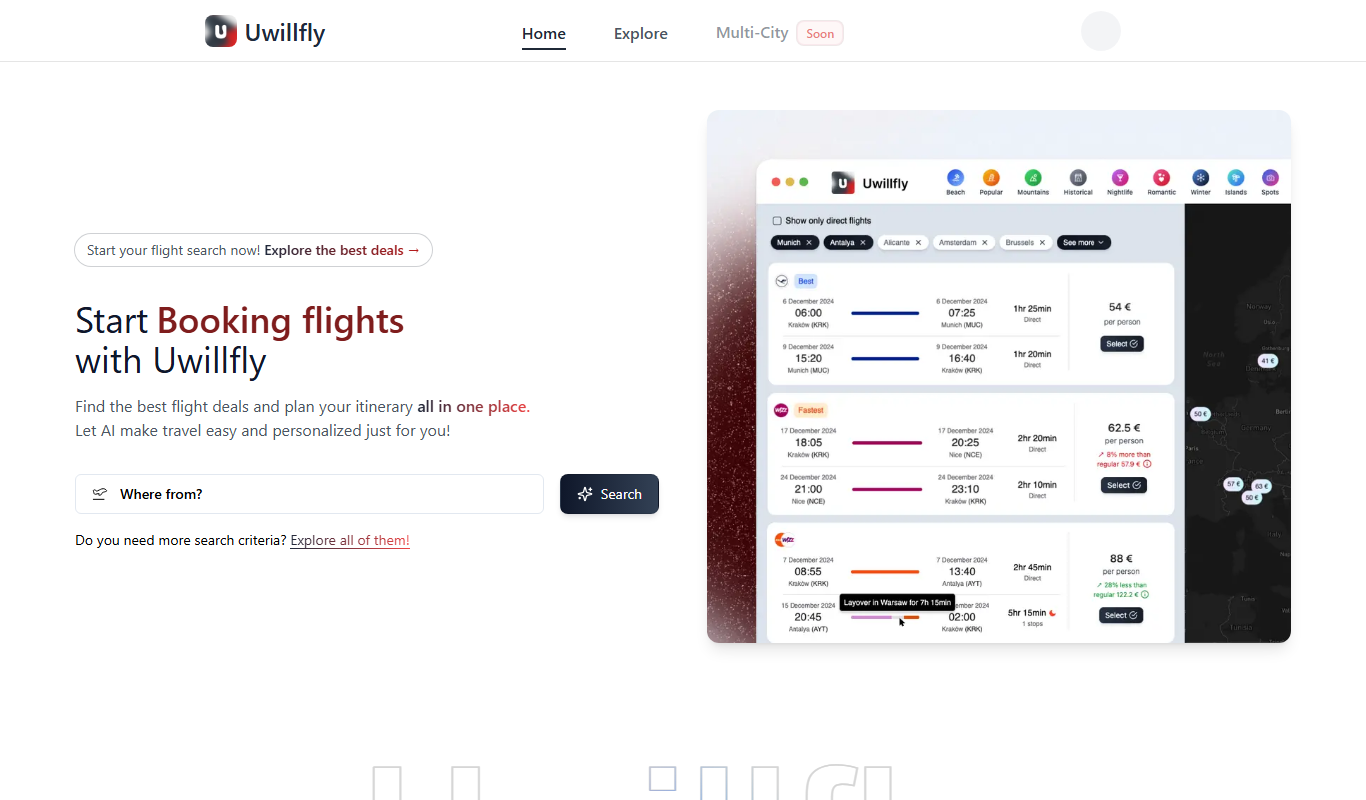
Uwillfly
Uwillfly is an AI-powered writing assistant that generates SEO-optimized articles, marketing copy, and content in English and Chinese to help marketers and writers create content faster.

Freemium
Smart Pineapple
Smart Pineapple is an AI-powered writing assistant designed to generate SEO-friendly content, including blog posts and marketing copy, through an easy-to-use web platform.

Freemium
Explra
Explra is an AI-powered writing assistant designed to help marketers and content creators generate SEO-friendly content quickly and efficiently.
Freemium
Ai & Stuff
Ai & Stuff is a web platform providing multiple AI-powered tools for generating text and images, automating content tasks, and assisting creative workflows.

Free
AI Listify
AI Listify is an AI-driven tool that generates structured lists for content marketing, SEO, and idea organization, helping users create engaging and readable lists quickly.

Freemium
iSamurai
iSamurai is an AI-powered writing assistant that generates SEO-friendly content including blog posts and marketing copy to help businesses and creators save time and improve content quality.
Free
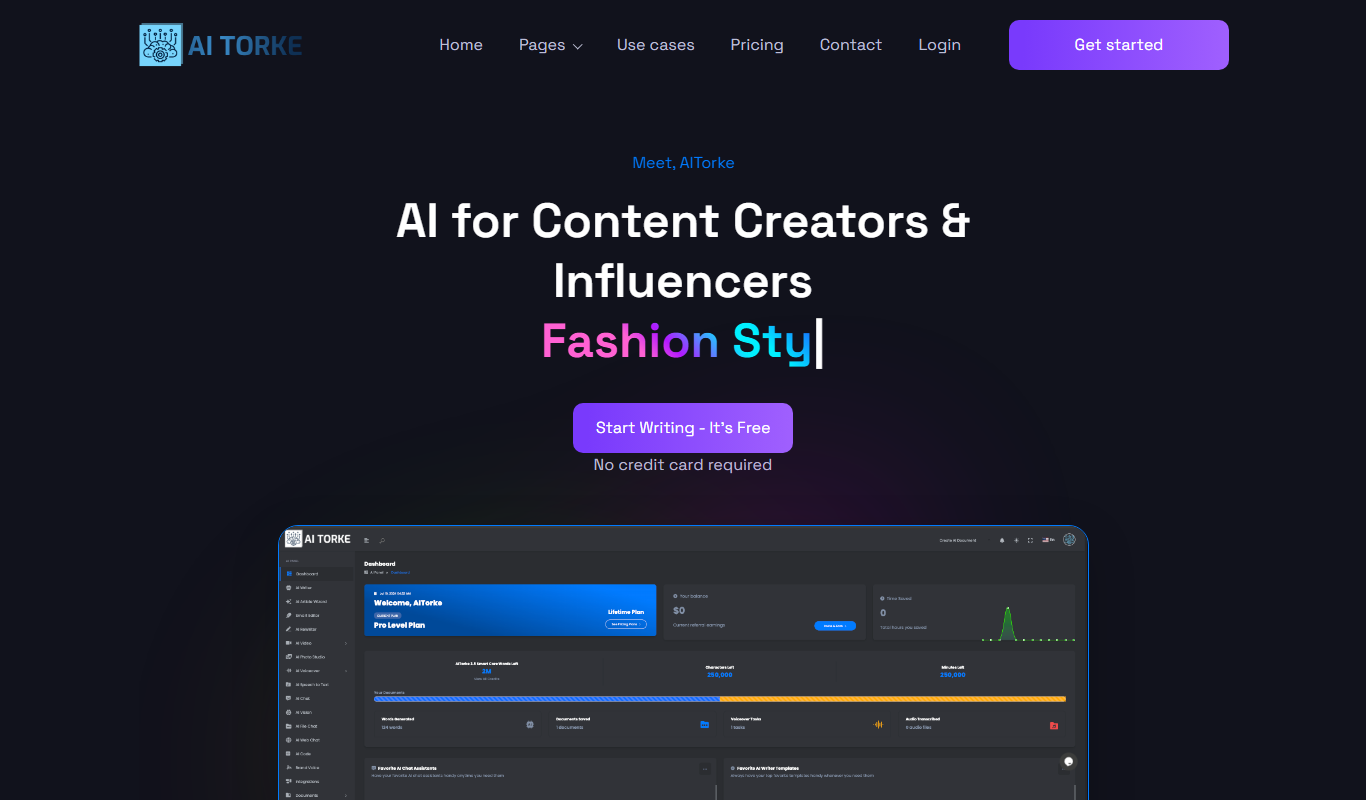
AITorke
AITorke is an AI writing assistant that helps users generate, optimize, and edit content with SEO tools and AI-powered suggestions.