

From my experience with Storykit, it excels at simplifying video creation for marketing and social media teams by automating much of the production process. The platform’s intuitive interface and customizable templates make it accessible even for users without video editing skills. I found it particularly well-suited for marketing professionals and content creators who need to produce videos quickly and maintain brand consistency. However, the trade-off is that it lacks advanced editing features found in professional software and is limited to a web platform only. Overall, if you want to streamline video content creation without a steep learning curve, Storykit delivers solid results.
Storykit Video Creation Platform for Marketing and Social Media Content
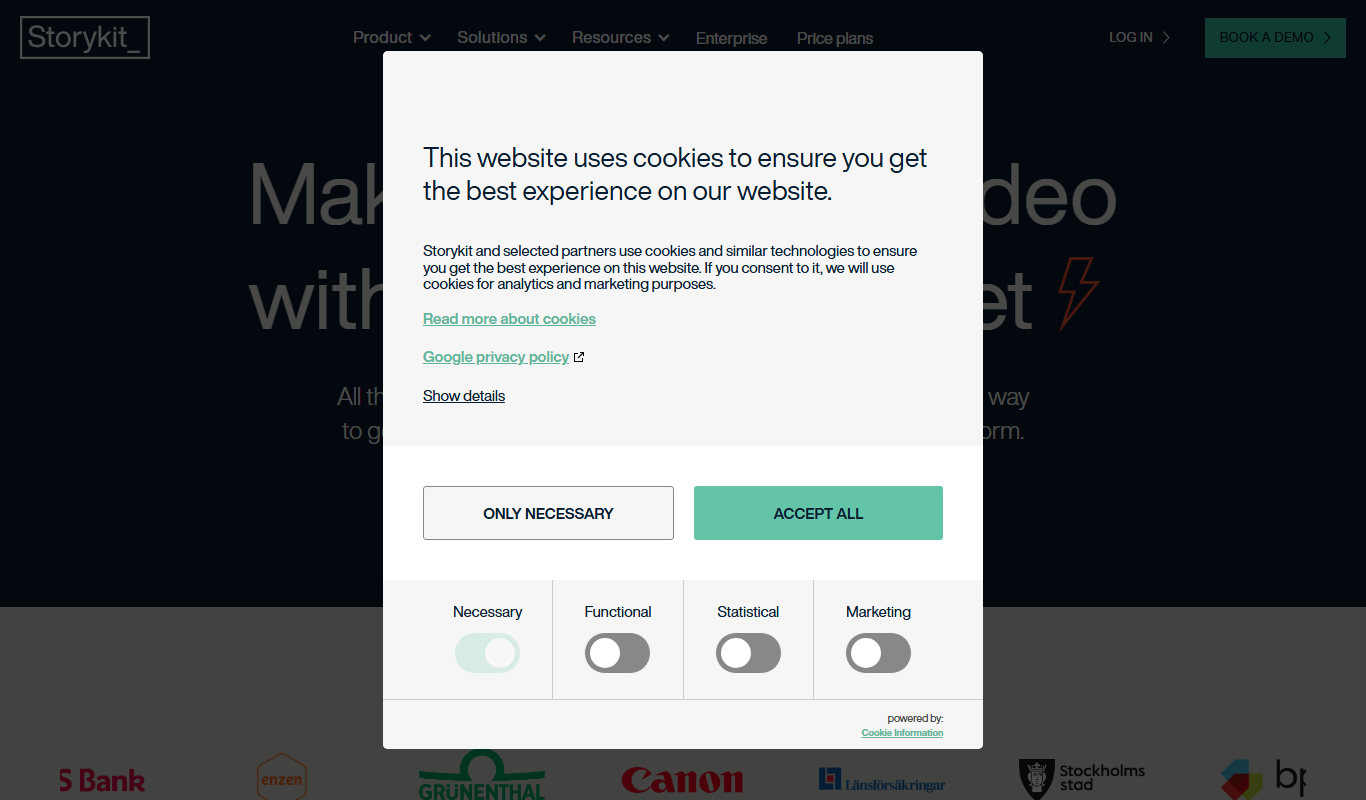
Storykit is a web-based video creation platform that automates video production from text and data, offering customizable templates and brand integration for marketing and social media content.
- Best for
- Marketing Video Production
- Key capability
- Automated Video Creation
Do you recommend this tool?
What is Storykit?
Storykit is a cloud-based video creation platform designed to simplify and accelerate the production of professional-quality videos. It enables marketing teams and content creators to transform text, images, and data into engaging videos optimized for social media and other digital channels without requiring advanced video editing skills.
Key features of Storykit
Storykit offers customizable video templates, automated video generation from text and data, brand asset integration, multi-format export options, and collaboration tools to streamline video production workflows.
Automated Video Creation
Convert text and data into videos automatically, saving time on manual editing.
Customizable Templates
Access a library of templates that can be tailored to your brand’s style and messaging.
Brand Asset Integration
Easily incorporate logos, fonts, and colors to maintain brand consistency.
Multi-Format Export
Export videos in formats optimized for social media, websites, and presentations.
Collaboration Tools
Work with team members on video projects with shared access and feedback options.
Pros and cons of Storykit
Pros
- User-friendly interface suitable for beginners
- Automates video creation from text and data
- Customizable templates maintain brand consistency
- Supports multiple export formats for social media
- Collaboration features enhance team workflows
Cons
- Limited advanced editing features compared to professional software
- No desktop or mobile app; web-only platform
- Pricing may be high for small businesses or occasional users
Key use cases for Storykit
Marketing Video Production
Create engaging marketing videos quickly to promote products, services, or campaigns.
Social Media Content Creation
Produce videos optimized for social media platforms to increase audience engagement.
Internal Communication
Develop internal videos for company updates, training, or announcements.
Content Repurposing
Transform existing text or media content into dynamic video formats.
Brand Storytelling
Craft compelling brand stories through customizable video templates.
How Storykit works
- 1
Sign Up and Access Platform
Create an account on Storykit’s web platform to start creating videos.
- 2
Choose or Customize a Template
Select from a variety of video templates or customize your own to fit your brand.
- 3
Add Content
Input text, images, or data that you want to turn into video content.
- 4
Automate Video Generation
Use Storykit’s automation features to generate videos quickly from your content.
- 5
Review and Edit
Preview the video and make any necessary adjustments using the intuitive editor.
- 6
Export and Share
Export videos in multiple formats optimized for different platforms and share them directly.
Who is using Storykit
Marketing teams
Social media managers
Content creators
Small to medium businesses
Corporate communication departments
Storykit pricing
Free Trial
$0 for 7 days
Access to core features to test the platform with limited exports.
Pro
$49/month
Full access to all features, unlimited video exports, and brand customization.
Plans and prices are as published by the vendor and can change. Check the official site before you buy. Open the pricing page (opens in a new tab)
Frequently asked questions about Storykit
Yes, Storykit is designed for users without prior video editing skills by providing automated tools and templates.
Storykit supports exporting videos in formats optimized for social media platforms like MP4.
The Free Trial has export limits, while the Pro plan offers unlimited video exports.
Yes, Storykit includes collaboration features for team-based video projects.
It depends on your specific needs and how you plan to use the tool. The official website and documentation are the best sources for the latest details.
Pricing depends on the plan and included features. For the most accurate and up-to-date details, check the official pricing page.
Yes, it can help with that use case depending on how you configure it and what features are available. You’ll get the best results with clear inputs and a defined goal.
Yes, it can help with that use case depending on how you configure it and what features are available. You’ll get the best results with clear inputs and a defined goal.
Sign in to review this tool.
Sign In to ReviewNo reviews yet
Be the first to share how this tool worked for you.
Ask about pricing, limits, or how it compares — or answer someone else.
Sign In to AskNo questions yet
Have a question about using or paying for this tool? Be the first to ask.
Featured on TiorAI



More AI Content Creation Tools tools
Other tools in the same category, for when this one is not quite the fit.

Freemium
Swifty
Swifty is an AI writing assistant that helps users create and edit English content quickly with AI-generated suggestions and grammar corrections.
Freemium
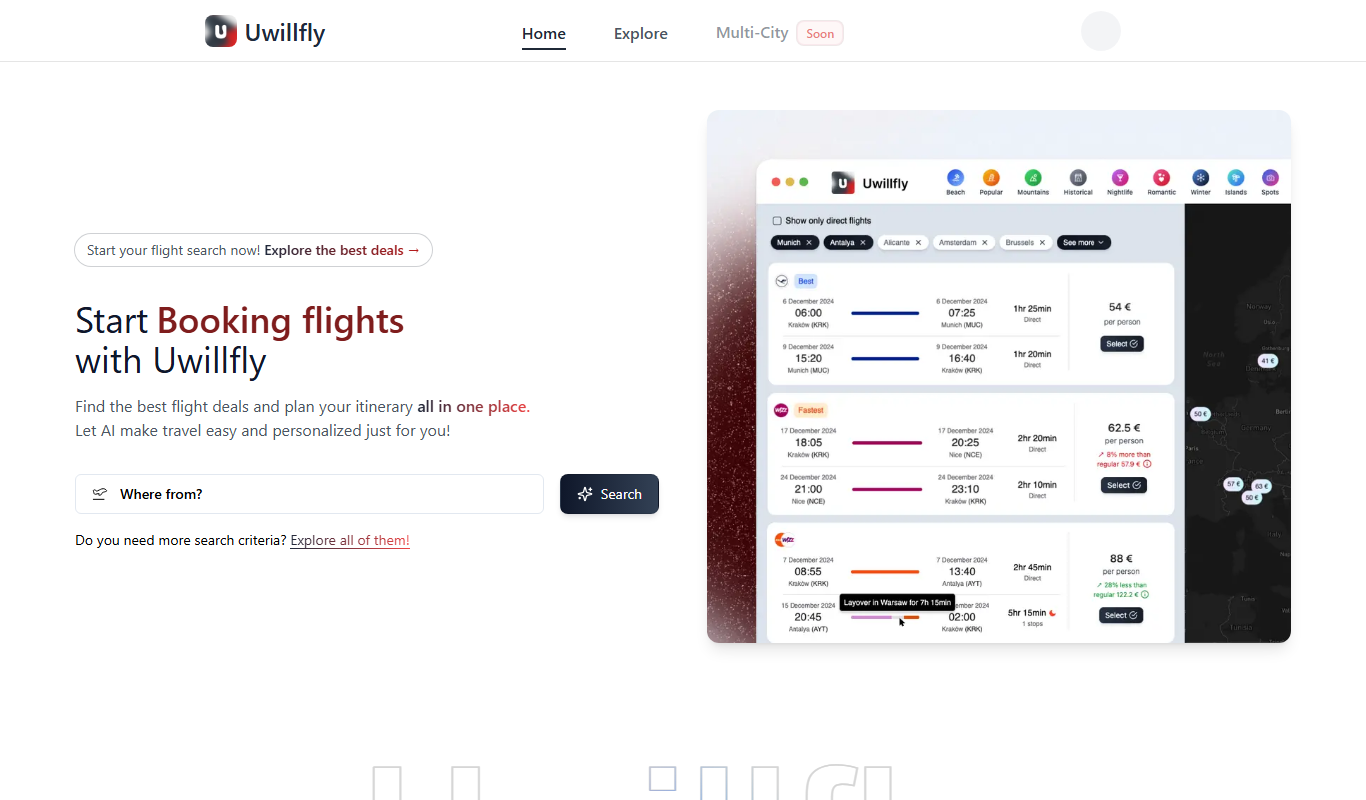
Uwillfly
Uwillfly is an AI-powered writing assistant that generates SEO-optimized articles, marketing copy, and content in English and Chinese to help marketers and writers create content faster.

Freemium
Smart Pineapple
Smart Pineapple is an AI-powered writing assistant designed to generate SEO-friendly content, including blog posts and marketing copy, through an easy-to-use web platform.

Freemium
Explra
Explra is an AI-powered writing assistant designed to help marketers and content creators generate SEO-friendly content quickly and efficiently.
Freemium
Ai & Stuff
Ai & Stuff is a web platform providing multiple AI-powered tools for generating text and images, automating content tasks, and assisting creative workflows.

Free
AI Listify
AI Listify is an AI-driven tool that generates structured lists for content marketing, SEO, and idea organization, helping users create engaging and readable lists quickly.

Freemium
iSamurai
iSamurai is an AI-powered writing assistant that generates SEO-friendly content including blog posts and marketing copy to help businesses and creators save time and improve content quality.
Free
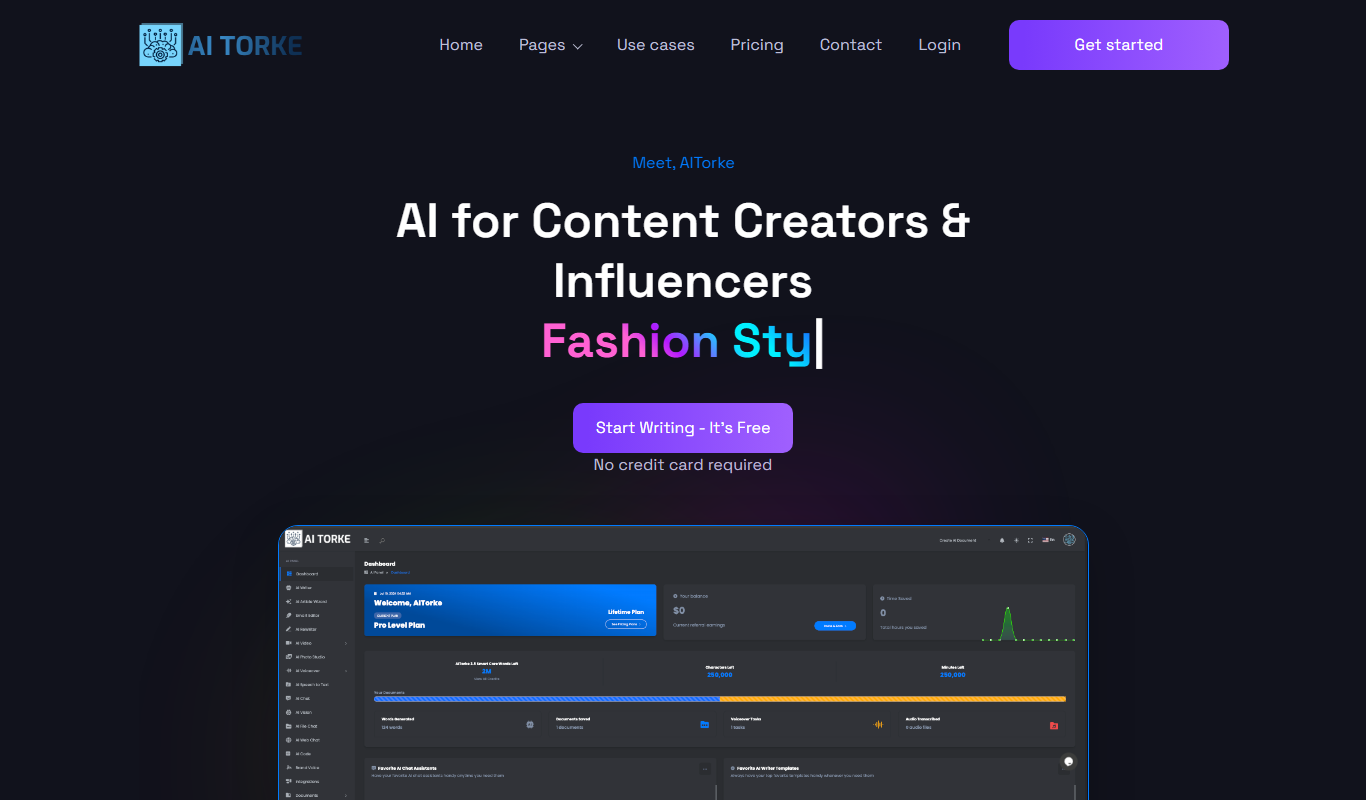
AITorke
AITorke is an AI writing assistant that helps users generate, optimize, and edit content with SEO tools and AI-powered suggestions.