

From my experience with Secto, I found it excels at providing real-time AI writing suggestions that streamline content creation and editing. The platform’s clean interface and Chrome extension integration make it easy to use across various writing tasks, from emails to creative stories. However, the tool currently supports only English and requires an internet connection, which may limit some users. Overall, if you need a straightforward AI assistant to enhance your writing efficiency, Secto delivers solid, practical support.
Secto AI Writing Assistant for Efficient Content Creation and Editing
Secto is an AI-powered writing assistant that helps users generate and improve written content through real-time suggestions and editing tools available on web and Chrome extension platforms.
- Best for
- Content Writing
- Key capability
- AI Content Generation
Your actions
Save Secto, follow its updates and vote on it — everything stays in your account.
Sign in or create a free account
What is Secto?
Secto is an AI-powered writing assistant designed to help users create, edit, and enhance written content with ease. It integrates advanced natural language processing to provide real-time suggestions, content generation, and editing support, streamlining the writing process for professionals, students, and creatives.
Key features of Secto
Secto offers AI-driven content generation, grammar and style correction, real-time editing suggestions, and integration via a web platform and Chrome extension to support seamless writing workflows.
AI Content Generation
Generate paragraphs, ideas, or entire drafts based on user prompts.
Grammar and Style Correction
Detect and suggest corrections for grammar, punctuation, and writing style.
Real-Time Editing Suggestions
Receive instant feedback and improvements as you write.
Chrome Extension Integration
Use Secto’s AI assistance directly within popular web applications and editors.
User-Friendly Interface
Clean, intuitive design that simplifies the writing and editing process.
Pros and cons of Secto
Pros
- Easy-to-use interface suitable for beginners
- Real-time AI suggestions improve writing efficiency
- Chrome extension enables seamless integration with web apps
Cons
- Limited language support (English only)
- No offline mode available
- Mobile app not yet available
Key use cases for Secto
Content Writing
Helps writers generate, edit, and improve articles, blog posts, and other written content efficiently.
Email Drafting
Assists users in composing professional and clear emails quickly.
Creative Writing
Supports brainstorming and drafting creative stories, scripts, and narratives.
Editing and Proofreading
Provides suggestions to improve grammar, style, and clarity in existing texts.
How Secto works
- 1
Sign Up
Create a free account on the Secto website to access the writing assistant.
- 2
Choose Platform
Use Secto via the web app or install the Chrome extension for in-browser assistance.
- 3
Input Text
Start typing or paste your content into the editor to receive AI-powered suggestions.
- 4
Review Suggestions
Review and apply grammar, style, and content improvement recommendations.
- 5
Export or Publish
Save, export, or publish your polished content directly from the platform.
Who is using Secto
Content writers and bloggers
Marketing professionals
Students and educators
Small business owners
Creative writers
Secto pricing
Free
$0/month
Basic access with limited daily AI suggestions and features.
Pro
$15/month
Unlimited AI suggestions, priority support, and advanced editing tools.
Plans and prices are as published by the vendor and can change. Check the official site before you buy. Open the pricing page (opens in a new tab)
Frequently asked questions about Secto
Yes, Secto offers a free plan with limited daily usage and basic features.
No, Secto requires an internet connection as it operates via cloud-based AI.
Currently, Secto supports English only.
As of now, Secto is available on web and as a Chrome extension; no dedicated mobile app.
This tool is designed to help users accomplish its core tasks more efficiently. It is typically used by individuals or teams looking to improve productivity and workflow.
Pricing depends on the plan and included features. For the most accurate and up-to-date details, check the official pricing page.
Yes, it can help with that use case depending on how you configure it and what features are available. You’ll get the best results with clear inputs and a defined goal.
Sign in to review this tool.
Sign In to ReviewNo reviews yet
Be the first to share how this tool worked for you.
Ask about pricing, limits, or how it compares — or answer someone else.
Sign In to AskNo questions yet
Have a question about using or paying for this tool? Be the first to ask.
Featured on TiorAI



More AI Content Creation Tools tools
Other tools in the same category, for when this one is not quite the fit.

Freemium
Swifty
Swifty is an AI writing assistant that helps users create and edit English content quickly with AI-generated suggestions and grammar corrections.
Freemium
Uwillfly
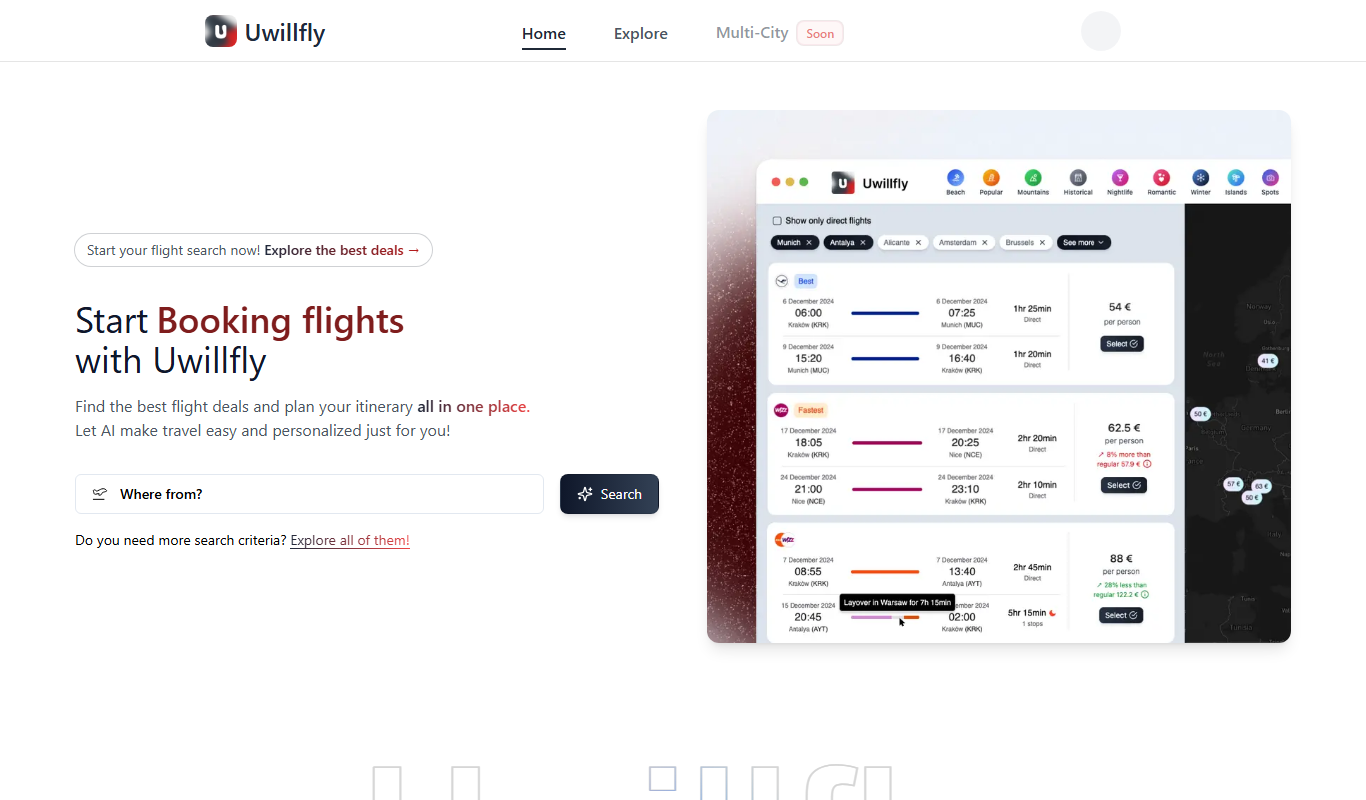
Uwillfly is an AI-powered writing assistant that generates SEO-optimized articles, marketing copy, and content in English and Chinese to help marketers and writers create content faster.

Freemium
Smart Pineapple
Smart Pineapple is an AI-powered writing assistant designed to generate SEO-friendly content, including blog posts and marketing copy, through an easy-to-use web platform.

Freemium
Explra
Explra is an AI-powered writing assistant designed to help marketers and content creators generate SEO-friendly content quickly and efficiently.
Freemium
Ai & Stuff
Ai & Stuff is a web platform providing multiple AI-powered tools for generating text and images, automating content tasks, and assisting creative workflows.

Free
AI Listify
AI Listify is an AI-driven tool that generates structured lists for content marketing, SEO, and idea organization, helping users create engaging and readable lists quickly.

Freemium
iSamurai
iSamurai is an AI-powered writing assistant that generates SEO-friendly content including blog posts and marketing copy to help businesses and creators save time and improve content quality.

Free
AITorke
AITorke is an AI writing assistant that helps users generate, optimize, and edit content with SEO tools and AI-powered suggestions.