

From my experience with Munch, it stands out for its simplicity and speed in capturing and sharing screen recordings. The ability to record both screen and webcam simultaneously with minimal setup makes it a practical choice for quick video feedback and remote collaboration. While it lacks advanced editing features, its straightforward trimming tools cover most basic needs. The free plan’s 5-minute limit is reasonable for short clips but may require upgrading for longer content. Overall, Munch is well-suited for content creators, educators, and teams needing fast, hassle-free video communication.
Munch Screen Recorder for Quick Video Captures and Sharing Online
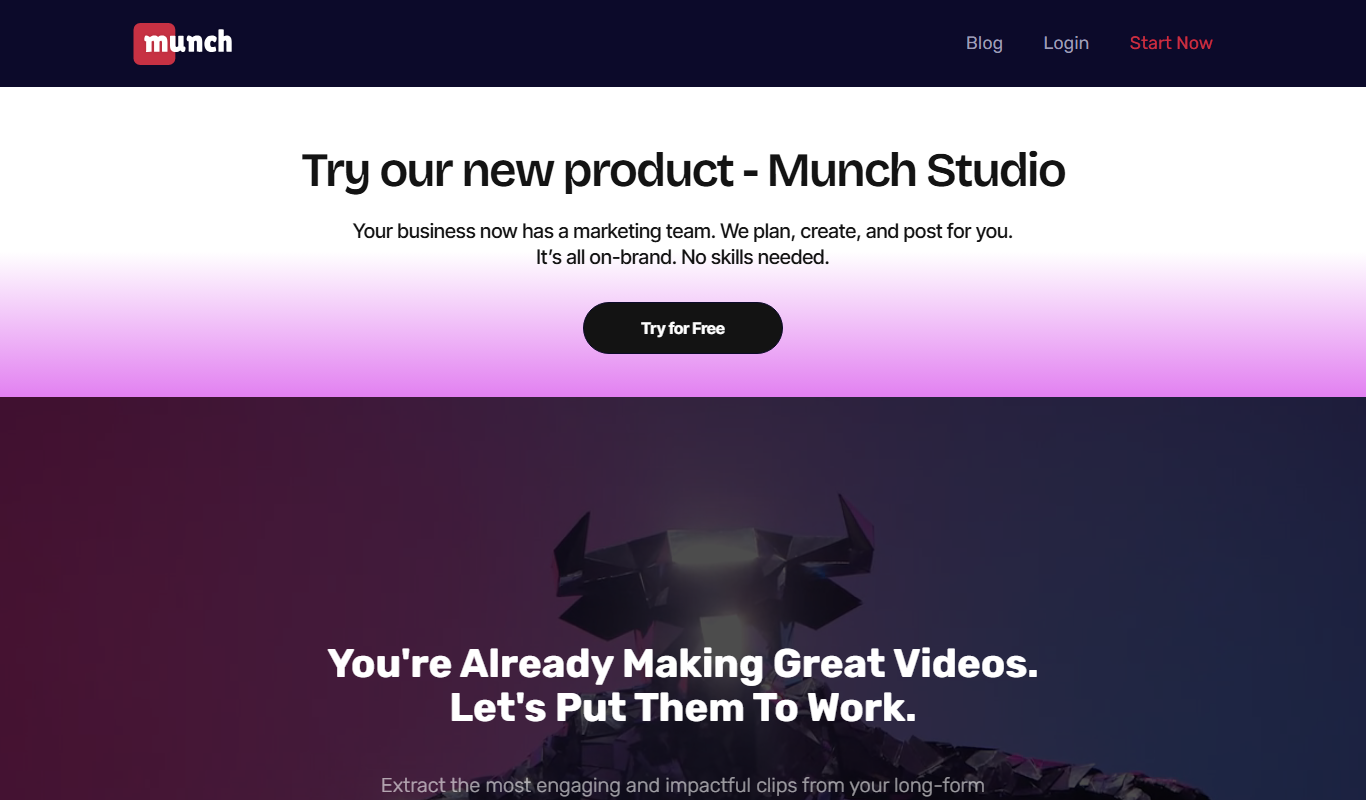
Munch is a screen recording tool that lets you capture your screen and webcam, edit videos simply, and share instantly via links, designed for quick video communication.
- Best for
- Quick Video Feedback
- Key capability
- Screen and Webcam Recording
Do you recommend this tool?
What is Munch?
Munch is a user-friendly screen recording tool designed to help individuals and teams capture, edit, and share videos quickly. It offers a streamlined experience for recording your screen, webcam, or both simultaneously, with simple editing features and instant sharing capabilities.
Key features of Munch
Munch provides fast screen capture, webcam recording, trimming and editing tools, and easy sharing options including direct links and integrations with popular platforms.
Screen and Webcam Recording
Capture your screen and webcam simultaneously or separately for versatile video creation.
Simple Video Editing
Trim recordings to remove unwanted sections quickly without complex editing software.
Instant Sharing
Share videos via links instantly, with no need to upload to third-party platforms.
Cross-Platform Access
Available as a web app, desktop app, and Chrome extension for flexible usage.
Pros and cons of Munch
Pros
- Easy to use with minimal setup
- Quick sharing without uploads
- Supports simultaneous screen and webcam recording
Cons
- Limited advanced editing features
- Free plan restricts video length
Key use cases for Munch
Quick Video Feedback
Capture and share screen recordings to provide fast and clear feedback on projects or designs.
Content Creation
Create tutorial videos, product demos, or social media content with easy screen recording and editing tools.
Remote Collaboration
Enhance communication among remote teams by sharing video messages instead of lengthy emails or chats.
Customer Support
Record and share videos to explain solutions or guide customers through troubleshooting steps.
How Munch works
- 1
Install or Access Munch
Use the web app, desktop app, or Chrome extension to start recording.
- 2
Record Your Screen
Select the screen area or application window to capture, optionally include webcam and microphone.
- 3
Edit Your Video
Trim and make simple edits to your recording to highlight key parts.
- 4
Share Instantly
Generate a shareable link or download the video to distribute it easily.
Who is using Munch
Remote teams
Content creators
Customer support agents
Marketing professionals
Educators
Munch pricing
Free
$0/month
Basic screen recording with limited video length and features.
Pro
$12/month
Extended recording time, advanced editing, and priority support.
Plans and prices are as published by the vendor and can change. Check the official site before you buy. Open the pricing page (opens in a new tab)
Frequently asked questions about Munch
Yes, Munch allows simultaneous recording of your screen and webcam.
The free plan has a maximum recording length of 5 minutes per video.
Yes, Munch provides instant shareable links for your recordings.
You can trim and make basic edits to your videos directly within Munch.
It depends on your specific needs and how you plan to use the tool. The official website and documentation are the best sources for the latest details.
Some tools offer a free plan or trial with limited features. Availability can vary, so confirm on the official website.
Yes, it can help with that use case depending on how you configure it and what features are available. You’ll get the best results with clear inputs and a defined goal.
Yes, it can help with that use case depending on how you configure it and what features are available. You’ll get the best results with clear inputs and a defined goal.
Sign in to review this tool.
Sign In to ReviewNo reviews yet
Be the first to share how this tool worked for you.
Ask about pricing, limits, or how it compares — or answer someone else.
Sign In to AskNo questions yet
Have a question about using or paying for this tool? Be the first to ask.
Featured on TiorAI



Alternative Tools
Explore similar AI tools that might fit your needs

Free
Loom
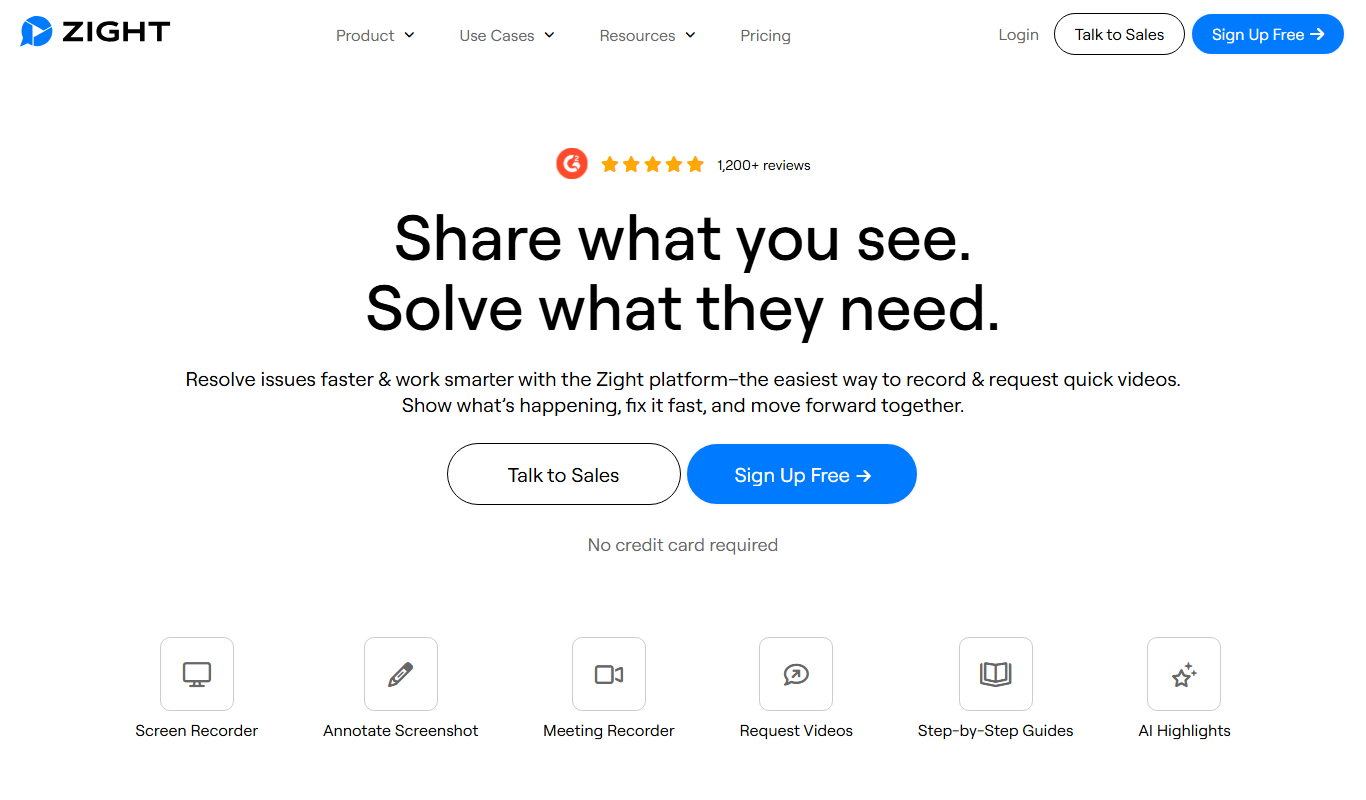
Loom is a video messaging platform that enables users to quickly record and share screen and webcam videos for remote communication, collaboration, and tutorials.
Free
CloudApp
CloudApp is a visual communication tool that enables users to capture screenshots, record screens and webcam videos, annotate images, create GIFs, and share content instantly via cloud links, designed to improve team collaboration and customer communication.

Free Trial
Snagit
Snagit is a screen capture and recording software by TechSmith that allows users to capture images and videos from their screens, edit them with annotations and effects, and share easily for tutorials, documentation, and communication.
More AI Content Creation Tools tools
Other tools in the same category, for when this one is not quite the fit.

Freemium
Swifty
Swifty is an AI writing assistant that helps users create and edit English content quickly with AI-generated suggestions and grammar corrections.
Freemium
Uwillfly
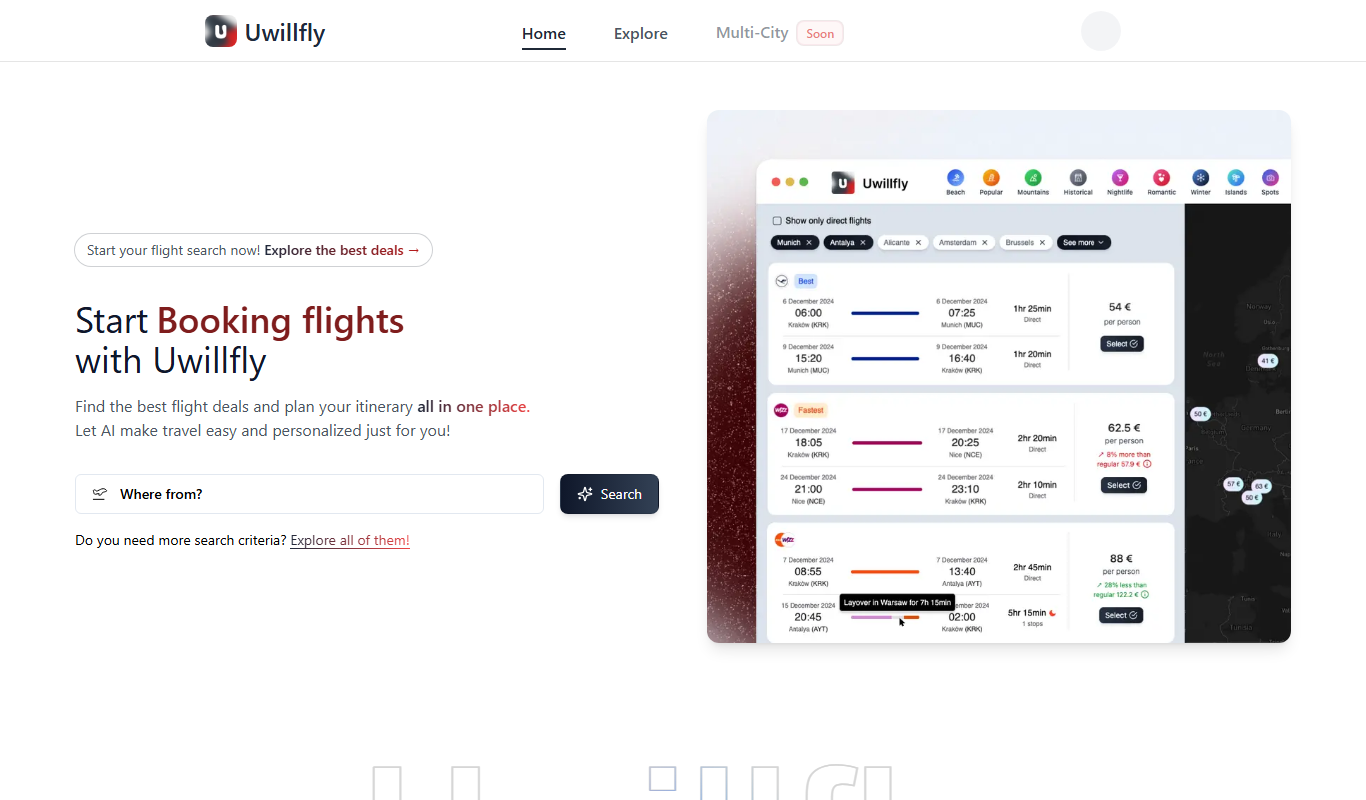
Uwillfly is an AI-powered writing assistant that generates SEO-optimized articles, marketing copy, and content in English and Chinese to help marketers and writers create content faster.

Freemium
Smart Pineapple
Smart Pineapple is an AI-powered writing assistant designed to generate SEO-friendly content, including blog posts and marketing copy, through an easy-to-use web platform.

Freemium
Explra
Explra is an AI-powered writing assistant designed to help marketers and content creators generate SEO-friendly content quickly and efficiently.
Freemium
Ai & Stuff
Ai & Stuff is a web platform providing multiple AI-powered tools for generating text and images, automating content tasks, and assisting creative workflows.

Free
AI Listify
AI Listify is an AI-driven tool that generates structured lists for content marketing, SEO, and idea organization, helping users create engaging and readable lists quickly.

Freemium
iSamurai
iSamurai is an AI-powered writing assistant that generates SEO-friendly content including blog posts and marketing copy to help businesses and creators save time and improve content quality.

Free
AITorke
AITorke is an AI writing assistant that helps users generate, optimize, and edit content with SEO tools and AI-powered suggestions.