

From my experience with LaunchBar, it stands out as an efficient macOS productivity tool that significantly speeds up launching apps and managing files through keyboard shortcuts. Its powerful automation capabilities allow users to customize workflows, making repetitive tasks much faster. While it requires some time to master advanced features and is limited to Mac users, the streamlined interface and integration with system features like contacts and calendar make it a valuable asset for power users and professionals. If you want to boost your Mac workflow and reduce reliance on the mouse, LaunchBar delivers reliable performance.
LaunchBar Mac Productivity App for Fast App Launching and Automation
LaunchBar is a macOS productivity app that speeds up launching applications, managing files, clipboard history, and automating workflows using keyboard shortcuts and custom scripts.
- Best for
- Quick Application Launching
- Key capability
- Instant Application Launching

Do you recommend this tool?
What is LaunchBar?
LaunchBar is a powerful productivity utility for macOS that enables users to quickly launch applications, access files, manage clipboard history, and automate workflows using keyboard shortcuts and an intuitive search interface. It acts as a central hub to speed up daily tasks and improve efficiency on Mac computers.
Key features of LaunchBar
LaunchBar offers fast app launching, file browsing, clipboard management, contact and calendar integration, and extensive automation capabilities through custom scripts and actions.
Instant Application Launching
Open any app or document instantly by typing its name or abbreviation.
Clipboard History
Access and reuse previously copied items with a searchable clipboard manager.
Custom Workflows and Automation
Create and run custom scripts and workflows to automate repetitive tasks.
Contact and Calendar Integration
Quickly find contacts and calendar events to send emails or schedule meetings.
Web Search and Navigation
Perform web searches and navigate URLs directly from LaunchBar.
Pros and cons of LaunchBar
Pros
- Speeds up daily tasks with quick app and file launching
- Highly customizable with scripting and workflows
- Integrates well with macOS features like contacts and calendar
- Lightweight and fast with minimal system impact
Cons
- Only available for macOS
- Learning curve for advanced automation features
- No free version beyond trial period
Key use cases for LaunchBar
Quick Application Launching
LaunchBar allows users to quickly open applications, documents, and bookmarks using keyboard shortcuts and search.
File and Clipboard Management
Users can manage files, access clipboard history, and perform file operations efficiently within LaunchBar.
Automation and Scripting
LaunchBar supports custom scripts and automation workflows to speed up repetitive tasks on macOS.
Contact and Calendar Access
Users can quickly find and interact with contacts, calendar events, and emails directly through LaunchBar.
Web Search and Navigation
LaunchBar integrates web search and navigation features, enabling quick access to online resources.
How LaunchBar works
- 1
Invoke LaunchBar
Press a customizable keyboard shortcut to open the LaunchBar search interface.
- 2
Search or Enter Commands
Type the name of an app, file, contact, or command to quickly find and select it.
- 3
Execute Actions
Use keyboard shortcuts or action menus to launch apps, open files, run scripts, or perform other tasks.
Who is using LaunchBar
Mac power users
Productivity enthusiasts
Business professionals
Developers and IT specialists
Anyone seeking faster macOS navigation
LaunchBar pricing
Free Trial
$0 for 30 days
Full-featured trial version available for 30 days.
Standard License
$29.99 one-time
Single user license with free updates for one major version.
Plans and prices are as published by the vendor and can change. Check the official site before you buy. Open the pricing page (opens in a new tab)
Frequently asked questions about LaunchBar
Yes, LaunchBar is regularly updated to support the latest macOS releases.
Yes, all keyboard shortcuts and triggers can be customized to fit your workflow.
Yes, it supports AppleScript, shell scripts, and custom actions for automation.
LaunchBar offers a free 30-day trial but requires purchase for continued use.
This tool is designed to help users accomplish its core tasks more efficiently. It is typically used by individuals or teams looking to improve productivity and workflow.
It depends on your specific needs and how you plan to use the tool. The official website and documentation are the best sources for the latest details.
Some tools offer a free plan or trial with limited features. Availability can vary, so confirm on the official website.
Yes, it can help with that use case depending on how you configure it and what features are available. You’ll get the best results with clear inputs and a defined goal.
Sign in to review this tool.
Sign In to ReviewNo reviews yet
Be the first to share how this tool worked for you.
Ask about pricing, limits, or how it compares — or answer someone else.
Sign In to AskNo questions yet
Have a question about using or paying for this tool? Be the first to ask.
Featured on TiorAI



Alternative Tools
Explore similar AI tools that might fit your needs

Free Trial
Keyboard Maestro
Keyboard Maestro is a macOS automation software that enables users to create macros triggered by hotkeys or events to automate repetitive tasks and improve workflow efficiency.
More AI Workflow tools
Other tools in the same category, for when this one is not quite the fit.

Free
Furkot
Furkot is a web-based trip planner that helps users create multi-stop routes, optimize travel paths, schedule accommodations and activities, and share itineraries for efficient road trip planning.

Free
EcoCart
EcoCart is a plugin that integrates with e-commerce platforms to calculate and offset the carbon footprint of online purchases, allowing customers to contribute to verified climate projects during checkout.

Contact for pricing
Trials.ai
Trials.ai is an AI-driven platform that helps medical researchers design optimized clinical trial protocols, improve patient recruitment, and ensure regulatory compliance to accelerate trial success.

Free
ZipBooks
ZipBooks is a cloud-based accounting software designed for small businesses and freelancers to manage invoicing, expenses, payments, and financial reporting with ease.

Free Trial
Lookeen
Lookeen is a Windows desktop search software that enables fast and comprehensive searching of emails, files, and documents, integrating deeply with Microsoft Outlook and supporting network drives.
Custom Pricing
Ataccama
Ataccama is an AI-driven data management platform that integrates data governance, master data management, and data quality automation to help enterprises manage and improve their data assets efficiently.
Enterprise
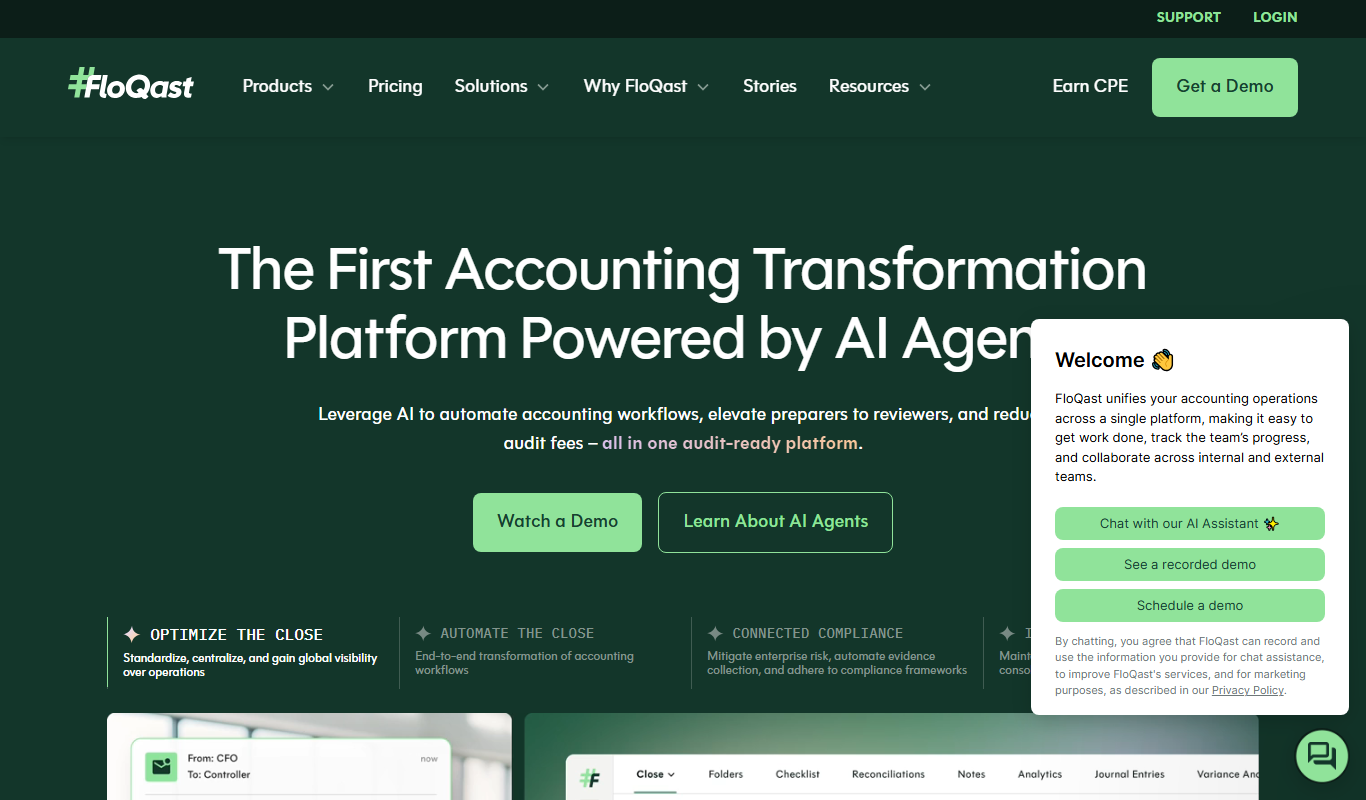
FloQast
FloQast is a cloud software designed to streamline and automate the accounting month-end close process, improving accuracy and collaboration for finance teams.

Custom Pricing
Talentsoft
Talentsoft is a cloud-based talent management software that integrates recruitment, learning, performance management, and succession planning to help organizations manage their workforce effectively.